Format Laptop to Remove Virus

Formatting your laptop is one of the most effective ways to remove a stubborn virus and restore your system to a clean, working state. This guide walks you through every step, from backing up your data to reinstalling Windows and protecting your laptop against future threats. Whether you are dealing with a mild infection or a completely compromised system, you will find clear, actionable instructions that make the process simple and safe.
Dealing with a virus on your laptop can feel overwhelming. Your computer might be running slow, showing strange pop-ups, or behaving in ways that scare you. The good news is that formatting your laptop can wipe out the infection and give you a fresh start. In this guide, we will walk you through the entire process in simple, easy-to-follow steps. You do not need to be a tech expert to get this done.
A virus can sneak onto your laptop through email attachments, risky downloads, or even innocent-looking websites. Once inside, it can steal your data, slow down your system, or damage important files. Formatting removes the virus by erasing everything on your hard drive and starting fresh. Think of it like wiping a whiteboard clean and writing on it again. It works, but you need to do it the right way.
Before you begin, understand that formatting erases all data on your laptop. This includes your files, apps, and settings. So preparation is key. In the sections below, we will cover everything you need to know, from backing up your files to keeping your laptop safe after the format.
Key Takeaways
- Back up your files first: Always save important data before formatting to avoid permanent loss.
- Two main methods exist: You can use Windows built-in reset tools or create a bootable USB for a deeper clean.
- Formatting wipes everything: This means all programs, settings, and files get removed, including the virus.
- Reinstalling Windows is essential: After formatting, you need a fresh operating system to use your laptop again.
- Protect your laptop going forward: Use antivirus software and safe browsing habits to prevent future infections.
- Know when to seek help: Some virus situations require professional assistance, especially if your data is encrypted.
📑 Table of Contents
- Why You Need to Format Your Laptop to Remove a Virus
- How to Prepare Before Formatting Your Laptop
- How to Format Your Laptop to Remove a Virus
- What to Do After Formatting Your Laptop
- How to Protect Your Laptop From Future Viruses
- When to Seek Professional Help
- Common Mistakes to Avoid When Formatting Your Laptop
- Expert Tips for a Smooth Formatting Experience
- Final Thoughts
Why You Need to Format Your Laptop to Remove a Virus
Sometimes a simple antivirus scan is not enough. Some viruses hide deep in your system files or even attach themselves to your operating system. When this happens, formatting becomes the best solution. It wipes the entire drive clean, removing the virus and all traces of it.
When a Virus Scan Is Not Enough
Antivirus tools can detect and remove many threats. But certain types of malware are designed to survive scans. Rootkits, for example, bury themselves in your system at a very deep level. Ransomware can lock your files and demand payment. In these cases, formatting your laptop is the most reliable way to fully eliminate the threat.
Signs Your Laptop Needs a Format
How do you know when formatting is necessary? Watch for these warning signs:
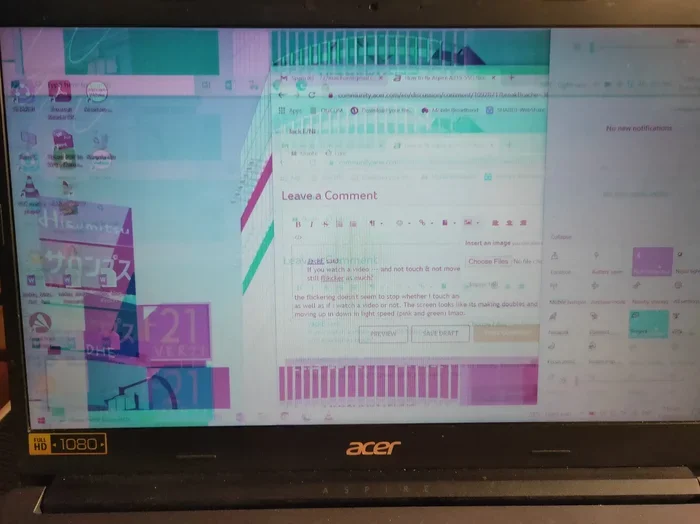
- Your laptop runs extremely slow, even after a virus scan.
- You see pop-ups or error messages that keep coming back.
- Programs open or close on their own without your input.
- Your homepage or search engine changes without you doing anything.
- Your files are missing or have strange names.
- Your antivirus software refuses to turn on or update.
If you notice several of these symptoms, a full format and reinstall is likely your best path forward.
How to Prepare Before Formatting Your Laptop
Preparation is the most important step in the entire process. Skip this part, and you risk losing valuable data. Take the time to do each of the following before you start formatting.
Step 1: Back Up Your Important Files
Before you format anything, save your important files to an external drive or cloud storage. This includes documents, photos, videos, and any other files you cannot afford to lose. Use a USB flash drive, an external hard drive, or a service like Google Drive or OneDrive. Just make sure the backup is complete before you proceed.
Here is a quick checklist for backing up:
- Copy personal files to an external drive.
- Save browser bookmarks and passwords.
- Note down your software license keys.
- Back up your email if needed.
- Store the backup in a safe, separate location.
After backing up, scan your backup drive for viruses. You do not want to transfer an infection back to your clean laptop after formatting.
Step 2: Gather Your Windows Installation Media
You will need a copy of Windows to reinstall after the format. You can create a bootable USB drive using the Media Creation Tool from Microsoft’s website. Simply download the tool, plug in a USB drive with at least 8GB of space, and follow the on-screen instructions.
Make sure you have your Windows product key handy. You can usually find this on a sticker on your laptop or in your Microsoft account.
Step 3: Check Your Laptop’s RAM and Storage
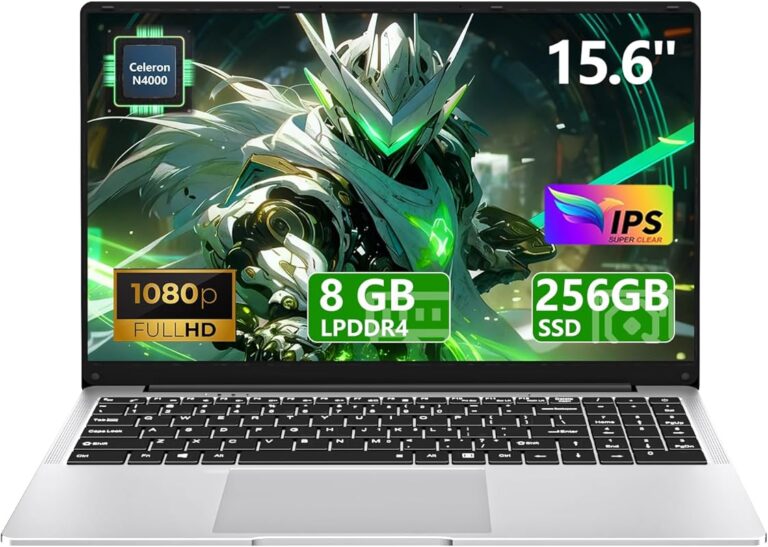
Before formatting, it helps to know what hardware your laptop has. If you plan to upgrade components after the format, check whether your laptop supports additional RAM or storage. For example, some laptops allow you to add up to 64GB of RAM or install a new M.2 NVMe SSD. Knowing your options ahead of time saves you from surprises later.
How to Format Your Laptop to Remove a Virus
Now comes the main event. There are two primary ways to format your laptop and remove a virus. The method you choose depends on how badly your laptop is infected and how comfortable you are with technology.
Method 1: Use Windows Reset This PC
This is the easiest method and works if your laptop still boots into Windows. Here is how to do it:
- Go to Settings and select System.
- Click on Recovery.
- Under Reset this PC, click Get Started.
- Choose Remove Everything to wipe all data.
- Select Cloud Download or Local Reinstall.
- Follow the on-screen prompts to complete the format.
This method removes the virus and reinstalls Windows at the same time. It is simple and works for most virus-infected laptops. However, deeply rooted malware might survive this process.
Method 2: Boot from a USB Drive and Format Manually
This method is more thorough and works even if your laptop will not boot normally. Here is what to do:
- Create a bootable Windows USB drive using the Media Creation Tool.
- Plug the USB drive into your infected laptop.
- Restart your laptop and press the boot menu key (usually F12, F2, or Esc).
- Select the USB drive as the boot device.
- When the Windows setup screen appears, choose Custom Install.
- Delete all existing partitions on your hard drive.
- Select the unallocated space and click Next.
- Let Windows install itself on the freshly formatted drive.
This method completely wipes your hard drive and gives you a brand-new system. It is the most effective way to remove stubborn viruses that survive the reset method.
Method 3: Use Safe Mode for a Cleaner Format
If your laptop can still boot but is heavily infected, try starting in Safe Mode first. Safe Mode loads only the essential Windows drivers and services. This prevents many viruses from running, making the format process smoother and safer.
To enter Safe Mode:
- Hold the Shift key and click Restart from the Start menu.
- Go to Troubleshoot, then Advanced Options.
- Select Startup Settings and click Restart.
- Press F4 to boot into Safe Mode.
Once in Safe Mode, you can use the reset method or boot from USB to format your laptop.
What to Do After Formatting Your Laptop
Formatting is only half the battle. After the format, you need to set up your laptop properly and protect it from future threats. Here is what to do next.
Reinstall Windows and Essential Drivers
After the format, Windows will guide you through the initial setup. Choose your language, connect to Wi-Fi, and sign in with your Microsoft account. Windows will automatically download most drivers, but you may need to visit your laptop manufacturer’s website for specific updates.
Install Antivirus Software
The first thing you should do after formatting is install a reputable antivirus program. Windows Defender comes built into Windows 10 and 11 and works well for most users. You can also choose a third-party antivirus if you prefer extra protection. The key is to have active protection running at all times.
Clean Up Junk Files
Even a freshly formatted laptop can accumulate junk files over time. Use Windows Disk Cleanup or a trusted cleanup tool to remove temporary files, cache, and other unnecessary data. You can also run the Disk Cleanup tool regularly to keep your laptop running fast and smooth.
For a deeper clean, consider removing junk files from your PC periodically. This helps maintain performance and frees up valuable storage space.
Restore Your Backed-Up Files
Now that your laptop is clean and protected, you can safely restore your backed-up files. Plug in your external drive or open your cloud storage and copy your files back. Make sure to scan any restored files with your antivirus software before opening them.
How to Protect Your Laptop From Future Viruses
Formatting your laptop fixes the current problem, but prevention keeps future problems away. Follow these simple habits to keep your laptop safe.
- Keep Windows updated: Install the latest Windows updates as soon as they are available. These updates patch security vulnerabilities that viruses exploit.
- Use antivirus software: Run a trusted antivirus program and keep it updated at all times.
- Be careful with email attachments: Do not open attachments from unknown senders. Even attachments from known contacts can be dangerous if their account is compromised.
- Avoid suspicious websites: Stick to trusted websites and avoid clicking on random pop-up ads.
- Do not download pirated software: Cracked software and illegal downloads are common sources of malware.
- Use a strong firewall: Keep your Windows Firewall turned on to block unauthorized access.
- Back up regularly: Make it a habit to back up your files weekly so you are always prepared.
By following these tips, you can greatly reduce the risk of getting a virus again. A little prevention goes a long way in keeping your laptop safe and running well.
When to Seek Professional Help
Most virus removals through formatting go smoothly. But some situations require professional help. If your laptop is infected with ransomware that has encrypted your files, formatting alone will not recover them. You may need a data recovery specialist. Similarly, if your laptop will not boot at all or the virus has damaged your motherboard or other hardware, a professional technician can help diagnose and fix the issue.
Do not hesitate to reach out to a trusted repair service if you feel unsure about any part of the process. It is always better to ask for help than to risk making things worse.
Common Mistakes to Avoid When Formatting Your Laptop
Even with the best intentions, people make mistakes during the formatting process. Here are some common errors to watch out for:
- Forgetting to back up files: This is the number one mistake. Always back up before you format.
- Formatting the wrong drive: Double-check that you are formatting your laptop drive, not an external USB drive.
- Skipping driver updates: After reinstalling Windows, outdated drivers can cause performance issues.
- Not scanning backup files: Restoring infected files after a format defeats the whole purpose.
- Using an outdated Windows version: Always install the latest version of Windows to benefit from the newest security features.
Avoiding these mistakes will save you time, frustration, and potential data loss.
Expert Tips for a Smooth Formatting Experience
Here are some expert insights to make your formatting process as smooth as possible:
- Disconnect from the internet during formatting: This prevents the virus from communicating with its server or spreading during the process.
- Have all your software license keys ready: You will need them to reinstall programs after the format.
- Format during a time when you do not need your laptop: The process can take one to three hours, so plan accordingly.
- Consider upgrading your storage: If your laptop still uses an old hard drive, replacing it with a new M.2 NVMe SSD can dramatically improve performance after the format.
- Create a system restore point after setup: Once everything is clean and working, create a restore point so you can quickly revert if problems arise in the future.
Final Thoughts
Formatting your laptop to remove a virus is a powerful and effective solution. It gives you a clean slate and eliminates even the most stubborn malware. By following the steps in this guide, you can confidently format your laptop, reinstall Windows, and get back to using your computer safely. Remember to back up your files first, choose the right formatting method, and protect your laptop going forward with good security habits.
Whether you use the Windows Reset tool or boot from a USB drive, the key is to act quickly and follow each step carefully. A virus does not have to be the end of your laptop. With the right approach, you can wipe it clean and start fresh in no time.
Frequently Asked Questions
Will formatting my laptop remove all viruses?
Yes, formatting wipes your entire hard drive, which removes all viruses, malware, and other threats. However, make sure you also scan any backup files before restoring them to your clean laptop.
How long does it take to format a laptop?
The formatting process usually takes between one and three hours, depending on your laptop’s speed and the size of your hard drive. The Windows reinstallation adds additional time.
Do I need a product key to format and reinstall Windows?
Yes, you need a Windows product key to activate your installation after formatting. You can find this on a sticker on your laptop or by checking your Microsoft account online.
Can I use my laptop while it is being formatted?
No, you should not use your laptop during the formatting process. Interrupting the format can corrupt the installation and cause further problems.
What is the difference between a quick format and a full format?
A quick format deletes the file system and makes the drive appear empty, but it does not overwrite the data. A full format scans the entire drive for bad sectors and overwrites data, making it more thorough for removing viruses.
Should I format my laptop if I suspect a virus?
If your antivirus scan does not fix the problem or if your laptop shows multiple signs of infection, formatting is the safest option. It guarantees that the virus is completely removed from your system.