Hp Laptop Not Detecting Battery
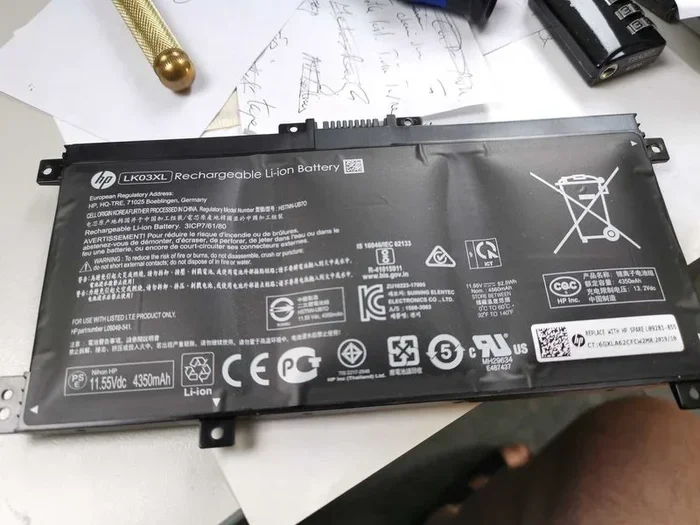
An hp laptop not detecting battery can be frustrating, but it is usually fixable with simple steps. This guide covers the most common causes, from loose connections to outdated drivers, and gives you clear solutions to try at home. You will learn how to check your battery health, update drivers, and know when it is time for a replacement.
Have you ever pressed the power button on your hp laptop only to see a blank screen or a warning message about the battery? It is a scary moment. Your laptop feels fine one minute, and then it just will not turn on or tells you the battery is not detected. This is a common problem that many HP laptop users face at some point.
The good news is that you do not need to be a tech expert to fix it. Most of the time, the issue comes down to a loose connection, a driver problem, or a simple setting that got changed by accident. In this article, we will walk you through every possible reason your hp laptop not detecting battery and give you clear, step-by-step solutions. We will also cover when it is time to replace the battery and how to prevent this problem from happening again.
Whether you use your HP laptop for work, school, or entertainment, a working battery is essential. You need it to keep going when you are away from a wall outlet. Let us dive in and get your laptop powered up again.
Key Takeaways
- Loose battery connection is the most common reason an hp laptop not detecting battery issue occurs.
- Updating or reinstalling battery drivers through Device Manager often resolves detection problems quickly.
- Running the HP Battery Report gives you detailed health information about your laptop battery.
- BIOS settings and firmware updates can also affect how your laptop recognizes the battery.
- Physical damage or aging may require a battery replacement rather than a software fix.
- Resetting the power management system is a simple first step that works in many cases.
📑 Table of Contents
Why Is Your Hp Laptop Not Detecting Battery?
Before you start fixing anything, it helps to understand what might be causing the problem. Several things can make your hp laptop not detecting battery, and they range from very simple to slightly more technical. Here are the most common reasons.
Loose or Dirty Battery Connection
The battery connector can become loose over time, especially if you often remove the battery or carry your laptop around a lot. Dust and dirt can also build up on the connector pins, which prevents a good connection. When the laptop cannot make proper contact with the battery, it simply will not detect it.
This is actually one of the easiest fixes. Often, just reseating the battery or cleaning the connector pins with a dry cloth solves the problem right away.
Outdated or Corrupted Battery Drivers
Your laptop uses special drivers to communicate with the battery. These drivers tell the system how much charge is left and whether the battery is healthy. If a driver becomes outdated or corrupted, your laptop might stop recognizing the battery completely.
You might also run into this issue after a Windows update. Sometimes updates change the way drivers work, and the battery driver needs to be reinstalled or updated to match.
BIOS or Firmware Issues
The BIOS is the basic software that runs your laptop before Windows even starts. It controls how hardware components, including the battery, are recognized. If your BIOS is outdated or a setting got changed, your hp laptop not detecting battery problem could be the result.
HP regularly releases BIOS updates that fix known bugs. Keeping your BIOS up to date is one of the best things you can do for overall laptop health.
Physical Battery Damage or Wear
Batteries do not last forever. Over time, they wear out and lose their ability to hold a charge. In some cases, the battery may swell or become physically damaged. When this happens, the laptop simply cannot detect it anymore. This is especially common in laptops that are three to five years old or older.
If you notice your laptop getting very hot or the battery looks swollen, stop using it right away. A swollen battery can be dangerous and needs to be replaced immediately.
Common Symptoms of Battery Detection Problems
Not sure if your laptop has a battery detection issue? Here are the most common signs to watch for:
- Battery icon missing from the taskbar or system tray.
- Warning messages like “Battery not detected” or “Plug in your battery.”
- Laptop only works when plugged in and shuts off immediately when unplugged.
- Battery percentage stuck at 0% or 100% and not changing.
- Battery light blinking in an unusual pattern on the laptop.
- Laptop will not turn on at all, even with the charger connected.
If you notice any of these symptoms, do not panic. Each one of them can be traced back to a specific cause, and most are easy to fix. The key is to work through the solutions in order, starting with the simplest ones.
Step-by-Step Fixes for Hp Laptop Not Detecting Battery
Now let us get into the actual fixes. Work through these steps one by one. In most cases, one of the first few steps will solve the problem for you.
Step 1: Remove and Reseat the Battery
Start by turning off your laptop and unplugging the charger. If your HP laptop has a removable battery, carefully take it out. Look at the battery connector and the laptop connector for any dirt, dust, or debris. Use a dry, soft cloth to gently clean both sides.
Wait about 30 seconds, then place the battery back in firmly. Make sure it clicks into place. Plug in the charger and try turning on your laptop. This simple step fixes the problem more often than you might think.
Step 2: Run a Power Reset
A power reset clears any static charge that might be causing the battery detection issue. Here is how to do it:
- Turn off your laptop and unplug the charger.
- If the battery is removable, take it out.
- Press and hold the power button for 15 seconds.
- Release the button, put the battery back in, and plug in the charger.
- Press the power button to turn on the laptop.
This resets the power management system and often fixes temporary glitches that cause your hp laptop not detecting battery problem.
Step 3: Update the Battery Driver
If reseating the battery and doing a power reset did not work, the next step is to update the battery driver. Here is how:
- Right-click the Start button and select Device Manager.
- Expand the Batteries section.
- Right-click on the Microsoft ACPI-Compliant Control Method Battery.
- Select Update Driver and choose Search Automatically.
- Follow the on-screen instructions to complete the update.
If updating does not work, try uninstalling the driver instead. Restart your laptop, and Windows will automatically reinstall a fresh driver. This often fixes issues caused by corrupted driver files.
For other HP laptop hardware problems, you might also want to check our guide on hp laptop keyboard not working but mouse is if you run into related issues.
Step 4: Check the AC Adapter and Charger
Sometimes the problem is not the battery at all. A faulty AC adapter can prevent your laptop from charging or recognizing the battery. Try using a different charger if you have one available. Also, check the charger cable for any visible damage like fraying or bent pins.
You can also try plugging the charger into a different wall outlet. A loose outlet or a tripped surge protector can sometimes mimic battery detection problems.
Step 5: Update Your BIOS
An outdated BIOS can cause all sorts of hardware detection issues, including battery problems. Here is how to check for a BIOS update on your HP laptop:
- Go to the HP Support website.
- Enter your laptop model number.
- Navigate to the Drivers and Software section.
- Look for a BIOS update and download it.
- Run the installer and follow the prompts.
Important: Do not turn off your laptop during a BIOS update. This can cause serious problems. Make sure your laptop is plugged in and the battery is charged before you start.
Step 6: Generate an HP Battery Report
Windows has a built-in tool that creates a detailed battery health report. This report tells you the capacity, charge cycles, and overall health of your battery. Here is how to use it:
- Open the Command Prompt as Administrator.
- Type
powercfg /batteryreportand press Enter. - The report will be saved as an HTML file. Open it in your browser.
The report will show you whether your battery is healthy or if it has degraded to the point where replacement is needed. This is a great diagnostic tool when your hp laptop not detecting battery issue persists.
When Should You Replace the Battery?
Not every battery problem can be fixed with software or simple steps. If you have tried all the fixes above and your laptop still does not detect the battery, it might be time for a replacement. Here are some clear signs that a new battery is needed:
- The battery is swollen or the laptop case is bulging. This is a safety hazard.
- The battery health in the report shows less than 50% of its original capacity.
- Your laptop only lasts less than 30 minutes on a full charge.
- The battery is physically damaged, such as dents or cracks.
- None of the software fixes work, and the laptop still does not detect the battery.
When buying a replacement battery, always choose an HP-certified battery. Third-party batteries can be cheaper, but they may not fit properly or could pose safety risks. Check the model number on your laptop and order the exact matching battery.
For more HP laptop troubleshooting tips, you can also explore our article on touchpad mouse not working on hp laptop if you are experiencing other hardware issues.
How to Prevent Battery Detection Issues in the Future
Prevention is always better than cure. Here are some simple habits that can help you avoid the hp laptop not detecting battery problem in the future:
- Keep your battery connectors clean. Dust buildup is one of the top causes of connection issues. Clean the contacts every few months.
- Avoid extreme temperatures. Heat and cold are bad for batteries. Do not leave your laptop in a hot car or in freezing conditions.
- Keep your drivers and BIOS updated. Regular updates fix bugs and improve compatibility with hardware components.
- Do not always keep your laptop plugged in. Let the battery discharge to about 20% and then recharge it. This helps maintain battery health.
- Use the correct charger. Always use the charger that came with your laptop or an HP-certified replacement.
These small habits can add years of life to your HP laptop battery and save you from the hassle of dealing with detection problems.
Related Hp Laptop Hardware Issues
Battery issues sometimes come with other hardware problems. For example, if your touchpad or mouse is also not working, there may be a broader hardware or driver issue at play. Check out our guide on mouse not working on laptop hp for help with that. Similarly, if you are dealing with other power-related problems, understanding your hp laptop power management settings can make a big difference.
Some users also ask about upgrading RAM alongside fixing battery issues. If your HP laptop is running slowly in addition to having battery problems, a ram upgrade for laptop hp might give it a new lease on life. More memory can help your laptop run smoother overall, even if the battery is old.
Remember, most hardware issues on HP laptops are fixable with a little patience and the right guidance. Do not rush to replace parts unless you have confirmed they are actually the problem.
Final Thoughts
Dealing with an hp laptop not detecting battery can feel overwhelming, but as you have seen, most causes are simple and fixable. Start with the basic steps like reseating the battery, doing a power reset, and updating drivers. If those do not work, move on to BIOS updates and battery health reports. Only consider a battery replacement if all else fails and the diagnostics clearly show the battery is worn out.
The key is to not ignore the problem. A battery that is not detected can sometimes be a sign of a bigger issue, and catching it early can save you time and money. We hope this guide has given you the confidence to tackle the problem on your own.
Take a few minutes today to check your battery health and try the fixes above. Your hp laptop will thank you for it, and you will be back to working or playing without worrying about losing power every few minutes.
Frequently Asked Questions
Why does my HP laptop say battery not detected even when it is plugged in?
This usually happens because the battery connector is loose, the battery driver is corrupted, or the BIOS needs updating. Try reseating the battery first, then move on to driver updates and BIOS checks. In most cases, one of these steps will fix the issue.
Can a dead battery cause my HP laptop not to detect the battery?
Yes, a completely dead or deeply discharged battery may not be detected by the laptop. Try charging it for at least 30 minutes with the laptop turned off, then attempt to turn it on. If it still is not detected, the battery may need to be replaced.
How do I know if my HP laptop battery needs to be replaced?
Run the HP Battery Report using the powercfg command in Command Prompt. If the report shows the battery capacity is below 50% of its original design, or if the battery is physically swollen, it is time for a replacement.
Is it safe to use my HP laptop with the battery removed?
Yes, it is generally safe to use your laptop with the battery removed as long as it is plugged into the charger. The laptop will run directly on power from the AC adapter. However, you will not have any backup power if the outlet goes down.
What should I do if my HP laptop battery is swollen?
A swollen battery is a serious safety risk. Stop using the laptop immediately, disconnect the charger, and do not attempt to puncture or remove the battery yourself. Take the laptop to an authorized HP service center for safe battery removal and replacement.
Can Windows updates cause the HP laptop not detecting battery problem?
Yes, sometimes Windows updates can interfere with battery drivers or BIOS settings, leading to detection issues. If you noticed the problem after an update, try rolling back the update or reinstalling the battery driver through Device Manager.