Cursor Disappeared on Acer Laptop
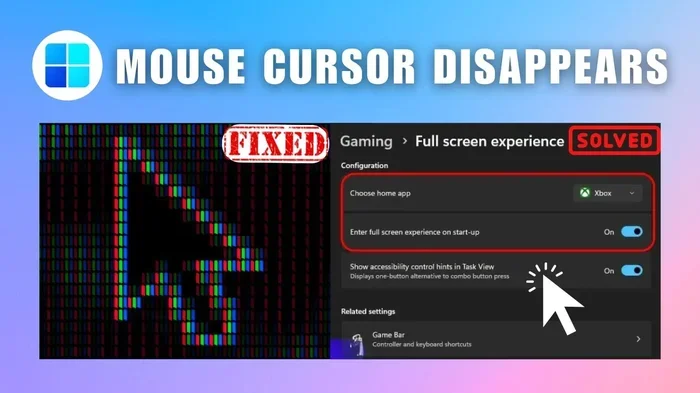
A disappearing cursor on an Acer laptop is frustrating but usually fixable with a few simple steps. Whether your cursor disappeared on Acer laptop due to a driver glitch, touchpad issue, or Windows setting, this guide walks you through every solution. You will learn the most common causes, quick fixes, and long-term prevention tips to keep your Acer laptop cursor working smoothly.
There is nothing more annoying than sitting down to work on your Acer laptop, only to find that the cursor has vanished. You move the mouse or glide your finger across the touchpad, but nothing happens on screen. A cursor disappeared on Acer laptop situation can throw off your entire day, whether you are working on an important project or just browsing the web.
The good news is that this problem is incredibly common and almost always fixable. Most causes are simple, and you do not need to be a tech expert to solve them. In this guide, we will walk you through every possible reason your cursor disappeared and give you clear, step-by-step fixes. By the end, you will know exactly what to do and how to stop it from happening again.
Key Takeaways
- Driver issues are the #1 cause: Outdated or corrupted mouse drivers often make the cursor vanish on Acer laptops.
- Quick shortcuts work fast: Function key combos and Windows keyboard shortcuts can restore your cursor in seconds.
- Touchpad settings matter: Accidental touchpad disable is a common culprit behind a missing cursor.
- Windows updates help: Keeping your system updated prevents many cursor-related problems.
- External mice can reveal the issue: Plugging in a USB mouse helps diagnose whether the problem is hardware or software.
- Safe Mode is a powerful tool: Booting into Safe Mode can confirm if a driver conflict is causing the cursor to disappear.
📑 Table of Contents
Why Does the Cursor Disappear on an Acer Laptop?
A cursor disappeared on Acer laptop problem can stem from many different sources. Understanding the root cause is the first step toward a permanent fix. Below are the most common reasons this happens, broken down in plain language.
Driver Conflicts and Outdated Software
Your laptop relies on drivers to communicate between hardware and software. When the mouse or touchpad driver becomes outdated, corrupted, or conflicts with a recent update, the cursor can simply stop appearing. This is the single most common reason people experience a cursor disappeared on Acer laptop issue. Windows updates sometimes overwrite existing drivers, causing compatibility problems that lead to a missing cursor.
Accidental Touchpad Disable
Many Acer laptops have a feature that lets you disable the touchpad with a keyboard shortcut. You might have accidentally pressed the right combination, turning off your touchpad without realizing it. This is especially common on models where the touchpad toggle is mapped to a function key near the top of the keyboard.
Windows Display or Settings Glitch
Sometimes the cursor is still there, but it has become invisible due to a display setting or Windows glitch. A wrong pointer scheme, an incorrect screen resolution, or a corrupted user profile can all make it seem like the cursor has disappeared when it is actually still active behind the scenes.
Hardware Problems
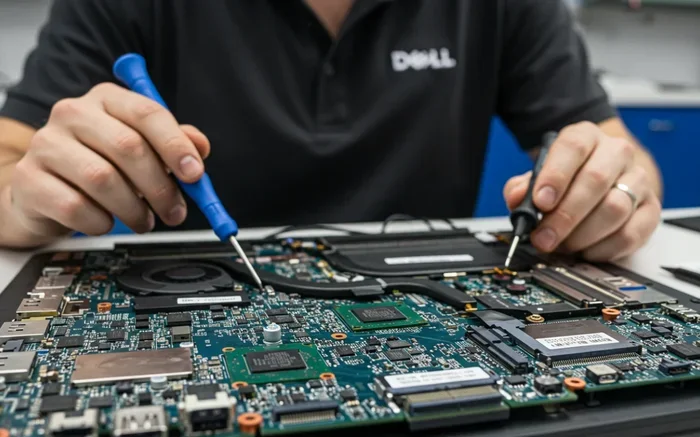
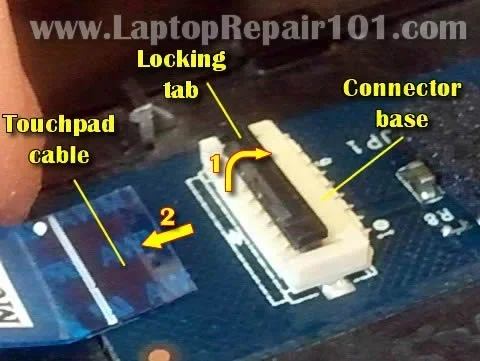
In rare cases, the issue is physical. A damaged touchpad ribbon cable, a loose internal connection, or a faulty touchpad sensor can cause the cursor to vanish. If you recently dropped your laptop or opened the back panel, a hardware issue might be to blame.
Common Reasons Your Cursor Faded Away
Before jumping into fixes, let us take a closer look at the specific scenarios that lead to a cursor disappeared on Acer laptop problem. Recognizing your situation can help you pick the right solution faster.
- After a Windows update: System updates sometimes reset or corrupt mouse drivers, causing the pointer to vanish on restart.
- After installing new software: Certain applications can conflict with touchpad drivers, especially utilities that modify system settings.
- After closing the laptop lid: Waking from sleep mode can trigger driver errors that temporarily hide the cursor.
- After a battery drain: A completely drained battery followed by a recharge can sometimes cause pointer settings to reset incorrectly.
- After connecting an external monitor: Display changes can shift the cursor off-screen or make it invisible against certain backgrounds.
If your mouse stopped working on Acer laptop after any of these events, you are not alone. These scenarios are well-documented and have straightforward solutions that we will cover next.
Step-by-Step Fixes for a Missing Cursor
Here is where things get practical. We will walk through each fix in order, starting with the quickest and easiest solutions. Try them one by one until your cursor comes back.
Fix 1: Use the Keyboard Shortcut to Re-enable the Touchpad
Most Acer laptops use a function key combination to toggle the touchpad on and off. Look at the top row of your keyboard for an icon that looks like a touchpad with a line through it. Press and hold the Fn key (usually near the bottom left) and press that function key. This simple step resolves the issue for many users who accidentally disabled their touchpad.
If your cursor is still missing after this, move on to the next fix.
Fix 2: Restart Your Laptop in Safe Mode
Safe Mode loads only the essential drivers and software. If your cursor appears in Safe Mode, you know the problem is a software conflict or a corrupted driver. To enter Safe Mode on Windows 10 or 11, hold the Shift key while clicking Restart, then navigate to Troubleshoot > Advanced Options > Startup Settings > Restart.
Once in Safe Mode, you can uninstall recent updates or roll back your mouse driver safely without interference from third-party software.
Fix 3: Update or Reinstall the Mouse Driver
Outdated drivers are a leading cause of a cursor disappeared on Acer laptop problem. Here is how to fix it:
- Right-click the Start button and select Device Manager.
- Expand the Mice and other pointing devices section.
- Right-click your touchpad or mouse device and select Update driver.
- Choose Search automatically for drivers.
- If that does not work, select Uninstall device, restart your laptop, and Windows will reinstall the driver automatically.
For users who also deal with broader mouse not working on Acer laptop problems, updating the chipset driver through Acer’s support website can help resolve deeper conflicts.
Fix 4: Check Your Windows Pointer Settings
Sometimes the cursor is still there but invisible because of a misconfigured pointer scheme. To check this:
- Go to Settings > Bluetooth & Devices > Mouse > Additional mouse options.
- Click the Pointers tab.
- Select Windows Default from the Scheme dropdown.
- Click Apply and then OK.
This resets your pointer appearance and often brings back a cursor that had simply become invisible due to a wrong color or size setting.
Fix 5: Plug in an External USB Mouse
This is a great diagnostic step. If you plug in a USB mouse and the cursor appears, you know the touchpad itself is the problem, not the operating system. Conversely, if the external mouse also fails to show a cursor, the issue is likely software-based.
For users experiencing a mouse on Acer laptop not working situation with both internal and external devices, a deeper system-level fix is needed, such as a System File Check or a clean Windows update.
Fix 6: Run the Windows Troubleshooter
Windows has a built-in troubleshooter for mouse and pointer issues. To access it:
- Go to Settings > System > Troubleshoot > Other troubleshooters.
- Find Mouse and Hardware Troubleshooter and click Run.
- Follow the on-screen prompts and apply any recommended fixes.
This tool can automatically detect and repair common cursor-related problems without any manual intervention.
When to Seek Professional Help
Most cursor issues resolve with the fixes above. However, there are times when professional help is the right call. If you have tried every solution and the cursor still does not appear, the problem may be hardware-related.
Signs that you need expert assistance include:
- The touchpad is physically unresponsive even after driver reinstalls.
- You hear clicking or grinding sounds from the touchpad area.
- The cursor works on an external mouse but the touchpad itself shows no response at all.
- Your laptop was recently liquid-damaged or dropped hard.
In these cases, the touchpad ribbon cable or the touchpad sensor itself may need replacement. Acer authorized service centers can diagnose and repair these issues quickly. Do not attempt to open your laptop yourself unless you have experience with internal hardware, as this can void your warranty.
For broader mouse on laptop not working Acer issues that persist across multiple fixes, visiting a technician ensures you do not accidentally cause further damage while troubleshooting.
Preventing Cursor Issues on Your Acer Laptop
Prevention is always better than cure. Once you have your cursor back, these habits will help keep it from disappearing again.
Keep Your Drivers Updated
Set a monthly reminder to check for driver updates through Acer Care Center or Windows Update. Fresh drivers prevent the conflicts that cause cursors to vanish.
Avoid Suspicious Software
Free system optimizers and touchpad utilities can sometimes interfere with your pointer settings. Stick to trusted software and read reviews before installing anything new.
Handle Your Laptop Gently
Physical damage to the touchpad is a real cause of cursor problems. Avoid pressing too hard on the touchpad, keep liquids away from the keyboard area, and use a protective case when traveling.
Maintain Regular System Maintenance
Run disk cleanup and Windows Update regularly. A well-maintained system is far less likely to develop the driver conflicts and glitches that lead to a missing cursor.
Final Thoughts
A cursor disappeared on Acer laptop situation is almost always temporary and fixable. Whether it was an accidental touchpad disable, a driver conflict, or a simple Windows glitch, the solutions in this guide cover the most likely scenarios. Start with the quick fixes and work your way down to the more advanced steps if needed.
Remember that a cursor disappeared on Acer laptop does not mean your laptop is broken. It usually means a small setting or driver needs attention. With patience and the right approach, you will have your cursor back in no time. Share this guide with anyone you know who is dealing with the same frustrating problem, and bookmark it for future reference.
Frequently Asked Questions
Why did my cursor suddenly disappear on my Acer laptop?
The most common reason is an accidental touchpad disable or an outdated mouse driver. A recent Windows update or a software conflict can also cause the cursor to vanish suddenly. Try the function key shortcut first, then move to driver updates if that does not work.
How do I get my cursor back on my Acer laptop?
Start by pressing the Fn key plus the touchpad toggle function key on the top row of your keyboard. If that does not work, restart in Safe Mode and update your mouse driver through Device Manager. Most users find their cursor returns after one of these two steps.
Is a disappeared cursor on an Acer laptop a hardware problem?
Usually not. In the vast majority of cases, a missing cursor is caused by software issues like driver conflicts or accidental settings changes. Hardware problems are rare and usually follow physical damage or liquid exposure to the laptop.
Can a Windows update cause the cursor to disappear on an Acer laptop?
Yes. Windows updates can sometimes overwrite or corrupt mouse and touchpad drivers, leading to a missing cursor. If your cursor disappeared right after an update, rolling back the driver or running the Windows troubleshooter usually fixes the problem.
What should I do if the cursor disappears when I connect an external monitor?
This is often a display resolution issue. Go to Settings > System > Display and make sure your resolution is set to the recommended value. You can also try disconnecting the external monitor, restarting the laptop, and reconnecting it to reset the display configuration.
How can I prevent the cursor from disappearing on my Acer laptop again?
Keep your drivers updated monthly, avoid installing untrusted system utilities, and handle your laptop gently to prevent physical touchpad damage. Regular system maintenance through Windows Update and disk cleanup also goes a long way in preventing cursor issues.
===
=== INTERNAL LINKS USED (4 total) ===
1. mouse stopped working on Acer laptop
2. mouse on Acer laptop not working
3. Acer mouse not working on laptop
4. mouse not working on Acer laptop