How to Fix Geforce Experience Preparing to Install Error
The Geforce Experience preparing to install error is a common annoyance that stops you from updating or installing NVIDIA drivers and software. This error can happen for several reasons, including leftover files, Windows update conflicts, or corrupted downloads. In this guide, you will learn simple fixes that work for most users, from clearing cache folders to performing a clean driver reinstall. By the end, you will know exactly what to do to get GeForce Experience running smoothly again.
The Geforce Experience preparing to install error can bring your entire workflow to a halt. Whether you are trying to update your GPU drivers or install the NVIDIA software suite for the first time, seeing this error message is frustrating. You are not alone. Thousands of users run into this problem every month, and most of them fix it without needing advanced technical skills.
This error typically appears when the GeForce Experience installer gets stuck during its preparation phase. The installer tries to set up files, check system compatibility, and prepare the environment for the actual installation. When something goes wrong in this process, the error pops up and halts everything. The good news is that the fix is usually straightforward.
In this article, we will walk you through every solution that actually works. We will start with the simplest fixes and move toward more advanced troubleshooting steps. Each method is explained in plain language so you can follow along easily. Let us get your GeForce Experience back on track.
Key Takeaways
- Clear the NVIDIA cache and temporary files: This is the most common fix and solves the problem for many users.
- Run GeForce Experience as Administrator: Permission issues often cause the preparing to install error to appear.
- Perform a clean driver uninstall: Removing old driver traces prevents conflicts during a fresh install.
- Check Windows Update and system compatibility: Outdated Windows versions can block driver installation.
- Disable antivirus software temporarily: Security tools sometimes interfere with the NVIDIA installer.
- Download the installer again: A corrupted download file is a frequent but overlooked cause.
📑 Table of Contents
What Causes the Geforce Experience Preparing to Install Error?
Understanding the root cause helps you pick the right fix. The preparing to install error in GeForce Experience is not random. It happens because something in your system is blocking the installer from doing its job. Here are the most common reasons this error appears.
Corrupted Installer Files
Sometimes the download itself is incomplete or damaged. If the installer file did not download fully, it will fail during the preparation phase. This is more common on slower internet connections or when downloads get interrupted. A corrupted installer is one of the easiest problems to fix, but it is also one of the most overlooked.
Leftover NVIDIA Files from Previous Installations
When you update or reinstall GeForce Experience, old files from previous versions can linger on your system. These leftover files create conflicts with the new installer. The NVIDIA installer tries to write new files but encounters old ones that block the process. This is especially common if you have uninstalled GeForce Experience without using the proper removal method.
Windows Update Conflicts
Windows updates can sometimes change system files or driver frameworks that GeForce Experience depends on. After a major Windows update, the installer may no longer recognize certain system components. This creates a compatibility gap that triggers the preparing to install error. Keeping your Windows system up to date helps, but sometimes new updates introduce unexpected problems.
Permission and Access Issues
The GeForce Experience installer needs specific permissions to write files to your system drive and program folders. If your user account does not have the right permissions, the installer will stall during preparation. Running the installer with elevated privileges often resolves this issue quickly.
Antivirus or Security Software Interference
Your antivirus program may flag NVIDIA installer files as suspicious and block them. This is a false positive in most cases, but the result is the same. The installer cannot access the files it needs, and the error appears. Temporarily disabling your security software during installation is a safe and effective workaround.
How to Fix the Geforce Experience Preparing to Install Error
Now that you understand the causes, let us dive into the solutions. Follow these steps in order. Most users find success with the first few methods, so you may not need to try everything.
Method 1: Clear the NVIDIA Cache and Temporary Files
This is the number one fix that works for most users. The NVIDIA installer stores temporary cache files that can become corrupted. Clearing them forces the installer to start fresh.
Here is what you need to do:
- Close GeForce Experience completely from the system tray.
- Press Windows Key + R to open the Run dialog.
- Type %localappdata%\NVIDIA\DXSetup and press Enter.
- Delete all files and folders inside this directory.
- Repeat the process for %temp% to clear general temporary files.
- Restart your computer and try the installation again.
After clearing the cache, download the GeForce Experience installer fresh from the NVIDIA website. Do not resume a previous download. A clean download combined with a clean cache folder solves this error in the majority of cases.
Method 2: Run GeForce Experience as Administrator
Permission issues are a sneaky cause of the preparing to install error. Running the installer with administrator rights gives it the access it needs to write system files.
Right-click the GeForce Experience installer file and select Run as administrator. If you are launching the app from your desktop, right-click the shortcut and choose the same option. You should see a User Account Control prompt asking for permission. Click Yes and let the installer proceed.
This simple step fixes the error for many users who never realized it was a permissions problem. Always try this method before moving on to more complex solutions.
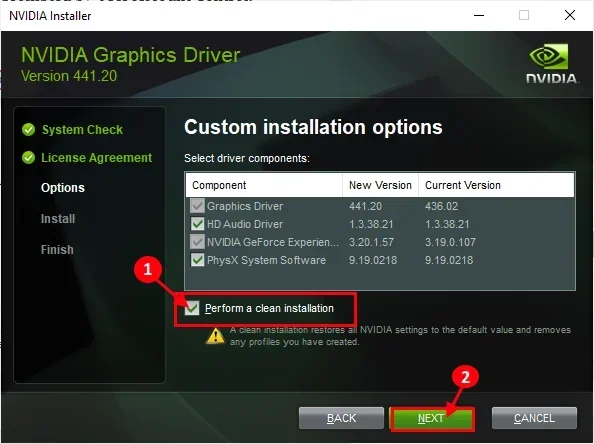
Method 3: Perform a Clean Driver Uninstall
If old driver files are causing conflicts, a clean uninstall is your best bet. This removes all traces of the previous NVIDIA installation, including files that standard uninstallation leaves behind.
Follow these steps for a thorough clean removal:
- Download DDU (Display Driver Uninstaller) from the official website.
- Boot your computer into Safe Mode.
- Run DDU and select Clean and restart for NVIDIA devices.
- Once your PC restarts, download the latest GeForce Experience installer.
- Run the installer and let it complete the process.
DDU is a trusted tool used by millions of users and technicians. It thoroughly cleans the system of old driver files, registry entries, and leftover folders. After using DDU, your system is in a clean state ready for a fresh installation. This method is especially effective if you have been struggling with the error for a long time.
Before you reinstall, you might also want to check your system performance. If your computer has been running slow or freezing after driver issues, you can find helpful troubleshooting tips in our guide on how to fix computer running slow and freezing.
Method 4: Temporarily Disable Antivirus Software
As mentioned earlier, your antivirus may be blocking the NVIDIA installer. Temporarily disabling it during the installation process is safe and often solves the problem.
Here is how to do it:
- Open your antivirus software settings.
- Find the real-time protection or active scanning option.
- Toggle it off temporarily.
- Run the GeForce Experience installer.
- Re-enable your antivirus immediately after installation completes.
Make sure you re-enable your antivirus right away. Leaving it disabled leaves your system vulnerable. If disabling antivirus fixes the error, add GeForce Experience and the NVIDIA installer folder to your antivirus exclusion list. This prevents future conflicts without compromising your security.
Method 5: Check for Windows Updates and System Compatibility
Sometimes the error happens because your Windows version is missing important updates. NVIDIA drivers depend on specific system components that updates provide.
Go to Settings > Update & Security > Windows Update and click Check for updates. Install any pending updates and restart your computer. After the restart, try installing GeForce Experience again.
Also, check that your system meets the minimum requirements for the latest GeForce Experience version. You need a supported NVIDIA GPU, enough storage space, and a compatible version of Windows. If your system is older, you may need to install an older version of GeForce Experience that matches your hardware.
Common Mistakes That Make This Error Worse
Some things users do accidentally make the GeForce Experience preparing to install error harder to fix. Avoid these common mistakes to save yourself time and frustration.
Skipping the Clean Cache Step
Many users jump straight to downloading a new installer without clearing the old cache. This means the new installer still encounters the same corrupted files. Always clear the NVIDIA cache folder before retrying any installation. It takes less than two minutes and prevents a lot of wasted effort.
Using Third-Party Driver Updaters
Third-party driver update tools often install incorrect or outdated drivers. They can also modify system files in ways that conflict with GeForce Experience. Always download drivers directly from the NVIDIA website. This ensures you get the correct, latest version that is compatible with your hardware.
Ignoring Error Codes
If the error message includes a code or number, do not ignore it. Error codes give you specific clues about what went wrong. Search for the exact error code along with GeForce Experience to find targeted solutions. A generic search may not reveal the specific fix you need.
Forcing Installation by Skipping Steps
Some users try to force the installation by clicking through error prompts or canceling warning messages. This can leave your system in an unstable state. Always let the installer complete its process naturally or start over with a clean slate using one of the methods above.
Preventing Future GeForce Experience Installation Errors
Once you have fixed the error, you want to make sure it does not come back. Prevention is always better than troubleshooting. Here are simple habits that keep your GeForce Experience installation smooth.
- Keep your Windows system updated. Regular updates patch compatibility issues before they become problems.
- Download installers only from the official NVIDIA website. Avoid third-party download sites that may host modified or corrupted files.
- Clear the NVIDIA cache after every major update. This prevents old files from building up and causing conflicts.
- Add NVIDIA folders to your antivirus exclusion list. This stops security software from interfering with future installations.
- Restart your computer before major installations. A fresh restart clears temporary system states that could cause issues.
If you are also managing other PC components, proper setup matters. For example, if you are adding storage to improve your system performance, check out our guide on how to install an NVMe SSD to get the most out of your hardware.
When Should You Contact NVIDIA Support?
Most users fix the preparing to install error using the methods above. However, some situations require professional help. Contact NVIDIA support if you experience the error repeatedly after trying all the solutions in this guide.
Also reach out to support if the error is accompanied by system crashes, blue screens, or hardware detection failures. These symptoms may indicate a deeper hardware or system issue that goes beyond GeForce Experience. NVIDIA support can run advanced diagnostics and provide tailored solutions for your specific setup.
Before contacting support, gather the following information to speed up the process:
- Your GPU model and driver version.
- The exact error message and any error codes.
- Your Windows version and build number.
- The steps you have already tried.
Having this information ready saves time and helps the support team diagnose your issue faster. Most NVIDIA support channels include live chat, email, and community forums where you can get help.
Final Thoughts
The Geforce Experience preparing to install error is annoying but fixable. Most of the time, clearing the cache, running the installer as administrator, or performing a clean driver uninstall solves the problem. You do not need to be a tech expert to follow these steps. Each method is simple and takes only a few minutes.
Start with the easiest fix and work your way down the list. In most cases, you will be up and running within ten minutes. The key is patience and following each step carefully. Do not skip steps or rush through the process. A methodical approach gets results.
Keep your system updated, download from official sources, and maintain good installation habits. These practices prevent most installation errors from happening in the first place. Your GeForce Experience should work seamlessly, and now you have the knowledge to fix it when it does not.
Frequently Asked Questions
Why does GeForce Experience keep saying preparing to install?
This message usually appears when the installer encounters a conflict during its setup phase. Common causes include corrupted cache files, permission issues, or leftover driver files from previous installations. Clearing the NVIDIA cache folder and running the installer as administrator fixes this in most cases.
How long should the preparing to install phase take?
The preparation phase typically takes one to three minutes. If it hangs for longer than five minutes, something is wrong. Stop the installer, clear the cache, and try again. A stuck preparation phase often indicates a corrupted download or a conflicting file on your system.
Can outdated Windows versions cause this error?
Yes, outdated or incompatible Windows versions can block the GeForce Experience installer. NVIDIA drivers depend on specific system components that Windows updates provide. Always check for and install the latest Windows updates before attempting to install or update GeForce Experience.
Is it safe to use DDU to remove NVIDIA drivers?
Yes, DDU (Display Driver Uninstaller) is a widely trusted and safe tool. It thoroughly removes all NVIDIA driver files, registry entries, and folders without harming your system. Always download DDU from the official website and follow the instructions carefully for the best results.
What should I do if the error persists after trying all fixes?
If none of the fixes work, try downloading the installer on a different computer and transferring it via USB. This rules out a corrupted download on your machine. If the error still persists, contact NVIDIA support with your system details and error codes for advanced troubleshooting.
Does GeForce Experience preparing to install error affect gaming performance?
The error itself does not directly affect gaming performance, but it prevents you from updating your GPU drivers. Outdated drivers can cause poor game performance, crashes, and compatibility issues. Fixing the installation error ensures you always have the latest drivers for the best gaming experience.