Why Is My Samsung Usb Not Working
A Samsung USB not working is a common frustration that can stem from driver issues, faulty cables, or port problems. This guide walks you through every possible reason and gives you clear, step-by-step solutions to get your Samsung USB device back up and running. Whether it is a Samsung flash drive, phone, or tablet, you will find the fix you need right here.
You plug in your Samsung USB and nothing happens. The screen stays blank. The file transfer stalls. Or your Samsung phone just refuses to connect when you need it most. It is incredibly frustrating, especially when you are in a hurry.
The good news is that a Samsung USB not working is almost always fixable. Most of the time, the cause is something simple like a loose cable, an outdated driver, or a setting that got turned off by accident. This guide covers every major reason your Samsung USB might fail and gives you the exact steps to fix it.
We will look at Samsung USB flash drives, Samsung phones connected via USB, and Samsung tablets too. By the end, you will know exactly what to check and how to get your device recognized again. Let us dive in.
Key Takeaways
- Driver problems are the most common reason a Samsung USB stops working on any computer.
- Faulty cables or adapters can mimic deeper hardware failures, so always test with a replacement first.
- Windows and Mac systems each have unique troubleshooting steps that resolve most Samsung USB issues.
- Safe ejection and proper formatting prevent file corruption and connection drops with Samsung USB drives.
- When basic fixes fail, factory resetting the Samsung device or updating USB drivers often solves the problem.
📑 Table of Contents
- Why Your Samsung USB Is Not Working
- How To Fix a Samsung USB That Is Not Working
- Samsung USB Flash Drive Specific Issues
- Samsung Phone and Tablet USB Connection Problems
- Preventing Samsung USB Problems in the Future
- When To Seek Professional Help
- Common Mistakes That Cause Samsung USB Failures
- Final Thoughts
Why Your Samsung USB Is Not Working
Several things can cause a Samsung USB device to stop communicating with your computer. Understanding the root cause helps you pick the right fix fast.
Driver Issues
Your computer needs the right driver to talk to a Samsung USB device. If the driver is missing, outdated, or corrupted, your Samsung USB will not show up. This is the number one reason people search for why is my Samsung USB not working.
Windows sometimes fails to install the correct driver automatically, especially after a system update. On Mac computers, driver issues are less common but still possible when connecting Samsung phones or tablets.
Faulty USB Cables
A damaged cable is a sneaky culprit. You might think your Samsung device is broken when really it is just a frayed wire inside the USB cable. Frequent bending, pet bites, and heat exposure all wear cables out over time.
Not all USB cables carry data. Some cables, especially cheap ones, are power-only. If you are using a cable that does not support data transfer, your Samsung USB will not be recognized by the computer.
Damaged USB Ports
Dust, lint, and debris can build up inside laptop USB ports. A single piece of pocket lint can block the connection and make it look like your Samsung USB is dead. Physical damage to the port itself is another possibility, especially if the USB plug was forced in at an angle.
Software Conflicts
Sometimes another program on your computer interferes with USB connections. Antivirus software, file recovery tools, and even Windows updates can create conflicts that prevent your Samsung USB from being detected properly.
How To Fix a Samsung USB That Is Not Working
Now that you know the common causes, let us walk through the fixes. Try these steps in order, starting from the simplest solution.
Step 1: Check Your Cable and Adapter
Start with the easiest thing first. Swap out your USB cable for a different one. If you are using a USB hub or adapter, connect the Samsung USB directly to the computer instead. This quick test eliminates cable and hub problems immediately.
Use the original Samsung cable whenever possible. Third-party cables sometimes do not support the data speeds or power levels your Samsung device needs. If you have another Samsung USB cable lying around, try that one next.
Step 2: Try a Different USB Port
Not all USB ports are created equal. A damaged port on one side of your laptop might work perfectly on the other side. Plug your Samsung USB into a different port and see if the computer recognizes it.
If you are on a desktop computer, try both the front and back ports. The back ports connect directly to the motherboard and tend to be more reliable than front panel ports.
Step 3: Update Your USB Drivers
Outdated drivers are a leading cause of Samsung USB connection failures. Here is how to update them on Windows:
- Right-click the Start menu and select Device Manager.
- Expand the Universal Serial Bus controllers section.
- Right-click each USB entry and select Update driver.
- Choose Search automatically for drivers and follow the prompts.
- Restart your computer after the update completes.
On a Mac, you usually just need to install any pending system updates. macOS handles USB drivers through system updates, so keeping your Mac current prevents most driver-related problems.
Step 4: Restart Your Computer and Samsung Device
It sounds too simple, but a restart fixes more USB problems than people realize. Restarting clears temporary glitches in both your computer and your Samsung device. Power down both, wait about 30 seconds, and then turn them back on.
After restarting, plug in your Samsung USB again and check if it shows up. This step alone resolves the issue for many users.
Step 5: Check USB Debugging on Samsung Devices
If you are connecting a Samsung phone or tablet, USB debugging might need to be enabled. Go to Settings, then About Phone, and tap Build Number seven times to unlock Developer Options. Then go to Developer Options and toggle USB Debugging on.
This setting allows your Samsung device to communicate properly with your computer for file transfers and data syncing. Without it, your computer might not recognize the Samsung USB connection at all.
Step 6: Reinstall Samsung USB Drivers
If updating drivers did not work, try removing and reinstalling them. Go to Device Manager, find your Samsung device under Portable Devices or Other Devices, right-click it, and select Uninstall device. Then disconnect your Samsung USB, restart your computer, and plug it back in. Windows will reinstall the driver automatically.
For Samsung phones, you can also download the Samsung USB Driver from the official Samsung website. This dedicated driver ensures proper communication between your Samsung device and your computer.
Samsung USB Flash Drive Specific Issues
Samsung makes reliable USB flash drives, but they are not immune to problems. Here are the issues specific to Samsung USB flash drives and how to handle them.
Drive Not Showing Up in File Explorer
If your Samsung USB flash drive connects but does not appear in File Explorer, the drive letter might be missing or assigned incorrectly. Open Disk Management by right-clicking the Start menu and selecting Disk Management. Find your Samsung USB drive in the list, right-click it, and assign a new drive letter.
Sometimes the drive shows up in Disk Management but not in File Explorer because it is not formatted. If the drive is new or has been used on a different operating system, you may need to format it. Right-click the drive in Disk Management and choose Format. Select FAT32 for maximum compatibility across Windows, Mac, and Linux systems.
Slow Transfer Speeds
A Samsung USB flash drive that works but transfers files very slowly is annoying. This usually happens when the drive is plugged into a USB 2.0 port instead of a USB 3.0 port. Check the port color on your computer. Blue ports are USB 3.0 and support much faster speeds than black USB 2.0 ports.
Also, make sure you are using the correct type of USB connector. A USB-C drive needs a USB-C port or a proper USB-C to USB-A adapter. Using the wrong adapter can limit speeds dramatically.
Drive Becomes Write-Protected
A write-protected Samsung USB flash drive will not let you save new files or delete existing ones. Check the physical switch on the side of the drive. Some Samsung USB drives have a tiny slider that toggles between read-only and read-write modes. Slide it to the unlocked position and try again.
If there is no physical switch, you can remove write protection through the Windows Registry. Navigate to HKEY_LOCAL_MACHINE\SYSTEM\CurrentControlSet\Control\StorageDevicePolicies and set the WriteProtect value to 0. Always back up your registry before making changes.
Samsung Phone and Tablet USB Connection Problems
Connecting a Samsung phone or tablet to your computer via USB is slightly different from using a flash drive. Here are the most common issues and fixes.
Samsung Phone Not Recognized by Computer
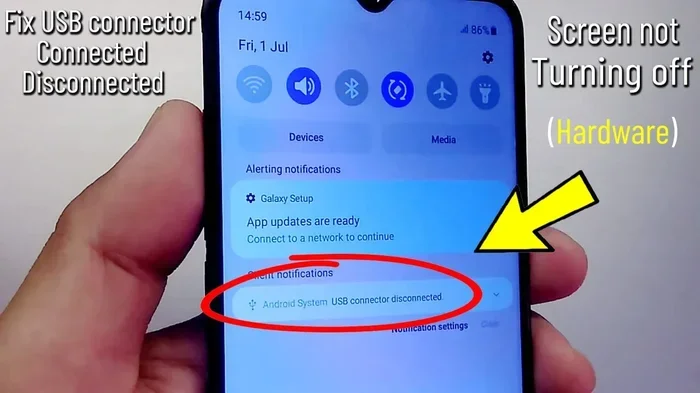
When your Samsung phone connects but the computer does not detect it, the USB connection mode might be set incorrectly. On your Samsung phone, pull down the notification shade after plugging in the USB cable. Tap the USB notification and select File Transfer or MTP mode. This tells your phone to share its storage with the computer.
If MTP mode does not work, try switching to PTP (Picture Transfer Protocol) mode. This changes how the computer communicates with your Samsung phone and often resolves recognition issues. You can also try revoking USB debugging authorizations in your phone Developer Options and then reconnecting.
Samsung Tablet Keeps Disconnecting
A Samsung tablet that keeps dropping its USB connection is usually dealing with a power management issue. Windows may be turning off the USB port to save energy. Go to Device Manager, find your USB Root Hub, right-click it, and select Properties. Under the Power Management tab, uncheck Allow the computer to turn off this device to save power.
Also check that your Samsung tablet is not in power-saving mode, which can limit USB functionality. Keep your tablet charged above 20 percent and disable any battery saver features while transferring files.
Preventing Samsung USB Problems in the Future
Prevention is always easier than troubleshooting. Follow these simple habits to keep your Samsung USB devices working smoothly.
- Always eject your Samsung USB safely. Do not just pull the cable out. Use the Safely Remove Hardware option in Windows or drag the drive to the Trash on Mac before disconnecting.
- Store cables properly. Coil your USB cables loosely and keep them away from heat sources. A simple cable organizer prevents fraying and internal wire damage.
- Keep drivers updated. Check for Windows updates regularly. Samsung also releases driver updates on their website that improve USB compatibility with new operating systems.
- Use quality cables and adapters. Cheap, uncertified cables are the leading cause of Samsung USB connection problems. Invest in Samsung-certified cables and adapters for reliable performance.
- Clean your USB ports regularly. Use compressed air to blow out dust and debris from your laptop and Samsung device USB ports every few months.
When To Seek Professional Help
Most Samsung USB issues resolve with the steps above. But sometimes the problem is hardware-related and needs professional attention. If your Samsung USB flash drive physically broke, if the connector bent inside the port, or if the drive makes unusual clicking sounds, stop using it immediately.
Data recovery professionals can often retrieve files from physically damaged Samsung USB drives. Continuing to use a damaged drive can make the problem worse and reduce the chances of recovery. For Samsung phones and tablets, if the USB port is physically damaged, a repair technician can replace the port without replacing the entire device.
Also consider professional help if your Samsung USB works on one computer but not another. This pattern often points to a driver or port issue on the specific computer, which a tech professional can diagnose quickly.
Common Mistakes That Cause Samsung USB Failures
Avoid these common mistakes that lead to Samsung USB problems:
- Using the wrong USB mode. Many people leave their Samsung phone on Charging mode instead of File Transfer mode. This is the most common reason a Samsung phone USB does not work.
- Ignoring software updates. Outdated operating systems often have USB compatibility bugs that get fixed in updates.
- Forcing the connector. If a USB plug does not fit easily, do not force it. Check the orientation and try again gently.
- Using multiple USB hubs. Daisy-chaining too many USB devices through hubs can cause power shortages and connection drops.
Final Thoughts
A Samsung USB not working is almost never a permanent problem. Whether the issue is a simple cable swap, a driver update, or a setting change, one of the fixes in this guide will likely solve it. Start with the basics and work your way through the steps methodically.
Remember to always use quality Samsung cables, eject your devices safely, and keep your drivers current. These small habits save you hours of frustration down the road. If you have tried everything and your Samsung USB still will not work, it may be time to contact Samsung support or visit a repair professional. They have specialized tools to diagnose hardware failures that are beyond software fixes.
Most importantly, do not panic when your Samsung USB stops working. The data is usually still safe, and the connection problem is temporary. Stay patient, follow the steps above, and your Samsung USB will be back to working normally in no time.
Frequently Asked Questions
Why does my Samsung USB flash drive keep disconnecting?
Your Samsung USB flash drive may keep disconnecting because of a loose cable connection, a faulty USB port, or power management settings on your computer. Try using a different cable and plugging directly into a motherboard port instead of a hub. Also check your power management settings to make sure Windows is not turning off the USB port to save energy.
How do I get my computer to recognize my Samsung USB device?
First, try a different USB cable and port. Then check that your Samsung device is set to File Transfer or MTP mode if it is a phone or tablet. Update your USB drivers through Device Manager on Windows or install any pending macOS updates. If these steps do not work, restart both your computer and Samsung device and try again.
Can a damaged Samsung USB cable cause data loss?
A damaged Samsung USB cable usually prevents connection rather than causing data loss. However, if you were in the middle of transferring files when the cable failed, some files may be incomplete or corrupted. Always safely eject your Samsung USB before disconnecting the cable to minimize the risk of data loss.
Why is my Samsung phone USB not working but it charges fine?
This means your cable supports power but not data transfer. Many cheap USB cables are power-only and cannot transmit files. Replace the cable with a Samsung-certified data cable and make sure your phone is set to File Transfer mode in the USB notification panel.
Should I format my Samsung USB flash drive if it is not working?
Formatting should be your last resort because it erases all data on the drive. First try assigning a drive letter in Disk Management or updating your drivers. Only format the Samsung USB if it shows up in Disk Management but is inaccessible, and make sure you have a backup of any important files first.
How do I update Samsung USB drivers on Windows 11?
Open Device Manager by right-clicking the Start button. Expand Universal Serial Bus controllers, right-click each USB entry, and select Update driver. Choose Search automatically for drivers. You can also visit the Samsung website and download the latest Samsung USB Driver for Windows. Restart your computer after updating to apply the changes.