What Is System32 in Windows

The System32 folder is a vital part of every Windows computer. It holds essential system files, DLLs, and commands that keep your laptop running smoothly. Deleting or modifying it can break your entire operating system. Understanding what lives inside System32 helps you protect your PC and troubleshoot common Windows problems.
Every time you turn on your laptop, a hidden folder works behind the scenes to keep everything running. This folder is called System32, and it is one of the most important parts of the Windows operating system. Without it, your computer would not start, your programs would not open, and your favorite apps would simply stop working.
If you have ever wondered what System32 in Windows actually does, you are in the right place. This guide breaks everything down in plain language. You will learn what files live inside this folder, why it is so important, and how to protect it from accidental damage.
Many people see the System32 folder and think it is just another random directory. But it is the heartbeat of your Windows installation. Whether you use Windows 10 or Windows 11, System32 plays a role in nearly every task you perform on your laptop. Let us dive in and explore what makes this folder so essential.
Key Takeaways
- System32 is the core Windows folder: It stores critical files that your operating system needs to function properly.
- Never delete or modify System32 files: Doing so can cause your laptop to crash or fail to boot.
- System32 exists on both 32-bit and 64-bit systems: On 64-bit Windows, a separate SysWOW64 folder handles 32-bit files.
- DLL files in System32 are shared across programs: They save memory and keep your software running efficiently.
- Protecting System32 is part of good laptop maintenance: Combined with proper RAM management, it keeps your system stable.
📑 Table of Contents
What Is System32 in Windows?
The System32 folder is a core directory inside the Windows operating system. It lives deep within your C: drive, usually at C:WindowsSystem32. This folder contains hundreds of critical files that Windows needs to boot up, run programs, and manage hardware.
Think of System32 as the brain of your computer. Just like your brain controls your body, System32 controls how Windows operates. It stores system commands, dynamic-link libraries (DLL files), drivers, and other essential components. Without these files, Windows simply cannot function.
One common misconception is that System32 only matters to tech experts. That is not true. Every Windows user depends on System32 every single day. When you open a web browser, play a video, or even move your mouse, System32 files are working in the background. Understanding this folder helps you appreciate how complex and well-designed your operating system really is.
Where Is the System32 Folder Located?
By default, the System32 folder sits inside the Windows directory on your main drive. The full path is usually C:WindowsSystem32. You can navigate there using File Explorer, but you should be very careful about opening or changing anything inside it.
On 64-bit versions of Windows, you might also notice a folder called SysWOW64. This folder handles 32-bit system files. The name can be confusing because it has “64” in it, but it actually stores 32-bit libraries. This design allows older software to run alongside newer 64-bit applications. It is a clever solution that keeps your system compatible with a wide range of programs.
What Files Live Inside System32?
The System32 folder contains many different types of files. Each one serves a specific purpose in keeping your laptop healthy and functional. Let us look at the main categories of files you will find inside this important directory.
DLL Files
Dynamic-link libraries, or DLL files, are some of the most common files in System32. These files contain code and data that multiple programs can share at the same time. Instead of every app carrying its own copy of common functions, DLL files let programs share resources efficiently.
This shared approach saves memory and disk space. For example, if you open Microsoft Word and a video editing tool, both might use the same DLL file from System32 to handle basic graphics tasks. This is why protecting DLL files is so important. If a DLL gets corrupted or deleted, multiple programs can break at once.
Executable Files
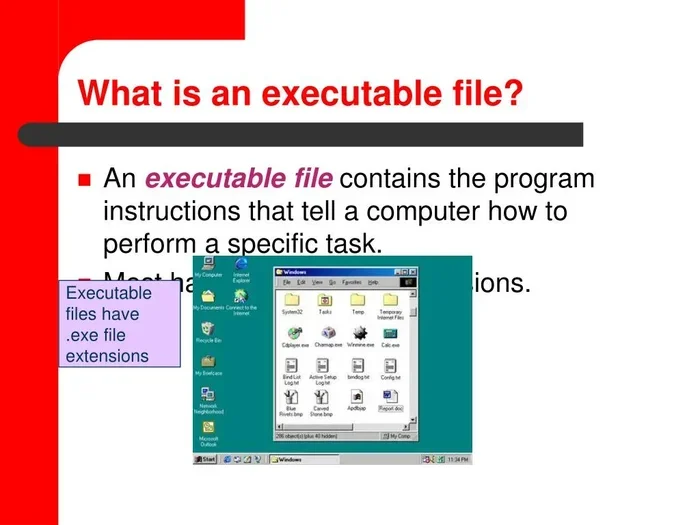
System32 also contains executable files, commonly known as .exe files. These are the programs that Windows runs to perform essential tasks. You will find tools like Command Prompt (cmd.exe), Task Manager (taskmgr.exe), and the Registry Editor (regedit.exe) inside this folder.
These executables are the backbone of Windows troubleshooting and management. When your laptop acts up, you often open one of these tools from System32 to diagnose the problem. They are always there, quietly waiting in the background, ready to help you fix issues before they become serious.
Driver Files
Device drivers are another crucial type of file stored in or linked to System32. Drivers tell your hardware, like your keyboard, printer, or graphics card, how to communicate with Windows. Without the right drivers, your hardware simply will not work.
When you install a new laptop or connect a peripheral device, Windows often pulls the necessary driver files from System32. Keeping your system files intact ensures that your hardware continues to work as expected. This is another reason why protecting System32 matters so much for everyday laptop use.
Why Is System32 So Important?
The System32 folder is not just another directory on your hard drive. It is the foundation upon which your entire Windows experience is built. Here is why it matters so much.
First, System32 houses the files that Windows needs to start up. When you press the power button, your laptop loads critical System32 files to begin the boot process. Without them, your computer would show an error screen and refuse to start. This alone makes System32 one of the most important folders on your entire system.
Second, System32 enables compatibility across software. The DLL files and executables inside System32 provide a shared platform that applications rely on. Developers do not need to build every function from scratch. They can call on System32 files to handle common tasks, which makes software development faster and more efficient.
Third, System32 supports system recovery and troubleshooting. Tools like System Restore, DISM, and SFC all depend on System32 files to repair a damaged Windows installation. If these files are missing or corrupted, fixing your laptop becomes much harder. This is why regular system maintenance and protection of System32 should be part of every user’s routine.
Common System32 Errors and How to Fix Them
Because System32 is so critical, errors in this folder can cause big problems. You might see error messages when you try to open a program or start your computer. Here are some of the most common issues and what you can do about them.
Missing or Corrupted DLL Files
A missing DLL error is one of the most frequent System32 problems. It usually shows up as a popup message saying a specific .dll file is not found. This can happen after a software update, a failed installation, or even a malware attack.
The best way to fix this is by using the built-in System File Checker tool. Open Command Prompt as an administrator and type sfc /scannow. This tool scans your system files and automatically repairs any that are damaged. It is a safe, built-in solution that does not require downloading anything from the internet.
Accidental Deletion of System32 Files
Sometimes users accidentally delete files from System32, either by mistake or because they were trying to free up disk space. This can cause serious problems, including the infamous “blue screen of death” or a laptop that will not boot at all.
If you accidentally delete a System32 file, do not panic. You can try restoring your system using System Restore. This tool rolls your PC back to a previous point when everything was working correctly. Always remember that your System32 folder is not a place to clean up. If you need free disk space, look for large files in your Downloads folder or use the built-in Disk Cleanup tool instead.
Malware Disguised as System32 Files
Some malicious software tries to hide by mimicking System32 file names. This makes it harder for antivirus programs to detect the threat. Always run a trusted antivirus scan if you notice unusual behavior on your laptop, such as slow performance or unexpected popups.
Keeping your Windows Defender or third-party antivirus up to date is one of the best ways to catch these threats early. A healthy System32 folder depends on a clean and secure system overall.
How to Protect Your System32 Folder
Protecting System32 does not require advanced technical skills. A few simple habits can keep this critical folder safe and your laptop running smoothly for years.
- Avoid deleting files from System32: Even if you think a file is taking up too much space, do not delete it. Use proper cleanup tools instead.
- Keep Windows updated: Updates often include patches that protect system files from known vulnerabilities.
- Run regular antivirus scans: Malware can target System32 files, so keeping your security software current is essential.
- Create system restore points: This gives you a safety net if something goes wrong. You can quickly revert your system to a working state.
- Be careful with third-party cleaning tools: Some registry cleaners and optimization tools incorrectly flag System32 files as unnecessary. Avoid using them unless you trust the source completely.
Taking care of your System32 folder is part of broader laptop maintenance. Just as you would protect your RAM and memory, protecting System32 ensures that your system stays stable and responsive. A little prevention goes a long way in avoiding costly repairs or data loss.
System32 and Your Laptop’s Performance
You might wonder if System32 affects your laptop’s speed or performance. The answer is yes, but mostly in indirect ways. When System32 files are intact and healthy, your system runs efficiently. When they are corrupted or missing, your laptop can slow down dramatically or even crash.
The files inside System32 work hand in hand with your laptop’s RAM and processor to deliver a smooth user experience. System processes rely on available memory to load and execute system commands. If System32 files are damaged, these processes consume more resources than they should, leading to sluggish performance.
For users who notice their laptop slowing down over time, checking System32 integrity is a smart troubleshooting step. Using tools like SFC and DISM can help identify and repair file issues before they cause bigger problems. Combined with proper RAM optimization, maintaining a healthy System32 folder keeps your laptop running at its best.
Another factor to consider is disk space. System32 does not take up an enormous amount of space on its own, but the files it manages affect how efficiently your storage is used. Corrupted files can create bloated registry entries and unnecessary system clutter. Keeping System32 clean and intact helps your entire laptop run lean and fast.
Frequently Asked Questions About System32
Is it safe to open the System32 folder?
Yes, it is safe to open the folder and look at its contents. However, you should not modify, move, or delete any files inside it. Opening the folder to browse is fine, but treat everything inside with respect. Even renaming a file can cause programs to stop working.
Can I move the System32 folder to another drive?
No, you should never move the System32 folder. Windows expects it to be at its default location on the system drive. Moving it will break your operating system and likely prevent your laptop from booting. Always leave System32 where Windows installed it.
Why does System32 exist on 64-bit Windows if it has a 32-bit name?
The name System32 dates back to the early days of Windows when 32-bit was the new standard. When 64-bit Windows was introduced, Microsoft kept the System32 name for 64-bit files and created SysWOW64 for 32-bit files. The naming convention stuck, even though it now seems backwards.
What happens if I delete a file from System32?
Deleting a single file might not cause immediate problems, but it can lead to instability over time. Some programs may stop working, and your laptop might fail to start correctly. If you accidentally delete a file, use System Restore or the SFC tool to repair the damage as soon as possible.
Can antivirus software scan System32 files?
Yes, reputable antivirus programs regularly scan System32 files as part of their protection routines. They check for malware that disguises itself as system files and alert you if anything suspicious is detected. Always keep your antivirus active and up to date.
How can I check if my System32 files are healthy?
You can use the System File Checker by opening Command Prompt as an administrator and typing sfc /scannow. This tool will scan all protected system files and replace any corrupted ones with clean copies. It is one of the easiest and most effective ways to verify your system’s health.
Conclusion
The System32 folder is one of the most important parts of your Windows laptop. It holds the files that your operating system needs to start, run programs, and communicate with your hardware. Without it, your computer simply would not work. Understanding what System32 does and how to protect it is essential for every Windows user.
Remember to never delete or modify files inside System32. Keep your system updated, run regular antivirus scans, and create restore points so you can recover quickly if something goes wrong. These simple habits will help you maintain a healthy, fast, and reliable laptop for years to come.
Your System32 folder works hard every day, often without you ever noticing it. Taking a few minutes to understand and protect it is one of the best things you can do for your computer. Treat it well, and it will keep your Windows experience running smoothly.