What Is Internet Recovery on Macbooks
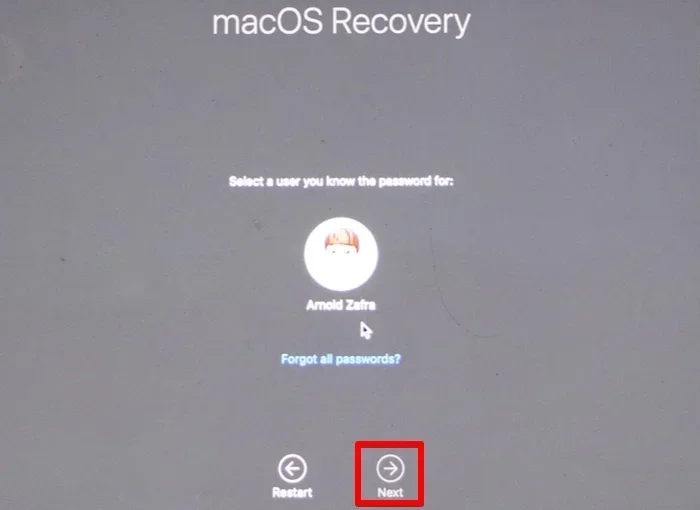
Internet Recovery on MacBooks is a powerful built-in feature that lets you reinstall macOS directly from Apple’s servers without needing a USB drive or disk. It works by connecting your Mac to the internet during startup and downloading the recovery tools remotely. This feature is essential when your Mac won’t boot normally or needs a fresh operating system install. Whether you have an Intel or Apple Silicon MacBook, Internet Recovery can save you from major system failures. Below, we walk you through everything you need to know about using and troubleshooting this handy tool.
Key Takeaways
- Internet Recovery lets you reinstall macOS without any external drives or disks.
- You can access it by pressing specific key combinations during startup.
- It works on both Intel and Apple Silicon MacBooks.
- A stable internet connection is required for the process to work.
- Internet Recovery can help fix boot issues, corrupted systems, and more.
- It downloads recovery tools directly from Apple’s servers over the web.
📑 Table of Contents
What Is Internet Recovery on MacBooks?
Internet Recovery is a special startup mode built into MacBooks. When your Mac has serious software problems, this feature lets you download recovery tools straight from Apple. You do not need a USB drive, a DVD, or any external disk. Everything happens over the internet.
The feature is incredibly useful when your Mac won’t start up normally. Maybe you see a folder with a question mark. Perhaps the system keeps crashing during boot. In these situations, Internet Recovery MacBook can be a lifesaver. It connects your laptop to Apple’s servers and pulls down the latest recovery environment.
This tool has been part of macOS for many years. Apple designed it to make troubleshooting simple. Even if your hard drive is completely wiped, Internet Recovery can still work. It runs from a small hidden partition on your Mac’s firmware. That partition connects to the web and fetches what it needs.
One great thing about this feature is that it works on older and newer MacBooks alike. Whether you have an older Intel model or a newer Apple Silicon chip, Internet Recovery is there for you. It is one of the most important recovery tools Apple has ever built into its laptops.
Before you try Internet Recovery, make sure your what is the ram on a laptop meets basic requirements. Most modern MacBooks handle this process without issues. But having enough memory helps the recovery environment run smoothly.
How Internet Recovery Works
Internet Recovery uses a clever system behind the scenes. When you trigger the recovery key combination, your Mac’s firmware wakes up. It then connects to Apple’s servers using your internet connection. The firmware downloads a small recovery package that contains everything needed to restore your system.
The Role of Your Firmware
Your MacBook’s firmware is the software that starts before macOS loads. It controls the basic hardware functions. During Internet Recovery, the firmware takes charge. It bypasses your hard drive entirely and reaches out to the web. This is why even a completely erased Mac can still recover.
The firmware also checks your Mac’s model number. It uses this information to download the correct version of macOS. So if you have a MacBook Air from 2020, it will pull the right recovery tools for that specific machine.
What Gets Downloaded
During Internet Recovery, several things happen automatically:
- Your Mac connects to Apple’s recovery servers.
- It downloads the recovery environment package.
- The package includes a basic macOS interface.
- It also pulls disk utilities and reinstall tools.
- All downloads are verified by Apple for security.
The entire download size is usually around 500 MB to 1 GB. This depends on your Mac model and the macOS version. A fast and stable internet connection makes the process much quicker. If your connection is slow, the download might take longer.
Keep in mind that your Mac’s what is good ram for laptop specs do not change during recovery. The recovery environment uses minimal resources. It is designed to be lightweight so it can run even on machines with problems.
How to Start Internet Recovery on Your MacBook
Starting Internet Recovery is straightforward. The key combination depends on your Mac model. Below, we cover the steps for both Intel and Apple Silicon MacBooks.
For Intel-Based MacBooks
If your MacBook uses an Intel processor, follow these steps:
- Shut down your MacBook completely.
- Press the power button to turn it on.
- Immediately press and hold Command + Option + R.
- Keep holding the keys until you see the spinning globe.
- Release the keys once the recovery interface appears.
The spinning globe means your Mac is connecting to Apple’s servers. This can take a few minutes. Make sure you are near a reliable Wi-Fi network during this process.
Some users confuse this with local recovery. Local recovery uses keys like Command + R. Internet Recovery uses Command + Option + R specifically. The difference matters because Internet Recovery downloads the latest compatible recovery system from the cloud.
For Apple Silicon MacBooks
If your MacBook has an M1, M2, or M3 chip, the process is slightly different:
- Turn off your MacBook.
- Press and hold the power button.
- Keep holding until you see “Loading startup options.”
- Click on “Options” when it appears.
- Select “Continue” to enter recovery mode.
Apple Silicon MacBooks do not use the same key combination. Instead, they rely on the startup options menu. This menu gives you access to recovery, disk utilities, and reinstall tools. The process is more visual and user-friendly on these newer machines.
One thing to note is that Apple Silicon MacBooks use what is the mouse on a laptop called in a slightly different way during recovery. The trackpad gestures work the same, but you might need to use the on-screen keyboard if you are using an external mouse.
What You Can Do in Internet Recovery Mode
Once Internet Recovery loads, you will see a macOS utilities window. This window gives you several options to fix your Mac. Let us look at what each option does.
Reinstall macOS
This is the most popular option in Internet Recovery. It downloads and installs a fresh copy of macOS on your Mac. Your personal files are usually preserved, but it is always smart to back up first if possible.
The reinstall process does not erase your data in most cases. However, it replaces system files and fixes corrupted software. This can solve many startup and performance problems.
Disk Utility
Disk Utility is a powerful tool for managing your storage. You can use it to:
- Erase your hard drive completely.
- Repair disk errors and permissions.
- Partition your storage drive.
- Format volumes for different file systems.
If your Mac has serious disk problems, Disk Utility can often fix them. Run First Aid to scan for errors. If the repair succeeds, restart your Mac and see if the issue is resolved.
Restore from Time Machine
If you back up your Mac regularly with Time Machine, Internet Recovery can help you restore. You connect your Time Machine backup drive and restore your entire system. This option brings back all your files, apps, and settings.
Make sure your backup drive is compatible. If you are unsure about what how to know what ram is compatible with my laptop means for backup drives, the same principles apply. Compatibility matters for smooth restores.
Terminal
The Terminal option is for advanced users. It gives you command-line access to your recovery tools. Most regular users will not need this. But if you are comfortable with terminal commands, it offers powerful troubleshooting options.
When Should You Use Internet Recovery?
Internet Recovery is not something you need every day. It is a tool for specific situations. Knowing when to use it can save you a lot of time and frustration.
Your Mac Won’t Start Up
If your MacBook freezes on the Apple logo or shows a folder with a question mark, Internet Recovery can help. These signs usually mean your system software is damaged or missing. A fresh reinstall through Internet Recovery often fixes the problem.
You Want to Sell or Give Away Your Mac
Before selling your MacBook, you should wipe it clean. Internet Recovery gives you access to Disk Utility. You can erase the entire drive securely. This protects your personal data and gives the new owner a fresh start.
Your Mac Has Persistent Software Bugs
Sometimes macOS develops stubborn bugs. Restarting does not fix them. Reinstalling through Internet Recovery replaces damaged system files. This often resolves strange glitches, app crashes, and slow performance.
You Upgraded macOS and Something Broke
After a major macOS update, some Macs experience issues. If your Mac became slow or unstable after an update, Internet Recovery can reinstall the same version. This rolls back the software without losing your personal files.
One thing to keep in mind is your internet speed. A slow connection can make the download take a long time. If you are on a bad network, the process can be frustrating. Make sure you have a strong Wi-Fi signal before starting.
Common Internet Recovery Problems and Fixes
Internet Recovery is reliable, but sometimes things go wrong. Here are common issues and how to fix them.
Recovery Does Not Start
If your Mac does not enter Internet Recovery, try these steps:
- Make sure your Mac is completely shut down.
- Check that your Wi-Fi network is working.
- Try pressing the keys earlier during startup.
- Reset the NVRAM or PRAM if needed.
- Check Apple’s system status page for server outages.
Sometimes Apple’s recovery servers are temporarily down. Wait a few hours and try again. This is rare but it does happen.
Download Stalls or Fails
A stuck download can be annoying. Here is what you can do:
- Switch to a different Wi-Fi network.
- Move closer to your router for a stronger signal.
- Restart your Mac and try again.
- Try the recovery process during off-peak hours.
Internet Recovery needs a steady connection. If your Wi-Fi keeps dropping, the download will fail. A wired Ethernet connection with an adapter can also help if your Mac supports it.
Recovery Shows the Wrong macOS Version
Sometimes Internet Recovery offers an older macOS version than what your Mac currently runs. This happens because Apple serves the latest version that your Mac model supports. If you need a specific version, you might need to create a USB installer instead.
Understanding your Mac’s specs helps here. The what is a good amount of ram for a laptop and processor type determine which macOS versions you can use. Check Apple’s compatibility list before assuming a recovery version is wrong.
Tips for a Smooth Internet Recovery Experience
Following a few simple tips can make Internet Recovery much easier. Here is what the experts recommend.
- Back up your data first. Even though recovery usually preserves files, accidents can happen.
- Use a strong Wi-Fi connection. A weak signal causes download failures.
- Plug in your MacBook. Recovery uses battery power. Keep it charged or connected to power.
- Be patient. The download can take 10 to 30 minutes depending on your internet speed.
- Know your Apple ID. Some recovery steps require Apple ID verification.
- Have your macOS version info ready. This helps if you need to contact Apple Support.
Another great tip is to check your Mac model number before starting. You can find this on the bottom of your MacBook or in the System Information menu. Knowing your exact model helps you download the right recovery tools.
Internet Recovery is one of the most underrated features on MacBooks. Many users never need it. But when the moment comes, it can save your entire system. Take a few minutes to memorize the key combinations. It is a small investment that pays off big when disaster strikes.
Conclusion
Internet Recovery on MacBooks is an essential tool every user should know about. It gives you the power to restore your Mac without any external drives or disks. Whether your system is corrupted, your Mac won’t start, or you need a fresh install, Internet Recovery has you covered. The process is simple, secure, and works on nearly all MacBook models.
Remember the key combinations for your Mac type. For Intel Macs, use Command + Option + R. For Apple Silicon Macs, use the startup options menu. Keep a stable internet connection handy and always back up your data when possible.
With this knowledge, you are ready to handle most Mac software problems. Internet Recovery turns what could be a stressful situation into a manageable process. Bookmark this guide and share it with fellow Mac users. You never know when it might come in handy.
Frequently Asked Questions
What is the difference between Internet Recovery and regular Recovery Mode?
Regular Recovery Mode uses a hidden partition on your Mac’s hard drive to restore the system. Internet Recovery downloads recovery tools directly from Apple’s servers over the internet. Internet Recovery is more powerful because it can work even if your hard drive is completely erased or missing.
Do I need an internet connection for Internet Recovery?
Yes, a stable Wi-Fi connection is absolutely required. Internet Recovery downloads the recovery environment from Apple’s servers. Without the internet, the process cannot begin or complete successfully.
Will Internet Recovery erase my files?
Not necessarily. Reinstalling macOS through Internet Recovery usually keeps your personal files intact. However, if you choose to erase your disk using Disk Utility first, all data will be lost. Always back up important files before starting the recovery process.
How long does Internet Recovery take?
The download portion usually takes 10 to 30 minutes depending on your internet speed. The actual installation can take another 30 to 60 minutes. The total time varies based on your Mac model and connection quality.
Can I use Internet Recovery on any MacBook model?
Internet Recovery works on most MacBooks from 2010 and later. Older models may not support this feature. Apple Silicon MacBooks (M1 and newer) have a slightly different process but achieve the same result through the startup options menu.
What should I do if Internet Recovery is not working?
First, check your Wi-Fi connection and make sure it is stable. Try restarting your Mac and entering the recovery key combination again. If the problem persists, you may need to contact Apple Support or visit an authorized service center for help.