What Is Icm on Your Printer
ICM on your printer stands for Image Color Management, a Windows-based system that ensures your print colors match what you see on screen. It works by using color profiles to translate colors between your monitor, printer, and paper type. Understanding ICM helps you get better, more accurate prints every single time.
Have you ever printed a photo and noticed the colors look completely different from what you saw on your screen? Maybe the blues turned purple, or the greens looked muddy. This is a frustrating problem that many people face, and it usually comes down to one thing: color management. ICM on your printer, which stands for Image Color Management, is the tool that fixes this problem. It is a built-in Windows system designed to make sure the colors you see on your monitor match the colors that come out of your printer. In this guide, we will walk you through everything you need to know about ICM, how it works, and how to set it up for better prints.
If you have ever wondered why your printer colors look off, you are not alone. Color mismatch is one of the most common complaints among home users and professionals alike. The good news is that ICM makes this much easier to solve. It acts like a translator between your screen and your printer, making sure both devices speak the same color language. Whether you are printing documents, graphics, or high-quality photos, understanding ICM can completely change your print results.
Key Takeaways
- ICM stands for Image Color Management: It is a Windows system that helps your printer produce accurate and consistent colors across different devices.
- Color profiles are essential: They tell your printer how to reproduce colors correctly for each paper type and ink combination.
- ICM improves print quality: You get truer colors, better skin tones, and more vibrant photo prints when ICM is set up correctly.
- Setting up ICM is simple: You just need to install the right ICC profile and enable it in your printer settings.
- Common issues are fixable: Most ICM problems come from outdated drivers, wrong profile settings, or insufficient system resources.
- ICM works best with enough system resources: Having the right RAM and storage helps your PC handle color management smoothly.
📑 Table of Contents
What Is ICM on Your Printer?
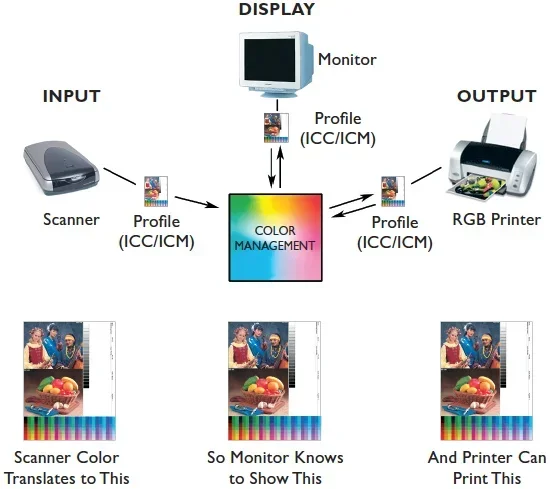
ICM stands for Image Color Management. It is a color management framework built into Windows that helps control how colors are displayed and printed. When you send a document to your printer, ICM steps in and makes sure the colors are translated correctly. It does this by using something called an ICC profile, which is a small data file that describes the color capabilities of your specific device.
Without ICM, your printer would just guess what colors to use. This often leads to dull, inaccurate, or completely wrong colors. ICM removes the guesswork. It communicates with your printer driver and your monitor to create a consistent color experience from start to finish. This is especially important if you care about print quality and want your hard work to look its best on paper.
How ICM Differs from Other Color Systems
There are other color management systems out there, but ICM is one of the most widely used because it comes built into Windows. Some printers have their own proprietary color systems, and software like Adobe Photoshop uses its own engine called Adobe Color Management. However, ICM works at the operating system level, which means it applies to almost every program you use. This makes it a versatile and convenient choice for everyday printing.
How ICM Works Behind the Scenes
ICM uses a process called color space conversion. Every device that handles color, from your monitor to your printer, has its own color space. A color space is basically a map of all the colors that device can produce. Your monitor might be able to show bright, vivid blues, but your printer might not be able to reproduce that exact same blue on paper.
Here is how ICM handles this. When you hit print, ICM looks at the color data in your document. It then checks the ICC profile of your monitor and the ICC profile of your printer. Using these profiles, ICM converts the colors from your monitor’s color space into your printer’s color space. This conversion happens in real time, and the result is a print that looks as close as possible to what you saw on screen.
The key to this process is the ICC profile. Think of it as a recipe for color. Each profile contains detailed information about how a specific device handles color. Without the right profile, ICM cannot do its job properly. This is why installing the correct driver and profile for your printer model is so important.
The Role of Your Printer Driver
Your printer driver is the software that connects your computer to your printer. It plays a big role in ICM because it tells the printer how to interpret the color data it receives. A good printer driver will support ICM and work hand in hand with the color management system. If your driver is outdated or incompatible, ICM may not function correctly, and your prints could still look off.
Setting Up ICM on Your Printer
Setting up ICM is easier than most people think. You do not need to be a tech expert to get it right. The process mainly involves installing the right ICC profile and enabling ICM in your printer settings. Here is a step-by-step look at how to do it.
- Find your printer model’s ICC profile. Go to the manufacturer’s website and search for your printer model. Most major brands like HP, Canon, Epson, and Brother offer free ICC profiles for their printers.
- Download and install the profile. Once you download the file, double-click it and follow the prompts to install it on your system. Windows will add it to its list of available color profiles.
- Enable ICM in your printer settings. Open the Control Panel, go to Devices and Printers, right-click your printer, and select Printing Preferences. Look for a color management or color settings tab and make sure ICM is turned on.
- Select the correct paper type. ICM adjusts its color conversion based on the paper you are using. Make sure you select the right paper type in your print settings for the best results.
Following these steps will set you up for much better color accuracy. If you are unsure which ICC profile to use, the printer manufacturer’s website is always the best place to start. And if your computer struggles with running color management tasks, make sure your system has enough resources. For example, having enough RAM on your laptop can make a big difference in how smoothly ICM processes color data.
Troubleshooting Common ICM Setup Issues
Sometimes things do not go smoothly the first time. If your prints still look wrong after setting up ICM, here are a few things to check. First, make sure you downloaded the ICC profile for your exact printer model and paper type. Second, check that you have the latest printer driver installed. Third, confirm that ICM is enabled in both your printer preferences and your application’s print settings. If you are still having trouble, you may want to check whether your system meets the requirements for running color management software effectively.
Benefits of Using ICM for Printing
Turning on ICM and using color profiles comes with several real benefits. Let us look at why you should care about this feature.
- Better color accuracy. ICM makes sure the colors in your prints match what you intended. This is especially noticeable in photos and graphic design work.
- Consistency across devices. If you work on multiple computers or printers, ICM helps maintain a consistent look across all of them.
- Improved photo printing. For anyone who prints photos at home, ICM can make a huge difference in skin tones, landscapes, and vibrant colors.
- Less wasted paper and ink. When your colors are accurate the first time, you do not need to reprint documents over and over. This saves money and reduces waste.
- Easy to use. ICM works in the background. You do not need special software or technical skills to benefit from it.
These benefits make ICM worth using for everyone, from casual home users to professional photographers. Even if you are just printing documents, correct colors can make a big difference in how professional your work looks.
Common ICM Problems and How to Fix Them
Like any technology, ICM is not perfect. Sometimes things go wrong, and your prints do not look the way you expected. Here are the most common ICM problems and how to solve them.
Colors Still Look Wrong After Enabling ICM
If your colors are still off, the most likely cause is an incorrect or outdated ICC profile. Make sure you have downloaded the profile that matches your exact printer model and paper type. You should also check that your monitor is calibrated. If your monitor shows colors incorrectly, ICM will base its conversions on bad data.
ICM Is Not Available in Print Settings
Some printer drivers do not support ICM directly. In this case, you may need to update your printer driver or use a third-party color management tool. Also, some applications bypass ICM and use their own color engine. In those cases, you will need to adjust color settings within the application itself.
Prints Look Too Dark or Too Bright
This issue often happens when the wrong paper type is selected. ICM adjusts its color output based on how the paper absorbs ink. If you tell ICM you are using glossy photo paper but you are actually using plain paper, the colors will look wrong. Always make sure your print settings match the actual paper you are using.
Slow Print Speeds with ICM Enabled
ICM does add a small amount of processing time because your computer has to convert colors before sending them to the printer. If you notice slow print speeds, it could be because your system is underpowered. Having compatible RAM in your laptop can help speed up the color conversion process. Additionally, make sure you are not running too many programs in the background while printing.
ICM vs. Other Color Management Options
ICM is not the only way to manage color on your printer. Let us compare ICM with a few other popular options so you can decide what works best for you.
| Feature | ICM | Printer Driver Color Settings | Application-Based Color Management |
|---|---|---|---|
| Works at OS Level | Yes | No | No |
| Applies to All Programs | Yes | Sometimes | No |
| Requires ICC Profile | Yes | Sometimes | Sometimes |
| Ease of Use | High | Medium | Low |
| Color Accuracy | Good | Good | Excellent |
| Best For | Everyday printing | Quick prints | Professional work |
As you can see, ICM is a great all-around choice. It works across all your programs and is easy to set up. If you need the highest level of color accuracy for professional work, you might want to use application-based color management in programs like Photoshop. But for everyday use, ICM handles the job well and keeps things simple.
Tips for Getting the Best Results with ICM
Want to squeeze every bit of quality out of your prints? Here are some expert tips to help you get the best results with ICM.
- Calibrate your monitor regularly. A well-calibrated monitor gives ICM better data to work with, leading to more accurate prints.
- Use high-quality ICC profiles. Always download profiles from your printer manufacturer or a trusted source. Free random profiles from unknown sites can cause more harm than good.
- Match your paper type in settings. Always select the exact paper type you are using. This tells ICM how to adjust its color conversion for that specific paper.
- Keep your printer driver updated. Manufacturers regularly update drivers to improve color accuracy and ICM compatibility.
- Print a test page first. Before printing an important document or photo, print a small test page to check the colors. This saves ink and paper if something looks off.
- Store your ICC profiles properly. If you have multiple profiles for different printers or paper types, keep them organized. Storing them on a fast NVMe SSD ensures quick access and smooth performance when switching between profiles.
These simple habits will help you get consistent, beautiful prints every time. Color management is not about being perfect. It is about making small adjustments that add up to a big difference in your final output.
Final Thoughts on ICM and Your Printer
ICM on your printer is one of those features that quietly does a lot of heavy lifting. It works behind the scenes to make sure your prints look as good as they can. Whether you are printing a school project, a work presentation, or a beautiful family photo, ICM helps bring your colors to life on paper.
The key to getting the most out of ICM is understanding how it works and taking the time to set it up correctly. Install the right ICC profile, keep your drivers updated, and match your paper type in your print settings. These small steps will save you time, ink, and frustration in the long run. Color management does not have to be complicated. With ICM, you have a powerful yet simple tool right inside your Windows system. Start using it today, and you will notice the difference in your next print job.
Frequently Asked Questions
What does ICM stand for on a printer?
ICM stands for Image Color Management. It is a Windows-based system that helps ensure the colors on your printed page match the colors you see on your monitor by using ICC profiles and color space conversion.
Do I need to install an ICC profile to use ICM?
Yes, ICC profiles are essential for ICM to work properly. These small data files tell ICM how your specific printer and monitor handle color, and they enable accurate color conversion between devices.
Can ICM improve the quality of my photo prints?
Absolutely. ICM helps your printer reproduce colors more accurately, which makes a noticeable difference in photo prints. You will see better skin tones, more vivid colors, and overall improved print quality when ICM is set up correctly.
Why are my printed colors different from what I see on screen?
This usually happens when ICM is not enabled or when the wrong ICC profile is installed. It can also occur if your monitor is not calibrated or if your printer driver is outdated. Setting up ICM with the correct profile often fixes this problem.
Does ICM slow down my printing speed?
ICM adds a small amount of processing time because your computer converts colors before sending them to the printer. However, the difference is usually minimal. If you notice significant slowdowns, check your system resources and make sure your printer driver is up to date.
Is ICM the same as ICC profiling?
They are related but not the same. ICC profiling creates the color profile that ICM uses. ICM is the system that applies that profile to convert colors between your monitor and printer. Think of ICC profiling as creating the recipe and ICM as following it.