Alienware M16 R2 Gaming Laptop Ram Upgrade
The Alienware M16 R2 gaming laptop can benefit hugely from a RAM upgrade, whether you are gaming, streaming, or multitasking. In this guide, you will learn how to check your current memory, pick the right RAM kit, install it correctly, and measure the performance gains after upgrading.
Key Takeaways
- Check Compatibility First: Always verify your laptop’s maximum RAM capacity and RAM type before buying new modules.
- Dual-Channel Matters: Matching RAM sticks in the right slots gives you better performance than a single stick.
- DDR5 Is the Standard: The M16 R2 supports DDR5 RAM, so make sure you buy the correct generation.
- Easy Installation: With the right tools and a little patience, the RAM upgrade process takes about 15 minutes.
- Avoid Common Mistakes: Do not mix DDR4 with DDR5, and always ground yourself before handling modules.
- Performance Boost Is Real: More RAM means smoother gameplay, faster load times, and better multitasking.
📑 Table of Contents
- What Makes the Alienware M16 R2 a Gaming Powerhouse
- How to Upgrade RAM on the Alienware M16 R2
- Best RAM Kits for the Alienware M16 R2
- Performance Gains You Can Expect After a RAM Upgrade
- Common Mistakes to Avoid When Upgrading Your RAM
- Expert Tips for Getting the Most From Your RAM Upgrade
- Conclusion
What Makes the Alienware M16 R2 a Gaming Powerhouse
The Alienware M16 R2 is one of the most popular gaming laptops on the market today. It packs a powerful processor, a dedicated graphics card, and a sleek design that turns heads. But even the best laptop can slow down if the system memory is not up to par.
That is where a RAM upgrade comes in. Whether you are chasing higher frame rates, running heavy creative software, or just keeping dozens of browser tabs open, more memory can make a real difference. Before you rush out and buy new modules, let us break down everything you need to know about upgrading the Alienware M16 R2 gaming laptop RAM upgrade path.
If you are new to the concept, think of RAM as your laptop’s short-term memory. It holds the data your CPU needs right now. The more RAM you have, the less your laptop has to dig into the slower storage drive. That is why understanding what is good RAM on a laptop matters so much for gaming performance.
Why RAM Is Important for Gaming Laptops
Modern games are memory hungry. Titles like Hogwarts Legacy, Cyberpunk 2077, and Alan Wake 2 can eat up 12 to 16 GB of RAM on their own. Add a game launcher, a voice chat app, and a web browser, and you are quickly approaching your limit. When your laptop runs out of RAM, it starts using your SSD as overflow. This is called paging, and it makes everything feel sluggish.
A RAM upgrade eliminates this bottleneck. Your laptop keeps more data right where it needs it, in the fast memory. The result is smoother gameplay, fewer stutters, and faster level transitions. It is one of the most cost-effective ways to boost performance without replacing the entire machine.
How to Upgrade RAM on the Alienware M16 R2
The Alienware M16 R2 makes the upgrade process fairly straightforward. You do not need advanced technical skills or expensive tools. However, you should follow the right steps to avoid damaging your laptop or the new modules. If you want a general overview of the process, check out our guide on how to upgrade RAM on a laptop for helpful tips.
Step 1: Check Your Current RAM Configuration
Before you do anything, find out how much RAM your laptop currently has. On Windows, press Ctrl + Shift + Esc to open Task Manager. Click the Performance tab and look under Memory. You will see your total RAM capacity, speed, and how many slots are in use.
Write this information down. You need to know whether your laptop has one or two RAM slots occupied. This determines whether you are adding a module or replacing existing ones.
Step 2: Verify Maximum RAM Capacity
Every laptop has a maximum supported memory. For the M16 R2, the ceiling is quite high. You can find this information in the user manual or on Dell’s support page. Knowing your maximum capacity prevents you from buying RAM that your laptop cannot use.
This is also a good time to confirm whether you can upgrade your laptop RAM at all. Some newer laptops solder RAM directly to the motherboard, making upgrades impossible. Fortunately, the M16 R2 uses replaceable DIMM slots, so you are in good shape. For more details, see our article on can I upgrade my laptop RAM.
Step 3: Gather Your Tools
You will need a small Phillips-head screwdriver and a soft, clean surface to work on. Some users also like to use an anti-static wrist strap. This prevents static electricity from damaging sensitive components. While the risk is low, it is better to be safe than sorry.
Step 4: Open the Bottom Panel
Power off your laptop completely and unplug the charger. Place it face down on a soft cloth. Remove all the screws on the bottom panel. Use a plastic spudger or your fingernail to gently pry the panel off. Start from the back edge and work your way around.
Be careful not to use too much force. The panel clips into place, so it will pop off once all screws are removed. If it feels stuck, double-check that you have taken out every screw.
Step 5: Install the New RAM Modules
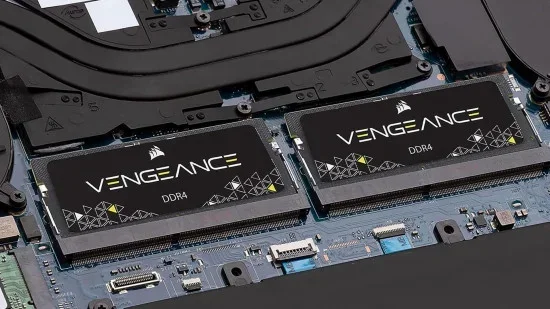
Locate the RAM slots inside the chassis. The M16 R2 typically has two SO-DIMM slots. If one slot is already filled, you can either add a matching module to the empty slot or replace both modules with higher-capacity sticks.
To install a new module, hold it at a 30-degree angle and insert it into the slot. Push it down gently until it clicks. Then press the module flat until it locks into place. Repeat for the second stick if needed.
Step 6: Reassemble and Test
Place the bottom panel back on and replace all screws. Plug in your charger and power on the laptop. Go into Task Manager again and confirm that the new total RAM capacity appears. If it does, congratulations. Your Alienware M16 R2 gaming laptop RAM upgrade is complete. If not, double-check that both modules are seated properly.
Best RAM Kits for the Alienware M16 R2
Choosing the right RAM kit is critical. Not all memory modules work with every laptop, and the wrong type can cause boot failures or instability. The M16 R2 uses DDR5 memory, which is the latest generation. This is an important detail. Do not accidentally buy DDR4 modules, as they are not compatible.
If you are unsure about what to buy, our breakdown of gaming laptop 16 GB RAM options can help you understand the different configurations available.
Understanding DDR5 RAM
DDR5 is faster and more efficient than its predecessor, DDR4. It offers higher data transfer rates and improved power management. For the M16 R2, DDR5 modules typically run at speeds between 4800 MHz and 5600 MHz. Higher speeds can give a slight edge in some games, but real-world gains are often modest.
What matters more is capacity and matching sticks. Two identical modules running in dual-channel mode will outperform a single module of the same total size. This is because dual-channel memory allows the CPU to access data from both sticks simultaneously, effectively doubling the bandwidth.
Recommended RAM Configurations
Here are the most popular configurations for the M16 R2:
- 16 GB (2 x 8 GB): Great for casual gaming and everyday use. This covers most modern titles at medium to high settings.
- 32 GB (2 x 16 GB): Ideal for heavy gaming, content creation, and professional workloads. This is the sweet spot for power users.
- 64 GB (2 x 32 GB): Overkill for most gamers but perfect for video editing, 3D rendering, or running virtual machines.
Quick Tips for Choosing a RAM Kit
Here are some practical tips to guide your purchase:
- Always buy the same brand and model for both sticks. This minimizes compatibility issues.
- Check the latency timings. Lower CAS latency is generally better, but the difference is small.
- Look for kits specifically listed as compatible with Dell Alienware systems.
- If your budget is tight, start with a 16 GB kit. You can always add more later.
Performance Gains You Can Expect After a RAM Upgrade
One of the biggest questions people ask before a RAM upgrade is whether it is actually worth it. The short answer is yes, in most cases. But the size of the improvement depends on your current setup and what you use your laptop for.
Gaming Performance
If your laptop was running low on memory during gaming, adding more RAM can reduce stuttering and improve frame rate consistency. Games that are memory-bound will see the most benefit. However, if your GPU is the bottleneck, a RAM upgrade alone will not magically double your frame rate.
Think of it this way: the GPU renders the graphics, but the RAM feeds the data to the GPU. If the pipeline is clogged, everything slows down. Clearing that clog helps, but it does not replace a weak GPU.
Multitasking and Productivity
This is where the gains are easiest to notice. With more RAM, you can keep Spotify, Discord, Chrome with 20 tabs, Photoshop, and a game all running at the same time without slowdowns. Your laptop stops swapping to the SSD, and everything feels instant.
Load Times and Level Transitions
While load times are mostly driven by your SSD, having enough RAM helps your laptop pre-load assets more efficiently. Some games use RAM to cache textures and level data. More memory means more of that data stays cached, leading to slightly faster transitions between areas.
Benchmark Comparison Table
Here is a general comparison of performance across different RAM configurations for gaming laptops like the M16 R2:
| Configuration | Casual Gaming | Heavy Multitasking | Content Creation |
|---|---|---|---|
| 8 GB (single stick) | Struggles with modern titles | Very limited | Not recommended |
| 16 GB (2 x 8 GB) | Good for most games | Solid for most users | Acceptable for light work |
| 32 GB (2 x 16 GB) | Excellent for all titles | Excellent | Great for pro workflows |
| 64 GB (2 x 32 GB) | More than enough | No limits | Ideal for heavy rendering |
As you can see, 32 GB hits the sweet spot for most users. It gives you plenty of headroom without overspending. If you are on a budget, 16 GB is still a strong choice for pure gaming.
Common Mistakes to Avoid When Upgrading Your RAM
A RAM upgrade is simple, but there are a few pitfalls that trip up even experienced users. Avoiding these mistakes will save you time, money, and frustration.
Mixing DDR4 and DDR5
This is the most common mistake. DDR4 and DDR5 modules look similar but are not interchangeable. The key notch on each type is in a different position. Forcing a DDR4 module into a DDR5 slot can damage both the module and the motherboard. Always double-check the type before purchasing.
Ignoring Dual-Channel Configuration
If your laptop has two RAM slots, filling only one with a large module while leaving the other empty is suboptimal. Single-channel memory runs at reduced bandwidth compared to dual-channel. You are better off buying a matched pair of modules, even if it means starting with a smaller total capacity.
Skipping the Grounding Step
Static electricity can fry RAM modules and other components without you even noticing. Always touch a metal surface or wear an anti-static wrist strap before handling internal parts. This small step can prevent expensive damage.
Forgetting to Check BIOS Compatibility
In rare cases, very new RAM modules may not be recognized by your laptop’s BIOS until it is updated. Check Dell’s support page for the latest BIOS version before your purchase. Installing a module that your BIOS does not support can lead to boot failures or unstable operation.
Overtightening Screws
It might sound minor, but overtightening the screws on the bottom panel can strip the threads or crack the plastic housing. Tighten them firmly but gently. Snug is enough.
Expert Tips for Getting the Most From Your RAM Upgrade
Now that you know the basics, here are some expert-level tips to squeeze every bit of performance from your upgraded memory on your Alienware M16 R2 gaming laptop RAM upgrade journey.
Enable XMP Profiles in BIOS
Many RAM kits come with XMP (Extreme Memory Profile) settings that allow them to run at their rated speed. By default, your laptop may run them at a lower speed for stability. Restart your laptop, press F2 during boot to enter BIOS, and look for the XMP or memory profile setting. Enable it to get the full speed from your modules.
Keep Your Drivers Updated
Updated chipset drivers can improve memory compatibility and performance. Check Dell’s support page regularly for driver updates specific to the M16 R2. This is especially important after a hardware change like a RAM upgrade.
Monitor Your RAM Usage
After your upgrade, use Task Manager or a tool like HWMonitor to keep an eye on your memory usage. If you consistently use less than 70% of your total capacity during gaming, you have plenty of headroom. If you are still maxing out, consider adding more modules or optimizing your background processes.
Pair Your RAM Upgrade With a Good Cooling Pad
More memory does not directly generate more heat, but heavier workloads do. A quality cooling pad helps keep your laptop running at optimal temperatures. This prevents thermal throttling, which can negate the benefits of your upgrade. Also consider exploring accessories like a wireless gaming mouse for laptop setups to complete your gaming experience.
Consider Future-Proofing
If you plan to keep your laptop for three or more years, jumping straight to 32 GB is a smart move. Games are getting more demanding every year. Starting with 32 GB means you are less likely to need another upgrade soon. It also saves you the hassle of opening the laptop twice.
Know When to Stop Upgrading
There is a point of diminishing returns. For most gamers, 32 GB is more than enough. Going to 64 GB will not give you noticeably better frame rates. It only makes sense if you have specialized workloads. Spend your extra budget on a better GPU or a higher-quality monitor instead if pure gaming is your goal.
Conclusion
Upgrading the RAM on your Alienware M16 R2 is one of the simplest and most impactful improvements you can make. Whether you are a casual gamer or a power user, the right amount of memory transforms your daily experience. Smoother gameplay, faster multitasking, and fewer frustrating slowdowns are all within reach.
The process itself is easy. Check your current setup, buy compatible DDR5 modules, install them carefully, and verify the upgrade in Task Manager. Avoid common pitfalls like mixing RAM types or ignoring dual-channel configuration, and you will be in great shape.
For most users, 32 GB is the ideal target. It strikes the perfect balance between cost and performance. Start there, and you will have a gaming laptop that stays relevant for years to come. Take the time to do it right, and your Alienware M16 R2 gaming laptop RAM upgrade will reward you with a noticeably better experience every single day.
Frequently Asked Questions
Can I upgrade the RAM in my Alienware M16 R2?
Yes, the Alienware M16 R2 has replaceable SO-DIMM slots that support DDR5 RAM. You can add new modules or replace existing ones to increase your total memory capacity. Just make sure you buy DDR5 modules that are compatible with your specific model.
What is the maximum RAM the Alienware M16 R2 supports?
The Alienware M16 R2 supports up to 64 GB of DDR5 RAM, using two SO-DIMM slots. For most gamers, 32 GB is more than enough. You can check Dell’s official support page for the most up-to-date compatibility information.
Do I need to install matching RAM sticks?
Yes, it is strongly recommended to install matching pairs of RAM sticks. This enables dual-channel memory mode, which provides better bandwidth and improved performance. Matching sticks also reduce the chance of compatibility issues and system instability.
How long does the RAM upgrade process take?
The actual upgrade usually takes about 10 to 15 minutes. This includes opening the bottom panel, removing or installing the modules, and reassembling the laptop. If you are new to it, give yourself an extra 10 minutes to work carefully and avoid mistakes.
Will a RAM upgrade improve my gaming frame rates?
A RAM upgrade can improve frame rate consistency, especially if your laptop was running low on memory. It reduces stuttering caused by paging to your SSD. However, if your graphics card is the bottleneck, the improvement will be modest. The biggest gains are usually seen in multitasking and load times.
Can I mix different brands of DDR5 RAM?
You can mix different brands, but it is not recommended. Matching modules from the same brand, model, and batch provide the best compatibility and stability. If you must mix brands, choose modules with the same speed, capacity, and timings, and test thoroughly to ensure your system runs reliably.