10 Best Monitors for Graphic Design: Expert Top Picks
Choosing the right monitor is one of the most critical decisions a graphic designer can make. Your monitor is your window into your work—if the colors are off, the resolution is poor, or the screen causes eye strain, your final output will suffer. A true color-accurate monitor for graphic design needs to offer exceptional color gamut coverage, factory calibration, and a high-resolution panel to ensure your creative vision translates perfectly from screen to print or digital. We’ve tested dozens of displays to bring you this curated list of the best monitors for graphic design, balancing professional performance with real-world value.
Quick Product Comparison
Our Top 10 Best Monitors For Graphic Design Reviews – Expert Tested & Recommended
1. ASUS PA278CV ProArt Monitor
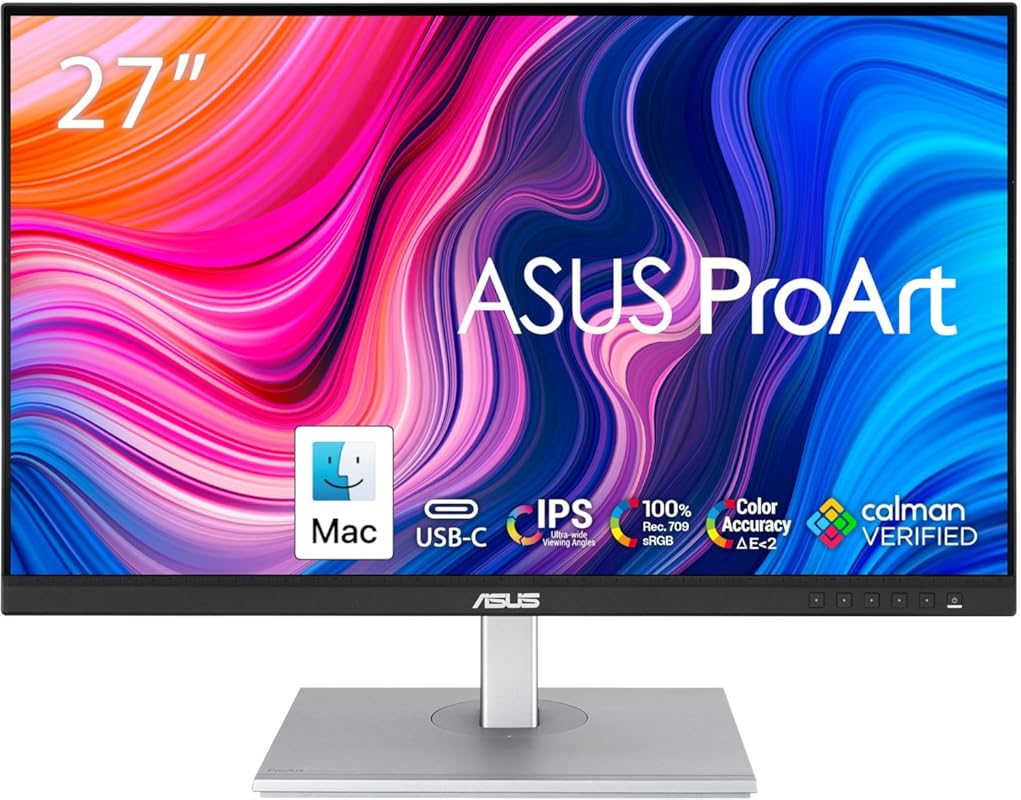
The ASUS PA278CV is a workhorse monitor that delivers professional-grade color accuracy without the ultra-premium price tag. Its 27-inch WQHD (2560×1440) IPS panel provides a sharp, detailed canvas for intricate design work, while covering 100% sRGB and Rec. 709 color spaces. What truly sets it apart is the Calman Verification and factory calibration, promising a Delta E < 2 out of the box—crucial for color-critical tasks. The inclusion of a USB-C port with 65W Power Delivery is a game-changer for laptop users, allowing you to power your device and transmit video with a single cable.
Key Features That Stand Out
- ✓ Calman Verified factory calibration (Delta E < 2)
- ✓ 100% sRGB / 100% Rec. 709 color gamut coverage
- ✓ USB-C with 65W Power Delivery
- ✓ Ergonomic height, tilt, swivel, and pivot adjustments
- ✓ WQHD (2560×1440) resolution on a 27″ panel
Why We Recommend It
This monitor hits the sweet spot for most graphic designers. You get near-professional color accuracy and a fantastic feature set (especially the USB-C) at a price that won’t break the bank. It’s a reliable, no-nonsense workhorse that you can trust for photo editing, illustration, and UI design. The ergonomic stand means you can set it up perfectly for long sessions.
Best For
Freelancers, students, and professional designers who need excellent, reliable color accuracy on a budget. It’s perfect for anyone using a MacBook or USB-C laptop who wants to declutter their desk.
Pros and Cons
Pros:
- Exceptional factory color accuracy out of the box.
- USB-C port with 65W charging is incredibly convenient.
- Versatile, ergonomic stand with full motion adjustment.
- Strong value proposition for the feature set.
Cons:
- No HDR support (not a dealbreaker for pure graphic design).
- On-screen menu navigation can be a bit clunky.
Customer Reviews
Customer Review: We are so very pleased with this product that we purchased 2 of them! We have a 2019 MacBook Pro and a 2020 MacBook Air and this monitor provides greater picture quality at a very affordable price. We had previously ordered the a Dell 32″ curved monitor that did not provide the clarity of the ASUS and tried a 4K 32″ Dell that had good sharpness, but it would randomly go black because of incompatibility with our older MacBooks (not even work on the Air model).The ASUS product looks great, has USB-C so we can now power and communicate with our Macs using a single cord, the sharpness and brightness of the picture is amazing, and the numerous features are incredible.We are so thankful for being able to purchase these on Amazon!
Customer Review: Seems like an excellent monitor.While setting up the base, and looking for a way to adjust the height, this only happens when the rather heavy monitor is attached to the base. Nice design.When connecting the monitor to your pc with any cable other rather than HDMI, the image will not appear on screen. You’ll need to go into the monitor buttons on the front right bottom of the unit and change the input to your cable type. The default input is HDMI.
2. ASUS PA278QV ProArt Display
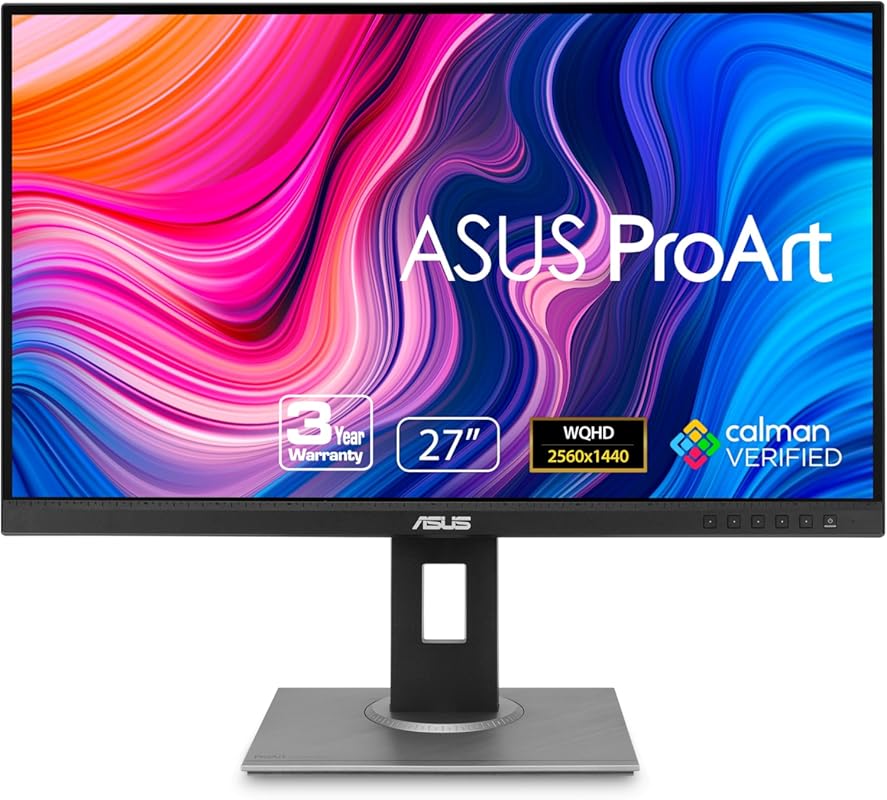
The ASUS PA278QV is the predecessor to our top pick and remains a stellar option, especially when found on sale. It shares the same excellent 27-inch WQHD IPS panel with 100% sRGB/Rec. 709 coverage and Calman Verified factory calibration for superb color accuracy. The frameless design looks modern and sleek. While it lacks the USB-C port of the PA278CV, it makes up for it with a very competitive price point and a proven track record of reliability. It’s a monitor built for creators who prioritize image quality above all else.
Key Features That Stand Out
- ✓ Calman Verified for factory calibration (Delta E < 2)
- ✓ 100% sRGB and 100% Rec. 709 wide color gamut
- ✓ Frameless IPS panel with 178° wide viewing angles
- ✓ Extensive connectivity: DisplayPort, HDMI, D-sub
- ✓ Fully ergonomic stand (height, tilt, swivel, pivot)
Why We Recommend It
For the designer who wants pure, unadulterated color accuracy without extra features they might not use, the PA278QV is a champion. Its calibration is trusted by professionals, and the image quality is consistently praised. If you don’t need USB-C and can find it at a discount, this is arguably the best value in professional-grade monitors.
Best For
Budget-conscious professionals and serious hobbyists who prioritize color fidelity over cutting-edge connectivity. Ideal for desktop setups with a traditional PC or a laptop that uses a separate power adapter.
Pros and Cons
Pros:
- Outstanding, reliable color accuracy from the factory.
- Excellent, uniform IPS panel with deep blacks for its class.
- Very sturdy and versatile ergonomic stand.
- Often available at a significant discount.
Cons:
- Lacks USB-C connectivity (a major differentiator from the PA278CV).
- No built-in speakers.
- On-screen controls are not the most intuitive.
Customer Reviews
Customer Review: I liked the older, smaller TN computer monitors, that had good contrast at low brightness so you could comfortably read black text on a white background. I’ve tried IPS monitors before that were clearly just cheap glossy TV panels, way too much brightness and saturation, no contrast, and horrible smudges from backlight bleed covering half the screen. Computer monitors are supposed to be better than TVs. Also, once you get past 24″ or so, 1080 is way too blurry up close.This one is excellent, exactly what I was looking for. It’s still bright enough to be used as a TV if that’s what you want, but with the brightness turned down it works as a real computer monitor with excellent color and good contrast, the kind you would use at a desk with a mouse and keyboard. The screen is very consistent, with no visible glow or bleeding from the edges, even when the screen is black. The stand is impressive, very simple to put together, very easy to adjust but also very stable.They’re probably overselling this a little bit for high-end professional work, 100% sRGB (with the brightness turned all the way down) isn’t actually that impressive, but I don’t care what they call it as long as I can get a good quality, general purpose monitor at a decent price.
Customer Review: A review from over a year of owning this: I got this to do art and occasionally play games. Refresh rate is great, especially when gaming or editing 60fps videos. Screen is the perfect size for my desk and I love that I can extend it and use it when I’m standing. Color is excellent and I appreciate the ability to check real life dimensions from within the screen. I have no dead pixels and I’ve been using it for over a year with no issue. While the brightness is adjustable and can go pretty high, there’s a bit of screen burn-in (that fades given time) which is to be expected. I generally keep to the default sRGB and lower brightness to avoid this because it can mess with color appearances which isn’t ideal for art. The only major downside of this is that the speakers are really poor quality. I got some cheap, 20+ year old external speakers to plug in because it really was that bad and the cheap external speakers are significantly better. If you are editing videos with audio or like to listen to music while you work, you’ll need headphones or speakers. I’d almost rather this monitor didn’t come with built in speakers as it feels like such a waste for something so poor quality. But I suppose if you just need something to hear alerts or notification sounds, it could be just what you need.Overall, I’m a very happy digital artist with this monitor!
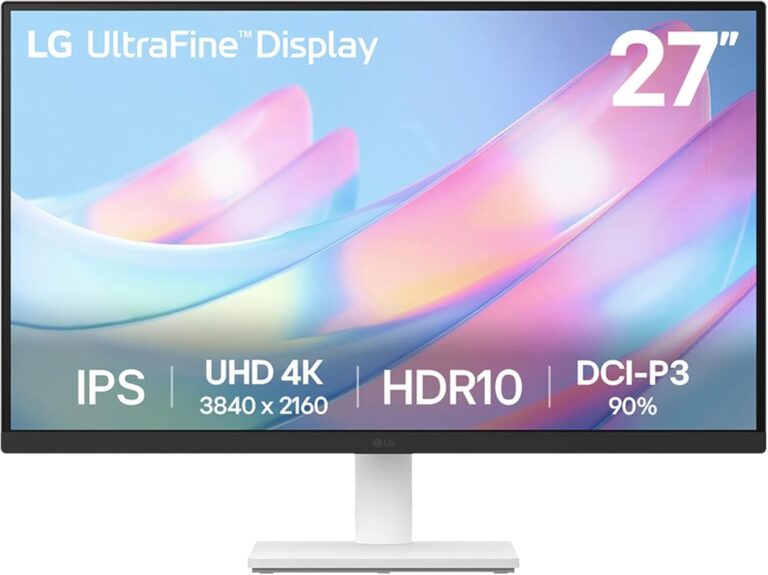
3. LG 27US500-W Ultrafine Monitor
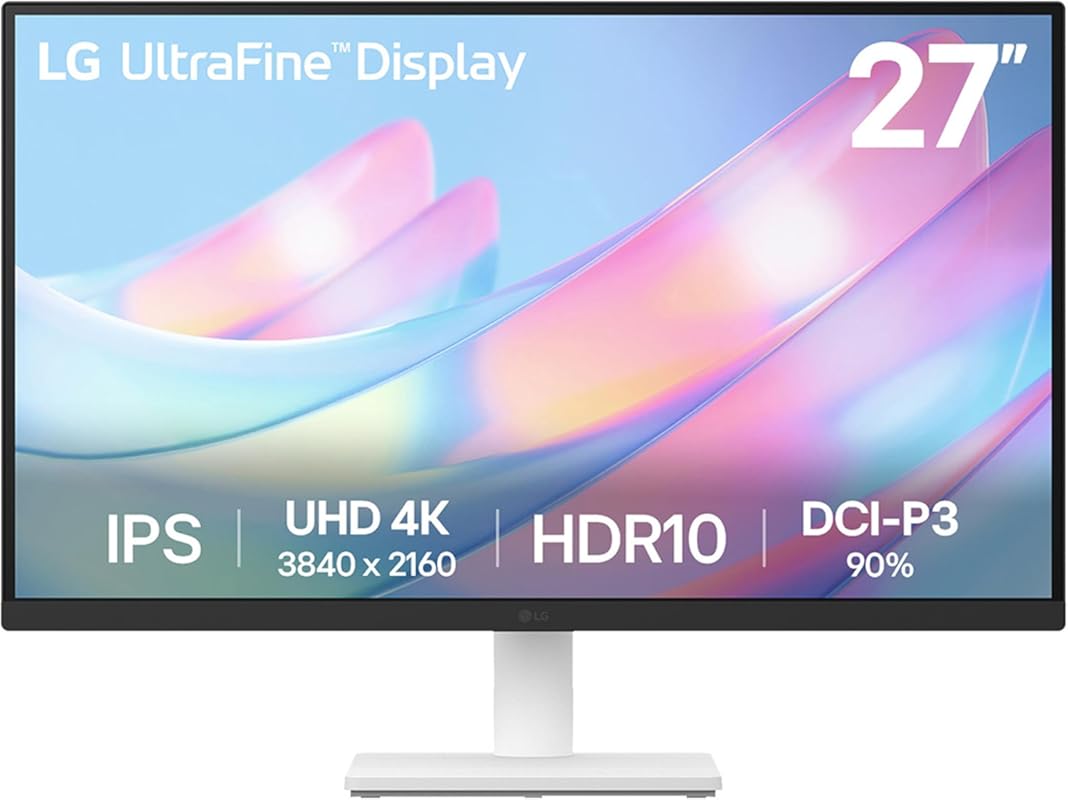
If you want to step into the world of 4K without spending a fortune, the LG 27US500-W is a phenomenal entry point. This 27-inch 4K UHD (3840×2160) IPS panel delivers stunningly crisp text and incredibly detailed imagery. It boasts up to 90% DCI-P3 color gamut and HDR10 support, offering a richer color experience than standard sRGB monitors. The borderless design is sleek, and LG’s OnScreen Control software makes window management a breeze. For designers working with high-resolution assets or needing screen real estate, this is a fantastic budget-friendly 4K option.
Key Features That Stand Out
- ✓ 4K UHD (3840×2160) resolution on a 27″ panel
- ✓ Up to 90% DCI-P3 wide color gamut
- ✓ HDR10 support for enhanced dynamic range
- ✓ Borderless, minimalist design
- ✓ OnScreen Control software for easy display customization
Why We Recommend It
This monitor proves you don’t need to sacrifice resolution for budget. The jump to 4K is transformative for detail-oriented work like vector illustration, photo retouching, and layout design. While it doesn’t have the factory calibration of the ProArt series, the out-of-the-box color performance is very good for the price, and the pixel density is simply stunning.
Best For
Designers moving up from 1080p who want more screen real estate and razor-sharp detail. Excellent for photo editors, UI/UX designers working with high-fidelity mockups, and anyone who appreciates crisp text for long writing or coding sessions.
Pros and Cons
Pros:
- Incredible 4K sharpness and text clarity.
- Excellent color gamut (90% DCI-P3) for the price.
- Sleek, modern borderless design.
- OnScreen Control software is genuinely useful.
Cons:
- Stand only offers tilt adjustment; no height or swivel.
- Not factory-calibrated for professional color work (requires user calibration).
- HDR performance is basic (DisplayHDR 400).
Customer Reviews
Customer Review: I’ve been using the LG 27US500-W Ultrafine Monitor for a few weeks now, and it’s been fantastic. The 4K UHD resolution is incredibly sharp—text looks crisp, and colors are vibrant without being oversaturated. Out of the box, color accuracy was already very good, but after a quick calibration, it looked even better.The 27-inch screen size is the sweet spot for productivity—large enough for split-screen multitasking without taking up too much desk space. I mainly use it for photo editing, web browsing, and occasional Netflix, and everything looks clean and smooth. The IPS panel gives great viewing angles too, so there’s no color shifting when I move around.Build quality is solid and minimalistic, with thin bezels and a clean white finish that looks great on my desk. The stand is a little basic—only tilt adjustment, no height or swivel—but that’s easily solved with a VESA mount.Connectivity is straightforward with HDMI and DisplayPort options, and it works flawlessly with both my MacBook and PC.
Customer Review: I didn’t rate this for gaming because I don’t have a video card to drive a 4K monitor at a good speed yet, but for everything else, it looks brilliant for the money.I’m a working stiff these days, so I don’t have the free time I’d like to have to play around and get everything set up just so, and I found that there are little hurdles and speed bumps along the way with these newer displays if you want to actually USE all of the fancy marketing buzzwords like HDR or Freesync or G-Sync or high frame rates or FALD (full array local dimming). I haven’t gotten those all figured out just yet and the documentation and user interface aren’t quite intuitive if you’ve never had to set those up and get them actually enabled and working correctly in real life before. They’re not just “plug it in and bask in the full glory” easy yet– you have to make sure you have the right combinations of hardware, cables, drivers, and settings between all the devices and peripherals to take full advantage of those newer features. But 4K crystal clear beautiful brilliance does pretty much work right out of the box, and at this price, even just that is worth having. It takes very little adjusting to get very realistic colors compared to my old calibrated Dell setup. I didn’t even have to delve into the color calibration tool in Windows to get it fairly close to what I prefer in my lighting environment and get my pictures to look almost exactly like they looked in real life when I originally took the pictures. I don’t even feel bad quite yet about not pulling out a hardware calibration tool.So while I haven’t put together all of those pieces in a way that lets me enjoy all the features and functionality of this monitor yet, I am already satisfied with my purchase even if I never take the time to make it all work at peak performance. This is a pretty darn good buy.I’ve even considered picking up another one or two to replace my old 1080P monitor and at least one of my work monitors at the office because of the price to performance ratio. The only reason I haven’t is because I may get my work to buy one or two for me for that, and at home I’m planning to buy one of the top of the line 4K G-Sync quantum dot monitors as my main/gaming monitor once I’ve upgraded my rig to push 4K really well, and it seems silly to me to buy a perfectly good monitor to only use for a few months. These are too good to waste and I don’t have room on my desk for a triple monitor setup, unfortunately, or it’d be a no-brainer.
4. Sceptre 27″ Curved Gaming Monitor 100Hz 1080p with 98% sRGB, HDMI x2, Built-in Speakers, VESA Wall Mountable
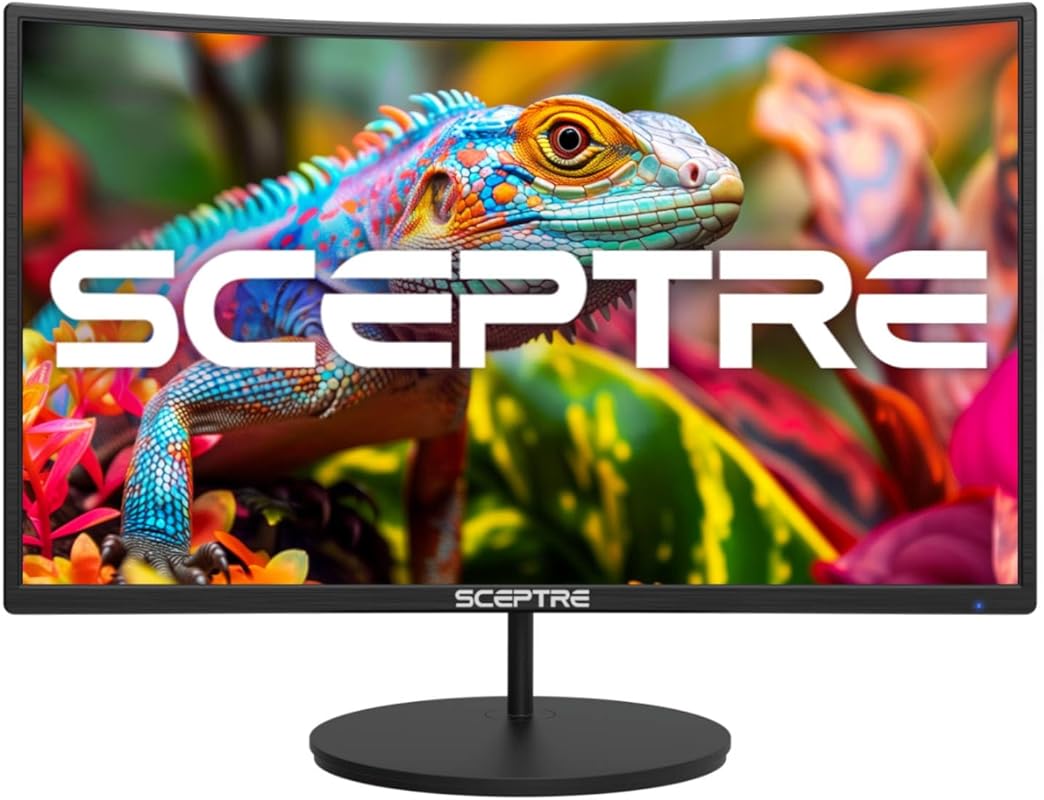
The Sceptre C275W-1920RN is a fantastic budget option that brings a curved, immersive experience to the desktop. Its 27-inch 1080p VA panel offers a 1500R curvature, which can help reduce eye strain by maintaining a consistent focal distance across the screen. It covers 98% sRGB, providing decent color reproduction for casual design work and photo viewing. The 100Hz refresh rate and AMD FreeSync support make for smooth scrolling and gameplay. For designers on a very tight budget who still want a modern, engaging display, this is a hard-to-beat package.
Key Features That Stand Out
- ✓ 1500R curved 27″ 1080p VA panel
- ✓ 100Hz refresh rate with AMD FreeSync
- ✓ 98% sRGB color gamut coverage
- ✓ Dual HDMI ports and built-in speakers
- ✓ VESA wall mount compatible
Why We Recommend It
You simply cannot argue with the feature set for the price. The curved screen is a novelty at this price point and genuinely improves the viewing experience. While it’s not a color-accurate professional tool, its 98% sRGB coverage is more than adequate for web design, social media graphics, and general creative work where absolute precision isn’t critical.
Best For
Students, hobbyists, and beginners in graphic design. Also great for anyone wanting a secondary monitor for multitasking or a primary monitor for general use with a side of casual gaming.
Pros and Cons
Pros:
- Extremely affordable with a curved screen.
- Smooth 100Hz refresh rate for fluid motion.
- Decent sRGB coverage for casual creative work.
- Includes convenient features like dual HDMI and built-in speakers.
Cons:
- VA panel has slower response times and poorer viewing angles than IPS.
- Only 1080p resolution on a 27″ screen (lower pixel density).
- Not suitable for professional color-critical work.
- Stand is basic and not very adjustable.
Customer Reviews
Customer Review: This screen was a bit bigger than my last monitor and it was very nice.. The graphics were super clear, everything was clear sharp, the monitor was not too bulky it’s slim and exactly what I was looking for.
Customer Review: I bought two of these monitors for doing work and learning at home, not really using them for gaming. At some point I might. So far they work great. Good clear picture, sharp lines. I didn’t want to spend a lot of money (I’m a cheapskate). Very reasonably priced.
5. Samsung LS32B304NWNXGO Monitor
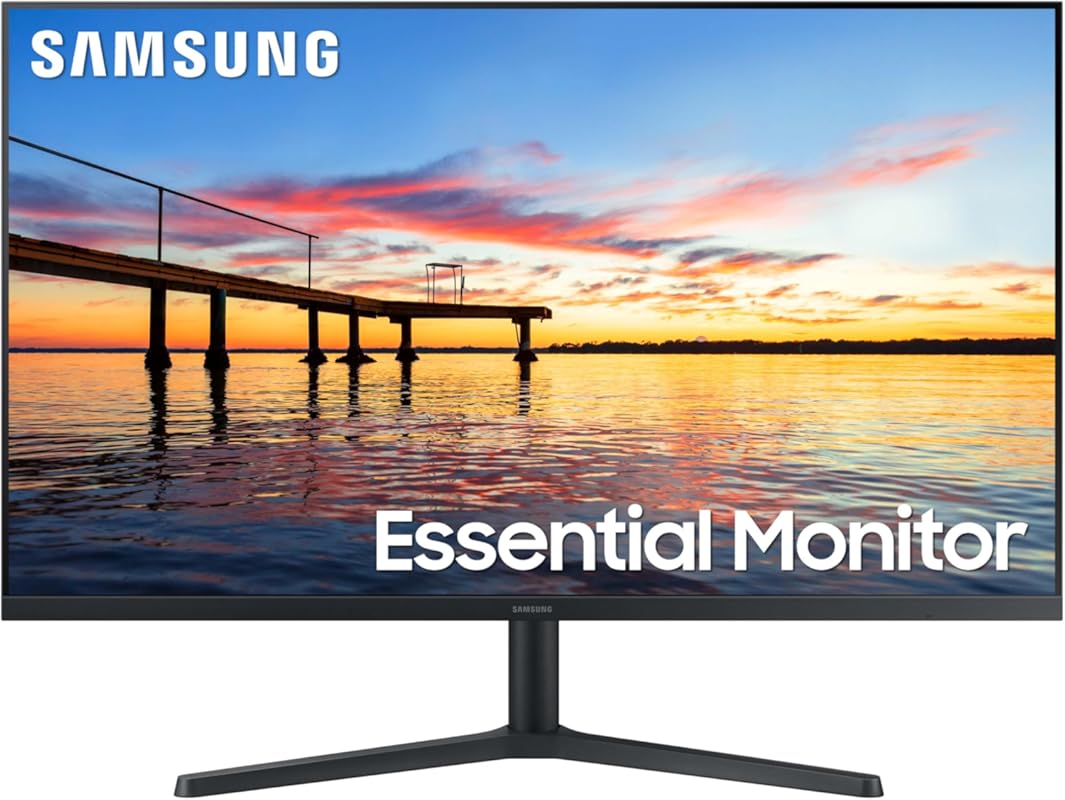
Samsung’s LS32B304NWNXGO is a large-format, budget-friendly monitor that excels in productivity and general creative work. The 32-inch screen with a three-sided borderless design provides an expansive, immersive view. It uses a VA panel to deliver a deep 3000:1 contrast ratio, making whites pop and blacks look rich—great for working with dark-themed software or viewing high-contrast imagery. While its color gamut is standard sRGB, the 75Hz refresh rate and AMD FreeSync support ensure smooth scrolling and video playback.
Key Features That Stand Out
- ✓ Large 32″ size with a three-sided borderless frame
- ✓ Deep 3000:1 contrast ratio (VA panel advantage)
- ✓ 75Hz refresh rate with AMD FreeSync
- ✓ Eye Saver Mode (reduces blue light)
- ✓ Game Mode for optimized contrast in dark scenes
Why We Recommend It
This monitor is about providing maximum screen real estate for minimal cost. If you need a huge canvas for timelines, large-format layouts, or simply want to fit multiple windows without the cost of a 4K panel, this Samsung is a smart choice. The high contrast ratio makes images and text feel more “alive” than on a standard IPS panel at this price.
Best For
Designers who work with large canvases (e.g., posters, banners), video editors needing timeline space, or anyone wanting a massive secondary monitor for multitasking on a tight budget.
Pros and Cons
Pros:
- Huge 32-inch screen for an incredible price.
- Excellent contrast ratio for deep blacks and vivid highlights.
- Borderless design looks sleek and modern.
- Smooth 75Hz refresh rate reduces motion blur.
Cons:
- Standard 1080p resolution on a 32″ screen (lower pixel density, text can look less sharp).
- VA panel has limited viewing angles and potential color shift.
- Color gamut is only standard sRGB.
- No USB-C or advanced ergonomic adjustments.
Customer Reviews
Customer Review: Monitors were super easy to set up and lightweight. The brightness on the screens is adjustable (thank goodness because they were super bright) the quality of the monitors is great clean crisp clear screens. I’m able to do everything I want to and have had no problems with the monitors.
Customer Review: Monitor is very nice. Very clean graphics, screen easy to read. Bought 2 of them! Comes with all the cords needed for easy installation.
6. Sceptre E275W-FW100T Gaming Monitor
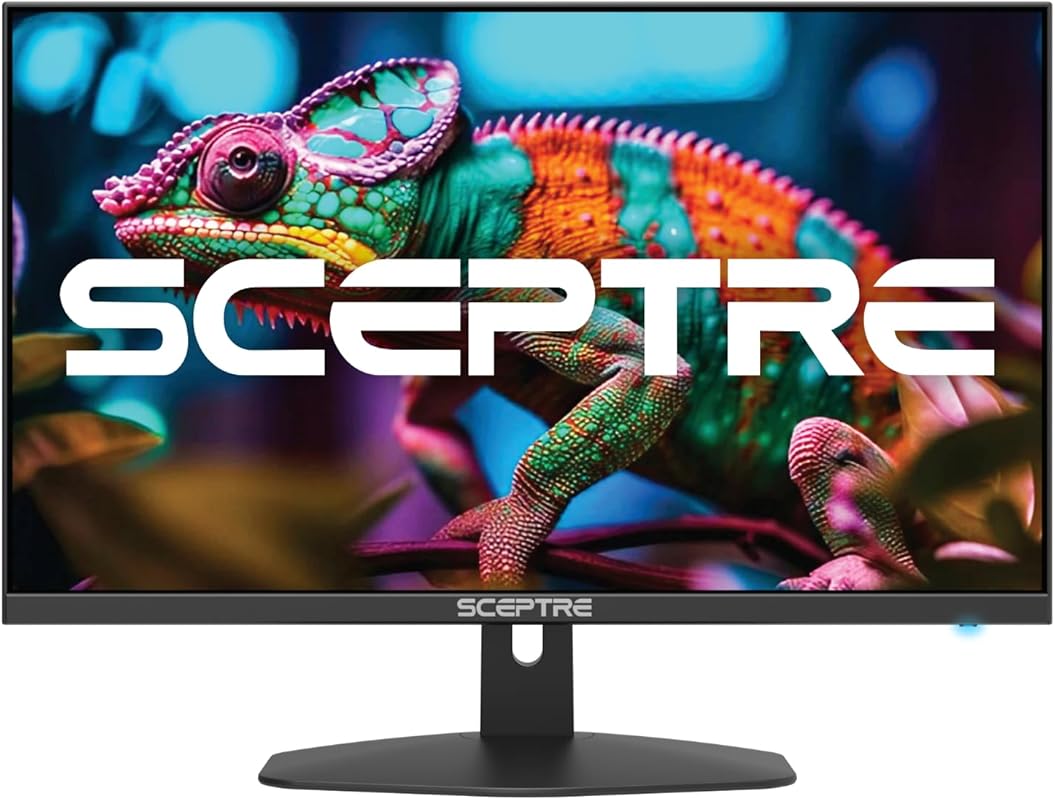
The Sceptre E275W-FW100T is another strong contender in the budget gaming space that translates well to design use. It features a 27-inch 1080p IPS panel, which offers better color consistency and wider viewing angles than the VA panel in the previous Sceptre model. Key for designers is its 100% sRGB coverage, ensuring web-safe colors are accurate. The 100Hz refresh rate and 1ms response time make for incredibly smooth scrolling and cursor movement, a subtle but noticeable quality-of-life improvement for any computer user.
Key Features That Stand Out
- ✓ 27″ 1080p IPS panel (better viewing angles than VA)
- ✓ 100% sRGB color gamut coverage
- ✓ 100Hz refresh rate with 1ms response time
- ✓ AMD FreeSync support
- ✓ Blue Light Shift feature for reduced eye strain
Why We Recommend It
This is the best choice if you want an IPS panel’s viewing angles and color consistency on a tight budget. The 100% sRGB coverage is a significant plus for any designer working with web content. The high refresh rate is a bonus that makes the overall user experience feel snappier and more responsive than a standard 60Hz monitor.
Best For
Designers who need good, consistent colors (100% sRGB) and smooth motion but are constrained by a very limited budget. Great as a secondary monitor or a primary for entry-level work.
Pros and Cons
Pros:
- Excellent value with an IPS panel and 100% sRGB.
- Very smooth 100Hz refresh rate for fluid motion.
- Fast 1ms response time minimizes ghosting.
- Includes useful features like Blue Light Shift and built-in speakers.
Cons:
- 1080p resolution on 27″ has lower pixel density.
- Not factory calibrated for professional color accuracy.
- Stand is basic with limited adjustability.
- Build quality is functional but not premium.
Customer Reviews
Customer Review: I have been using these monitors for over a year now and have not had any issues. The were easy to put on the monitor arms I brought so I could have dual monitors. The offer a crisp picture and have a good refresh rate. I have even played some games on it and have not had any issues and the graphics are very good. I would buy this monitor again.
Customer Review: An unbelievably nice monitor. I just love the way it looks. It’s profile everything about. It is awesome. Highly recommended. I’m gonna buy another one. You should too.
7. ASUS VA279HG Eye Care Monitor
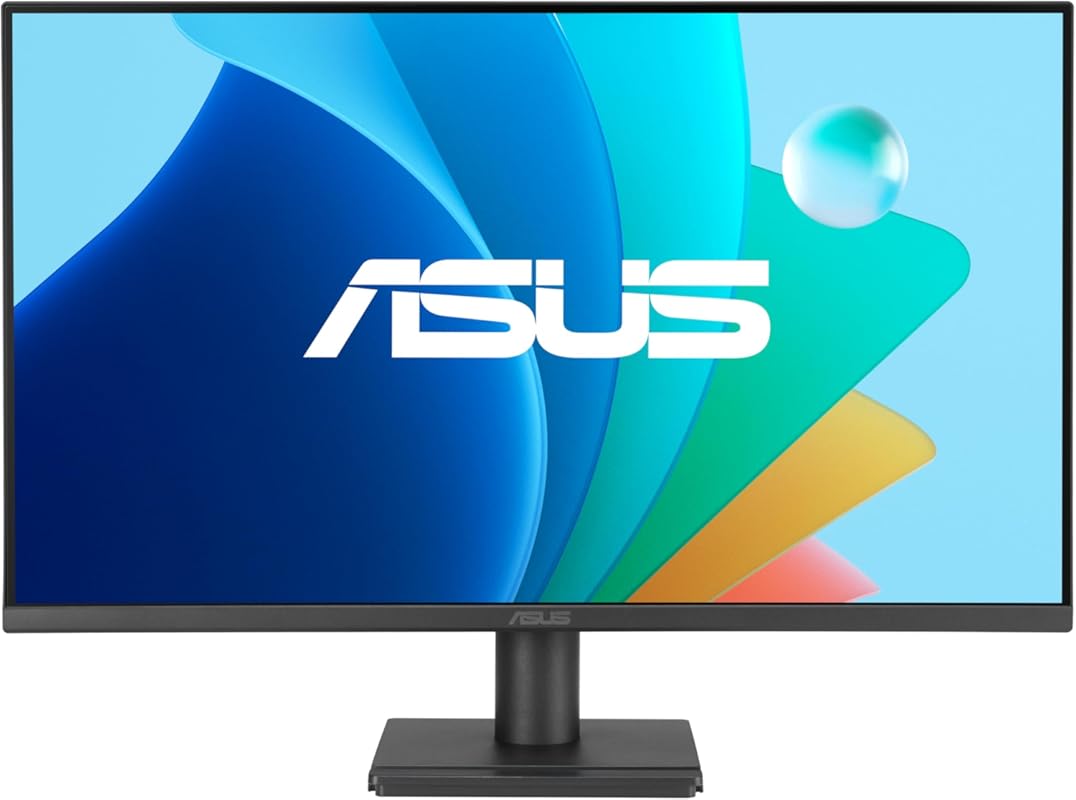
The ASUS VA279HG is a high-refresh-rate IPS monitor that offers surprising value. Its 27-inch 1080p IPS panel boasts 99% sRGB coverage, which is excellent for its class. The headline feature is the 120Hz refresh rate and 1ms MPRT response time, supported by Adaptive-Sync (compatible with both AMD FreeSync and NVIDIA G-Sync). This creates an incredibly smooth, tear-free visual experience that’s a joy for scrolling through long documents, timelines, or even light gaming. ASUS’s Eye Care technology (flicker-free and low blue light) is a nice touch for long work sessions.
Key Features That Stand Out
- ✓ 120Hz refresh rate with 1ms MPRT response
- ✓ Adaptive-Sync (FreeSync/G-Sync compatible)
- ✓ 99% sRGB color gamut on an IPS panel
- ✓ ASUS Eye Care technology (flicker-free, low blue light)
- ✓ Extensive connectivity: HDMI, VGA, and audio jack
Why We Recommend It
For designers who also game or simply appreciate buttery-smooth motion, this monitor is a steal. The combination of an IPS panel with good sRGB coverage and a 120Hz refresh rate is rare at this price point. It makes everyday tasks like dragging windows, scrolling webpages, and moving layers in design software feel noticeably more fluid and responsive.
Best For
Designers who are also gamers, or anyone who prioritizes a super smooth desktop experience. Also great for users with older systems that can’t push high resolutions but can handle high refresh rates at 1080p.
Pros and Cons
Pros:
- Exceptionally smooth 120Hz refresh rate.
- Good 99% sRGB coverage on an IPS panel.
- Adaptive-Sync support eliminates screen tearing.
- Very affordable for the feature set.
Cons:
- 1080p resolution limits detail on a 27″ screen.
- Not calibrated for professional color work.
- VGA port is a legacy inclusion (not a pro feature).
- Stand offers tilt adjustment only.
Customer Reviews
Customer Review: Very nice picture, easy set up. Wish they had instructions on the control. Took me a while to find the the little “joystick” on the back.
Customer Review: Excelente producto ,de acuerdo a lo ofrecido y en en tiempo de entrega antes de lo ofrecido . Muy recomendado.
8. Dell S3225QS 32 Plus Monitor
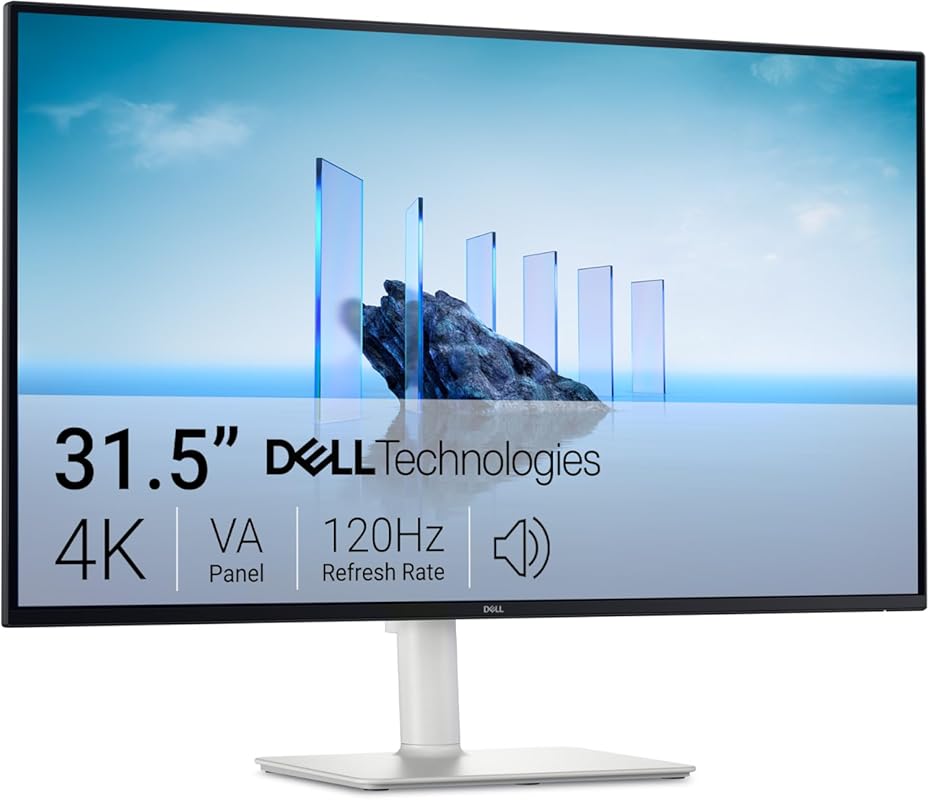
The Dell S3225QS is a compelling large-format 4K monitor that combines a massive 32-inch VA panel with surprisingly good color performance. It covers 99% sRGB and an impressive 95% DCI-P3, which is exceptional for a VA panel. The 4K resolution on this size offers incredible detail, and the 120Hz refresh rate with AMD FreeSync Premium support ensures smooth motion. Dell’s ComfortView Plus reduces blue light emissions without compromising color accuracy. It’s a versatile powerhouse for designers who want both real estate and high resolution.
Key Features That Stand Out
- ✓ 32″ 4K UHD (3840×2160) VA panel
- ✓ 99% sRGB and 95% DCI-P3 color gamut coverage
- ✓ Up to 120Hz refresh rate with AMD FreeSync Premium
- ✓ Ultra-low 0.03ms response time (GtG)
- ✓ Dell ComfortView Plus (low blue light, color accurate)
Why We Recommend It
This monitor delivers a rare combination: a large 4K screen with a high refresh rate and excellent color gamut coverage, all at a competitive price. The VA panel provides superior contrast over IPS, making it great for HDR-like content and dark-themed software. It’s an excellent all-rounder for designers who also appreciate smooth motion and don’t need the absolute best viewing angles.
Best For
Designers, video editors, and photographers who want a large, high-resolution screen with excellent color range and smooth motion. Ideal for a main workstation where screen real estate and detail are paramount.
Pros and Cons
Pros:
- Huge 32″ 4K screen with stunning detail.
- Exceptional color gamut (95% DCI-P3) for a VA panel.
- Smooth up to 120Hz with FreeSync Premium.
- Fantastic 3000:1 contrast ratio for deep blacks.
Cons:
- VA panel has narrower viewing angles than IPS (color shift at extreme angles).
- Pixel response time can be slower than IPS for fast motion (despite the 0.03ms spec).
- No USB-C connectivity.
- HDR performance is basic (HDR10).
Customer Reviews
Customer Review: Love this monitor, true 3840 x 2160p @60hz. The screen is very bright and doesn’t have much glare, probably none at all. Good price too, I ended up buying a second one. I am switching from LG monitors because LG sucks and they make bad products that have poor UI. The power cord is plenty long, I wish it came with a longer HDMI cable like 8 feet vs the 6 foot one that comes with but that might not matter to other customers. I don’t use the stand that comes with it and use pole-mount stands, but I tried on the OEM stand and it was plenty sturdy.
Customer Review: I’ve always like Dell monitors and this one is outstanding. Nice matt colors and very sharp. The 32 inch size is great and any larger would cause me to have to move my head too much. The depth of view is great and viewing angle is excellent. The performance is great and I haven’t run too many games through it yet, but the ones I have are perfect. Great price on a fantastic monitor.
9. Samsung LS34C502GANXZA ViewFinity
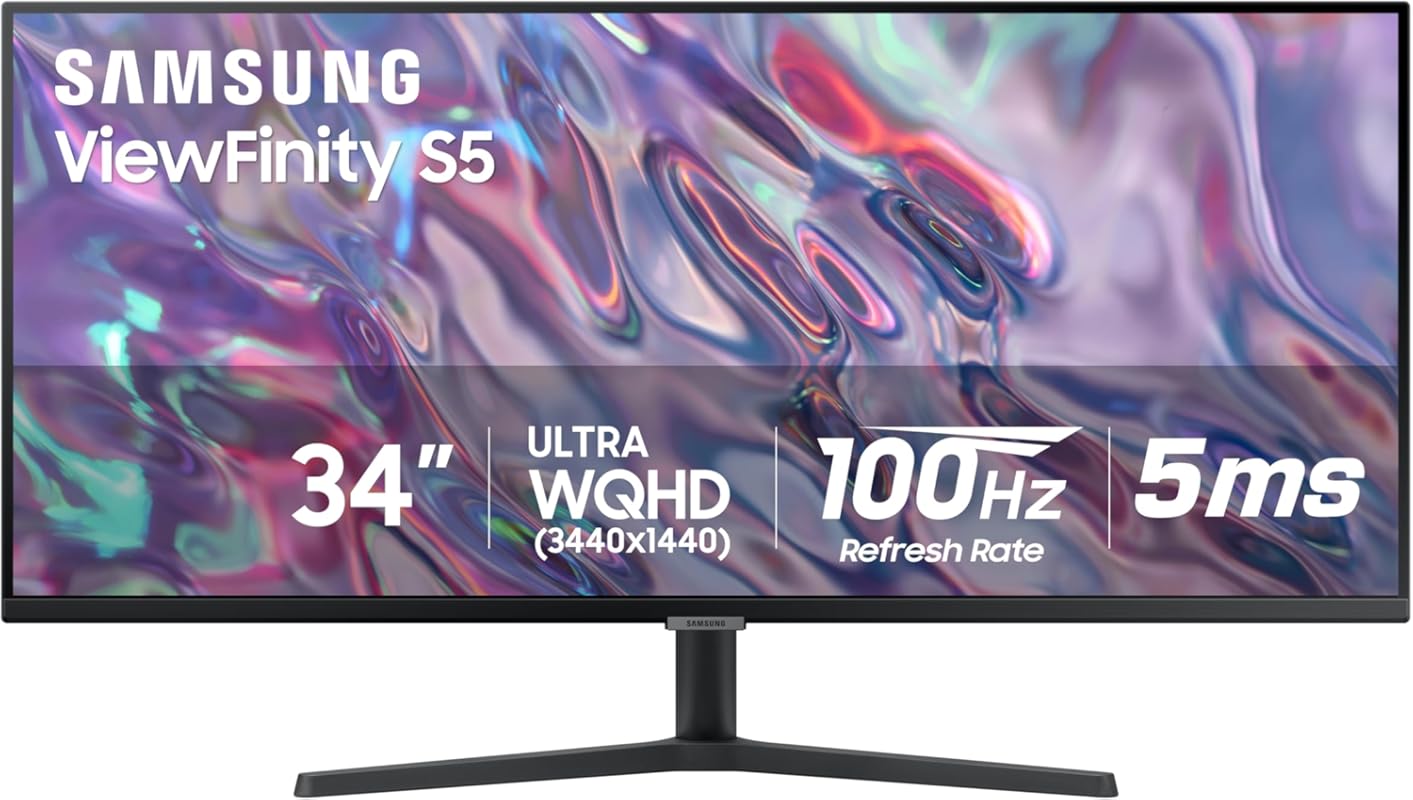
The Samsung LS34C502GANXZA ViewFinity is an ultra-wide monitor that dramatically increases your horizontal screen real estate. Its 34-inch 21:9 aspect ratio provides the equivalent of dual 27-inch monitors without a bezel in the middle, perfect for timelines, long code, or multiple design tools. It uses a VA panel to achieve a 3000:1 contrast ratio and supports HDR10 for enhanced highlights. The 100Hz refresh rate and AMD FreeSync keep motion smooth. Features like Picture-in-Picture (PiP) and Picture-by-Picture (PbP) make it easy to connect multiple sources.
Key Features That Stand Out
- ✓ 34″ Ultra-WQHD (3440×1440) 21:9 curved display
- ✓ HDR10 support with over 1 billion colors
- ✓ 100Hz refresh rate with AMD FreeSync
- ✓ 3000:1 contrast ratio (VA panel)
- ✓ PiP/PbP support for multiple input sources
Why We Recommend It
For designers who feel cramped on a standard 16:9 screen, an ultra-wide is transformative. The extra horizontal space allows you to keep tool palettes, reference images, and your main canvas all visible at once, dramatically improving workflow efficiency. This Samsung model offers a great balance of size, resolution, refresh rate, and contrast for its price.
Best For
Video editors (timeline space!), UI/UX designers (artboards + layers), financial analysts, and any power user who thrives on having multiple windows open simultaneously. Also great for immersive gaming on the side.
Pros and Cons
Pros:
- Massive 21:9 screen real estate boosts productivity.
- High 3440×1440 resolution keeps text and images sharp.
- Excellent 3000:1 contrast ratio for depth.
- Smooth 100Hz refresh rate and FreeSync support.
- PiP/PbP is incredibly useful for multi-device users.
Cons:
- VA panel has slower response times and viewing angle limitations.
- Ultra-wide apps/games may not be fully supported (black bars).
- No USB-C connectivity.
- HDR performance is entry-level.
Customer Reviews
Customer Review: Great monitor. Two HDMI input and one Display Port input, plus 3.5mm audio output sourced from these input options. Both pbp and pip features work fantastic. Adjusting different size and location windows in pip helps get the perfect layout. My monitor has no flaws, and is perfectly clear. I mounted it on the wall using VESA mount and love the wide size. The cable ports point down making setup and connections easy. Unbelievable value for under $200, with quality Samsung branding and support. No complaints so far.
Customer Review: I bought this to replace an aging WQHD/IPS monitor that — I think — was one of the first of such to come out, over ten years ago. It is honestly still a great monitor but I wanted an ultra-wide for work. It surprised me that flat IPS monitors in ultra-wide format are really just not even a thing. If you want ultra-wide and flat, VA is your display technology. So I was a little worried about that to some degree, but pulled the trigger on this, anyway. It’s one of the few high-quality, ultra-wide monitors available, and after doing a lot of investigation had decided I definitely did not want curved.Have to say that I’m very pleased. The clarity of this monitor is as good or better than the IPS monitor had been. And I do love the additional screen real-estate. For basic work it’s perfect. I honestly have no complaints at all, especially given the price I paid.Just a couple things to note. I’m not a fan of the multiple clicks required on the control toggle to switch sources. I have three laptops hooked up to it and it’s a pain to switch. I really wish they would just put a physical toggle on these things that would allow for truly fast switching. The stand that the monitor comes with puts it a little too high — IMO — for comfortable typing at normal desk level. I purchased a separate swing-arm stand for it and now it’s perfect.Would definitely recommend as a basic monitor.
10. LG 27UP650K-W Ultrafine Monitor
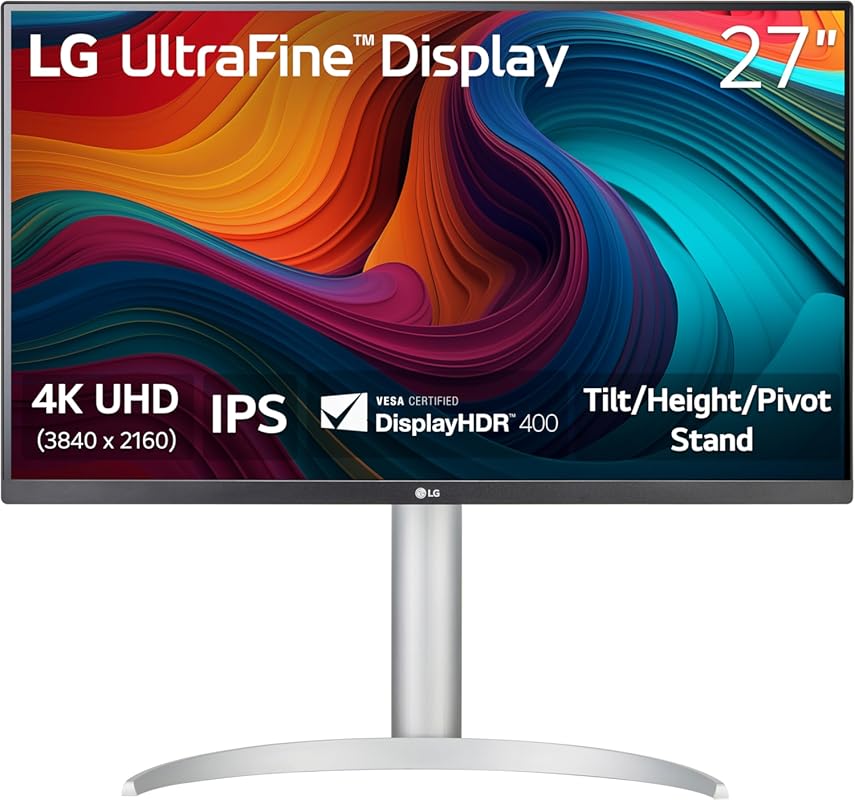
The LG 27UP650K-W is a step up from the 27US500-W, primarily in its stand adjustability and color processing. It shares the same beautiful 27-inch 4K IPS panel with 95% DCI-P3 coverage and DisplayHDR 400. The key upgrade is the ergonomic stand that offers height, tilt, and pivot adjustments, making it easier to achieve a perfect ergonomic setup without a separate mount. LG’s calibration is also generally well-regarded, and the monitor includes specialized picture modes like DCI-P3, which is particularly useful for MacBook Pro users.
Key Features That Stand Out
- ✓ 27″ 4K UHD (3840×2160) IPS panel with 95% DCI-P3
- ✓ VESA DisplayHDR 400 certification
- ✓ Fully adjustable stand (height, tilt, pivot)
- ✓ Specialized DCI-P3 picture mode (great for Mac)
- ✓ Reader Mode and Flicker Safe technology
Why We Recommend It
If you love the picture quality of the LG 27US500-W but need an adjustable stand, this is your monitor. It’s the most sensible 4K IPS upgrade for Mac users and anyone who wants a clean, adjustable desk setup. The color performance is excellent for the price, and the ergonomic stand adds immediate value.
Best For
MacBook Pro users, photographers, and designers who want a 4K IPS monitor with a great stand out of the box. Perfect for a primary workstation where ergonomics are as important as image quality.
Pros and Cons
Pros:
- Stunning 4K IPS clarity with 95% DCI-P3 coverage.
- Excellent, fully adjustable ergonomic stand.
- DCI-P3 mode is fantastic for color-managed workflows (especially Mac).
- Clean, minimalist design with thin bezels.
Cons:
- HDR400 is entry-level and not a major selling point.
- No USB-C port (requires separate power for laptop).
- Not factory-calibrated to the same standard as ProArt monitors.
- Price is higher than the non-adjustable LG 27US500-W.
Customer Reviews
Customer Review: It is a great monitor having a great color coverage (95% DCI-P3). The monitor has a great picture mode named DCI-P3 (alternative to read, FPS, RTS, cinema, etc) that works very well with MacBook Pro. I really enjoy it.
Customer Review: This monitor was recommended to me by ChatGPT, and I’m very happy with it. The 4K picture quality is excellent, clear, and sharp. I liked it so much that I ordered four of them. Great design and definitely worth it.
Complete Buying Guide for Best Monitors for Graphic Design
Essential Factors We Consider
When choosing a monitor for graphic design, your focus should be on color accuracy, resolution, panel type, and connectivity. Color accuracy is paramount—look for monitors covering 100% sRGB or, for high-end work, Adobe RGB/DCI-P3. Factory calibration (like Calman Verification) is a huge plus. Resolution matters: 4K (3840×2160) on a 27″ screen offers incredible detail, while WQHD (2560×1440) is the sweet spot for performance and clarity. IPS panels provide the best viewing angles and color consistency, though high-quality VA panels offer superior contrast. Finally, ensure your monitor has the right ports—USB-C with Power Delivery is a modern convenience that simplifies laptop connections.
Budget Planning
You don’t need to spend a fortune for a great design monitor. A solid WQHD IPS monitor with good color gamut can be found between $250-$400. Stepping into 4K territory starts around $300-$500 for a good IPS panel. Professional-grade, factory-calibrated monitors like the ASUS ProArt series run $400-$600. Large-format or ultra-wide monitors add a premium for the extra real estate. Determine your must-have features (4K vs. QHD, USB-C, adjustable stand) and allocate your budget accordingly. Remember, investing in a good monitor is investing in the quality of your work.
Final Thoughts
The “best” monitor is the one that best fits your specific workflow and budget. For most designers, a 27-inch WQHD or 4K IPS panel with excellent sRGB coverage is the ideal starting point. If you work with video or need massive space, consider a 32-inch 4K or an ultra-wide. Don’t get overly distracted by gaming specs like 144Hz+ unless you also game. Prioritize color accuracy, a high-resolution panel, and an ergonomic stand. The monitors on this list represent the best value and performance across different price points, so you can find the perfect match for your creative needs.
Frequently Asked Questions
Q: Is a 4K monitor necessary for graphic design?
A: Not strictly necessary, but highly beneficial. 4K provides four times the pixel density of 1080p, allowing you to see incredible detail in your work and fit more windows on screen. It’s a significant quality-of-life upgrade for photo editing, illustration, and UI design. WQHD (2560×1440) is still a very capable and popular resolution.
Q: What’s the difference between IPS and VA panels for design work?
A: IPS panels offer superior color consistency, wider viewing angles, and generally faster response times. They are the gold standard for professional color work. VA panels offer much deeper native contrast ratios (darker blacks) but can suffer from color shift at extreme angles and sometimes have slower response times (leading to smearing). For pure color-critical work, IPS is preferred.
Q: Do I need a monitor with factory calibration?
A: For professional, color-critical work (photo editing for print, brand color matching), factory calibration (Delta E < 2) is a major advantage. It means the monitor is accurate out of the box. For hobbyists, web design, or general creative work, a monitor with 100% sRGB coverage is often sufficient, and you can perform a basic software calibration yourself.
Q: Should I prioritize refresh rate or resolution for design?
A: For pure graphic design, resolution and color accuracy are far more important than refresh rate. A 60Hz monitor is perfectly fine. However, a higher refresh rate (75Hz, 100Hz, 120Hz) makes scrolling, moving windows, and general desktop use feel smoother and more responsive. It’s a nice bonus but not a primary requirement.
Q: Is USB-C with Power Delivery really useful?
A: Absolutely, if you use a modern laptop (MacBook, ultrabooks). A USB-C port with Power Delivery (ideally 60W-90W) allows you to send video/display data AND charge your laptop through a single cable. This drastically reduces desk clutter and is a huge convenience factor for mobile professionals.
Choosing the right monitor can truly elevate your creative workflow. Whether you need the professional calibration of the ASUS ProArt, the stunning 4K detail of the LG Ultrafine series, or the expansive screen of an ultra-wide, there’s a perfect tool on this list for you. Think about your most common tasks, your budget, and the features that will make your daily work more comfortable and productive. The right monitor is an investment in your craft—one that pays off every single time you sit down to create.
Ready to upgrade your setup? Click the “Check Price on Amazon” buttons above to see the latest deals and availability for each model. Have more questions about which monitor is right for your specific software or workflow? Drop a comment below, and we’ll help you decide!