Can Motherboards Support Any Nvme Ssd
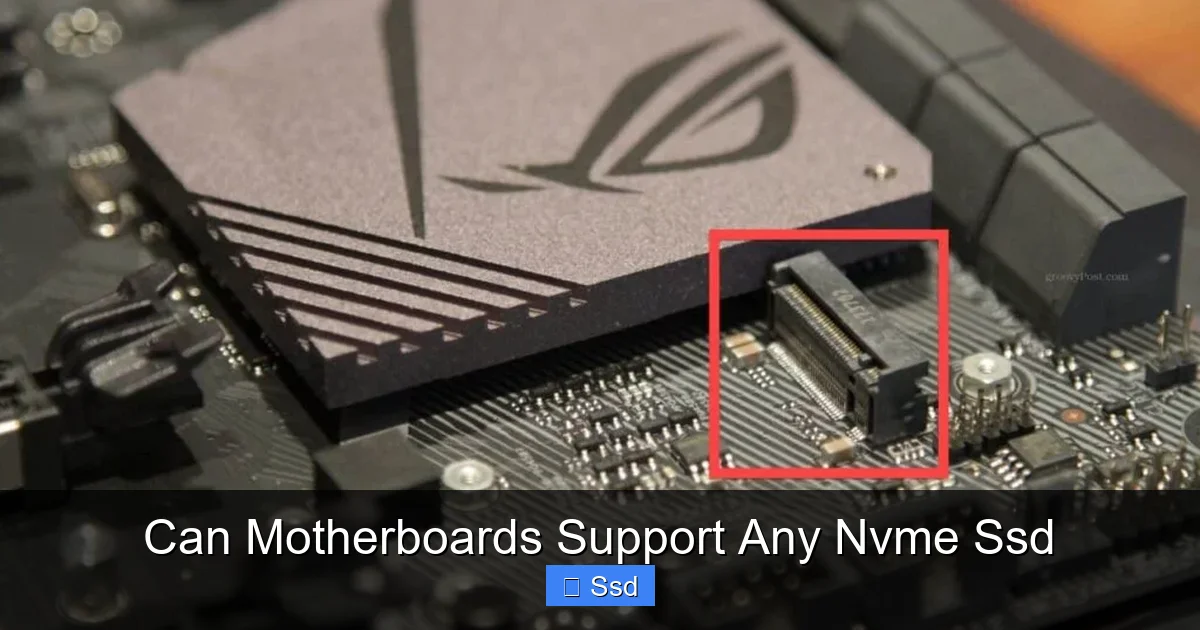
No, motherboards cannot universally support every NVMe SSD. Compatibility depends on three key pillars: the physical M.2 slot form factor (length and keying), the supported PCIe generation and lane count, and the motherboard’s BIOS/UEFI firmware. An NVMe SSD may physically fit but run at slower speeds if your motherboard’s PCIe version is older, or it may not function at all if the slot lacks the correct key or the BIOS lacks the necessary driver. Always check your motherboard’s specific manual and specifications before purchasing an NVMe drive.
So, you’re eyeing a blazing-fast NVMe SSD to supercharge your PC. You’ve heard the hype about PCIe 4.0 and 5.0 speeds that make SATA feel like a horse and buggy. But then a nagging question pops up: can motherboards support any nvme ssd? It’s a fantastic question, and the honest answer is a crucial lesson in PC building: no, they cannot. The world of NVMe compatibility is not a simple “yes” or “no.” It’s a landscape defined by physical dimensions, electrical protocols, and firmware intelligence. Plugging any NVMe drive into any board with an M.2 slot is a gamble, not a guarantee. This guide will dismantle the myth of universal compatibility and give you the exact checklist to ensure your next storage upgrade is a perfect match for your motherboard.
Key Takeaways
- Physical Fit is Step One: Ensure your motherboard’s M.2 slot matches the SSD’s length (2242, 2260, 2280, 22110) and physical key (M, B, or M&B). Most consumer SSDs are 2280 with an M key.
- PCIe Generation Dictates Speed: An NVMe SSD rated for PCIe 4.0 will work in a PCIe 3.0 slot, but it will be limited to the slower generation’s maximum bandwidth. You cannot force a newer SSD to run faster than the motherboard’s capability.
- BIOS/UEFI is the Gatekeeper: Older or very basic motherboards may require a BIOS update to recognize newer NVMe SSDs, especially those with higher capacities or from certain brands. Some server/workstation boards have specific compatibility lists.
- Shared Bandwidth is a Reality: On many motherboards, the M.2 slots share PCIe lanes with other components like SATA ports or additional PCIe slots. Installing an NVMe SSD can sometimes disable other ports.
- Form Factor is Not Just M.2: While M.2 is dominant, some high-end desktops and servers use U.2 (SFF-8639) NVMe drives, which require a specific U.2 backplane or PCIe adapter card, not a standard M.2 slot.
- Thermal Throttling is a Genuine Concern: High-performance NVMe SSDs can generate significant heat. Without a motherboard-provided heatsink or adequate case airflow, the drive may throttle its speed to cool down, negating performance benefits.
- Adapters Provide Flexibility: PCIe expansion card adapters allow you to add NVMe SSDs to systems without native M.2 slots, but they still rely on the motherboard’s available PCIe lanes and generation.
📑 Table of Contents
- Decoding the Basics: What is an NVMe SSD, Really?
- The Electrical Heartbeat: PCIe Generations and Lanes
- BIOS/UEFI: The Software Gatekeeper
- Beyond the Standard M.2: U.2 and Add-in Cards
- Thermal Throttling: The Silent Performance Killer
- Practical Decision Tree: Is This NVMe SSD Compatible With My Board?
- Conclusion: Compatibility is a Puzzle, Not a Lottery
Decoding the Basics: What is an NVMe SSD, Really?
Before we dive into compatibility, we must be crystal clear on terminology. “NVMe” stands for Non-Volatile Memory Express. It is not a physical connector. It is a communication protocol, a set of rules for how data is transferred between your SSD and your CPU over the PCIe bus. Think of it like a language. PCIe is the highway, and NVMe is the high-speed, efficient trucking system designed specifically for flash memory.
The M.2 Form Factor: The Physical Gateway
When you buy a consumer NVMe SSD, you are almost certainly buying an M.2 drive. M.2 is a small, gumstick-sized form factor that can carry SATA or NVMe (PCIe) protocols. The confusion starts here. An M.2 slot on your motherboard is a physical socket. It has a specific shape defined by its keying—the notches that prevent you from inserting a drive incorrectly.
- M Key: The most common for NVMe. It has a single notch on the right side (pin 12). This slot typically supports PCIe x4 lanes.
- B Key: Has a notch on the left side (pin 52). Historically used for SATA and lower-speed PCIe devices like Wi-Fi cards. Some older NVMe SSDs used B+M keys.
- B+M Key: A compromise. The drive can fit into either B or M keyed slots. These are almost always SATA-based M.2 drives, not NVMe. A true NVMe drive will almost always be M-keyed.
Practical Example: The Samsung 980 Pro is a PCIe 4.0 NVMe SSD with an M key. The Crucial MX500 is a SATA M.2 SSD with a B+M key. If you try to put the 980 Pro into a B-keyed-only slot (rare on modern boards), it will not fit physically. If you put the MX500 into an M-keyed slot, it will fit but will only operate as SATA if the motherboard’s M.2 slot supports SATA protocols.
Length Matters: 2280, 22110, and More
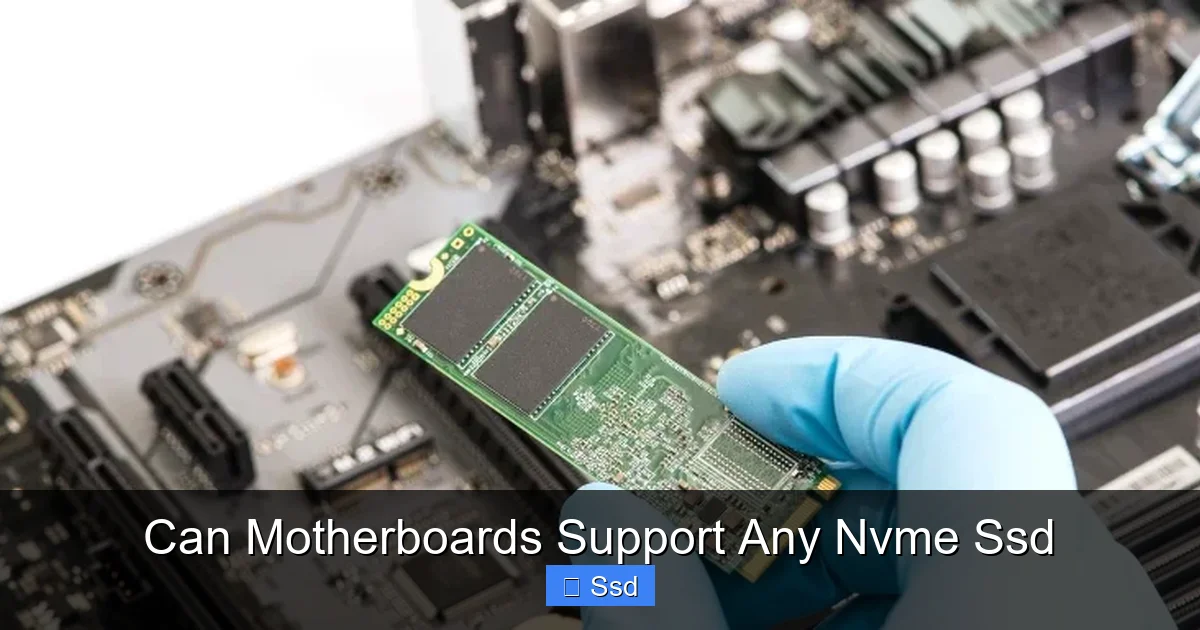
M.2 drives also come in different lengths, measured in millimeters. The number after “22” refers to the width (always 22mm), and the last two digits are the length. The most common is 2280 (22mm wide, 80mm long). Others include 2242, 2260, and the longer 22110, often used in servers and high-end desktops. Your motherboard’s M.2 slot will specify which lengths it supports. A 22110 SSD will not fit into a slot designed only for 2280.
The Electrical Heartbeat: PCIe Generations and Lanes
This is the second, and often most misunderstood, pillar of compatibility. The M.2 slot provides a physical connection to the motherboard’s PCIe lanes. These lanes come in generations (1.0, 2.0, 3.0, 4.0, 5.0), each doubling the theoretical bandwidth of the previous.
Visual guide about Can Motherboards Support Any Nvme Ssd
Image source: greatpcreview.com
- PCIe 3.0 x4: ~3,940 MB/s (Max for most early NVMe SSDs)
- PCIe 4.0 x4: ~7,877 MB/s
- PCIe 5.0 x4: ~15,754 MB/s
The Golden Rule: Compatibility is Backward and Forward. A PCIe 4.0 SSD is electrically compatible with a PCIe 3.0 motherboard slot. It will work perfectly fine. However, it will be severely bottlenecked, operating at PCIe 3.0 speeds. You are paying for performance you cannot use. Conversely, a PCIe 3.0 SSD will work flawlessly in a PCIe 4.0 or 5.0 slot, running at its own maximum speed.
How to Check Your Motherboard’s PCIe Generation Support
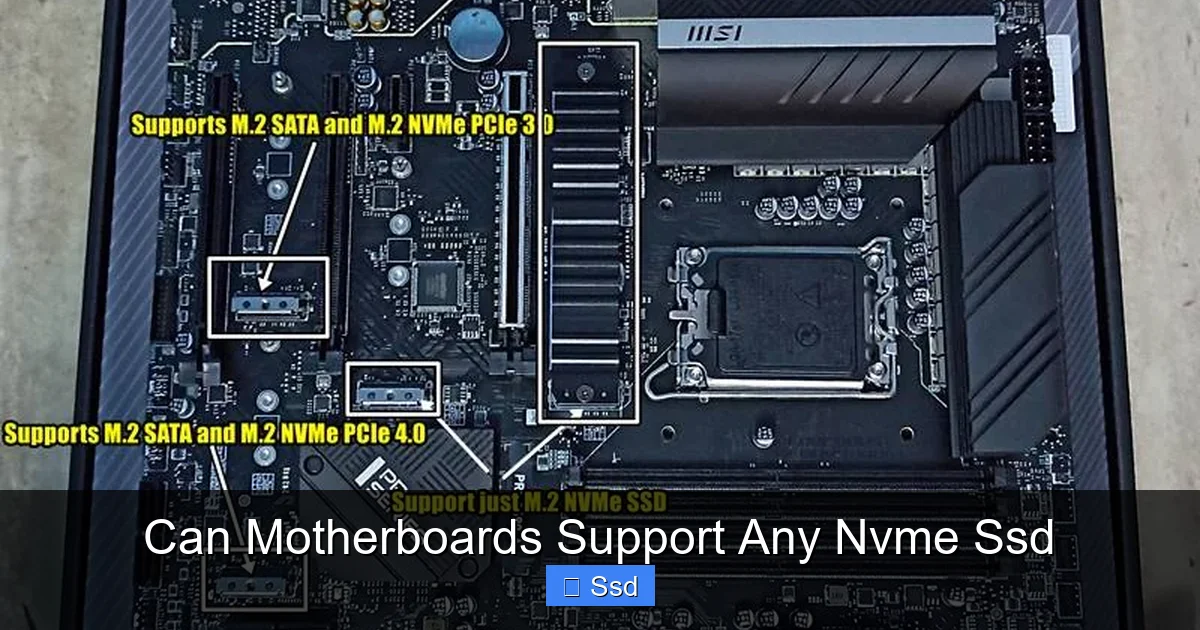
You must consult your motherboard’s manual or product specification page. Look for a section on “M.2 Slots” or “Storage.” It will list each slot and its attributes. For example:
- Slot 1: M.2 Socket 3, supports M key 2242/2260/2280/22110 storage devices. PCIe 4.0 x4 mode.
- Slot 2: M.2 Socket 3, supports M key 2242/2260/2280 storage devices. PCIe 3.0 x4 mode.
This tells you exactly what each slot can handle. Installing a PCIe 4.0 SSD into the second slot here would be a waste of its potential.
The Lane Sharing Trap
Here’s a critical, often-overlooked compatibility quirk. On many mid-range and budget motherboards, the PCIe lanes for the M.2 slots are not dedicated. They are shared with other motherboard functions. The spec sheet might say: “M.2_2 shares bandwidth with SATA6_5 and SATA6_6.” This means if you install an NVMe SSD in that M.2 slot, two of your SATA ports will become disabled. If you have drives plugged into those SATA ports, they will vanish from your system. Always check these sharing notes in your manual to avoid a nasty surprise during your OS install or when adding new drives.
BIOS/UEFI: The Software Gatekeeper
Even with perfect physical and electrical compatibility, the motherboard’s firmware—its BIOS or UEFI—must understand how to talk to the SSD. This is especially true for:
Visual guide about Can Motherboards Support Any Nvme Ssd
Image source: storedbits.com
- Newer, High-Capacity Drives: Drives over 2TB, especially 4TB models, sometimes require a motherboard BIOS update from the last few years to be recognized correctly.
- Older Motherboards: A motherboard from 2015 with a native M.2 slot might only support PCIe 3.0 x4 and have a BIOS that only recognizes early-generation NVMe controllers. It may not boot from a modern PCIe 4.0/5.0 drive without an update.
- Specific Brand/Model Quirks: Occasionally, certain SSD controller models have compatibility issues with specific chipset generations. A quick Google search for “[Your Motherboard Model] + [SSD Model] compatibility” can save hours of headache.
The Pro Tip: Before you even build, download the latest BIOS for your motherboard from the manufacturer’s website and update it using the “BIOS Flashback” feature (if available) or a USB stick. This ensures the widest possible NVMe compatibility out of the gate.
Beyond the Standard M.2: U.2 and Add-in Cards
While M.2 rules the consumer desktop, other form factors exist, and they highlight compatibility limits starkly.
Visual guide about Can Motherboards Support Any Nvme Ssd
Image source: epicwinapp.com
The U.2 (SFF-8639) Connector
Common in enterprise servers and some high-end workstations, U.2 drives look like traditional 2.5″ SATA SSDs but use a different, multi-lane PCIe connector. They offer better cooling and easier hot-swapping in drive bays. You cannot plug a U.2 drive into a standard M.2 slot. To use one on a desktop motherboard that lacks native U.2 ports, you need a special PCIe add-in card that breaks out the U.2 connector. This card then uses a PCIe x4 or x8 slot on your motherboard.
PCIe Add-in Card Adapters
This is the ultimate workaround. If your motherboard has no M.2 slots (common on very old boards) or you’ve run out of them, you can buy a simple M.2 to PCIe adapter card. This card plugs into a standard PCIe x4, x8, or x16 slot and provides one or more M.2 slots. But the compatibility rules still apply: the adapter card simply passes through the motherboard’s PCIe generation and lane count. A PCIe 3.0 motherboard will still limit a PCIe 4.0 SSD on an adapter card to PCIe 3.0 speeds. Also, ensure your case has room for the card and that your power supply can handle the extra SSD power draw (most M.2 SSDs draw power from the slot, but some high-power U.2 adapters need Molex/SATA power).
Thermal Throttling: The Silent Performance Killer
Compatibility isn’t just about whether the drive works. It’s about whether it works well. Modern high-performance NVMe SSDs, especially PCIe 4.0 and 5.0 models, generate a surprising amount of heat. The controller and NAND chips can quickly exceed 80°C under sustained heavy workloads (like large file transfers or video editing). When they get too hot, they throttle—intentionally slow down to prevent damage.
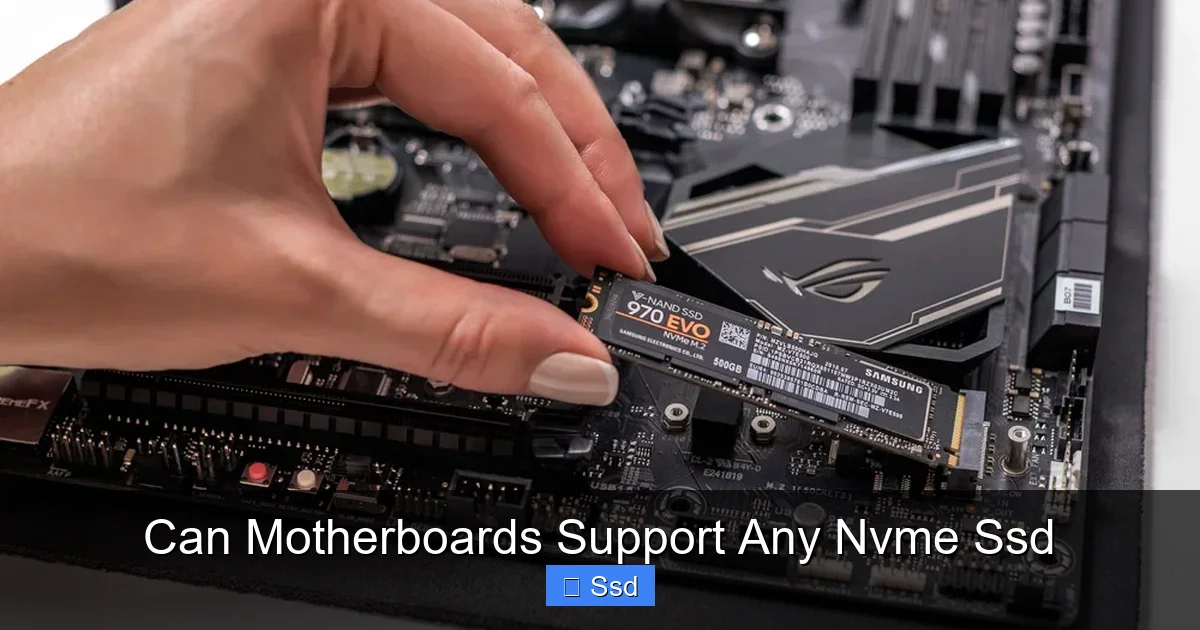
Many mid-to-high-end motherboards now include M.2 heatsinks—small metal plates or blocks with thermal pads that screw onto the SSD. This is a critical compatibility feature. An SSD without its own heatsink may rely on this motherboard-provided cooling. If your motherboard’s M.2 slot has a large heatsink pre-installed, ensure your SSD’s label and components will fit under it without the pads pressing on sensitive chips. Some SSDs, like the Samsung 990 Pro, come with their own heatsink that must be removed if your motherboard has one.
Solution: Research your specific motherboard and SSD combination. Look for build guides or reviews that mention thermals. Ensure your case has good airflow over the M.2 slot area, which is often near the GPU or chipset heatsink.
Practical Decision Tree: Is This NVMe SSD Compatible With My Board?
Let’s synthesize all this into a actionable checklist. When considering an NVMe SSD, follow these steps:
- Find Your Motherboard Model. This is non-negotiable. Write it down exactly (e.g., ASUS ROG Strix B550-F Gaming, MSI MPG Z690 Carbon WiFi).
- Locate the Official Manual/Specs. Go to the manufacturer’s support page. Find the “Specifications” or “Manual” section.
- Identify Your M.2 Slots. Find the table detailing storage. Note for each slot: supported lengths (2280?), key (M?), PCIe generation (3.0/4.0/5.0?), and any shared bandwidth notes (with SATA or PCIe slots).
- Check the SSD Specs. On the SSD’s product page, find its form factor (M.2 2280), key (M), and interface (PCIe 4.0 x4, NVMe 1.4).
- Cross-Reference:
- Does your slot support 2280 length? Yes/No
- Is the key compatible? (M-key SSD into M-key slot). Yes/No
- Is the SSD’s PCIe generation equal to or lower than the slot’s? (A PCIe 4.0 SSD in a PCIe 4.0 slot is perfect. In a PCIe 3.0 slot, it works but slower). Yes/No
- Are you okay with any disabled SATA ports or PCIe slots due to sharing? Yes/No
- Check BIOS Age. If your motherboard is more than 3-4 years old, plan to update its BIOS to the latest version before installing the new SSD, especially if it’s a high-capacity or PCIe 4.0+ model.
- Consider Cooling. Does your motherboard have an M.2 heatsink for that slot? Does your SSD have a heatsink? Will they conflict? Do you have good case airflow?
If you can answer “Yes” to all relevant cross-reference questions, you have a compatible system.
Conclusion: Compatibility is a Puzzle, Not a Lottery
The question “can motherboards support any nvme ssd” reveals a fundamental truth of PC hardware: compatibility is a calculated match, not a universal law. Your motherboard is a specific platform with defined capabilities. An NVMe SSD is a specific component with defined requirements. Your job as a builder is to be the matchmaker.
The process is straightforward: know your motherboard’s specs inside and out, understand the SSD’s specifications, and apply the three pillars of compatibility—Physical (M.2 size/key), Electrical (PCIe gen/lanes), and Firmware (BIOS). Factor in real-world considerations like thermal throttling and lane sharing, and you move from gambling to guaranteed performance. The market is full of fantastic NVMe SSDs, but the best one for you is the one that fits your specific motherboard’s puzzle perfectly. Take the time to do the research, check those manuals, and you’ll unlock the true, intended speed of your new storage without a single compatibility headache.
Frequently Asked Questions
Can I use a PCIe 4.0 NVMe SSD in a PCIe 3.0 motherboard?
Yes, you can. PCIe is backward compatible, so a PCIe 4.0 SSD will physically fit and function in a PCIe 3.0 M.2 slot. However, it will be limited to the maximum speed of PCIe 3.0 (~3,900 MB/s), not its full PCIe 4.0 potential (~7,900 MB/s). You would be paying for performance you cannot access.
My motherboard has an M.2 slot, but my NVMe SSD won’t show up. Why?
First, ensure the SSD is properly seated and the screw is tightened. Second, check your motherboard manual for lane sharing—installing the SSD may have disabled a SATA port you’re using for another drive. Third, and most commonly, your motherboard’s BIOS may be too old to recognize the SSD. Updating your BIOS to the latest version often resolves this issue.
Do all M.2 slots support NVMe?
No. Some older or budget M.2 slots only support the SATA protocol. You must check your motherboard’s specifications. A slot that supports both SATA and PCIe (NVMe) will usually say “SATA & PCIe” or list both modes. A slot that only supports NVMe will typically specify “PCIe” only. A SATA-based M.2 SSD (B+M key) will not work in an NVMe-only slot, and an NVMe SSD (M key) may not work in a SATA-only slot.
Will installing an NVMe SSD disable my SATA ports or other PCIe slots?
It can, depending on your motherboard’s design. This is called lane sharing. To save cost and complexity, many motherboards route the PCIe lanes for one or more M.2 slots from the chipset, which has a limited number of lanes. These lanes are often shared with specific SATA ports or PCIe x1/x4 slots. You must consult your manual to see which components share resources and disable accordingly.
What’s the difference between M.2 and U.2 NVMe drives? Can I use both?
M.2 is the small, stick-like form factor that plugs directly into a motherboard’s M.2 slot. U.2 (SFF-8639) is a 2.5″ form factor with a different cable/connector, common in servers. You cannot plug a U.2 drive into an M.2 slot. To use a U.2 drive on a desktop, you need a motherboard with a native U.2 port (rare) or a PCIe add-in card adapter that provides a U.2 connector. They are not interchangeable.
My NVMe SSD is getting very hot. Is this a compatibility problem?
It can be. High temperatures cause thermal throttling, where the SSD slows down to cool off. This is a performance issue, not a functional one. Check if your motherboard has an M.2 heatsink for your slot and if it’s properly installed with thermal pads. If not, consider an aftermarket M.2 heatsink or improving your case’s airflow. Some SSDs are more heat-sensitive than others, so researching thermals before buying is wise.