Can You Install More Ram on a Laptop
Yes, in most cases you can install more RAM on a laptop, but it’s not universally possible. The upgrade’s feasibility depends entirely on your specific laptop model’s design—whether the RAM is soldered to the motherboard or housed in accessible slots. Before buying anything, you must verify your laptop’s maximum supported RAM, the correct type (DDR3/DDR4/DDR5), and whether any existing modules need replacing. This cost-effective upgrade is one of the best ways to breathe new life into a slowing system, especially for multitaskers and users of demanding applications.
Key Takeaways
- Not All Laptops Are Upgradable: Many modern ultrabooks and thin-and-light laptops have RAM soldered directly to the motherboard, making upgrades impossible. Check your model first.
- Compatibility is King: You must match the exact RAM type (DDR3, DDR4, DDR5), speed (MHz), and form factor (almost always SODIMM). Using incompatible RAM will cause boot failures.
- Know Your Maximum: Every laptop has a maximum RAM capacity dictated by its chipset and BIOS (e.g., 16GB, 32GB, 64GB). Exceeding this limit provides no benefit.
- It’s a Physical Task: Installation requires basic tools (small screwdriver, possibly spudger) and careful handling. You’ll open the laptop’s bottom panel and insert modules into slots.
- Massive Performance Impact: Adding RAM eliminates slowdowns caused by using the hard drive/SSD as “virtual memory” (paging), drastically improving multitasking and application performance.
- Matching Modules is Ideal: For optimal dual-channel performance, install identical RAM sticks (same brand, model, size, speed). Mixing different sizes/speeds usually works but may run in single-channel mode.
- When to Skip the Upgrade: If your laptop has a slow traditional hard drive (HDD), upgrading to an SSD will provide a far more noticeable speed boost than adding RAM to a system already bottlenecked by storage.
📑 Table of Contents
- Can You Install More RAM on a Laptop? The Definitive Answer
- Understanding the Basics: What is RAM and Why Does It Matter?
- The Crucial First Step: Determining Your Laptop’s Upgradeability
- Choosing the Right RAM: Types, Speeds, and Sizes
- The Installation Process: A Step-by-Step Guide to Upgrading
- Post-Installation: Verification and Optimization
- When an Upgrade Isn’t Possible: Alternatives and Final Considerations
- Conclusion: Empowering Your Laptop’s Second Life
Can You Install More RAM on a Laptop? The Definitive Answer
That feeling. Your once-snappy laptop now gasps and chugs when you have more than three browser tabs open, a Word document, and a Spotify playlist running simultaneously. The cursor turns into a spinning wheel of doom. Your first instinct might be to buy a new machine, but hold on. Before you spend a fortune, ask yourself: can you install more RAM on a laptop? The answer is a hopeful, conditional, and often-resounding yes. Adding more Random Access Memory (RAM) is arguably the single most effective and affordable hardware upgrade you can perform on an aging or underpowered laptop to restore its speed and multitasking prowess. But it’s not a simple yes for every device. This guide will walk you through everything you need to know—from the initial detective work to the final screw-tightening—so you can confidently determine if your laptop is a candidate for a RAM boost and, if so, how to do it yourself.
Understanding the Basics: What is RAM and Why Does It Matter?
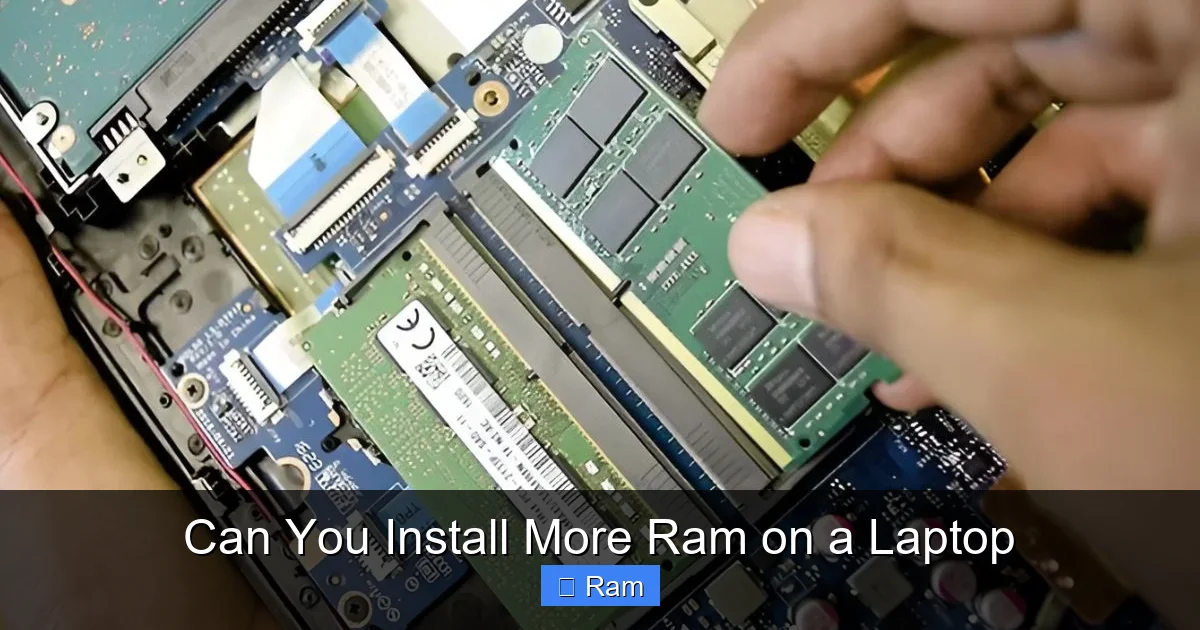
Think of your laptop’s RAM as its short-term workspace or mental desktop. When you open an application or a file, the necessary data is loaded from your permanent, slower storage (the SSD or HDD) into the lightning-fast RAM. The CPU (your laptop’s brain) works directly with the data in RAM. The more RAM you have, the larger this workspace becomes. This means your laptop can keep more applications and their data ready for instant access without constantly shuffling things back to the slow storage drive—a process called “paging” or using the “page file.”
Visual guide about Can You Install More Ram on a Laptop
Image source: robots.net
The Symptoms of Insufficient RAM
How do you know your sluggishness is due to lack of RAM and not another issue like a failing battery or a fragmented hard drive? Common signs include:
- Constant Hard Drive Activity: You hear the distinct, repetitive clicking or whirring of your HDD (or see high activity on an SSD) even when you’re not actively saving files. This is the system frantically swapping data between RAM and disk.
- Applications Stutter or Freeze: Programs become unresponsive, especially when switching between several of them.
- “Your system is low on memory” Warnings: Windows or macOS will literally pop up a warning message.
- Inability to Open Programs: You try to launch an app and get an error that there isn’t enough memory.
- General Slowness with Many Tabs/Apps: The system feels fine with one or two things open but crawls with moderate use.
If these symptoms sound familiar, a RAM upgrade is a prime suspect for the cure. But first, you must play detective and confirm your laptop’s upgradeability.
The Crucial First Step: Determining Your Laptop’s Upgradeability
This is the most important phase. Jumping the gun and buying RAM only to find your laptop won’t take it is a frustrating and expensive mistake. You need to answer three critical questions: 1) Is the RAM accessible/upgradable? 2) What type of RAM does it use? 3) What is the maximum supported RAM? Here’s your systematic approach.
Visual guide about Can You Install More Ram on a Laptop
Image source: pi-apps.io
Method 1: The Physical Inspection (Most Reliable)
Power down your laptop completely. Unplug it and remove the battery if it’s easily removable. Turn the laptop over and locate the panel(s) held down by screws. Often, there’s a small RAM icon (two rectangles with a line between them) next to one of the panels. Carefully remove the screws and pry off the panel (a plastic spudger or old credit card works well). Look inside:
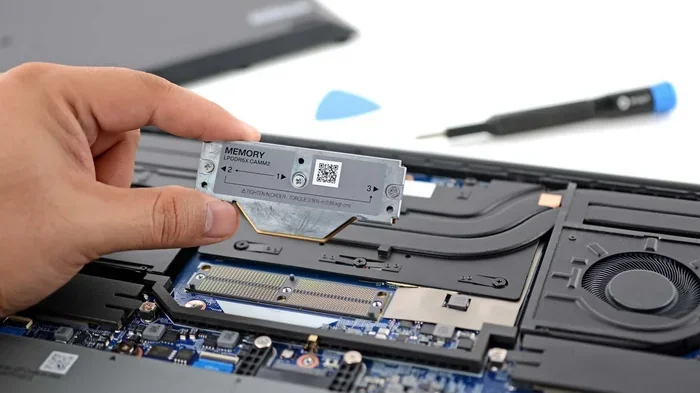
- If you see one or two long, thin circuit boards with chips on them, held by small metal clips on either side, you have upgradable SODIMM slots. This is the golden scenario. You can likely add more RAM or replace existing sticks.
- If you see no slots, and instead see a single, smaller square chip soldered directly to the motherboard near the CPU, your RAM is soldered. In this case, cannot you install more RAM on a laptop like this. The memory is permanent. Your only path is a full motherboard replacement, which is not cost-effective.
- Some laptops have one soldered stick and one empty slot. This is common in many mid-range 15-inch laptops. You can add a module to the empty slot, but you cannot remove or upgrade the soldered portion. The total RAM will be the soldered amount plus the module you add.
Pro Tip: Take a clear photo of the interior and the RAM sticks/slots. This visual reference is invaluable when shopping for new RAM.
Method 2: Using System Information Tools (If You Can’t Open It)
If you’re uncomfortable opening your laptop, or it’s a sealed ultrabook you don’t want to risk voiding the warranty on, use software to get clues.
- Windows: Press Ctrl+Shift+Esc to open Task Manager. Go to the Performance tab and click on Memory. Here you’ll see the current installed RAM (e.g., “8.0 GB”), the speed (e.g., “3200 MHz”), and the form factor (it should say “SODIMM”). It will also show “In use” and “Committed” values. If the “Committed” value is consistently higher than your installed RAM, that’s a clear sign you need more. However, this tool will not tell you if the RAM is soldered or the maximum capacity.
- macOS: Click the Apple menu > About This Mac. The memory line will show your RAM. For more detail, click System Report and look under Memory. Apple’s newer M-series Macs almost universally have soldered RAM, so upgrades are not possible. Intel-based MacBooks from 2016 and earlier often had upgradable slots.
- Third-Party Utilities: Tools like CPU-Z (free for Windows) are excellent. In the Memory and SPD tabs, you can see detailed information about each RAM slot, including type, size, and manufacturer. If the SPD tab shows information for two slots but only one has a size listed, the other is likely empty and available for an upgrade. If it shows only one slot with data and no reference to a second, the second might be soldered or non-existent.
Method 3: The Manufacturer’s Spec Sheet (Your Official Source)
This is your final authority. Find your laptop’s exact model number. It’s usually on a sticker on the bottom (e.g., “Dell XPS 15 9510,” “Lenovo ThinkPad T14 Gen 2”). Search for “[Your Brand] [Your Model] specifications” or “[Your Brand] [Your Model] technical guide.” Navigate to the “Memory” or “RAM” section. It will explicitly state:
- The type (e.g., “DDR4 SODIMM”)
- The base configuration (e.g., “8GB soldered”)
- The number of slots (e.g., “1 user-accessible SODIMM slot”)
- The maximum expandable memory (e.g., “Up to 40GB total (8GB soldered + 32GB module)”). This number is your hard limit.
For business laptops (Dell Latitude, Lenovo ThinkPad, HP EliteBook), these documents are very thorough. For consumer models, it can be trickier. If the spec sheet is vague, search for the specific model’s maintenance manual or “hardware maintenance manual” (HMM) from the manufacturer’s support site. These manuals include exploded diagrams and part numbers for every component, including RAM modules.
Choosing the Right RAM: Types, Speeds, and Sizes
So you’ve confirmed your laptop has an empty slot or you’re replacing existing sticks. Now you need to buy the correct RAM. Using the wrong type will simply not work. Your laptop’s motherboard and CPU are tuned for a specific generation of RAM technology.
Visual guide about Can You Install More Ram on a Laptop
Image source: pi-apps.io
DDR Generations: You Can’t Mix Them
RAM is not backward or forward compatible in terms of the physical connector. The notches are in different places.
- DDR3: An older standard, found in laptops from roughly 2007-2015. It has 204 pins.
- DDR4: The dominant standard from ~2015-2021. It has 260 pins. The notch is in a different location than DDR3.
- DDR5: The newest standard, appearing in high-end laptops from 2021 onward. It has 262 pins and a different key notch position. It’s not interchangeable with DDR4.
- LPDDR/LPDDR4X/LPDDR5: This is low-power DDR memory, almost always soldered. You cannot upgrade it. If your system info shows LPDDR, your RAM is soldered. Forget about upgrading.
How to know which you have? Your system information tools (CPU-Z) or the manufacturer’s spec sheet will say “DDR4,” etc. Never guess.
Speed (MHz) and Timing (CL)
RAM is rated for speed in megahertz (e.g., 2666MHz, 3200MHz, 4800MHz). Your motherboard will support a range of speeds, typically defaulting to the speed of the slowest installed module. You can install faster RAM than the minimum spec, and it will simply run at the motherboard’s supported speed (or the speed of the other stick). For example, if your laptop supports up to 3200MHz, installing a 4800MHz stick will cause it to run at 3200MHz. It’s safe, but you won’t get the extra speed. Installing slower RAM will force all modules to run at the slower speed.
Timing (CAS Latency, or CL) is a secondary performance metric (e.g., CL18, CL22). Lower is better. When matching sticks, try to get identical CL timings for optimal dual-channel performance, but it’s less critical than matching type and size.
Size: How Much Do You Need?
This is a practical decision based on your use case and your laptop’s maximum capacity.
- 8GB: The absolute bare minimum for Windows 11/macOS modern use. Only suitable for very light web browsing and office work. Not recommended for any serious multitasking.
- 16GB: The sweet spot for most users in 2024. Handles dozens of browser tabs, office suites, media playback, and casual gaming with ease. This is the target for a significant, noticeable upgrade from 4GB or 8GB.
- 32GB: The target for power users: heavy multitaskers with 50+ browser tabs, photo/video editors, developers running virtual machines, and gamers who also stream. Check your laptop’s max capacity—many consumer laptops cap at 32GB.
- 64GB+: For extreme professional workloads: 4K/8K video editing, large-scale 3D rendering, scientific computing. Mostly found in high-end mobile workstations. Overkill for 99% of users.
Rule of Thumb: If you’re upgrading from 4GB or 8GB, jumping to 16GB is the most cost-effective and performance-impactful move. If you already have 16GB and are a heavy user, consider 32GB if your laptop supports it.
The Installation Process: A Step-by-Step Guide to Upgrading
You have your compatible SODIMM module(s). You’ve confirmed your laptop is open and you can see the slots. Now, the physical installation. This process is straightforward but requires care and patience.
Essential Tools and Safety Precautions
You will need:
- The new RAM module(s)
- A small Phillips-head screwdriver (#0 or #1 is usually correct). Some laptops use Torx screws.
- A plastic spudger or pry tool (a guitar pick or old credit card works).
- An anti-static wrist strap (highly recommended). If you don’t have one, periodically touch an unpainted metal part of the laptop’s chassis (like the power port) to discharge static electricity from your body.
Safety First: Work on a clean, flat, static-free surface. Remove all jewelry. Ensure the laptop is completely powered off, unplugged, and the battery is removed if possible. For laptops with internal, sealed batteries, simply powering down and unplugging is sufficient, but be extra cautious.
Step-by-Step: Removing Old RAM and Installing New
- Open the Access Panel: Using your screwdriver, remove all screws from the bottom panel. Keep them in a small container and note their lengths and positions—some laptops have different-sized screws. Gently pry the panel off. It may have clips around the edge; work your way around slowly with the spudger.
- Locate the RAM Slots: They are long, thin slots, usually parallel to each other, with small metal retaining clips on either side. If replacing, you must first remove the old module(s).
- Removing a SODIMM Module: Gently but firmly push the two metal retaining clips on the sides outward and away from the module. The module will pop up at an angle of about 30-45 degrees. Grasp the module by its edges (avoid touching the gold contacts or chips) and pull it straight out.
- Installing a New SODIMM Module: Hold the new module by the edges. Notice the notch on the bottom edge—it’s not centered. This notch must align with the key in the slot. Do not force it. Insert the module into the slot at the same 30-45 degree angle it popped out to. The gold contacts should go in first. Press down firmly and evenly on the top edge of the module until the retaining clips snap into place with a soft click. You should feel it seat securely. If it doesn’t click, the notch is misaligned—pull it out and try again.
- Double-Check: Ensure both modules (if installing two) are seated identically and the clips are fully engaged.
- Reassemble: Replace the bottom panel, aligning any tabs. Press around the edges until it snaps into the clips. Reinstall all screws, using the correct ones in the correct holes. Don’t overtighten.
For Single-Module Upgrades in a Single-Slot System: Simply remove the old stick (if present) and install the new, larger one using the same method.
Post-Installation: Verification and Optimization
You’ve closed everything up. Now for the moment of truth.
The First Boot and BIOS Check
Power on your laptop. It should boot normally. If it beeps repeatedly or shows a “No Memory” error, power it off immediately. You likely have a seating issue or incompatible RAM. Open it back up, reseat the modules, and try again. If it still fails, double-check compatibility with your manual.
Assuming it boots, enter your BIOS/UEFI settings. This is usually done by pressing F2, F10, F12, or Del during startup. Once in the BIOS, navigate to the system information or memory status page. It should list the total installed RAM and its speed. If it shows the correct total (e.g., 16GB instead of 8GB), the upgrade was successful.
Operating System Verification
In Windows, go to Settings > System > About. Under “Device specifications,” it should show the correct “Installed RAM.” For a more detailed view, open Task Manager (Ctrl+Shift+Esc) to the Performance > Memory tab. It will show the speed, form factor (SODIMM), and in-use/available values. If your total is correct, you’re good. The system is now using the new memory.
Optimization: There is no software “tuning” required for modern RAM. It will run at its rated speed automatically. However, if you installed a mix of speeds and want to ensure maximum performance, you can sometimes manually set the memory frequency in the BIOS (look for “XMP” or “DOCP” profiles), but for most laptops, the default JEDEC settings are fine.
Enjoying the Performance Boost
Now, use your laptop as you normally would. You should immediately notice:
- Web browsers with 20+ tabs remain responsive.
- Switching between large applications (like Photoshop, a browser, and a video player) is instantaneous.
- The hard drive activity light is much quieter, as the system isn’t constantly paging.
- Applications open faster and feel more fluid overall.
This is the tangible reward for your careful work. You’ve effectively given your laptop a new lease on life, potentially delaying a full replacement by years.
When an Upgrade Isn’t Possible: Alternatives and Final Considerations
What if you performed all the checks and discovered your laptop’s RAM is soldered and maxed out? Don’t despair—there are still paths to improve performance, and understanding them helps you make a wise decision about whether to upgrade or replace.
The SSD: The Other Game-Changing Upgrade
If your laptop still has a mechanical hard disk drive (HDD), installing an SSD is a more transformative upgrade than adding RAM. The speed difference between an HDD and an SSD is orders of magnitude greater than the difference between, say, 8GB and 16GB of RAM. The entire system—boot times, application launches, file transfers—becomes dramatically faster. For an old, slow laptop with an HDD, an SSD upgrade + a RAM boost (if possible) is the ultimate one-two punch. But if you must choose one, and you have an HDD, choose the SSD.
Software Optimization
Before any hardware change, always try a software cleanup:
- Disable Startup Programs: Stop apps from launching with Windows. Use Task Manager’s Startup tab.
- Check for Malware/Adware: Run scans with reputable tools.
- Update Drivers and BIOS: Ensure you have the latest stable versions from the manufacturer.
- Perform a Clean Install of the OS: Sometimes, years of accumulated software bloat slow a system down. A fresh Windows/macOS install can work wonders.
- Adjust Visual Effects: In Windows, search for “Adjust the appearance and performance of Windows” and select “Adjust for best performance” to disable fancy animations.
External Solutions and the “New Laptop” Crossroads
For some, external solutions like cloud-based applications or using an external GPU enclosure (eGPU) via Thunderbolt 3/4 can offload some work, but these are niche, expensive solutions. Ultimately, if your laptop has soldered RAM that’s insufficient for your needs, a slow CPU, or no SSD, you must weigh the cost and effort of a new motherboard (impractical) against buying a new laptop. The RAM upgrade is most valuable for laptops that are otherwise solid (good CPU, SSD) but are memory-starved. It’s the perfect last hurrah for a beloved machine.
Conclusion: Empowering Your Laptop’s Second Life
The question “can you install more RAM on a laptop?” does not have a one-size-fits-all answer. But for a huge swath of laptops sold in the last decade—particularly business-class models, gaming laptops, and many 15-inch consumer models—the answer is a definitive yes. The process of finding out is a simple journey of investigation: open the case or consult the manual, identify the RAM type and slots, and respect the maximum capacity. Armed with that knowledge, purchasing the correct SODIMM modules is straightforward. The installation itself is a 10-minute lesson in gentle precision, rewarding you with a tangible, dramatic increase in system responsiveness and multitasking capability.
This upgrade embodies a powerful ethos: repair, reuse, and extend the life of your technology. It’s cost-effective, environmentally conscious, and deeply satisfying. Before you consign your slow laptop to the drawer or the landfill, spend 30 minutes doing your homework. You might just find that a $50 stick of memory is the key to unlocking another three or four years of productive, frustration-free computing. Your future, faster self will thank you.
Frequently Asked Questions
Can I install more RAM on any laptop?
No. Many modern ultrabooks and thin-and-light laptops have RAM soldered directly to the motherboard, making physical upgrades impossible. You must check your specific model’s design to see if it has accessible RAM slots.
What happens if I install incompatible RAM?
The laptop will either not power on at all, beep in an error code, or power on but fail to boot into the operating system (stuck on a black screen or logo). It will not damage the laptop, but you will need to remove the incompatible module and install the correct one.
How much RAM do I actually need for everyday use?
For most users in 2024, 16GB is the recommended sweet spot. It comfortably handles modern operating systems, dozens of browser tabs, office applications, and media playback. 8GB is the bare minimum, while 32GB is for power users and professionals.
Can I mix different RAM sizes or brands?
Technically, yes, you can mix different sizes (e.g., 8GB + 16GB) and brands, and the system will usually boot. However, for optimal performance, especially in dual-channel mode, it’s best to use identical sticks (same size, speed, brand, model). Mixing may cause the system to run in a less efficient single-channel mode.
My laptop shows “LPDDR4” in system info. Can I upgrade it?
Almost certainly not. LPDDR (Low Power DDR) memory is almost always soldered to the motherboard. If your system uses LPDDR, the RAM capacity is fixed at the time of manufacture and cannot be upgraded by the user.
Should I upgrade RAM or my SSD first?
If your laptop still has a traditional hard disk drive (HDD), upgrading to an SSD will provide a far more dramatic and noticeable overall system speed improvement than adding RAM. If you already have an SSD but experience slowdowns when multitasking, then adding RAM is the correct upgrade.