How to Increase Laptop Ram

Learning how to increase laptop ram is one of the easiest ways to breathe new life into an old or slow machine. Whether you want to multitask without lag or run demanding apps, upgrading your laptop memory delivers real results. This guide walks you through every step, from checking your current ram to choosing the right modules and installing them safely. You do not need to be a tech expert to follow along.
Is your laptop running slow? Do apps freeze or take forever to open? The problem might be simple: your laptop does not have enough ram. Random Access Memory is like your computer’s short-term workspace. The more you have, the more tasks your laptop can handle at once.
The good news is that increasing laptop ram is one of the most affordable and effective upgrades you can make. It costs a fraction of what a new laptop would, and the process is easier than most people think. In this guide, we will show you exactly how to do it, step by step.
We will cover everything from checking your current memory to choosing the right upgrade and installing it yourself. By the end, you will feel confident enough to boost your laptop’s performance on your own. Let us get started.
Key Takeaways
- Check Your Current RAM First: Knowing what you have is the first step before upgrading.
- Choose Compatible RAM: Match the right type, speed, and capacity to your laptop model.
- Installation Is Simple: Most laptops let you upgrade ram in under 30 minutes with basic tools.
- Upgrading Boosts Performance: More ram means smoother multitasking, faster app loading, and better overall speed.
- Avoid Common Mistakes: Handle RAM carefully and verify compatibility before purchasing.
- Virtual RAM Can Help Too: Using your hard drive as extra memory is a free bonus boost.
📑 Table of Contents
Why Increasing Laptop RAM Matters
Every program you open on your laptop uses memory. Your web browser, video editor, game, or even your operating system needs ram to function. When you run out of space, your laptop starts slowing down. It swaps data to your hard drive, which is much slower.
Here is why upgrading matters:
- Faster multitasking: Switch between apps without freezing.
- Better performance in demanding tasks: Video editing, gaming, and coding all need more memory.
- Longer laptop lifespan: A memory upgrade can make an older laptop feel new again.
- Cost-effective upgrade: It is far cheaper than buying a new computer.
Think of ram as your desk space. A bigger desk lets you spread out more papers and work on them at the same time. A small desk means you keep shuffling things around. More ram means a bigger workspace for your laptop.
How to Check Your Current Laptop RAM
Before you buy anything, you need to know what you currently have. Checking your existing laptop memory takes just a few minutes. You can do this on Windows or Mac.
Check RAM on Windows
On Windows, press Ctrl + Shift + Esc to open Task Manager. Click on the Performance tab. Then select Memory from the left sidebar. You will see your total ram, speed, and how many slots are in use.
Another easy way is to go to Settings > System > About. Scroll down to find your device specifications, including installed RAM. This tells you the basics fast.
Check RAM on Mac
On a Mac, click the Apple logo in the top-left corner. Choose About This Mac. You will see your memory details right there, including the type and amount of ram installed.
If you want a deeper look, you can download a free tool like CPU-Z or Speccy. These programs give you detailed specs, including ram type, speed, and slot availability. This information is essential when shopping for new memory.
Before buying any upgrade, check your current ram thoroughly. Knowing your exact specs prevents buying the wrong product.
Understanding Laptop RAM Types
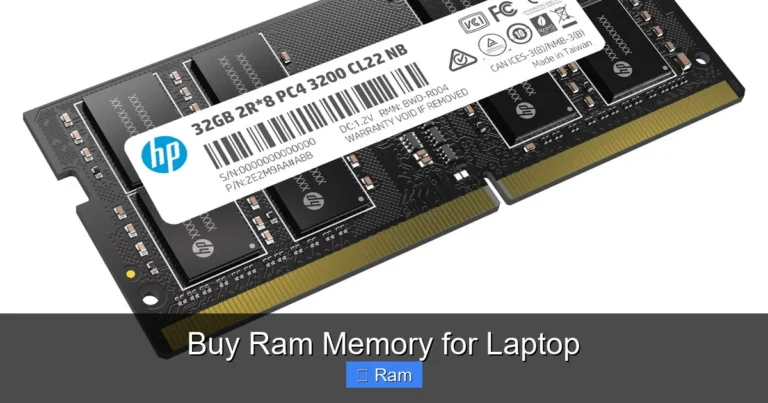
Not all memory is the same. Laptops use specific types of ram modules called SODIMMs (Small Outline Dual In-Line Memory Modules). These are smaller than desktop ram and come in different generations.
DDR3 vs DDR4 vs DDR5
The most common types you will encounter are DDR3, DDR4, and DDR5. Each generation is faster and more efficient than the last. However, they are not interchangeable. Your laptop motherboard only supports one type.
- DDR3: Older but still found in many laptops. Slower but affordable.
- DDR4: The current standard for most modern laptops. A great balance of speed and price.
- DDR5: The newest generation. Found in high-end and newer laptops. Faster but still pricey.
RAM Speed and Frequency
RAM speed is measured in megahertz (MHz). Higher numbers mean faster data transfer. For example, 3200 MHz ram is faster than 2400 MHz ram. But speed only matters if your laptop supports it. Check your laptop manual or manufacturer website for the supported speed.
Single Channel vs Dual Channel
Most laptops perform better with dual-channel memory. This means having two matching ram sticks instead of one. Dual channel doubles the data pathway between memory and the processor. If your laptop has two slots, consider buying a matched pair for the best performance.
How to Choose the Right RAM for Your Laptop
Shopping for ram can feel confusing with so many options. Here is how to pick the right one for your upgrade.
Step 1: Know Your Laptop Model
Find your exact laptop model number. You can usually find it on a sticker on the bottom of the laptop or in your system settings. Once you have the model, search for its maximum supported ram and compatible memory type.
Step 2: Check Maximum RAM Capacity
Every laptop has a limit on how much ram it can handle. Some older models max out at 8GB, while newer ones can support 32GB or more. Check your manufacturer’s website or user manual for this number.
Step 3: Check Available Slots
Some laptops have one ram slot, others have two. If one slot is already filled, you may need to buy a matching stick for dual-channel mode. Or you might need to replace the existing module entirely. Use a tool like Crucial’s scanner to find compatible options easily.
Step 4: Buy from a Trusted Brand
Stick with well-known brands like Crucial, Corsair, Kingston, or Samsung. These brands offer reliable modules with good warranties. Avoid unknown brands that may not be fully compatible.
If you are unsure about compatibility, many retailers offer compatibility guarantee tools on their websites. Enter your laptop model and they will show you exactly which ram modules work. This removes all the guesswork.
How to Install RAM in Your Laptop
Installing ram is one of the easiest hardware upgrades you can do. You do not need any special skills. Just follow these steps carefully.
What You Will Need
- A small Phillips-head screwdriver
- Your new ram module(s)
- A clean, flat workspace
- An anti-static wrist strap (optional but recommended)
Step-by-Step Installation Process
Step 1: Shut down your laptop completely. Unplug the power cable and remove the battery if possible.
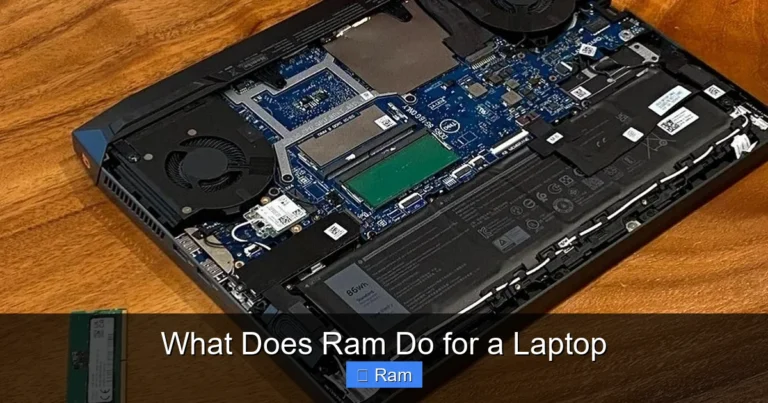
Step 2: Find the memory access panel on the bottom of your laptop. It is usually a small rectangular cover held by one or two screws.
Step 3: Remove the screws and gently take off the panel. You should see the ram slots inside.
Step 4: If replacing existing ram, gently push the metal clips on each side outward. The old module will pop up at an angle. Remove it carefully.
Step 5: Take your new ram module. Align the notch on the bottom with the ridge in the slot. Insert it at a 45-degree angle and press firmly until it clicks into place.
Step 6: Replace the memory access panel and screw it back in. Reconnect the battery and power cable.
Step 7: Turn on your laptop. It should recognize the new memory automatically. You can verify by checking your system settings again.
Need more detailed guidance? This guide on installing laptop ram walks you through the process with clear visuals and tips.
Common Installation Mistakes to Avoid
- Forcing the ram module: It should slide in smoothly. If it resists, check the alignment.
- Touching the gold contacts: Handle the ram by the edges only. Oils from your fingers can cause issues.
- Forgetting to ground yourself: Static electricity can damage components. Touch a metal surface before handling ram.
- Mixing different ram types: DDR4 and DDR3 are not interchangeable. Always match the type.
Maximizing Your Laptop RAM Performance
After your upgrade, there are a few things you can do to get the most out of your new laptop memory.
Enable XMP Profiles (For Advanced Users)
If your laptop supports XMP (Extreme Memory Profile), you can enable it in your BIOS settings. This allows your ram to run at its advertised speed instead of a slower default speed. Enter your BIOS by pressing F2 or Del during startup and look for the XMP option under memory settings.
Adjust Virtual Memory
Windows allows you to use a portion of your hard drive as virtual memory. This acts as a backup when physical ram is full. To adjust it, go to Settings > System > About > Advanced System Settings > Performance Settings > Advanced > Virtual Memory. Set it to a custom size for best results.
Close Unnecessary Programs
Even with more ram, running too many programs at once can slow things down. Get in the habit of closing apps you are not using. Check your task manager to see which programs use the most memory and consider alternatives that use less.
Keep Your System Updated
Regular system updates improve how your laptop manages memory. Windows and Mac updates often include performance optimizations that help your ram work more efficiently.
How Much RAM Do You Actually Need?
The right amount of ram depends on what you use your laptop for. Here is a quick breakdown:
| Usage Type | Minimum RAM | Recommended RAM |
|---|---|---|
| Web browsing, email, documents | 4GB | 8GB |
| Multitasking with multiple apps | 8GB | 16GB |
| Photo and video editing | 16GB | 32GB |
| Gaming | 16GB | 32GB |
| Programming and development | 8GB | 16GB |
If you are unsure, 16GB is the sweet spot for most users today. It handles everyday tasks with ease and provides headroom for demanding applications. Going beyond 32GB only makes sense for specialized workloads like 4K video editing or heavy data processing.
Remember, more ram is not always better if your laptop cannot use it. Always check your laptop’s maximum supported capacity before purchasing. Installing more than your laptop can handle is a waste of money.
When to Consider Professional Help
Most people can install ram themselves without any issues. But there are times when you might want professional help. If your laptop has a sealed or non-removable battery, accessing the ram slots can be tricky. Some ultra-thin laptops have soldered memory that cannot be upgraded at all.
In these cases, a professional technician can help. They have the right tools and experience to handle delicate laptops safely. It may cost a little extra, but it ensures your upgrade goes smoothly without any risk of damage.
Also, if you are uncomfortable opening your laptop, there is no shame in seeking help. Many local computer shops offer affordable ram installation services. Just make sure they have experience with your specific laptop model.
Conclusion
Upgrading your laptop ram is one of the best investments you can make. It is affordable, straightforward, and delivers immediate results. Whether you are struggling with slow performance or just want to future-proof your machine, increasing your laptop ram is the answer.
Start by checking your current memory. Then research compatible ram types and capacities for your model. Follow our installation steps carefully, and you will have your laptop running faster in no time. Do not let a slow laptop hold you back any longer. Take action today and enjoy a smoother, faster computing experience.
With the right ram upgrade, your laptop will handle everything from everyday tasks to demanding workloads with ease. The process is simpler than you think, and the results are worth every penny. Happy upgrading!
Frequently Asked Questions
Can I increase my laptop RAM myself?
Yes, most laptops allow you to upgrade ram yourself with just a screwdriver and a few minutes of time. The process involves opening the memory access panel on the bottom of your laptop, removing the old module if needed, and inserting the new one. Just make sure you buy compatible ram for your specific laptop model.
How do I know if my laptop RAM is upgradeable?
Check your laptop’s user manual or visit the manufacturer’s website and look up your model’s specifications. You need to know the maximum supported ram, the number of available slots, and the type of ram (DDR3, DDR4, or DDR5). If your laptop has soldered memory, it cannot be upgraded.
What happens when you increase laptop RAM?
When you increase laptop ram, your computer gets more short-term memory to work with. This means faster app loading, smoother multitasking, and fewer slowdowns when running demanding programs. You will notice an immediate improvement in day-to-day performance.
How much does a laptop RAM upgrade cost?
A laptop ram upgrade typically costs between $20 and $80 depending on the type and capacity. DDR4 8GB modules are very affordable and offer great value. DDR5 modules are still pricier but becoming more accessible as the technology spreads.
Is 8GB RAM enough for a laptop in 2024?
8GB is the minimum for basic tasks like web browsing and document editing. However, for multitasking, light gaming, or creative work, 16GB is strongly recommended. If you find your laptop struggling, upgrading from 8GB to 16GB is one of the most noticeable improvements you can make.
Can too much RAM hurt my laptop?
No, too much ram will not hurt your laptop. However, installing more ram than your laptop supports will not work. The system will only recognize up to its maximum capacity. Always verify your laptop’s limits before purchasing new memory modules.