Dual Nvme M 2 Ssd Docking Station

A dual NVMe M.2 SSD docking station lets you connect two NVMe M.2 drives externally for fast storage expansion. These docks offer blazing speeds, easy setup, and a simple way to clone, backup, or access multiple SSDs without opening your PC. Whether you are a creative professional or a tech enthusiast, a dual NVMe M.2 SSD docking station is a game-changer for your workflow.
A dual NVMe M.2 SSD docking station is one of the most useful tools for anyone who works with solid-state storage. It lets you connect two NVMe M.2 SSDs to your computer externally through a single USB or Thunderbolt cable. This means you get the speed of NVMe storage without ever opening your computer case.
If you have ever struggled with running out of storage space, you know how frustrating it can be. Buying a new internal drive means opening your PC, dealing with screws, and hoping everything connects properly. A dual NVMe M.2 SSD docking station skips all of that. You simply slide your M.2 drives into the dock, plug it into your computer, and you are ready to go.
These docks are especially popular among video editors, photographers, and anyone who works with large files. They also make great cloning tools. You can copy everything from one drive to another without needing a separate PC. In this guide, we will cover everything you need to know about dual NVMe M.2 SSD docking stations, from how they work to which ones are worth buying.
Key Takeaways
- Speed: Dual NVMe docks deliver transfer speeds up to 10 Gbps or more, making them ideal for large file transfers.
- Convenience: Plug and play setup means you can connect two M.2 NVMe drives in seconds without installing them inside your PC.
- Compatibility: Most docks work with 2230, 2242, 2260, and 2280 M.2 NVMe SSDs across Windows, Mac, and Linux systems.
- Portability: Many dual NVMe docks are compact and portable, perfect for on-the-go storage needs.
- Value: Using a dock is far cheaper than buying multiple external drives, and it keeps your existing M.2 SSDs in use.
- Cloning and Backup: You can clone one drive to another directly through the dock without needing a PC.
📑 Table of Contents
What Is a Dual NVMe M.2 SSD Docking Station?
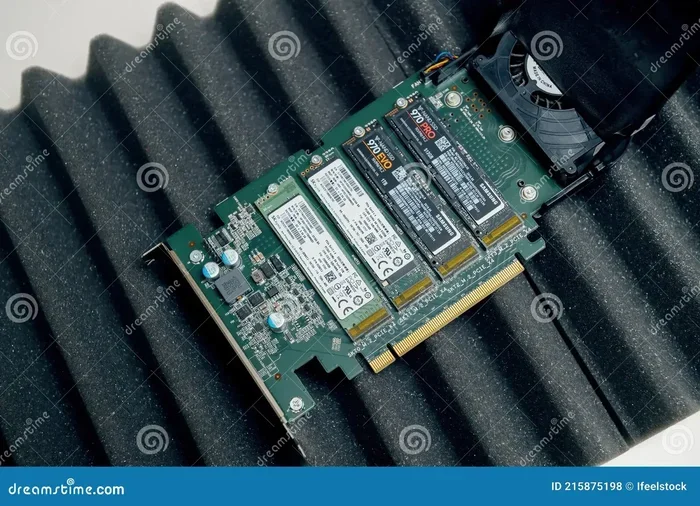
A dual NVMe M.2 SSD docking station is an external enclosure that holds two M.2 NVMe solid-state drives at the same time. It connects to your computer through USB 3.1, USB 3.2, or Thunderbolt 3 or 4. The dock communicates with each drive using the PCIe NVMe protocol, which is what gives NVMe drives their incredible speed.
Unlike a traditional external hard drive enclosure, a dual dock supports two drives simultaneously. Some docks let you use both drives at the same time, while others require you to switch between them. The best docks allow full-speed access to both drives independently.
Most dual NVMe docks support M.2 drives in sizes like 2230, 2242, 2260, and 2280. This wide compatibility means you can use almost any M.2 NVMe SSD you already own. If you want to learn more about M.2 NVMe SSD enclosures in general, check out our NVMe M.2 enclosure guide for a deeper dive into how these enclosures work.
How Does It Work?
The dock uses a built-in controller chip that communicates with each M.2 NVMe drive. This controller handles the PCIe NVMe protocol and translates it to USB or Thunderbolt for your computer. The result is that your external drives feel almost as fast as if they were installed inside your machine.
When you insert an M.2 SSD into the dock, it locks into place with a small screw or snap mechanism. The dock then recognizes the drive automatically. You can access it just like any other external drive on your system. Most modern docks also support hot swapping, which means you can remove and insert drives without restarting your computer.
Top Benefits of Using a Dual NVMe Dock
Using a dual NVMe M.2 SSD docking station comes with several real-world benefits. Let us break down why so many people are choosing these devices for their storage needs.
Blazing Fast Transfer Speeds
The biggest advantage of a dual NVMe dock is speed. NVMe drives use the PCIe interface, which is much faster than the SATA interface used by traditional SSDs. A good dual NVMe M.2 SSD docking station can deliver read speeds of 1,000 MB/s to 3,000 MB/s or more.
To put that in perspective, copying a 100 GB video file takes about 30 seconds on a fast NVMe drive. The same file would take several minutes on a traditional external hard drive. For professionals who work with large video projects or massive photo libraries, this speed difference is enormous.
Dual Drive Convenience
Having two drive slots means you can keep your working drive and your backup drive connected at the same time. You do not need to unplug and replug drives every time you want to switch tasks. This setup saves a lot of time and reduces wear on your drive connectors.
Many users keep their active project files on one drive and their archive or backup on the other. This setup keeps everything organized and accessible. You can also use one drive for cloning purposes and the other for day-to-day use.
No Internal Installation Required
One of the best things about a dual NVMe M.2 SSD docking station is that you do not need to open your computer. This is great for laptop users who cannot upgrade their internal storage easily. It is also perfect for people who want to test multiple M.2 drives before installing them permanently.
If you are shopping for M.2 NVMe drives and want to test them first, a dock is the perfect solution. You can benchmark different drives and see which one performs best for your needs before committing to an internal installation.
Key Features to Look For
Not all dual NVMe docks are created equal. Before you buy one, here are the features you should pay attention to.
Connection Type
The connection type determines your maximum transfer speed. USB 3.1 Gen 2 offers up to 10 Gbps, which is enough for most NVMe drives. USB 3.2 Gen 2×2 pushes that to 20 Gbps. Thunderbolt 3 and Thunderbolt 4 offer up to 40 Gbps and 80 Gbps respectively.
For most users, a USB 3.1 Gen 2 or Thunderbolt 3 dock is more than enough. If you work with extremely large files and need every bit of speed, go for Thunderbolt 4. You can also check out our PCIe NVMe M.2 SSD drives article for more on how NVMe interfaces compare.
Drive Compatibility
Make sure the dock supports the M.2 sizes you use. Most dual NVMe docks handle 2280 drives, which are the most common. But if you have shorter drives like 2242 or 2230, check that the dock supports them. Some docks come with adjustable brackets or spacers to fit different sizes.
Also check whether the dock supports both PCIe NVMe and SATA M.2 drives. Most dual NVMe docks only support NVMe protocol drives, not SATA M.2 drives. If you have SATA M.2 drives, you will need a different type of enclosure or dock.
Cooling and Heat Management
NVMe drives can get hot, especially during heavy transfers. A good dual NVMe M.2 SSD docking station should have proper cooling. Look for docks with aluminum heat sinks, built-in fans, or passive cooling designs that dissipate heat effectively.
Some docks come with temperature sensors and automatic fan control. This feature helps keep your drives at safe operating temperatures. Overheating can slow down your drives and even damage them over time, so cooling is not something you should compromise on.
Build Quality and Portability
If you plan to carry your dock around, look for a compact and lightweight design. Many dual NVMe docks are small enough to fit in a laptop bag. Metal construction offers better durability and heat dissipation compared to plastic.
On the other hand, if the dock will sit on your desk all the time, build quality matters less. You can focus more on features like the number of ports, cable quality, and software support.
Best Dual NVMe M.2 Docking Stations
There are several great options available in the market right now. Here are some of the most popular and well-reviewed dual NVMe M.2 SSD docking station choices.
Acasis 40Gbps Dual NVMe Dock
The Acasis 40Gbps dock is one of the fastest options available. It uses a USB 3.2 Gen 2×2 connection for speeds up to 20 Gbps. The dock supports two M.2 NVMe 2280 drives and features a sleek aluminum design with passive cooling. It is an excellent choice for professionals who need the fastest possible speeds.
Ugreen M.2 NVMe SATA SSD Enclosure
The Ugreen M.2 NVMe enclosure is a popular budget-friendly option that supports both NVMe and SATA M.2 drives. While it is a single-drive enclosure, it is a great entry point if you are just getting started with external NVMe storage. Ugreen also makes dual-drive models that are worth considering for users who need two slots.
Orico Dual NVMe M.2 Enclosure
The Orico dual NVMe dock offers solid performance at a reasonable price point. It supports USB 3.1 Gen 2 connectivity and handles two M.2 NVMe 2280 drives. The aluminum body provides good heat dissipation, and the plug-and-play setup makes it beginner-friendly.
ORICO and Acasis 40Gbps M.2 NVMe SSD Enclosure
For users who want maximum speed in a dual-drive setup, the Acasis 40Gbps M.2 NVMe SSD enclosure stands out. It delivers blazing fast transfer rates and supports the latest NVMe Gen4 and Gen5 drives. This is the go-to choice for power users who demand top-tier performance from their external storage.
How to Set Up Your Dual NVMe Dock
Setting up a dual NVMe M.2 SSD docking station is straightforward. Here is a step-by-step guide to get you started.
- Unbox the dock: Remove the dock from its packaging and check that all parts are included. Most docks come with the enclosure, screws, USB or Thunderbolt cable, and a quick start guide.
- Insert the first M.2 drive: Open the dock and carefully insert your first NVMe M.2 SSD into the slot. Make sure the notches on the drive align with the connectors. Secure it with the small screw or snap mechanism.
- Insert the second M.2 drive: Repeat the process with your second drive. Some docks have labels or color-coded slots to help you keep track of which drive is which.
- Connect the dock to your computer: Plug the USB or Thunderbolt cable into the dock and your computer. Most modern operating systems will recognize the drives automatically.
- Access your drives: Open your file explorer (Windows) or Finder (Mac). You should see both drives listed as removable storage devices. You can now read, write, and transfer files between them.
Tips for Best Performance
- Always use the cable that comes with the dock or a high-quality certified cable. Cheap cables can limit your speeds significantly.
- Plug the dock directly into your computer rather than through a USB hub. Hubs can reduce bandwidth and slow things down.
- Keep the dock on a flat, hard surface for better airflow and cooling.
- If your dock supports it, update the firmware regularly for the best performance and compatibility.
- Use the dock on a powered USB port when possible. This ensures stable power delivery to both drives.
Common Mistakes to Avoid
Even though setting up a dual NVMe M.2 SSD docking station is easy, there are some common mistakes that can cause problems.
Using the Wrong Cable
Not all USB cables are created equal. A standard USB cable may not support the full speed of your dock. Always use the cable that comes with the dock or a high-quality cable rated for the same speed standard. Using the wrong cable is the most common reason people do not get the speeds they expect.
Ignoring Drive Compatibility
Some people buy a dual NVMe dock without checking whether their existing M.2 drives are NVMe or SATA. If you insert a SATA M.2 drive into an NV-only dock, it will not work. Always double-check the protocol your drives use before purchasing a dock.
Overheating Without Proper Ventilation
Running both NVMe drives at full speed generates heat. If you place the dock on a soft surface like a pillow or blanket, the vents can get blocked. This leads to overheating and throttling. Always use the dock on a hard, flat surface where air can flow freely around it.
Skipping Firmware Updates
Manufacturers regularly release firmware updates that improve compatibility and performance. Skipping these updates can cause issues with newer drives or operating systems. Check the manufacturer’s website periodically and update your dock’s firmware when a new version is available.
Final Thoughts
A dual NVMe M.2 SSD docking station is one of the most practical and cost-effective ways to expand your storage setup. Whether you are a professional who needs fast access to large files or a casual user who wants a simple backup solution, a dual NVMe dock delivers real value.
The speed advantages alone make these docks worth considering. With transfer rates that can exceed 3,000 MB/s, you can move massive files in seconds. The convenience of dual slots means you always have your primary and backup drives connected and ready to go.
When choosing a dock, focus on the connection type, drive compatibility, cooling, and build quality. Pick a model that fits your workflow and budget. With the right dual NVMe M.2 SSD docking station, you will wonder how you ever managed without one. Start exploring your options today and take your storage setup to the next level.
Frequently Asked Questions
Can I use SATA M.2 SSDs with a dual NVMe docking station?
Most dual NVMe docking stations only support NVMe protocol M.2 drives, not SATA M.2 drives. Always check the product specifications before purchasing to make sure your drives are compatible. Some enclosures support both NVMe and SATA, but dual-drive NVMe docks typically do not.
What is the difference between a single and dual NVMe M.2 SSD docking station?
A single dock holds one M.2 NVMe drive, while a dual dock holds two drives simultaneously. A dual NVMe M.2 SSD docking station lets you access both drives at the same time, which is great for cloning, backup, or keeping your working and archive files separate.
Do I need any software to use a dual NVMe dock?
Most dual NVMe docks are plug and play and do not require any special software. Your operating system will recognize the drives automatically. However, some manufacturers include backup or cloning software that can make managing your drives easier.
Can I use a dual NVMe dock with a laptop?
Yes, dual NVMe docks work great with laptops. Just make sure your laptop has a compatible USB or Thunderbolt port. The dock is powered through the connection cable in most cases, so you do not need an external power adapter.
How fast are dual NVMe M.2 SSD docking stations?
Speeds depend on the dock’s connection type and the drives you use. USB 3.1 Gen 2 docks can reach up to 10 Gbps, while Thunderbolt 4 docks can hit up to 80 Gbps. The fastest NVMe Gen4 drives can deliver read speeds of 7,000 MB/s or more when paired with a compatible dock.
Is a dual NVMe docking station worth the investment?
Absolutely. A dual NVMe M.2 SSD docking station gives you fast external access to two NVMe drives without opening your computer. It is especially valuable for video editors, photographers, and anyone who works with large files regularly. The convenience and speed make it a worthwhile investment for most users.