Nvme Ssd for Raspberry Pi 5
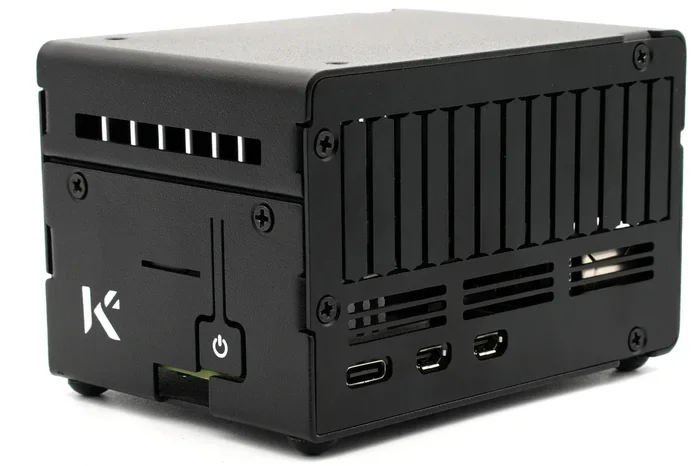
Adding an NVMe SSD to your Raspberry Pi 5 transforms storage speed and reliability. This guide covers the best NVMe options, step-by-step setup, and real-world performance tips to get the most from your Pi 5.
If you own a Raspberry Pi 5, you already know how powerful this little board is. But one thing that can slow it down is the microSD card used for storage. It is slow, prone to corruption, and it wears out fast. The fix is simple: use an NVMe SSD instead. An NVMe M.2 SSD gives your Pi 5 the speed boost it deserves. In this guide, we walk you through everything you need to know about choosing, setting up, and getting the best performance from an NVMe drive on your Raspberry Pi 5.
We will look at the top SSD picks, explain the setup process in plain language, and share tips that actually work. Whether you are building a home server, a media center, or a retro gaming machine, this guide has you covered. Let us dive in.
Key Takeaways
- Faster Boot Times: An NVMe SSD boots your Raspberry Pi 5 much faster than a microSD card.
- Top Picks Available: The Kingston NV2 and Crucial P3 are among the best NVMe SSDs for Pi 5 users.
- Easy Setup: You can set up NVMe storage on your Pi 5 with just a few simple steps.
- Better Reliability: SSDs last longer and resist wear better than microSD cards under heavy use.
- Affordable Options: You can find great NVMe drives at budget-friendly prices starting around $20.
- Heatsinks Help: A small heatsink keeps your NVMe drive cool and performing well on the Pi 5.
📑 Table of Contents
Why Use an NVMe SSD with Raspberry Pi 5
The Raspberry Pi 5 is a big step up from its predecessors. It has a faster CPU, more RAM, and better overall performance. But if you still use a microSD card for storage, you are leaving a lot of speed on the table. An NVMe SSD changes the game completely.
Here is why it matters. A typical microSD card writes data at around 30 to 50 megabytes per second. A good NVMe drive can hit 1,500 MB/s or more. That is up to 30 times faster. The difference is huge when you are booting your operating system, loading files, or running applications.
Better Reliability and Lifespan
MicroSD cards are not built for constant read and write workloads. They fail more often than SSDs, especially when you run a Pi 5 as a 24/7 server. An NVMe M.2 SSD uses flash memory designed for heavy use. It handles write cycles much better and lasts a lot longer. This alone is a strong reason to make the switch.
Lower Power Consumption
SSDs use less power than microSD cards during heavy operations. That means your Raspberry Pi 5 runs cooler and uses less electricity. For projects that run around the clock, this adds up to real savings over time.
More Storage Space
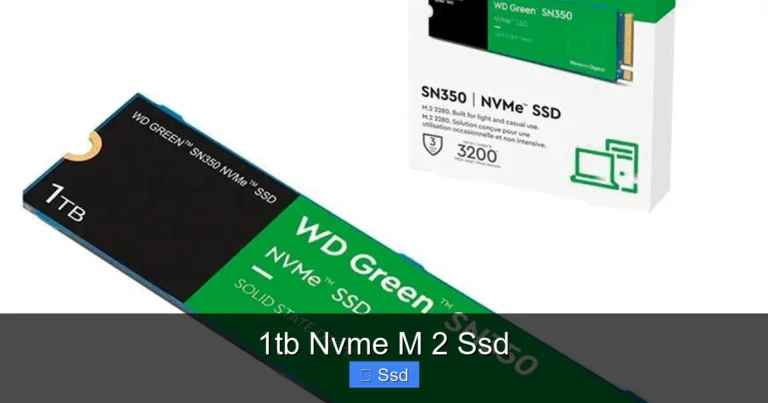
MicroSD cards top out at 512GB for most reliable options. NVMe drives come in 1TB, 2TB, and even larger sizes. If you store media files, game ROMs, or databases on your Pi 5, you will appreciate the extra space. You can check out a 1TB NVMe M.2 SSD as a great starting point for most projects.
Best NVMe SSDs for Raspberry Pi 5
Not all NVMe drives work equally well with the Pi 5. You want a drive that is compact, reliable, and fast enough to match the board’s capabilities. Here are our top recommendations.
Kingston NV2 1TB NVMe SSD
The Kingston NV2 1TB NVMe SSD is one of the most popular choices for Raspberry Pi projects. It uses a Phison E19 controller and delivers speeds up to 2,000 MB/s. The drive is small, affordable, and runs cool without a heatsink in most cases.
- Capacity: 1TB
- Sequential Read: Up to 2,000 MB/s
- Sequential Write: Up to 1,600 MB/s
- Price: Around $25 to $30
- Best For: Budget-friendly Pi 5 builds
Crucial P3 1TB NVMe SSD
The Crucial P3 1TB NVMe SSD is another excellent option. It uses a PCIe Gen 3 interface, which is fully compatible with the Pi 5. The drive offers solid read speeds of up to 3,500 MB/s and is backed by a five-year warranty.
- Capacity: 1TB
- Sequential Read: Up to 3,500 MB/s
- Sequential Write: Up to 2,000 MB/s
- Price: Around $30 to $40
- Best For: Users who want higher read speeds
What to Look For in an NVMe Drive for Pi 5
When shopping for an NVMe SSD for Raspberry Pi 5, keep these factors in mind:
- Form Factor: M.2 2242 is the ideal size for the Pi 5. It is small and fits right into the board’s connector.
- Capacity: 1TB is the sweet spot for most users. Go bigger if you store large files.
- DRAM Cache: Drives with DRAM cache perform better under heavy workloads.
- Thermal Management: Even though NVMe drives run cool, a small heatsink helps during long sessions.
- Price: You do not need to spend a fortune. The best drives for Pi 5 cost between $20 and $50.
How to Set Up NVMe SSD on Raspberry Pi 5
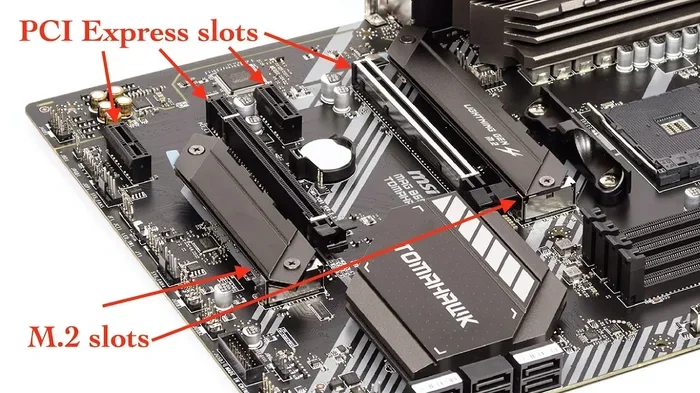
Setting up an NVMe drive on your Raspberry Pi 5 is straightforward. The board has a built-in M.2 connector, so you do not need extra adapters. Here is how to do it step by step.
Step 1: Get the Right Hardware
You need three things: a Raspberry Pi 5, an M.2 NVMe SSD, and a heatsink. The Pi 5 comes with an M.2 slot built in. Some kits include a heatsink cover that also holds the SSD in place. If yours does not, buy a small M.2 heatsink separately. They cost just a few dollars.
Step 2: Insert the NVMe Drive
Carefully align the NVMe drive with the M.2 slot on the Pi 5. The notch on the drive should match the key on the connector. Gently push the drive down and secure it with the screw. Do not force it. The connection should feel firm but not tight.
Step 3: Flash Your Operating System
You can now flash your Raspberry Pi OS (or any Linux distro) directly to the NVMe drive. Use the Raspberry Pi Imager tool on another computer. Select your drive as the target, write the image, and you are ready to go. The Pi 5 will boot from the NVMe drive by default if no microSD card is present.
Step 4: Optimize Your SSD for Linux
Once booted, there are a few tweaks that help your NVMe drive perform better. Enable TRIM support by adding discard to your fstab file. This keeps the drive healthy and maintains speed over time. You can also adjust the I/O scheduler to use the none or mq-deadline scheduler for best results with NVMe drives.
NVMe SSD Performance on Raspberry Pi 5
So how much faster is an NVMe drive really on the Pi 5? The answer depends on the drive you choose and what you are doing. Let us break it down.
Boot Time Comparison
Booting from a microSD card takes about 20 to 30 seconds on the Pi 5. Booting from an NVMe SSD drops that to around 8 to 12 seconds. That is a noticeable improvement every time you power on your board.
Real-World Speed Tests
In everyday use, you will see faster file transfers, quicker application launches, and smoother multitasking. The Pi 5’s PCIe bus connects directly to the NVMe slot, so you get the full benefit of the drive’s speed. For comparison, an NVMe SSD is significantly faster than a standard SATA SSD or microSD card. If you want to understand the difference, check out our guide on is NVMe faster than SSD.
Is an NVMe SSD Worth It for the Pi 5?
Absolutely. If you use your Pi 5 for anything beyond basic tinkering, an NVMe drive is the best upgrade you can make. It improves speed, reliability, and overall user experience. The cost is low, the setup is simple, and the results are dramatic.
Common Mistakes to Avoid
Even with a great NVMe drive, some mistakes can cause problems. Here are the ones to watch out for.
- Skipping the Heatsink: NVMe drives can get warm under load. A heatsink prevents thermal throttling and keeps speeds consistent.
- Using the Wrong Form Factor: The Pi 5 uses M.2 2242 drives. A full-size M.2 2280 drive will not fit without an adapter.
- Not Enabling TRIM: Without TRIM, your SSD can slow down over time as blocks get marked for deletion.
- Cheap Drives with No Name: Stick with trusted brands like Kingston, Crucial, WD, and Samsung. Unknown brands may use low-quality flash memory.
- Ignoring Firmware Updates: Keep your Pi 5 firmware updated. Updates often improve NVMe compatibility and performance.
Final Thoughts
Upgrading to an NVMe SSD for Raspberry Pi 5 is one of the easiest and most impactful improvements you can make. It turns a great single-board computer into a truly fast and reliable machine. Whether you are running a home server, a media player, or a retro game console, the speed and stability gains are worth every penny.
Start with a 1TB drive from a trusted brand, add a small heatsink, and follow the setup steps in this guide. You will wonder how you ever managed with a microSD card. The Pi 5 is ready for NVMe, and the best part is that it only takes a few minutes to make the switch.
Take your Raspberry Pi 5 to the next level today. Pick up an NVMe SSD, follow our guide, and enjoy the difference in every boot and every file transfer.
Frequently Asked Questions
Can I use any NVMe SSD with the Raspberry Pi 5?
The Pi 5 supports M.2 2242 NVMe SSDs through its built-in connector. Most NVMe drives in this form factor will work, but it is best to stick with well-known brands like Kingston, Crucial, or WD for reliability and performance.
Do I need a heatsink for my NVMe SSD on the Pi 5?
A heatsink is not strictly required for light use, but it is highly recommended. NVMe drives can heat up during heavy read and write tasks. A small M.2 heatsink keeps temperatures in check and prevents thermal throttling.
Can I use both a microSD card and an NVMe SSD at the same time?
Yes, you can. The Pi 5 can boot from the NVMe drive and still use the microSD card for additional storage. However, for best performance, it is recommended to run your operating system from the NVMe drive.
What size NVMe SSD should I get for my Raspberry Pi 5?
1TB is the most popular and practical choice for most users. It gives you enough space for the operating system, applications, and media files. If you plan to store large amounts of data, consider a 2TB drive.
Is setting up an NVMe SSD on the Pi 5 difficult?
Not at all. The Pi 5 has a built-in M.2 slot, so you simply insert the drive and flash your operating system using the Raspberry Pi Imager. The whole process takes less than 15 minutes for most users.
Will an NVMe SSD improve my Pi 5’s gaming performance?
Yes, especially for retro gaming. Faster load times, smoother emulation, and quicker game saves are all noticeable benefits. An NVMe drive reduces bottlenecks that a microSD card can cause during gameplay.