Where To Find Replacement For Discontinued Crucial Ram
Finding a replacement for discontinued Crucial RAM can feel frustrating, but it does not have to be. This guide walks you through simple methods to track down compatible memory modules, verify your system requirements, and make a confident purchase. Whether you need DDR3 or DDR4 SODIMM sticks, you will learn where to shop, what to check, and how to avoid common pitfalls.
There is nothing worse than needing to upgrade your laptop or desktop memory and discovering that the exact Crucial RAM model you want has been discontinued. You search online, visit the Crucial website, and all you find is a message saying that product is no longer available. It is a common problem that many PC users face, especially those working with older systems that still rely on legacy memory modules.
The good news is that a discontinued product does not mean the end of the road. Finding a replacement for discontinued Crucial RAM is entirely possible if you know where to look and what to check. Whether you need a DDR3 SODIMM for an older laptop or a DDR4 module for a aging desktop, plenty of options exist. In this guide, we will walk you through every step of the process, from identifying your current RAM to purchasing the right replacement and installing it yourself.
Memory upgrades can breathe new life into an older computer. Adding more RAM helps your system run faster, handle more applications at once, and reduce frustrating slowdowns. If your current Crucial module has stopped being manufactured, do not worry. This article will show you exactly how to find a suitable replacement for discontinued Crucial RAM without wasting time or money.
Key Takeaways
- Know Your RAM Specs: Always check your DDR type, speed, and capacity before buying a replacement.
- Use Crucial’s Scanner Tool: It instantly identifies compatible memory for your system.
- Check Multiple Retailers: Amazon, eBay, and specialty memory stores often carry discontinued models.
- Consider Refurbished Options: Genuine used Crucial RAM can save you money and still perform well.
- Verify Compatibility First: Match the module number and form factor to avoid buying the wrong stick.
- Upgrade With Confidence: Follow simple installation steps and your system will recognize the new memory.
📑 Table of Contents
Why Crucial RAM Models Get Discontinued
Technology moves fast, and memory manufacturers regularly phase out older products. Understanding why this happens can help you make better decisions when searching for a replacement.
What Makes a RAM Model Discontinued
Manufacturers like Crucial, which is owned by Micron, stop producing specific RAM models for several reasons. Newer DDR standards like DDR4 and DDR5 replace older generations such as DDR2 and DDR3. When a new memory standard launches, the company shifts production to meet demand for the latest technology. Over time, older models are phased out completely.
Another reason is low demand. If a particular module was designed for a niche laptop model or a specific motherboard chipset, sales may drop below the threshold needed to keep producing it. Crucial also updates its product lineup regularly, replacing older part numbers with newer, faster versions.
Sometimes a batch of memory has a known issue, and the company pulls that specific module number from the market. Whatever the reason, the result is the same: the part number you need suddenly disappears from store shelves.
How to Identify Your Current Crucial RAM
Before you search for a replacement, you need to know exactly what you currently have. Every RAM stick has a part number printed on the label. For Crucial modules, this usually starts with “CT” followed by a series of numbers and letters. For example, you might see something like CT2KIT12864BF160B.
Write down the full part number, the DDR type (DDR3, DDR4, or DDR5), the speed in MHz, and the capacity in GB. This information is essential when you go shopping for a replacement for discontinued Crucial RAM. If the label has worn off, you can use software tools like CPU-Z or Crucial’s own System Scanner to pull up your current memory details.
Knowing your exact specifications also helps you determine whether a newer module can serve as a compatible substitute. For instance, if your laptop takes DDR3L 1600MHz SODIMM sticks, you need to find a replacement that matches those specs exactly.
How to Find Compatible Replacement RAM
Once you know what you need, the search becomes much easier. There are several reliable methods to track down a compatible module, even if the original Crucial part has been discontinued.
Check Your Laptop or PC Specifications
Start by looking up your laptop or motherboard model number. Most manufacturers list the supported memory types on their website or in the user manual. This tells you the DDR generation, maximum capacity per slot, and whether you need SO-DIMM or DIMM form factors.
If you are upgrading a laptop, pay close attention to the form factor. Most laptops use SO-DIMM modules, which are smaller than desktop DIMMs. Buying the wrong type is one of the most common mistakes people make when upgrading memory. Always double-check the form factor before placing an order.
Use Crucial’s System Scanner Tool
Crucial offers a free tool on their website that scans your system and recommends compatible memory. Even if your exact model is discontinued, the scanner often suggests alternative modules that work with your system. This is one of the easiest and most reliable ways to find a suitable replacement for discontinued Crucial RAM.
The scanner checks your processor, motherboard, and operating system to ensure the recommended RAM will work. It also shows you the maximum capacity your system supports, so you do not buy more than you need. If you are unsure about your RAM requirements, check out this guide on how to find your RAM DDR type for additional help.
Match DDR Type and Speed Accurately
When shopping for a replacement, match the DDR type and speed as closely as possible. DDR3 is not backward compatible with DDR4 slots, and vice versa. The speed (measured in MHz) also matters, though many systems will downclock faster RAM to match the supported speed.
For example, if your system supports DDR4 2400MHz, you can install DDR4 3200MHz RAM, but it will run at 2400MHz. However, installing DDR3 RAM in a DDR4 slot will not work at all. Always verify the DDR generation first, then the speed, and finally the capacity. Getting these three details right ensures a smooth upgrade.
Best Places to Buy Replacement RAM
Now that you know what you need, where do you actually buy it? Here are the best sources for finding a replacement for discontinued Crucial RAM.
Official Crucial Website and Micron Resellers
Start with the official Crucial website. Even if your exact model is listed as discontinued, Crucial sometimes keeps older inventory in stock or recommends equivalent alternatives. Their compatibility tool is the best starting point for any memory purchase.
Micron, the parent company of Crucial, also sells memory through authorized resellers. These resellers often have access to bulk inventory that is not available on the open market. If you need a specific discontinued part number, contacting a Micron reseller directly can sometimes yield results.
Third-Party Retailers and Online Marketplaces
Major retailers like Amazon, Newegg, and B&H Photo often carry discontinued Crucial RAM in their warehouses. Search using the exact part number to find remaining stock. Third-party sellers on these platforms may also have unused or lightly used modules from old inventory.
eBay is another excellent source for discontinued memory. Many sellers clear out old stock and sell genuine Crucial modules at discounted prices. Just be sure to buy from reputable sellers with good ratings, and always verify the part number matches your requirements. If you are looking for a specific capacity, check out guides on whether 8GB RAM is enough for a laptop to help you decide on the right size.
Refurbished and Used RAM Options
Do not overlook refurbished memory. Many companies sell tested and certified used RAM that works just as well as new. Since RAM has no moving parts, it tends to last a very long time. A refurbished Crucial module from a discontinued line can save you a significant amount of money.
Just make sure the seller provides a warranty or return policy. Reputable refurbished memory sellers test each module for reliability before listing it. This is a great option if you are on a tight budget but still need quality memory upgrade components.
How to Install Your New RAM
Once you have your replacement module, installation is straightforward. Here is how to do it safely and correctly.
Preparing Your Laptop or PC
Before you begin, power off your computer completely and unplug it from the wall. If you are working on a laptop, remove the battery if possible. Static electricity can damage sensitive components, so touch a metal surface to discharge any static buildup before handling the RAM.
Gather a small Phillips-head screwdriver if your laptop requires one to access the memory compartment. Having a anti-static wrist strap is also a good idea, though not strictly necessary. Work on a clean, flat surface with good lighting.
Step-by-Step Installation Guide
First, locate the RAM slots on your motherboard. On most laptops, there is a small access panel on the bottom that gives you direct entry to the memory slots. Remove the screws and gently lift off the panel.
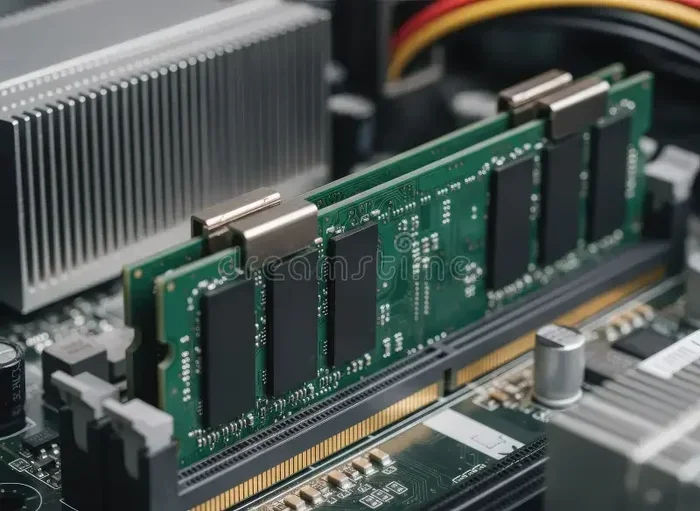
Press the metal clips on either side of the existing RAM stick outward. The stick will pop up at an angle. Carefully remove it by pulling it straight out. Align the notch on your new module with the ridge in the slot, then press the stick down firmly until the clips click into place.
Replace the access panel, screw it back in, and reconnect the battery. Power on your computer and check that the system recognizes the new memory. If you want to learn more about maximizing your upgrade, read about what more RAM does for a laptop to understand the full benefits.
Verifying Your New RAM Works
After installation, your system should automatically detect the new module. On Windows, you can check by right-clicking “This PC,” selecting “Properties,” and looking at the installed memory. On macOS, click the Apple menu and choose “About This Mac.”
If the system does not recognize the new RAM, try reseating the module. Make sure it is fully inserted and the clips are locked. You can also run a memory diagnostic tool like Windows Memory Diagnostic to test for errors. If the RAM is detected but the system runs slowly, it may be running at a lower speed than the module supports. Check your BIOS settings to ensure the correct speed is configured.
Common Mistakes to Avoid When Replacing RAM
Even with the best intentions, people make mistakes when upgrading memory. Here are the most common ones to watch out for.
- Buying the Wrong DDR Generation: DDR3 and DDR4 are not interchangeable. Always confirm the DDR type before purchasing.
- Ignoring Form Factor: Desktop DIMMs and laptop SO-DIMMs look similar but are different sizes. Using the wrong one will not fit.
- Mismatching Speeds: While mixing speeds often works, it can cause instability. Try to match the speed of your existing modules.
- Skipping the BIOS Update: Sometimes an older motherboard needs a BIOS update to support newer capacity or speed ratings.
- Forgetting to Ground Yourself: Static discharge can kill RAM modules instantly. Always discharge static before handling memory.
Avoiding these mistakes will save you time, money, and frustration. Take your time, double-check every specification, and you will have a successful upgrade.
When to Consider a Full System Upgrade
There comes a point where replacing discontinued RAM is no longer practical. If your system is several generations old and other components are also outdated, a full upgrade might make more sense. A newer processor paired with modern DDR4 or DDR5 memory can transform an aging computer into a capable machine.
Consider your use case. If you are using the laptop for basic tasks like web browsing and document editing, a simple RAM upgrade may be all you need. But if you are running demanding applications like video editing or machine learning, you may need more than just a memory swap. Check out this guide on whether 8GB RAM is enough for machine learning to understand your workload requirements.
Also think about the cost-benefit ratio. If a replacement module costs more than half the price of a newer system, it might be worth upgrading the whole machine instead. Weigh your options carefully and choose the path that gives you the best value.
Quick Tips for a Smooth RAM Upgrade
- Always keep your old RAM in a safe place until you confirm the new one works.
- Take photos before disassembling your laptop so you can reference the setup later.
- Buy from sellers who offer at least a 30-day return policy.
- Match the voltage of your new module to your system requirements, especially for DDR3L modules.
- If you are unsure, consult your laptop or motherboard manual before purchasing.
These small steps can make a big difference in ensuring your upgrade goes smoothly and your new memory performs as expected.
Final Thoughts
Finding a replacement for discontinued Crucial RAM is entirely doable with the right approach. Start by identifying your exact specifications, use compatibility tools, and explore multiple purchasing channels. Whether you buy from the official Crucial store, a third-party retailer, or a refurbished seller, you have plenty of options available.
Remember to match the DDR type, speed, capacity, and form factor precisely. Avoid the common mistakes outlined above, and follow the installation steps carefully. A successful memory upgrade can extend the useful life of your computer by years, saving you the cost of a new system.
Take your time, do your research, and enjoy the satisfaction of a faster, more responsive computer. Your memory upgrade journey starts with the right information, and now you have everything you need to succeed.
Frequently Asked Questions
Can I use a different brand of RAM as a replacement for discontinued Crucial RAM?
Yes, as long as the DDR type, speed, capacity, and form factor match your system requirements. Mixing brands is generally fine, though matching the same specifications ensures the best compatibility and stability.
How do I know if my Crucial RAM is truly discontinued?
Visit the official Crucial website and search for your part number. If the product page shows it as unavailable or discontinued, try searching for the same part number on retailer sites like Amazon or Newegg. If no one carries it, the model has likely been phased out.
Is refurbished RAM safe to use?
Yes, refurbished RAM from reputable sellers is safe. RAM has no moving parts and rarely fails. Just make sure the seller offers a warranty and the modules have been tested. Avoid buying used RAM from unknown sources without any return policy.
What if my laptop only has one RAM slot and it is occupied by the discontinued module?
In this case, you will need to replace the existing module with a compatible one. You cannot add a second stick if there is no free slot. Make sure the replacement matches all specifications exactly, and consider whether adding a second matching stick in the future is an option.
How much does a replacement RAM module cost?
Prices vary depending on the DDR type, capacity, and where you buy. DDR3 modules are generally cheaper since they are older and less in demand. DDR4 and DDR5 modules tend to cost more. Check multiple retailers and compare prices before purchasing.
Will upgrading my RAM improve my laptop’s performance?
Yes, upgrading RAM can significantly improve performance, especially if your current memory is insufficient for your tasks. More RAM allows your system to handle more applications simultaneously and reduces reliance on slower storage. For more details, check out this guide on RAM upgrade for my laptop.
=== CONCLUSION ===
Finding a replacement for discontinued Crucial RAM does not have to be a headache. By following the steps in this guide, you can confidently identify your current memory specs, locate a compatible module, and complete the upgrade yourself. The key is to match the DDR type, speed, capacity, and form factor precisely, and to buy from trustworthy sources. Whether you choose a new replacement module, a refurbished option, or a compatible alternative from a different brand, your system will benefit from the added memory. Take action today, and give your older computer the performance boost it deserves.