How Do You Get More Ram on a Laptop
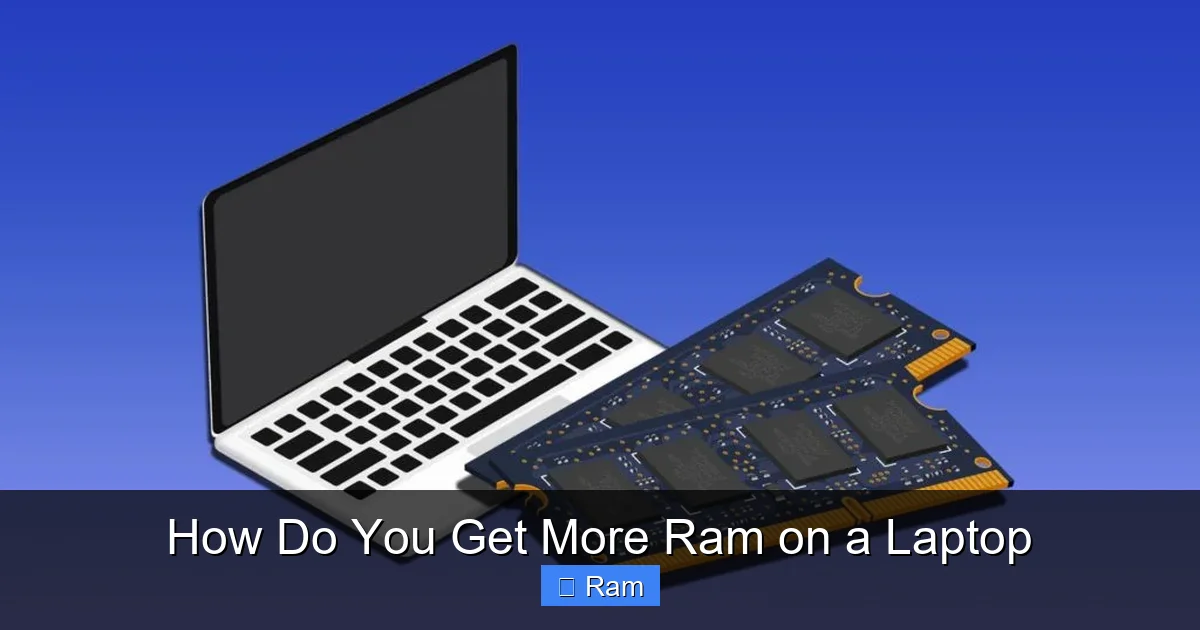
Upgrading your laptop’s RAM is often the most cost-effective way to boost performance. First, you must check if your laptop supports an upgrade and what type of RAM it uses. Then, you purchase compatible modules and install them, which is usually a simple process of opening a panel. If your laptop’s RAM is soldered, your options shift to software optimizations or external solutions.
Have you ever sat watching the spinning wheel of death on your laptop, waiting for a simple web browser with a few tabs open to finally respond? Or maybe you try to edit a photo while a document is open, and everything grinds to a halt. The culprit is often insufficient Random Access Memory (RAM). It’s the short-term workspace your laptop uses to run applications and process data. When it’s full, your system slows to a crawl, relying on the much slower solid-state drive (SSD) or hard drive as virtual memory. The solution? Getting more RAM. But how do you get more RAM on a laptop? The path isn’t always straightforward, but it’s frequently the single most impactful upgrade you can make. Let’s break down everything you need to know, from diagnosis to installation, and what to do when a physical upgrade isn’t an option.
Key Takeaways
- Check Compatibility First: Not all laptops allow upgrades. Use system tools or manufacturer specs to confirm your model has accessible RAM slots and identify the exact type (DDR3/DDR4/DDR5), speed, and maximum supported capacity.
- Understand Soldered vs. Slot RAM: Many modern ultrabooks have RAM soldered directly to the motherboard, making a physical upgrade impossible. Look for an access panel on the laptop’s underside to identify slot-based RAM.
- Match RAM Specifications Exactly: For optimal performance, new RAM modules should match your existing RAM’s type (e.g., DDR4), speed (e.g., 3200MHz), and voltage. Mixing mismatched sticks can cause instability.
- The Installation is Usually Simple: For slot-based RAM, upgrading often involves removing a few screws, prying open a panel, and clicking in new modules. Always power off, unplug, and discharge static electricity first.
- Alternatives Exist When Upgrading Isn’t Possible: If RAM is soldered, you can still improve multitasking by closing unused apps, using lightweight software, upgrading to a faster SSD, or utilizing ReadyBoost (Windows) or external GPU enclosures for specific tasks.
📑 Table of Contents
- Understanding RAM and Why You Need More
- Step 1: Diagnose Your Current RAM and Upgrade Potential
- Step 2: Choosing the Right RAM for Your Laptop
- Step 3: The Physical Installation Process
- Troubleshooting and What to Do If It Doesn’t Work
- When You Can’t Upgrade: Alternative Solutions
- Conclusion: A Clear Path to a Faster Laptop
Understanding RAM and Why You Need More
Before we talk about getting it, let’s quickly understand what RAM is. Think of your laptop’s RAM as a desk. The bigger the desk, the more documents, books, and tools you can have out and immediately accessible while you work. A small desk forces you to constantly put things away in a filing cabinet (your storage drive) to make room, slowing you down dramatically. More RAM means your laptop can keep more applications and data ready for instant access, leading to smoother multitasking, faster application loading, and better performance in memory-intensive programs like video editors, virtual machines, and modern games.
The Signs You Need a RAM Boost
You don’t need to be a tech expert to know when RAM is the bottleneck. Common symptoms include:
- Constant Hard Drive Activity: If you hear your SSD or HDD chattering away constantly, especially when switching apps, it’s likely your system is “paging” or “swapping”—using storage as fake RAM.
- Programs Become Unresponsive: Applications freeze or say “Not Responding” when you have several open, even if they’re not doing anything actively.
- Slow Performance with Multiple Tabs/Apps: A few Chrome tabs and a Word document shouldn’t tax a modern system. If they do, you’re RAM-starved.
- System Warnings: Windows and macOS will sometimes pop up warnings about low memory.
- Poor Performance in Specific Tasks: Photo editing with large files, compiling code, or running a virtual machine will suffer first and most noticeably.
If these sound familiar, your next step is to confirm your laptop’s current situation and upgrade potential.
Step 1: Diagnose Your Current RAM and Upgrade Potential
This is the most critical step. Guessing will lead to wasted money and frustration. You need two pieces of information: 1) How much RAM you currently have, and 2) Whether your laptop model supports an upgrade, and if so, what kind.
Visual guide about How Do You Get More Ram on a Laptop
Image source: techjunkie.com
Checking Your Current RAM
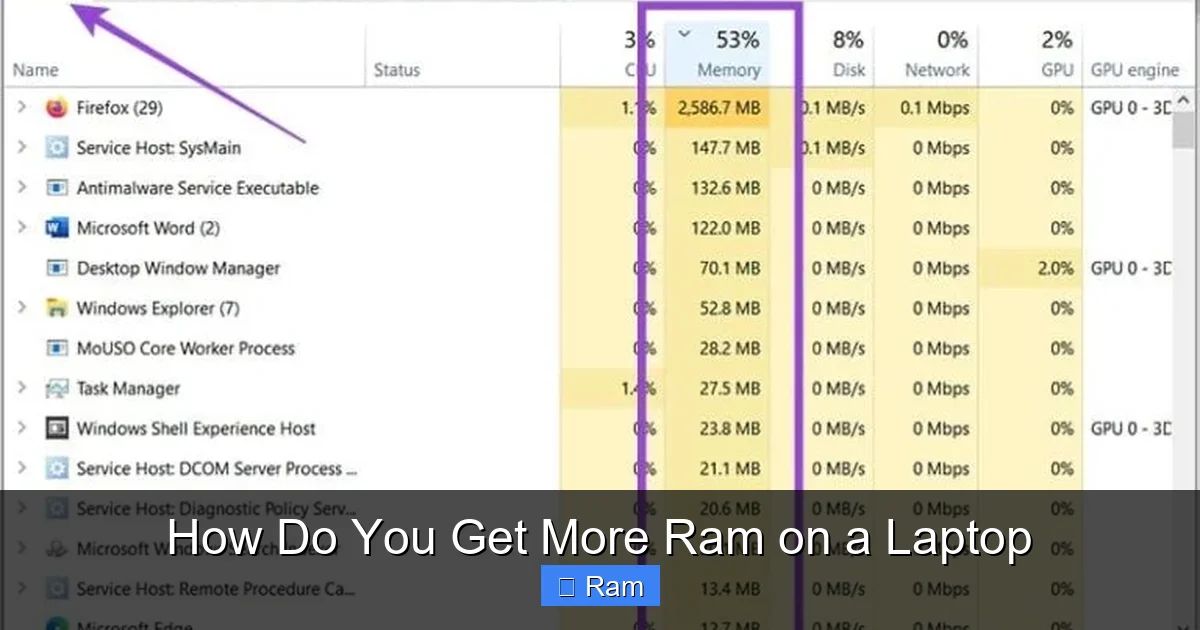
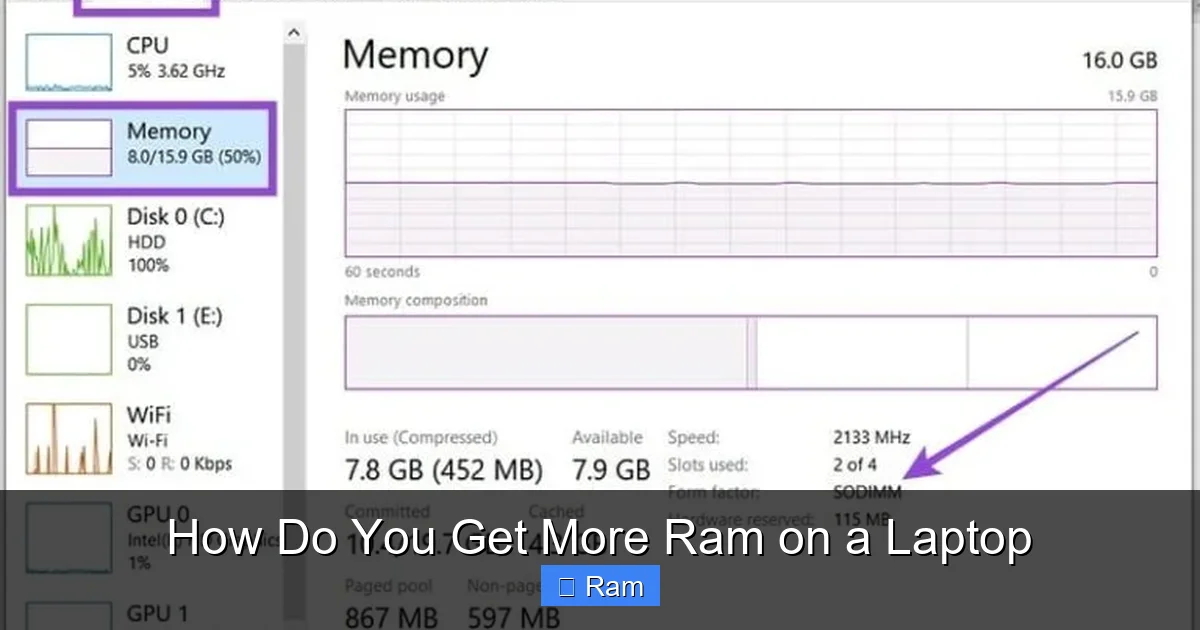
This is easy. On Windows, press Ctrl + Shift + Esc to open Task Manager. Go to the “Performance” tab and click on “Memory.” Here you’ll see your total installed RAM (e.g., “8.0 GB”), its speed (e.g., “3200 MHz”), and its form factor (e.g., “DDR4”). On macOS, click the Apple menu > About This Mac > Memory. It will show the total RAM and often the type and speed.
How to Determine if Your Laptop is Upgradable
This is where research is key. Here are the best methods:
- Physical Inspection (Most Reliable): Power off your laptop, unplug it, and remove the battery if possible. Turn it over and look for a panel secured by one or two screws. This is often (but not always) the RAM and/or storage access panel. If you see such a panel, you likely have upgradeable RAM. Gently pry it open with a plastic tool to peek inside. If you see one or two long, thin circuit boards (RAM sticks) sitting in slots parallel to each other, you’re golden. If you see no slots and the motherboard looks smooth, or if you see small chips soldered directly onto the board, your RAM is soldered and not user-upgradeable.
- Manufacturer’s Website/Support Page: Search for your exact laptop model number (found on a sticker on the bottom) on the manufacturer’s site. Look for “Specifications,” “Tech Specs,” or “Upgrade Instructions.” They will often list the maximum supported RAM and whether there are accessible slots.
- Use System Information Tools: Tools like CPU-Z (free download) for Windows provide extremely detailed memory information under the “Memory” and “SPD” tabs, often listing the type, size, and slot usage. Crucial System Scanner (from Crucial.com) is another excellent, safe tool that scans your system and tells you exactly what RAM is compatible and what the maximum upgrade is for your specific model.
- Search Online Forums and Guides: Search for “[Your Laptop Model] RAM upgrade.” Sites like iFixit often have excellent teardown guides with photos showing exactly how to access and replace the RAM. YouTube is also a fantastic resource for visual, step-by-step guides for specific models.
Red Flags for Non-Upgradable RAM: Ultra-thin and light laptops (especially Apple’s MacBooks from 2016 onward, many Microsoft Surface devices, and premium ultrabooks from Dell, HP, and Lenovo) often solder RAM to save space and thickness. Gaming laptops and mobile workstations almost always have upgradeable slots.
Step 2: Choosing the Right RAM for Your Laptop
Assuming you’ve confirmed you have slots, you must buy the correct RAM. Using the wrong type won’t work or will cause crashes.
Visual guide about How Do You Get More Ram on a Laptop
Image source: techjunkie.com
Key RAM Specifications to Match
You need to match four things:
- Type (Generation): DDR3, DDR4, or DDR5. These are not compatible with each other. Your laptop’s manual, the sticker on the old RAM stick, or the information from CPU-Z will tell you. DDR4 is most common in laptops from ~2015-2020, DDR5 is in newer high-end models (2021+).
- Speed (Frequency): Measured in MHz (e.g., 2666, 3200, 4800). Your laptop will run all RAM at the speed of the slowest module. It’s best to match the speed of your existing stick. Mixing speeds usually works (the faster stick will downclock), but for best results, especially in dual-channel mode, matching pairs are ideal.
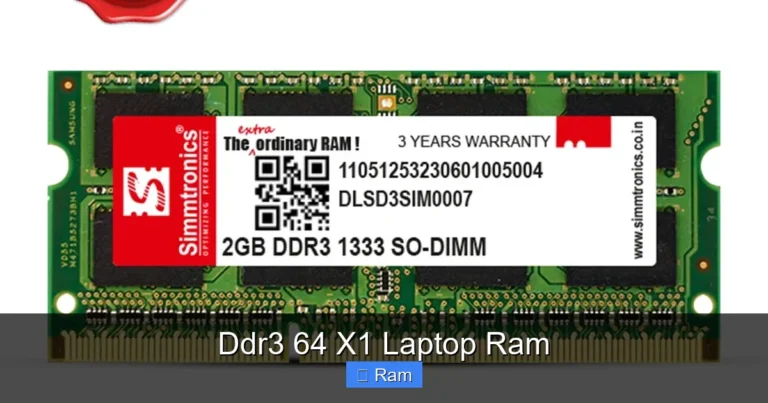
- Form Factor: Laptops use SODIMM modules. They are shorter than desktop DIMM sticks. Do not buy desktop RAM.
- Voltage: Standard laptop RAM is 1.2V or 1.35V. Ensure compatibility, though most modern SODIMMs are standardized.
Single Stick vs. Dual-Channel Kits
Most laptops with two RAM slots benefit from a “dual-channel” configuration, where data is split between two identical sticks for double the bandwidth. If you have one empty slot and one occupied stick:
- To add to the empty slot, buy a single stick that exactly matches your existing stick’s brand, model, speed, and timings for the best chance of stable dual-channel operation.
- Alternatively, and often more reliably, you can buy a matched kit of two new sticks (e.g., 2x8GB) and replace your old single stick. This guarantees perfect matching but means you won’t reuse the old stick.
If both slots are occupied, you must replace both existing sticks with a new, higher-capacity matched kit (e.g., replacing 2x4GB with 2x8GB).
How Much RAM Do You Need?
For general use (web browsing, office apps, streaming): 8GB is the bare minimum today. 16GB is the sweet spot for most users, allowing comfortable multitasking. 32GB is for power users: heavy photo/video editing, running multiple virtual machines, high-end gaming, or scientific work. Check your laptop’s maximum supported RAM (from your earlier research). Some older models cap at 16GB or 32GB, while newer ones support 64GB or even 128GB.
Where to Buy
Stick to reputable brands like Crucial, Kingston, Corsair, G.Skill, or Samsung. buying from the laptop manufacturer (e.g., Dell, Lenovo) is safe but often more expensive. Use the Crucial System Scanner or Kingston’s Memory Search tool—they are designed to show only guaranteed-compatible options for your exact model, removing all guesswork and risk.
Step 3: The Physical Installation Process
With your compatible SODIMM RAM in hand, it’s time for the upgrade. This process is generally simple, but care is paramount.

Visual guide about How Do You Get More Ram on a Laptop
Image source: iliputer.com
Essential Precautions: Safety First
1. Power Down Completely: Shut down the laptop. Do not just sleep or hibernate it.
2. Unplug Everything: Remove the charger, any USB devices, docks, etc.
3. Remove the Battery (if possible): This is the safest way to ensure no power. If the battery is internal and you’re not comfortable removing it, proceed with extreme caution and ensure the laptop is off and unplugged.
4. Discharge Static Electricity: Static can fry sensitive electronics. Before touching any internal components, touch a grounded metal object (like the screwdriver you’ll use, if it’s metal and you’re touching its bare shaft) or the laptop’s unpainted metal chassis. You can also use an anti-static wrist strap.
5. Work in a Clean, Well-Lit Area: Have a small container for screws.
A Step-by-Step Installation Guide
1. Locate and Remove the Access Panel: Turn the laptop over. Identify the RAM access panel (usually marked with a memory chip icon or labeled). Remove the screws securing it. They may be different lengths; note where each goes. Gently pry the panel up with a plastic pry tool or your fingernail. It may have clips holding it; work your way around.
2. Expose the RAM Slots: You should now see one or two RAM modules held down by small metal clips on either side.
3. Remove Old RAM (if replacing):strong> Gently but firmly push the two metal clips on the sides of the module away from the RAM stick. The module will pop up at an angle (~30 degrees). Grasp it by the edges and pull it straight out. Place it somewhere safe on an anti-static bag.
4. Install the New RAM: Hold the new SODIMM module by the edges. Note the notch on the bottom edge—it’s not centered. Align this notch with the key in the slot. Insert the module into the slot at the same ~30-degree angle. Press down firmly and evenly on the top edge until the side clips snap into place, locking the module flat. You should hear/feel a click. Ensure it’s seated evenly and fully.
5. Reassemble: Double-check the RAM is secure. Replace the access panel and screw it back in. Do not overtighten.
6. Power On and Verify: Reconnect the battery if you removed it, plug in the charger, and boot up. Go back to Task Manager (Windows) or About This Mac (macOS) to confirm the new total RAM is recognized.
Troubleshooting and What to Do If It Doesn’t Work
If your laptop doesn’t boot, beeps, or shows a black screen after installing new RAM, don’t panic. This is often a compatibility or seating issue.
Common Issues and Fixes
- No Boot / Beep Codes: Power off immediately. Reseat the RAM: remove it and reinsert it, ensuring it’s fully clicked into place. Try booting with only one stick installed (if you have two), testing each stick in each slot to isolate a bad stick or a bad slot.
- System Recognizes Less RAM Than Installed: This is common on 32-bit (very old) operating systems, but rare on modern 64-bit Windows/macOS. More likely, a stick isn’t fully seated, or one stick is faulty. Reseat or test individually.
- Crashes or Bluescreens: This often indicates a timing/voltage mismatch. Enter the BIOS/UEFI setup (usually by pressing F2, Del, or F12 during boot). Look for memory settings. You can try manually setting the speed (e.g., to 2666MHz) or voltage to match your old stick’s specs. If that fails, the new RAM may simply be incompatible despite matching specs—contact the seller for a return/exchange.
- Laptop Still Slow After Upgrade: Ensure the upgrade was successful and the new RAM is being used (check Task Manager). The bottleneck may have shifted to another component, like an old, slow hard drive (HDD). Upgrading to an SSD would be the next logical step. Also, ensure your system isn’t still paging due to other issues; a restart can clear out cached memory.
When You Can’t Upgrade: Alternative Solutions
What if you opened your laptop and found the RAM chips are soldered to the motherboard? All hope is not lost. You have several strategies to eke out more performance without touching a screwdriver.
1. Software and Habit Optimization
This is about freeing up the RAM you already have.
- Close Unused Programs: Be ruthless. Every open app consumes memory. Check your system tray (right side of the taskbar) for background apps you don’t need running.
- Manage Startup Programs: In Windows Task Manager’s “Startup” tab, disable programs you don’t need launching with Windows. Fewer startup apps means more free RAM after boot.
- Use Lighter Alternatives: Swap a heavy browser like Chrome (with dozens of tabs) for a more memory-efficient one like Microsoft Edge (which is Chromium-based but often more efficient) or Firefox with strict settings. Use a lightweight text editor instead of a full office suite for quick notes.
- Adjust Visual Effects: In Windows, search for “Adjust the appearance and performance of Windows.” Choose “Adjust for best performance” to disable fancy animations that use system resources, including some memory.
- Scan for Malware: Malicious software can consume significant resources. Run a scan with Windows Security or a trusted third-party antivirus.
2. Storage-Based Solutions
- Upgrade to a Faster SSD: If you’re still using an old mechanical hard drive (HDD), upgrading to a SATA or NVMe SSD is the single biggest upgrade you can make for overall system responsiveness. It speeds up boot times, app launches, and file access. While it doesn’t add RAM, it makes the system feel dramatically faster, often masking some RAM limitations because data swaps to storage much more quickly.
- Windows ReadyBoost: This is a legacy feature. You can use a fast USB flash drive or SD card as a supplemental memory cache. It provides a minor boost on systems with very little RAM (2-4GB) but is largely ineffective on modern systems with 8GB+ and an SSD. It’s more of a last-resort trick.
3. External and Advanced Options
- Cloud/Web-Based Applications: For specific professional tasks, some software suites offer cloud-based versions (e.g., Adobe Creative Cloud web apps, Office 365) that do more processing on remote servers, reducing local RAM usage.
- External GPU (eGPU) Enclosures: This is a niche, expensive solution for gamers and creators. An eGPU enclosure connects via Thunderbolt 3/4 and houses a desktop graphics card. While its primary purpose is adding GPU power, the enclosure’s own controller and the card’s VRAM can offload some graphics and compute tasks, indirectly reducing load on your system RAM and integrated graphics. It does not add system RAM.
- Consider a New Laptop: If your laptop has soldered RAM and an old, slow CPU/HDD, the cost/benefit of upgrading an SSD might not be worth it compared to purchasing a new, budget-friendly laptop with 16GB of soldered RAM and a modern processor. This is the most straightforward, if not always desired, path.
Conclusion: A Clear Path to a Faster Laptop
So, how do you get more RAM on a laptop? The answer starts with a simple, critical question: “Can I?” By methodically checking your model’s specifications and physically inspecting for accessible slots, you determine if a straightforward, cost-effective hardware upgrade is on the table. If it is, matching the correct DDR type, speed, and capacity and following a careful installation process will almost certainly deliver a noticeable and satisfying performance leap. You’ll feel the difference in everyday snappiness.
If your laptop’s RAM is soldered shut, the path shifts from hardware to software and other component upgrades. Optimizing your software habits, adding a blazing-fast SSD, and managing startup programs are powerful ways to maximize the performance of the RAM you already have. While you can’t magically add more physical memory chips, you can absolutely make your laptop feel faster and more capable.
The journey to a more responsive laptop begins with knowledge. Armed with this guide, you can confidently diagnose your system, make the right purchasing decision, and either perform a satisfying DIY upgrade or implement smart software optimizations. Don’t suffer with a sluggish machine when a RAM upgrade—or its intelligent alternatives—could be the solution.
Frequently Asked Questions
Can I add RAM to any laptop?
No. Many modern thin-and-light laptops, particularly Apple MacBooks from 2016 onward, have RAM soldered directly to the motherboard, making it impossible to upgrade. You must check your specific model’s design to see if it has accessible RAM slots.
Is it better to have one 16GB RAM stick or two 8GB sticks?
Two 8GB sticks are generally better for performance. This creates a dual-channel configuration, allowing the CPU to access memory from both channels simultaneously, roughly doubling the memory bandwidth compared to a single stick. This provides a tangible speed boost in many applications, especially games and creative software.
Will mixing different RAM brands or speeds cause problems?
It can. While the system will often run all RAM at the speed of the slowest module, mixing brands, speeds, or timings can sometimes cause instability, boot failures, or prevent dual-channel mode from activating. For guaranteed compatibility and best performance, use a matched kit from the same manufacturer.
How much RAM do I really need in 2024?
For most users, 16GB is the new recommended sweet spot. It allows for comfortable multitasking with dozens of browser tabs, office applications, and media players open. 8GB is the absolute minimum for basic use, while 32GB is advisable for heavy video editing, 3D rendering, running virtual machines, or high-end gaming with mods.
Can upgrading RAM void my laptop’s warranty?
It depends on the manufacturer and your region’s laws. Some companies (like Apple) consider any user repair as voiding the warranty. Others (like many Dell or Lenovo models) have user-accessible panels designed for upgrades and will not void the warranty as long as you don’t damage anything during the process. Always check your warranty terms before opening the case.
What should I do if my laptop doesn’t turn on after installing new RAM?
First, power off and unplug the laptop. Reseat the RAM: remove the new stick(s) and firmly reinsert them, ensuring the clips lock. Try booting with only one stick installed at a time, testing each stick in each slot to identify a faulty stick or a bad slot. If it still fails, the new RAM may be incompatible, and you should return it for a model guaranteed compatible with your laptop.