How to Add a Ram to a Laptop
Adding RAM to a laptop is one of the easiest upgrades you can do yourself. With the right tools, a bit of patience, and the correct memory module, you can instantly speed up multitasking, gaming, and everyday tasks. Follow this guide to choose, install, and verify your new RAM without a hitch.
Key Takeaways
- Check compatibility first: Verify your laptop’s maximum RAM, type (DDR3/DDR4), and slot count before buying.
- Static safety matters: Use an anti‑static wrist strap or touch metal to discharge electricity.
- Tools are minimal: A small Phillips screwdriver and a plastic spudger are usually enough.
- Installation is quick: Most laptops let you add RAM in under 10 minutes.
- Test after install: Use BIOS or Windows Memory Diagnostic to confirm the new memory is recognized.
- Upgrade benefits: Expect faster app launches, smoother video editing, and better gaming FPS.
- Future‑proofing: Buying a slightly larger module than you need now can extend the laptop’s life.
📑 Table of Contents
Introduction: Why Adding RAM Matters
When your laptop feels sluggish—web pages freeze, games lag, and simple tasks take forever—the first thing most people think of is buying a new computer. In reality, a single hardware upgrade can breathe new life into the same machine. Adding RAM (Random‑Access Memory) gives your laptop more space to store active data, which means the processor can work faster and smoother.
Think of RAM like a desk. The bigger the desk, the more papers you can spread out without constantly shuffling them. When the desk is tiny, you keep piling papers on top of each other, and you waste time looking for the right sheet. Upgrading RAM expands that desk, letting your laptop keep more programs and files ready to use.
This guide walks you through everything you need to know: from checking compatibility, buying the right module, preparing your workspace, installing the memory, to confirming the upgrade works. Even if you’ve never opened a laptop before, you’ll finish feeling confident and proud.
1. Planning Your Upgrade
1.1 Identify Your Laptop Model
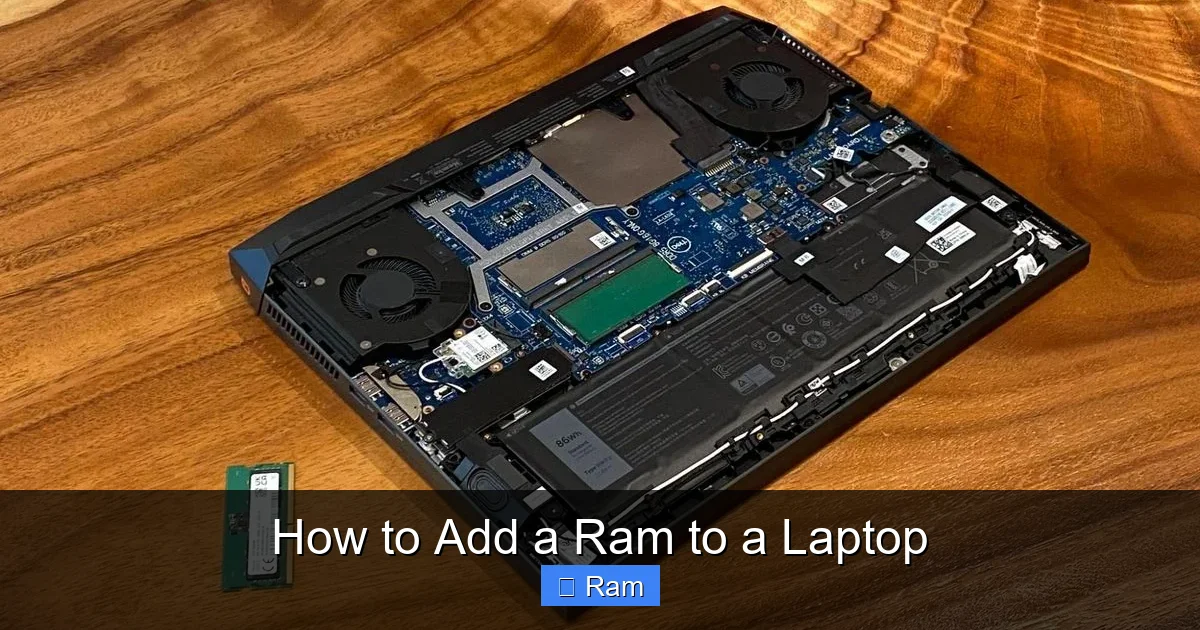
Start by locating the exact model number. It’s usually on a sticker under the bottom cover or inside the battery compartment. Write it down and search the manufacturer’s website. You’ll find a specification sheet that lists:
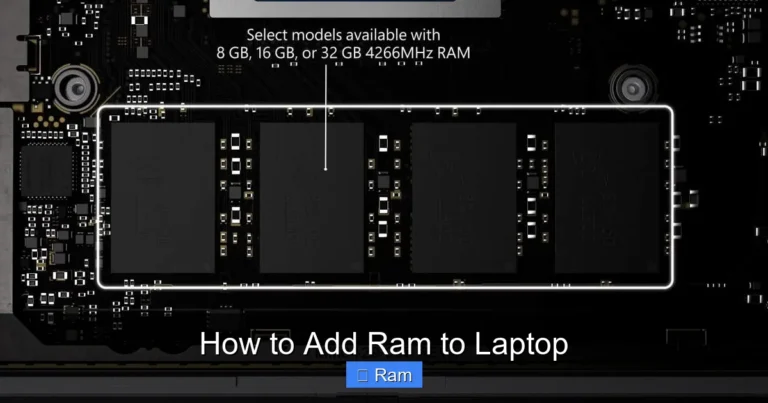
Visual guide about How to Add a Ram to a Laptop
Image source: robots.net
- Maximum supported RAM (e.g., 16 GB)
- RAM type (DDR3, DDR4, DDR5)
- Speed (e.g., 2400 MHz)
- Number of slots (1 or 2)
1.2 Check Current RAM Usage
Open Task Manager (Ctrl + Shift + Esc) on Windows or Activity Monitor on macOS. Look at the “Memory” tab to see how much RAM you have and how much is being used. If you regularly hit 80 % or higher, an upgrade will be noticeable.
1.3 Choose the Right Memory Module
When buying, match these three specs:
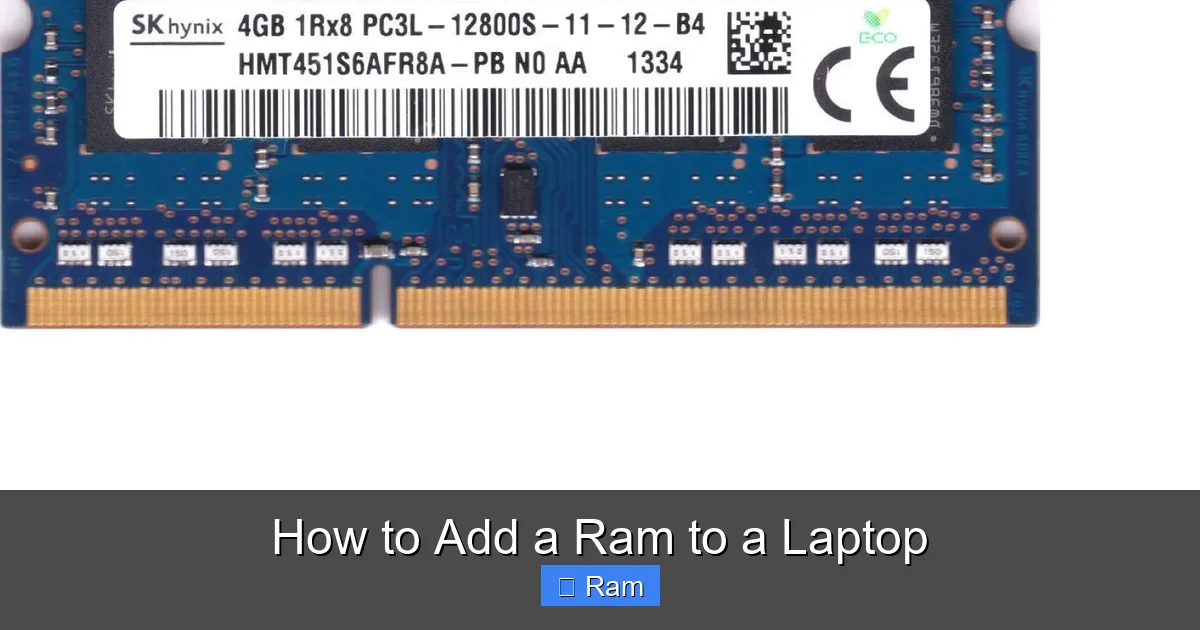
- Form factor: Most laptops use SO-DIMM (Small Outline DIMM). Desktops use full‑size DIMM.
- Generation: DDR4 is common for laptops made after 2015; newer models may need DDR5.
- Speed: Choose a module with the same or higher MHz as the existing one. The laptop will default to the lower speed if mismatched.
For dual‑channel performance, install two identical sticks (same size and speed). If you have one empty slot, a single stick works fine, but you’ll lose the dual‑channel boost.
1.4 Tools and Safety Gear
You only need a few items:
- Small Phillips #00 screwdriver
- Plastic spudger or pry tool (to avoid scratching)
- Anti‑static wrist strap (or a grounded metal object)
- Clean, flat workspace with good lighting
Static electricity can damage sensitive components, so always ground yourself before touching the RAM.
2. Preparing Your Laptop
2.1 Power Down and Unplug
Shut down the laptop completely—don’t just put it to sleep. Unplug the power adapter and any peripheral devices (USB drives, external monitors, etc.).
Visual guide about How to Add a Ram to a Laptop
Image source: robots.net
2.2 Remove the Battery (If Possible)
Many modern ultrabooks have sealed batteries, but if yours is removable, slide the latch and take the battery out. This adds an extra layer of safety.
2.3 Locate the RAM Access Panel
Flip the laptop over. Look for a small rectangular panel secured by one or two screws. On some models (e.g., Dell XPS, Lenovo ThinkPad), the entire back cover must be removed. Consult the service manual for exact instructions.
2.4 Ground Yourself
Put on the anti‑static wrist strap and clip it to a grounded metal part of the chassis. If you don’t have a strap, touch the metal frame for a few seconds before handling the RAM.
3. Installing the New RAM
3.1 Open the Access Panel
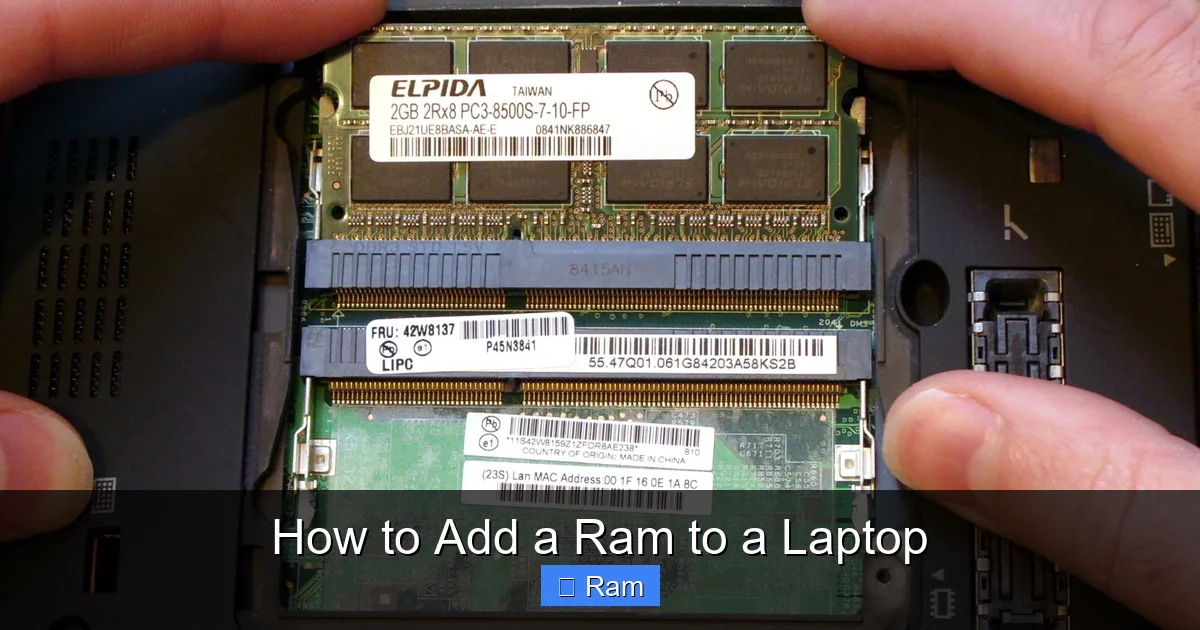
Using the Phillips screwdriver, remove the screws and set them aside in a small bowl. Gently pry the panel open with the spudger. You should see the existing RAM module(s) and one or more empty slots.
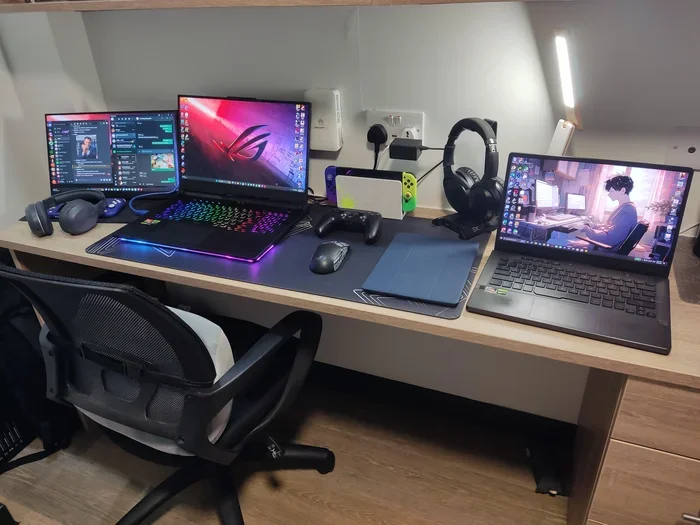
Visual guide about How to Add a Ram to a Laptop
Image source: cdn.mos.cms.futurecdn.net
3.2 Remove Existing RAM (Optional)
If you’re replacing rather than adding, push the two metal clips on the sides of the module outward. The stick will pop up at a slight angle. Pull it out carefully, holding the edges—never touch the gold contacts.
3.3 Insert the New Module
Align the notch on the RAM’s connector with the ridge in the slot. The module only fits one way. Slide it in at a 30‑degree angle until the gold pins are fully seated. Then press down gently until the side clips snap into place.
3.4 Double‑Check Seating
Give the module a light wiggle. If it feels firm and the clips are locked, you’ve installed it correctly. Any looseness means it’s not fully seated.
3.5 Close the Laptop
Replace the access panel, screw it back in, re‑insert the battery (if you removed it), and plug the power adapter back.
4. Verifying the Upgrade
4.1 Power On and Enter BIOS/UEFI
Turn the laptop on and immediately press the BIOS key (often F2, Delete, or Esc). In the system information screen, you should see the total installed RAM reflecting your upgrade.
4.2 Check in the Operating System
On Windows, open System (right‑click This PC → Properties). The “Installed RAM” line will show the new total. On macOS, click the Apple menu → About This Mac.
4.3 Run a Memory Diagnostic
Windows includes “Windows Memory Diagnostic.” Type “mdsched” in the Start menu, choose “Restart now and check for problems.” Let the test run; it should finish without errors.
4.4 Benchmark Your New Setup
Use free tools like UserBenchmark or Geekbench to compare scores before and after the upgrade. You’ll notice faster multi‑tasking scores and better performance in memory‑intensive apps.
5. Tips, Tricks, and Common Pitfalls
5.1 Keep Your Laptop Cool
More RAM can generate a bit more heat. Ensure the cooling vents are clean and consider using a laptop stand with airflow.
5.2 Don’t Mix Different Sizes or Speeds
While the laptop will usually run mixed modules, you lose the dual‑channel advantage. For best performance, buy a matching pair.
5.3 Beware of BIOS Updates
Some older laptops need a BIOS update to recognize newer, higher‑capacity modules. Check the manufacturer’s support page before buying.
5.4 Use Trusted Vendors
Buy from reputable brands like Crucial, Kingston, Corsair, or the laptop manufacturer’s own line. Cheaper, unbranded sticks may have higher failure rates.
5.5 Document Your Build
Take a quick photo of the internals before you start. It helps you remember screw locations and cable routing if you ever need to open the laptop again.
Conclusion
Upgrading RAM is a cost‑effective way to extend the life of your laptop, improve responsiveness, and enjoy smoother multitasking. By following the steps above—checking compatibility, preparing a static‑free workspace, installing the module correctly, and verifying the result—you’ll experience a noticeable performance boost in minutes, not hours.
Remember, the key to a successful upgrade is preparation: know your laptop’s limits, purchase the right memory, and handle the components gently. With a little care, you’ll turn an average laptop into a faster, more capable companion for work, school, or gaming.
Frequently Asked Questions
Can I install RAM in any laptop?
Most laptops with a removable panel allow RAM upgrades, but ultra‑thin models (e.g., some MacBooks) have soldered memory that cannot be changed.
Do I need to match the exact speed of my existing RAM?
No, the laptop will run all modules at the speed of the slowest stick. Matching speeds, however, gives the best performance.
Is it safe to upgrade RAM without a warranty?
Opening the laptop may void the warranty on some brands. Check the warranty terms; many manufacturers allow upgrades without affecting coverage.
How much RAM do I actually need?
For basic web browsing and office work, 8 GB is usually enough. For gaming, video editing, or heavy multitasking, 16 GB or more is recommended.
What if my laptop doesn’t recognize the new RAM?
Make sure the module is fully seated, verify compatibility, and check for a BIOS update. If it still fails, the stick may be defective.
Can I upgrade RAM on a MacBook Air?
Most recent MacBook Air models have RAM soldered to the motherboard, so they cannot be upgraded after purchase.