Does B450 Support M.2 Nvme Ssd

The short answer is yes — most B450 motherboards do support M.2 NVMe SSDs, but with some important caveats. Your B450 board likely has at least one M.2 slot that works with NVMe drives, though the connection speed depends on whether it runs on PCIe Gen 3 or SATA. Understanding these details helps you pick the right drive and avoid compatibility headaches.
Have you been wondering whether your B450 motherboard can handle a fast M.2 NVMe SSD? Maybe you just built a PC with a B450 chipset and want to add a speedy solid-state drive. Or perhaps you already bought an NVMe drive and aren’t sure it will work with your board.
Either way, you are in the right place. This guide breaks down everything you need to know about B450 M.2 NVMe support. We will look at compatibility, speeds, installation steps, and common pitfalls. By the end, you will know exactly what your B450 board can do and how to get the most out of it.
The good news is that B450 boards are quite capable when it comes to M.2 NVMe SSDs. AMD designed the B450 chipset with modern storage in mind. So let us dive right in and clear up any confusion.
Key Takeaways
- B450 boards support M.2 NVMe SSDs: Most AMD B450 motherboards include at least one M.2 slot for NVMe drives.
- Speed depends on the slot: Some B450 M.2 slots use PCIe Gen 3, while others use SATA — know the difference.
- BIOS updates may be needed: Older B450 boards sometimes require a BIOS update to fully support newer NVMe drives.
- Not all M.2 slots are the same: Check your board’s manual to confirm whether your M.2 slot supports NVMe or only SATA.
- Installation is straightforward: You can install an NVMe M.2 SSD in minutes with minimal tools.
- Use a heatsink: NVMe drives run hot, and a M.2 heatsink keeps temperatures in check.
📑 Table of Contents
- What Is M.2 NVMe and Why Does It Matter?
- Does B450 Support M.2 NVMe SSDs?
- Which B450 Motherboards Have M.2 NVMe Support?
- How to Install an M.2 NVMe SSD on a B450 Board
- BIOS Settings and Compatibility Tips
- Common Mistakes to Avoid
- How Fast Is NVMe on B450? Real-World Speeds
- Should You Use a B450 Board With NVMe in 2024?
- Final Thoughts
What Is M.2 NVMe and Why Does It Matter?
Before we talk about B450 boards specifically, let us quickly cover what M.2 NVMe actually means. If you already know this, feel free to skip ahead.
M.2 is a small form factor for SSDs. These drives look like little sticks of gum and plug directly into your motherboard. They do not need cables, which makes them clean and easy to install.
NVMe stands for Non-Volatile Memory Express. It is a communication protocol that lets these drives talk to your system at incredibly fast speeds. Traditional SATA SSDs top out around 550 MB/s. A NVMe M.2 SSD, on the other hand, can reach speeds of 3,500 MB/s or even higher on PCIe Gen 3 and Gen 4.
So when we ask “does B450 support M.2 NVMe SSD,” we are really asking two things:
- Does the B450 board have an M.2 slot?
- Does that M.2 slot support the NVMe protocol over PCIe?
The answer to both is usually yes, but there are details we need to unpack.
Does B450 Support M.2 NVMe SSDs?
The short answer is yes. The B450 chipset from AMD supports M.2 NVMe SSDs. Almost every B450 motherboard on the market includes at least one M.2 slot. However, the experience can vary depending on your specific board.
How the B450 Chipset Handles NVMe
The B450 chipset provides PCIe lanes that M.2 slots can use. Most B450 boards offer M.2 slots that run on PCIe Gen 3 x4. This gives you a maximum theoretical speed of about 3,500 MB/s. That is plenty fast for everyday use, gaming, and even video editing.
Some B450 boards, however, route their M.2 slot through the chipset rather than directly through the CPU. This can slightly limit performance in certain scenarios, but for most users, the difference is negligible.
SATA vs. NVMe M.2 Slots
Here is where things get tricky. Not every M.2 slot on a B450 board supports NVMe. Some M.2 slots only support SATA-based M.2 SSDs. A SATA M.2 SSD is slower, capping out around 550 MB/s.
So when you are checking your board, you need to confirm that your M.2 slot supports PCIe NVMe and not just SATA. Your motherboard manual will have this information clearly listed. Look for terms like “M.2 PCIe” or “M.2 NVMe” in the spec sheet.
If you are shopping for a new drive, consider a 512GB NVMe M.2 SSD or a 1TB NVMe M.2 SSD. These sizes offer a great balance of speed and value for B450 systems.
Which B450 Motherboards Have M.2 NVMe Support?
Most B450 motherboards from major brands include M.2 NVMe support. Here are some popular examples:
- ASUS ROG Strix B450-F Gaming: Features one M.2 slot that supports PCIe Gen 3 x4 NVMe.
- MSI B450 Tomahawk Max: Includes an M.2 slot with NVMe support and a built-in heatsink.
- Gigabyte B450 Aorus Elite: Offers M.2 connectivity with PCIe Gen 3 NVMe speeds.
- ASRock B450 Steel Legend: Has an M.2 slot that handles NVMe drives without any issues.
Even budget B450 boards from MSI, ASUS, Gigabyte, and ASRock typically include at least one M.2 slot. Always double-check the specs for your exact model, though. Not every revision or variant is the same.
If you want to see how a popular NVMe drive performs in a B450 system, check out this Corsair MP600 Core XT M.2 NVMe SSD review for real-world benchmarks and compatibility insights.
How to Install an M.2 NVMe SSD on a B450 Board
Installing an M.2 NVMe SSD on a B450 motherboard is simple. You do not need to be a PC building expert. Here is a step-by-step walkthrough.
Step 1: Find the M.2 Slot
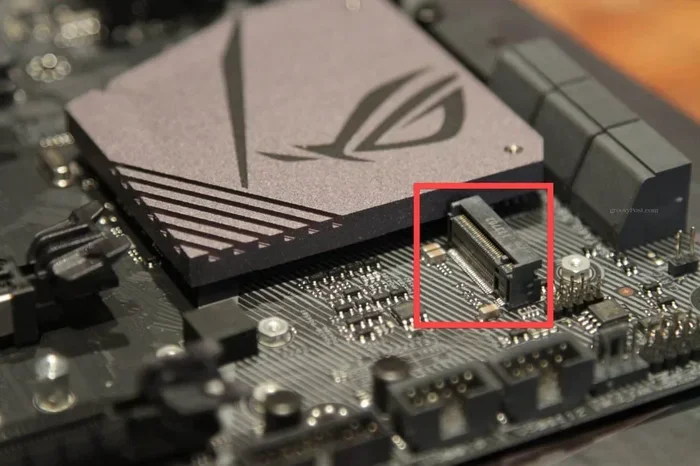
Locate the M.2 slot on your B450 board. It is usually positioned near the CPU socket or along the bottom edge of the board. Some boards have two or even three M.2 slots, so check which one supports NVMe.
Step 2: Remove the Heatsink (If Present)
Many B450 boards come with a small heatsink over the M.2 slot. If yours does, gently unscrew or unclip it. Set the screws and heatsink aside safely.
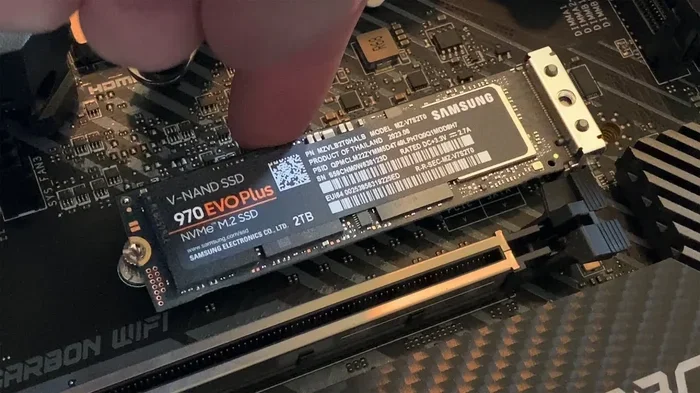
Step 3: Insert the NVMe Drive
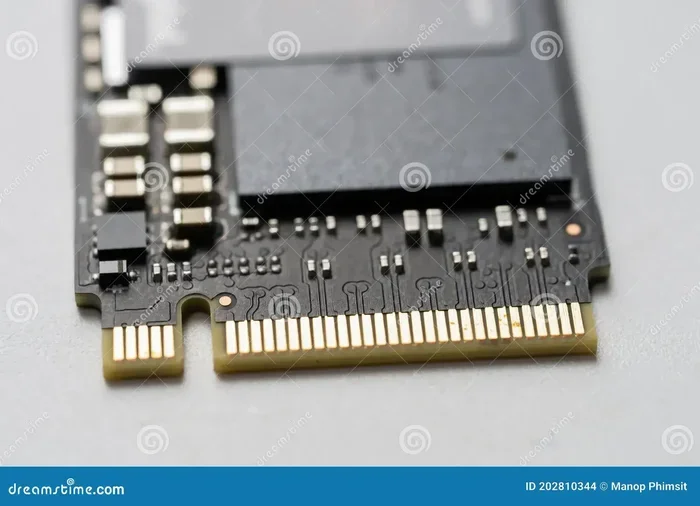
Hold your M.2 NVMe SSD at a 30-degree angle. Line up the notch on the drive with the key in the M.2 slot. Gently push the drive down until it seats firmly.
Step 4: Secure the Drive
Use the small M.2 screw that came with your motherboard to fasten the drive in place. Do not overtighten — just snug is fine.
Step 5: Reinstall the Heatsink
If you removed a heatsink, put it back on now. This helps keep your NVMe drive cool during heavy workloads.
Quick Tips for Installation
- Always ground yourself before touching components to avoid static damage.
- Keep the M.2 screw in a safe spot — these tiny screws are easy to lose.
- If your drive does not show up in BIOS, make sure it is fully seated.
- Consider using a M.2 NVMe SSD enclosure if you want to use the drive externally for extra storage.
For a deeper look at choosing the right M.2 enclosure for your NVMe drive, take a look at our M.2 NVMe SSD enclosure guide.
BIOS Settings and Compatibility Tips
In most cases, your B450 board will recognize a new M.2 NVMe SSD right away. But sometimes you need to tweak a few settings in the BIOS. Here is what to check.
Enable NVMe Support in BIOS
Enter your BIOS by pressing Delete or F2 during boot. Look for a setting called “NVMe Support” or “M.2 Mode.” Make sure it is set to “Auto” or “Enabled.” Some older B450 BIOS versions may default to SATA mode for M.2 slots, which disables NVMe.
Update Your BIOS
Older B450 boards shipped with BIOS versions that had limited NVMe support. A BIOS update often fixes this. Check your motherboard manufacturer’s website for the latest BIOS version for your specific model.
Updating BIOS is straightforward but important. Follow the manufacturer’s instructions carefully. Never turn off your PC during a BIOS update — it can permanently damage your board.
Check PCIe Lane Allocation
Some B450 boards share PCIe lanes between the M.2 slot and other components. For example, using an M.2 NVMe drive might disable a SATA port or a PCIe x16 slot. Read your motherboard manual to understand these trade-offs.
Common Mistakes to Avoid
Even experienced builders sometimes run into issues with M.2 NVMe SSDs on B450 boards. Here are the most common mistakes and how to avoid them.
- Assuming all M.2 slots are the same: Some B450 boards have one NVMe slot and one SATA-only M.2 slot. Always check which is which.
- Forgetting BIOS updates: An outdated BIOS can cause your NVMe drive to not show up during installation.
- Skipping the heatsink: NVMe drives generate heat. Without a heatsink, they may throttle under heavy load and slow down.
- Overtightening the screw: The M.2 screw only needs to be snug. Cranking it too hard can crack the drive or the motherboard.
- Buying the wrong drive: Make sure you are purchasing an NVMe M.2 SSD, not a SATA M.2 SSD. They look similar but perform very differently.
For a comprehensive guide on how motherboards handle different NVMe drives, read our article on can motherboards support any NVMe SSD.
How Fast Is NVMe on B450? Real-World Speeds
So what kind of performance can you expect from an NVMe SSD on a B450 board? Let us break it down.
Most B450 M.2 slots run on PCIe Gen 3 x4. This means your NVMe drive will hit speeds up to about 3,500 MB/s for reading and 3,000 MB/s for writing. These are excellent speeds that make your system feel lightning fast.
Here is a quick comparison:
- SATA SSD: Up to 550 MB/s
- NVMe on B450 (PCIe Gen 3 x4): Up to 3,500 MB/s
- NVMe on B550 (PCIe Gen 4 x4): Up to 7,000 MB/s
As you can see, NVMe on B450 is about six times faster than a SATA SSD. That is a huge upgrade for boot times, game loading, and file transfers.
If you want to maximize your B450 setup, consider a drive like the 512GB M.2 NVMe SSD or a 1TB NVMe M.2 SSD. These sizes give you plenty of room for your operating system, games, and applications.
For a deeper dive into PCIe NVMe M.2 drives and how they work with different chipsets, check out our SSD NVMe PCIe M.2 guide.
Should You Use a B450 Board With NVMe in 2024?
You might wonder if a B450 board is still a good choice in 2024. The answer is yes — especially if you already own one or are building a budget-friendly system.
B450 boards are mature, well-supported, and affordable. They handle NVMe M.2 SSDs with ease for most use cases. You will not be leaving serious performance on the table unless you are chasing the absolute fastest Gen 4 or Gen 5 speeds.
That said, if you are buying a new motherboard today, you might also consider a B550 board. B550 adds PCIe Gen 4 support, which doubles the potential speed of your NVMe drive. But for most gamers and everyday users, B450 with NVMe is more than enough.
The bottom line is that B450 and M.2 NVMe SSDs work great together. You get fast speeds, easy installation, and a clean build — all at a very reasonable price point.
Final Thoughts
So, does B450 support M.2 NVMe SSD? Absolutely yes. The B450 chipset was built to handle modern NVMe drives, and most B450 motherboards come with at least one M.2 slot that supports NVMe over PCIe Gen 3.
Just remember to check your specific board’s manual for slot type, keep your BIOS updated, and always use a heatsink for best results. With the right setup, you will enjoy blazing fast load times and a responsive system that feels years ahead of its age.
Whether you are upgrading an existing B450 build or starting fresh, adding an M.2 NVMe SSD is one of the best upgrades you can make. Your system will thank you every time you boot up or launch a game.
Frequently Asked Questions
Do all B450 motherboards have M.2 slots?
Most B450 motherboards include at least one M.2 slot, but not all of them support NVMe. Some M.2 slots on B450 boards are SATA-only. Always check your motherboard manual or spec sheet to confirm NVMe support before buying a drive.
Can I use a PCIe Gen 4 NVMe SSD on a B450 board?
Technically yes, but it will run at PCIe Gen 3 speeds. B450 boards do not support PCIe Gen 4, so a Gen 4 NVMe drive will be limited to Gen 3 performance. You will still get excellent speeds, but you will not unlock the full potential of the Gen 4 drive.
Do I need a BIOS update to use an NVMe SSD on B450?
Not always, but it helps. Older B450 BIOS versions sometimes had limited NVMe compatibility. Updating to the latest BIOS ensures your board recognizes and supports the widest range of NVMe M.2 SSDs without issues.
How many M.2 NVMe SSDs can I install on a B450 board?
This depends on your specific motherboard. Most B450 boards have one or two M.2 slots. Some high-end B450 boards even have three. Check your board’s manual to see how many M.2 slots it has and which ones support NVMe.
Does the B450 chipset limit NVMe SSD speeds?
The B450 chipset supports PCIe Gen 3 x4 for M.2 slots, which caps speeds at around 3,500 MB/s. This is still very fast and more than enough for most users. Only if you need Gen 4 or Gen 5 speeds would the B450 chipset feel limiting.
Is a heatsink necessary for M.2 NVMe SSDs on B450?
A heatsink is not strictly required, but it is highly recommended. NVMe SSDs can get warm during heavy use, and a heatsink helps maintain consistent speeds by preventing thermal throttling. Many B450 boards come with a heatsink included, but you can also buy aftermarket ones.