How to Reset Graphics Driver
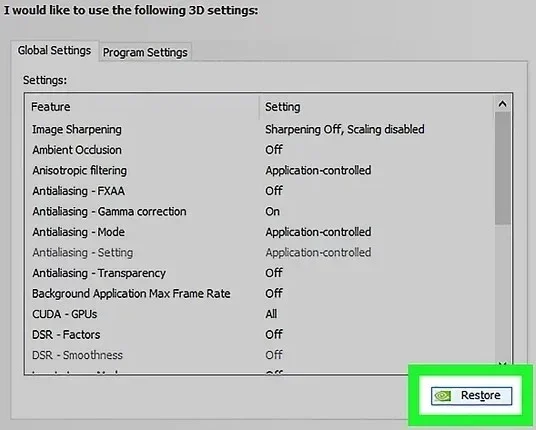
Resetting your graphics driver is one of the fastest ways to fix display glitches, screen flickering, and PC freezing issues. Whether you use NVIDIA, AMD, or Intel graphics, this guide walks you through every method in simple steps. You will learn how to reset your graphics driver safely using Device Manager, keyboard shortcuts, and the official GPU control panels.
Have you ever been in the middle of a game or a video call when your screen suddenly goes black? Or maybe you notice strange lines and flickering across your display. These are classic signs that your graphics driver needs a reset. A reset graphics driver fix can save you hours of frustration and get your display working normally again. In this guide, we will walk you through every method step by step. You do not need to be a tech expert to follow along.
Your GPU driver is the software that talks between your computer and your graphics card. Think of it as a translator. When it breaks or gets outdated, your display driver stops working properly. This can cause a range of annoying problems. The good news is that resetting it is simple and fast. We will cover methods for Windows, NVIDIA, AMD, and Intel GPUs so no matter what setup you have, you will find what you need.
Key Takeaways
- Quick Reset Shortcut: Use the Ctrl + Win + Shift + B keyboard combo to instantly restart your graphics driver in seconds.
- Device Manager Method: Uninstalling and reinstalling the driver through Device Manager is the most reliable built-in Windows approach.
- GPU Control Panels: NVIDIA and AMD both offer dedicated tools to update, roll back, or fully reset your graphics driver.
- Common Symptoms: Screen flickering, black screens, artifacts, and PC freezes often point to a faulty graphics driver.
- Prevention Matters: Regularly updating your driver and keeping your system clean helps avoid most graphics driver problems.
📑 Table of Contents
- What Is a Graphics Driver and Why Does It Need Resetting?
- Signs That Your Graphics Driver Needs a Reset
- How to Reset Your Graphics Driver: Step-by-Step Methods
- Common Mistakes to Avoid When Resetting Your Graphics Driver
- Tips to Keep Your Graphics Driver Running Smoothly
- When to Seek Professional Help
- Final Thoughts
What Is a Graphics Driver and Why Does It Need Resetting?
A graphics driver is a small piece of software that lets your operating system communicate with your graphics card. Without it, your PC cannot send images to your monitor. Every GPU brand, whether it is NVIDIA, AMD, or Intel, needs its own specific driver to work correctly.
Over time, these drivers can become corrupted. A sudden power outage, a failed graphics driver update, or even a buggy Windows update can cause problems. When this happens, your display driver may stop responding. Resetting the driver clears out the corrupted files and forces Windows to start fresh. It is like restarting your computer, but specifically for your graphics hardware.
Many people confuse resetting a driver with simply restarting their PC. A regular restart does not clear driver files or reset the connection between your GPU and Windows. A proper reset graphics driver process does. It removes the current driver state and reloads a clean version. This is why it often fixes issues that a simple restart cannot.
Signs That Your Graphics Driver Needs a Reset
How do you know when your graphics driver is acting up? There are several clear warning signs. Paying attention to these symptoms early can save you from bigger problems down the road.
Screen Flickering and Flashing
If your screen flickers randomly or flashes black for a split second, your GPU driver may be struggling. This is one of the most common signs of a driver issue. It happens when the driver fails to send a steady video signal to your monitor.
Black Screen of Death
A black screen where your PC is still running but nothing displays is a strong indicator. Often, this means the display driver has crashed but Windows is still on. A reset can bring your screen back to life.
Graphical Artifacts and Glitches
Strange colored lines, random shapes, or pixelated blocks on your screen are called artifacts. These happen when your graphics card cannot process images correctly. Outdated or corrupted drivers are a leading cause.
PC Freezing and Crashing
If your computer freezes during graphics-heavy tasks like gaming or video editing, a bad driver could be to blame. Many users who deal with a computer running slow and freezing find that resetting the graphics driver solves the problem. The GPU driver crash can lock up your entire system.
Performance Drops
When your games run slowly or your video playback stutters, the driver might not be delivering the right performance. A reset or update can restore smooth graphics performance.
How to Reset Your Graphics Driver: Step-by-Step Methods
There are several ways to reset your graphics driver. Each method works well, and you can pick the one that feels most comfortable. We will start with the fastest method and work our way through the most thorough options.
Method 1: The Keyboard Shortcut (Fastest Way)
This is the quickest way to restart your graphics driver without opening any menus. It works on most Windows PCs with NVIDIA, AMD, or Intel GPUs.
- Press Ctrl + Win + Shift + B at the same time.
- Your screen will flash or go black for a second.
- You may hear a beep sound. This is normal.
- Your graphics driver will restart automatically.
This method is perfect for quick fixes. If your screen froze or started flickering, try this first. It takes only two seconds and does not change any settings. However, it does not fully uninstall the driver. It simply refreshes the connection.
Method 2: Reset Through Device Manager (Most Thorough)
Device Manager is a built-in Windows tool that lets you control all your hardware drivers. Using it to reset your display driver is the most complete method.
- Right-click the Start button and select Device Manager.
- Find and click on Display adapters to expand the list.
- Right-click your graphics card (it might say NVIDIA, AMD, or Intel).
- Select Uninstall device from the menu.
- Check the box that says Attempt to remove the driver for this device if it appears.
- Click Uninstall and wait for the process to finish.
- Restart your computer.
When your PC boots back up, Windows will automatically install a fresh graphics driver. This is a clean reset that removes all corrupted files. It is the go-to method when the keyboard shortcut does not work.
Method 3: Use Your GPU Brand’s Control Panel
Each major GPU brand offers its own software tool for managing drivers. These tools give you more control over the reset and update process.
For NVIDIA Users:
- Right-click on your desktop and open NVIDIA Control Panel.
- Go to Help and then select Update Driver.
- Choose Reinstall or Roll Back Driver if available.
- Follow the on-screen prompts to complete the process.
For AMD Users:
- Open AMD Software: Adrenalin Edition from your system tray.
- Click on the Settings gear icon.
- Go to Graphics and look for Driver Rollback or Reinstall.
- Follow the prompts to reset or roll back your AMD driver.
For Intel Users:
- Open Intel Graphics Command Center from your Start menu.
- Navigate to System and then Driver Update.
- Choose to Roll Back or Reinstall the driver.
Using your GPU brand’s tool is a great option if you want more visibility into what is happening with your driver. These tools also make it easy to update graphics driver after you reset.
Method 4: Clean Install Using Display Driver Uninstaller (DDU)
For stubborn driver problems, a clean install is the most powerful option. DDU is a free third-party tool that removes every trace of your old driver before you install a fresh one.
- Download Display Driver Uninstaller (DDU) from the official website.
- Boot your PC into Safe Mode.
- Open DDU and select your GPU brand.
- Click Clean and restart.
- After your PC restarts, install the latest driver from NVIDIA, AMD, or Intel.
This method is more advanced but highly effective. It is the best solution when other reset methods fail. Make sure you download DDU only from the official site to avoid malware.
Common Mistakes to Avoid When Resetting Your Graphics Driver
Even though resetting a graphics driver is straightforward, some common mistakes can cause problems. Avoiding these will save you time and keep your system safe.
Skipping the Driver Cleanup
Many people simply uninstall the driver and let Windows reinstall it automatically. This often leaves behind old files that cause conflicts. Always use the option to remove the driver software when prompted in Device Manager. For a truly clean slate, use DDU.
Installing the Wrong Driver Version
Not all drivers are the same. Installing a driver meant for a different GPU model can cause serious issues. Always double-check that you download the correct graphics card driver for your specific hardware. You can find your GPU model in Device Manager under Display adapters.
Ignoring Windows Updates
Sometimes the problem is not the GPU driver itself but a recent Windows update that conflicts with it. Before you reset anything, check if a Windows update is pending. Keeping your system updated helps prevent driver conflicts.
Forgetting to Create a Restore Point
Before making any major driver changes, create a system restore point. This lets you go back to a previous state if something goes wrong. It takes only a minute and can save you a lot of trouble.
Using Third-Party Driver Update Tools
There are many free tools online that claim to update all your drivers automatically. Many of these are unreliable or even contain malware. Always download drivers directly from NVIDIA, AMD, or Intel websites. If you want to clean up your system, use trusted tools like how to remove junk files from pc methods instead of random driver cleaners.
Tips to Keep Your Graphics Driver Running Smoothly
Prevention is always better than fixing problems after they happen. A few simple habits can keep your GPU driver healthy and your display running perfectly.
- Update regularly: Check for driver updates once a month. Both NVIDIA and AMD release frequent updates that fix bugs and improve performance.
- Keep Windows current: Windows updates often include fixes for display driver compatibility. Never ignore important system updates.
- Monitor temperatures: Overheating can cause driver crashes. Keep your PC well-ventilated and clean of dust.
- Avoid aggressive overclocking: Pushing your GPU too hard without proper cooling can destabilize the driver.
- Scan for malware: Some malware targets graphics drivers. Use a trusted antivirus to keep your system safe.
If you use multiple displays, make sure your setup is compatible with your GPU. For tips on choosing the right extra screen, check out our guide on how to buy a secondary monitor. A proper setup reduces strain on your graphics driver and improves your overall experience.
Another great way to maintain smooth performance is to keep your PC free of clutter. Old temporary files and junk data can slow down your system and sometimes interfere with driver operations. Learning how to remove junk files from pc is a simple habit that keeps everything running cleanly.
When to Seek Professional Help
Most graphics driver issues can be fixed at home using the methods above. But there are times when the problem goes deeper than a simple driver reset. If you have tried all the methods and still experience black screens, constant crashes, or visual artifacts, your hardware might be failing.
A failing graphics card can mimic driver problems. If your GPU is old or has been physically damaged, no amount of driver resetting will fix it. In that case, it may be time to replace your graphics card or consult a professional technician.
Also, if your PC frequently runs slow and freezes even after a driver reset, there may be other underlying issues like insufficient RAM or a failing hard drive. A full system check can help identify the root cause.
Final Thoughts
Resetting your graphics driver is one of the simplest and most effective ways to fix display problems on your PC. Whether you use the quick keyboard shortcut, Device Manager, or a full clean install with DDU, you now have all the tools you need. The key is to act quickly when you notice symptoms like flickering, black screens, or crashes. The longer you wait, the worse the problem can get.
Make resetting your driver part of your regular PC troubleshooting toolkit. Bookmark this guide and come back whenever you need it. A healthy graphics driver means a smoother, faster, and more enjoyable computing experience. Keep your driver updated, your system clean, and your PC running at its best.
Frequently Asked Questions
How do I know if my graphics driver needs a reset?
If you experience screen flickering, black screens, graphical glitches, or frequent PC freezes, your graphics driver likely needs a reset. These are the most common symptoms of a corrupted or outdated GPU driver.
Is it safe to reset my graphics driver?
Yes, it is completely safe. Resetting your graphics driver does not delete any personal files or data. It only refreshes the software that allows your PC to communicate with your graphics card.
Will resetting my graphics driver delete my games or saved files?
No, resetting your graphics driver only affects the driver software itself. Your games, saved files, photos, and other personal data remain completely untouched and safe.
How often should I update my graphics driver?
You should check for graphics driver updates at least once a month. Both NVIDIA and AMD release regular updates that fix bugs, improve performance, and add support for new games.
What is the difference between resetting and updating a graphics driver?
Resetting clears the current driver and reloads a fresh copy, while updating installs a newer version from the manufacturer. A reset fixes current problems, while an update adds new features and improvements.
Can a bad graphics driver damage my GPU?
No, a bad graphics driver cannot physically damage your GPU. However, it can cause poor performance, crashes, and display issues. Resetting or updating the driver always fixes these software-related problems.
=== CONCLUSION ===
Learning how to reset your graphics driver is an essential skill for every PC user. Whether you are dealing with a flickering screen, a black display, or a frozen PC, the methods in this guide will help you get back on track quickly. Start with the keyboard shortcut for a fast fix, and move to Device Manager or DDU for more stubborn issues. Keep your drivers updated, your system clean, and your PC will reward you with smooth, reliable performance every day.