How To Use Magic Trackpad For A Smarter Workspace Setup
The Magic Trackpad is a powerful wireless input device that can transform how you work on your laptop or desktop. This guide covers everything from basic setup to advanced gesture controls, trackpad settings, and productivity shortcuts that will boost your efficiency. Whether you are new to Apple’s trackpad or looking to master advanced features, you will find practical tips and insider tricks to get the most out of your device.
If you have ever wondered how to get more out of your Apple setup, the Magic Trackpad is a game-changer. It is sleek, wireless, and packed with features that most people never fully explore. This guide will walk you through every step of using it effectively. You will learn how to set it up, master gesture controls, tweak settings, and use it to build a smarter workspace.
Whether you use a MacBook, an iMac, or a Windows PC, the Magic Trackpad fits right in. It replaces the need for a bulky mouse and gives you more control with just a swipe or a tap. Let us dive in and make your workflow smoother than ever.
Key Takeaways
- Easy Setup: Connecting your Magic Trackpad via Bluetooth is quick and simple on both Mac and Windows systems.
- Gesture Mastery: Learning multi-touch gestures like pinch-to-zoom and swipe between pages can double your navigation speed.
- Force Touch Features: Force Click opens quick look menus and previews, saving you time on daily tasks.
- Customizable Settings: You can adjust sensitivity, scrolling speed, and assign custom actions to fit your workflow perfectly.
- Workspace Upgrade: Pairing a Magic Trackpad with your laptop creates a cleaner, more efficient desk setup compared to a bulky mouse.
📑 Table of Contents
What Is the Magic Trackpad?
The Magic Trackpad is Apple’s wireless trackpad designed to work seamlessly with Mac computers. It uses Bluetooth to connect and supports a range of gesture controls that make navigation feel natural. Unlike a standard mouse, the trackpad gives you a large surface area to work with. This means more room for multi-touch gestures and precise cursor movement.
The device is thin, rechargeable, and built with a glass top that feels smooth under your fingers. It also features haptic feedback, which gives you a subtle click sensation without any moving parts. This design makes it durable and easy to clean. Many users prefer it over a traditional mouse because it takes up less desk space and looks more modern.
Magic Trackpad vs. Magic Mouse
Apple offers both the Magic Mouse and the Magic Trackpad. The Magic Mouse has a flat design that supports multi-touch surface gestures. However, the trackpad offers a much larger surface area for gesture controls. This makes scrolling, zooming, and navigating between pages feel more intuitive. If you do a lot of precise work like photo editing or design, the trackpad is the better choice.
Setting Up Your Magic Trackpad
Getting started with your Magic Trackpad is straightforward. The setup process takes only a few minutes, and you can be up and running right away. Here is how to do it step by step.
Connecting to a Mac
First, make sure your Mac has Bluetooth turned on. Open System Settings and select Bluetooth. Then, put your Magic Trackpad into pairing mode by flipping the switch on the back. Your Mac should detect it automatically. Click “Connect” and you are good to go. If you have trouble connecting, try turning Bluetooth off and on again. This simple trick fixes most connection issues.
Using It with a Windows PC
You can also use the Magic Trackpad with a Windows PC. You will need a Bluetooth adapter if your PC does not have built-in Bluetooth. Go to Settings, then Devices, and turn on Bluetooth. Put the trackpad in pairing mode and select it from the list. Keep in mind that some gesture features may not work the same way on Windows as they do on macOS. However, basic scrolling and tapping work perfectly fine.
Charging and Battery Life
The Magic Trackpad uses a built-in rechargeable battery. You can charge it using a Lightning cable. A full charge lasts about a month with normal use. To check your battery level, go to System Settings on your Mac and look under Bluetooth. The trackpad will show its current charge percentage there.
Mastering Magic Trackpad Gestures
Gesture controls are what make the Magic Trackpad truly special. Once you learn these, you will never want to go back to a regular mouse. Here are the most useful gestures to master.
Basic Navigation Gestures
Start with the basics. A single tap on the trackpad acts as a left-click. Two fingers tap gives you a right-click. Swiping up or down with two fingers scrolls through pages. Swiping left or right with two fingers moves you back and forward in your browser or documents. These gestures feel natural and speed up your daily tasks significantly.
Advanced Multi-Touch Gestures
Once you are comfortable with the basics, try these advanced moves. Pinch two fingers together or spread them apart to zoom in and out on images and web pages. Swipe up with three or four fingers to open Mission Control, which shows all your open windows. Swipe left or right with three or four fingers to switch between full-screen apps. These gestures make multitasking feel effortless.
If you use your laptop trackpad regularly, you already know how helpful these gestures can be. The Magic Trackpad gives you the same experience on a larger surface, which makes it even more comfortable to use.
Force Touch and Force Click
The Magic Trackpad supports Force Touch, which means it can detect how hard you press. A firm press, called Force Click, opens quick look previews for files and links. You can also use it to preview photos, look up definitions, and even view calendar events without opening them. This feature saves a lot of time if you work with files frequently.
Customizing Your Trackpad Settings
Apple lets you fine-tune your trackpad settings to match your preferences. You can adjust sensitivity, scrolling speed, and even create custom gestures. Here is where to find these options and what to change.
Tracking Speed and Sensitivity
Go to System Settings, then Mouse or Trackpad. You will see a slider for tracking speed. Move it to the right for faster cursor movement or to the left for more precise control. If you find your cursor moving too fast, slow it down. If you want to fly across the screen, speed it up. Finding the right balance makes a big difference in your daily workflow.
Scrolling and Natural Direction
In the same settings menu, you can toggle “Natural Scrolling.” This makes the trackpad scroll in the same direction as your fingers move. Some people love it, while others prefer the traditional reverse scroll. Try both and see which feels more natural to you. You can also enable or disable palm rejection here. Palm rejection prevents accidental clicks when you rest your hands on the trackpad while typing.
Assigning Custom Gestures
Under the More Gestures section, you can turn specific gestures on or off. Want to use a three-finger drag to move windows around? Enable it. Do not like the swipe between pages gesture? Turn it off. Customizing these settings helps you build a workflow that matches the way you think and work.
Building a Smarter Workspace with the Magic Trackpad
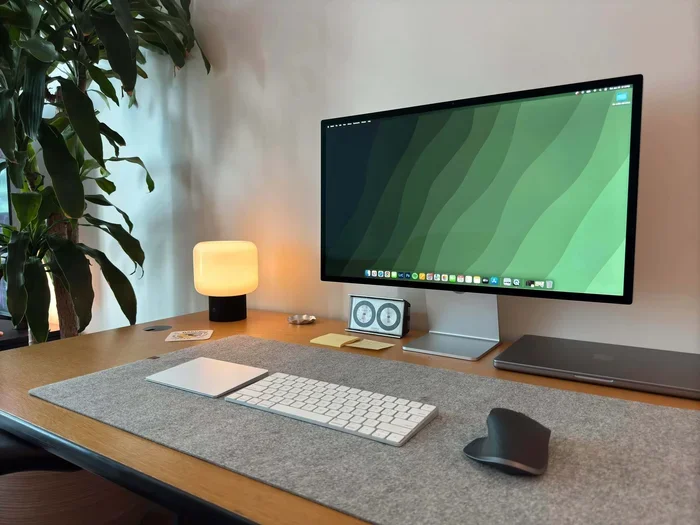
A workspace setup is all about comfort, efficiency, and reducing clutter. The Magic Trackpad fits perfectly into this philosophy. It replaces the need for a wired mouse, extra cables, and a mousepad. This gives you a cleaner, more minimalist desk. Here are some tips to make the most of it.
Placement and Ergonomics
Place your Magic Trackpad at the same height as your keyboard. This keeps your wrists in a neutral position and reduces strain. If you use a laptop, consider using a stand to raise the screen to eye level. Then place the trackpad on the desk in front of you. This setup promotes better posture and makes long work sessions more comfortable.
Some users prefer to use a separate keyboard with their laptop instead of the built-in one. This creates a more desktop-like experience. You can find great tips on how to set up your laptop accessories in our article on how to use a mouse on a laptop for additional workspace ideas.
Pairing with Other Devices
The Magic Trackpad can connect to multiple devices. You can switch between your Mac and a secondary computer easily. This is great if you work with more than one machine at your desk. Simply go to Bluetooth settings on each device and pair the trackpad. You can switch between them by turning Bluetooth off on one and on on the other.
Reducing Cable Clutter
One of the biggest advantages of the Magic Trackpad is that it is completely wireless. No cables means a tidier desk. A clean workspace helps you focus and feel more organized. If you are looking for ways to simplify your desk further, check out how to use a laptop without a mouse in our guide how to use laptop without mouse. It covers alternative input methods that can complement your trackpad setup.
Using the Magic Trackpad with your laptop also opens up possibilities for better productivity. You can explore more about using your mouse or trackpad effectively with your laptop in this helpful resource on how to use mouse with laptop for even more workspace tips.
Common Mistakes to Avoid
Even though the Magic Trackpad is simple to use, there are a few common mistakes people make. Avoiding these will help you get the best experience.
- Skipping firmware updates: Apple releases updates that improve performance and add new features. Always keep your devices updated.
- Ignoring gesture customization: Many users stick with default settings and miss out on powerful shortcuts. Take a few minutes to explore the settings menu.
- Using the trackpad on an uneven surface: For the best tracking accuracy, use a hard, flat surface. Soft or uneven surfaces can cause cursor jitter.
- Not charging regularly: Although the battery lasts a long time, do not wait until it dies completely. Charge it before it hits zero to preserve battery health.
- Resting your palms too heavily: Even with palm rejection enabled, pressing too hard can cause accidental inputs. Try to use light touches when navigating.
Quick Tips for Better Productivity
- Use two-finger scrolling for fast navigation through long documents and web pages.
- Learn three-finger swipes to switch between apps without reaching for the keyboard.
- Enable Force Click to preview files quickly without opening them.
- Adjust tracking speed to match your comfort level for smoother cursor movement.
- Clean the trackpad surface regularly with a soft cloth to maintain responsiveness.
- Use keyboard shortcuts alongside gestures for even faster workflow, such as Command + Tab to switch apps while using the trackpad.
Expert Insights
Many professionals who work with Apple devices swear by the Magic Trackpad. Designers, writers, and developers often prefer it over a mouse because it allows for more fluid navigation. The large surface area and gesture support make complex tasks feel simple. According to Apple, the haptic feedback engine in the trackpad provides a consistent click feel regardless of how hard you press. This small detail makes a big difference during long work sessions.
One thing to keep in mind is that the Magic Trackpad works best with macOS. While it functions on Windows, you will lose some of the advanced gesture features. If you are primarily a Mac user, this device is a natural fit. It complements the macOS experience in ways that a standard mouse simply cannot.
Final Thoughts
The Magic Trackpad is more than just a simple input device. It is a tool that can genuinely transform how you interact with your computer. From basic setup to advanced gesture controls, every feature is designed to make your workflow faster and more intuitive. By customizing your trackpad settings and learning the right gestures, you unlock a level of productivity that feels effortless.
Building a smarter workspace does not require expensive equipment. Sometimes, it is the small upgrades, like adding a Magic Trackpad, that make the biggest difference. Start by exploring the gestures, adjust the settings to your liking, and give yourself time to get comfortable. Within a few days, you will wonder how you ever worked without it.
Take what you have learned from this guide and apply it today. Your desk, your workflow, and your productivity will thank you. The Magic Trackpad is a worthy addition to any setup, and now you have everything you need to use it to its full potential.
Frequently Asked Questions
Can I use the Magic Trackpad with a Windows PC?
Yes, you can connect the Magic Trackpad to a Windows PC via Bluetooth. Basic functions like tapping, scrolling, and right-clicking work well. However, some advanced macOS gestures may not be fully supported on Windows.
How long does the Magic Trackpad battery last?
A full charge typically lasts around 30 days with normal daily use. You can check the battery level in your Bluetooth settings. Charging takes about two hours using a Lightning cable.
Does the Magic Trackpad work with non-Apple laptops?
The Magic Trackpad can connect to any device with Bluetooth capability. While it pairs easily with Macs, Windows laptops can use it too. Some gesture features may be limited on non-Apple systems.
What is Force Touch on the Magic Trackpad?
Force Touch is a feature that detects how hard you press on the trackpad surface. A firm press, known as Force Click, can preview files, look up definitions, and access quick actions without opening apps.
How do I clean my Magic Trackpad?
Use a soft, lint-free cloth slightly dampened with water to wipe the surface. Avoid using harsh chemicals or abrasive materials. Regular cleaning helps maintain smooth tracking and responsiveness.
Can I use the Magic Trackpad while it is charging?
Yes, you can use the trackpad while it is connected to a power source. However, it is best to use it unplugged for the full Bluetooth wireless experience and to preserve battery longevity.
=== CONCLUSION ===
The Magic Trackpad is a fantastic tool that can elevate your daily computing experience. By mastering its gestures, customizing your settings, and integrating it into your workspace, you unlock a new level of efficiency and comfort. Remember to explore the settings, keep your device updated, and practice the gestures until they become second nature. With the tips in this guide, you are well on your way to a smarter, more productive workspace setup.