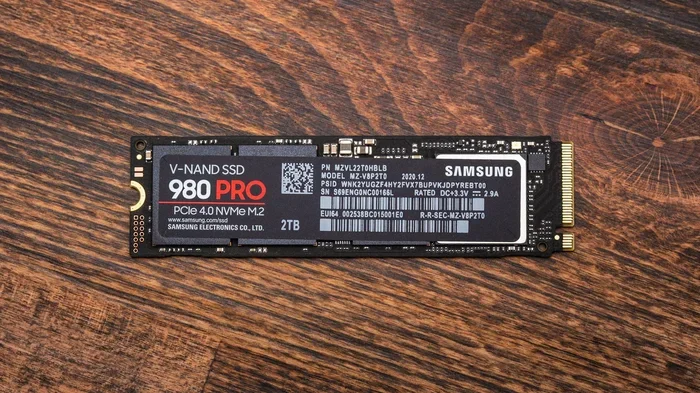
M 2 Pci Express Nvme Ssd
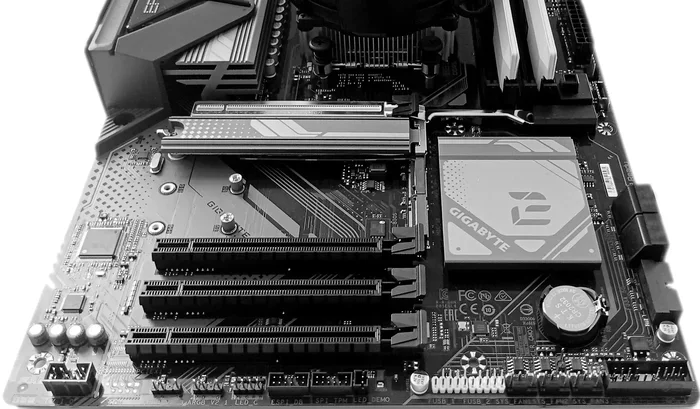
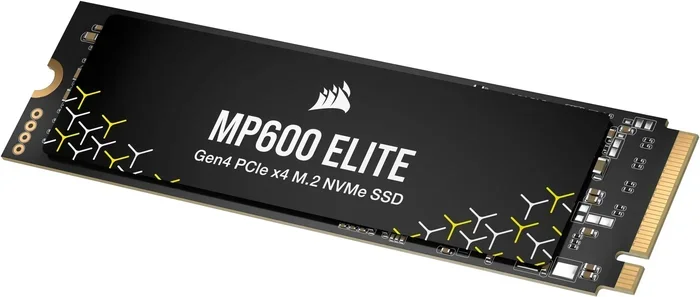
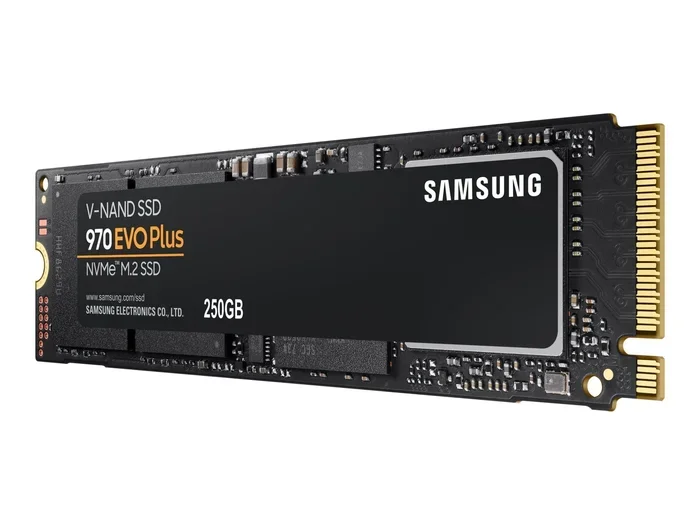
An M 2 PCI Express NVMe SSD is a super-fast solid state drive that connects directly to your motherboard. It delivers incredible read and write speeds that make your PC feel lightning quick. Whether you are upgrading a laptop or building a new desktop, this storage option offers the best performance available today. Let us break down everything you need to know about choosing and using one.
If you have been shopping for a new M 2 PCI Express NVMe SSD, you have probably noticed how many options are out there. Different brands, different capacities, and confusing speed numbers can make this feel overwhelming. But here is the good news. Understanding these drives is actually pretty simple once you know the basics.
An M 2 PCIe NVMe SSD is a type of solid state drive that uses the PCIe interface to transfer data at incredibly fast rates. Unlike older SATA drives, NVMe technology was built from the ground up for speed. It connects directly to your motherboard through an M.2 slot, which means no cables and no fuss.
In this guide, we will walk you through everything you need to know. We will cover what makes these drives so fast, how to choose the right one, and what to watch out for when buying. By the end, you will feel confident picking the perfect M 2 PCIe NVMe SSD for your setup.
Key Takeaways
- Blazing Speeds: M 2 PCIe NVMe SSDs offer read speeds up to 7000 MB/s, far outpacing traditional SATA drives.
- Compact Form Factor: The M.2 2280 size fits directly onto the motherboard, saving space and reducing cable clutter.
- PCIe Gen4 and Gen5 Options: Newer generations provide even faster performance for demanding tasks like video editing and gaming.
- Easy Installation: Installing an NVMe drive is straightforward and does not require special tools or expertise.
- Wide Compatibility: Most modern motherboards support NVMe SSDs, but always check your BIOS and M.2 slot specifications first.
- Affordable Options Available: Prices have dropped significantly, making high-performance NVMe storage accessible for every budget.
📑 Table of Contents
- What Is an M 2 PCI Express NVMe SSD?
- How Fast Can an M 2 PCIe NVMe SSD Be?
- Benefits of Using an M 2 PCI Express NVMe SSD
- How to Choose the Right M 2 PCIe NVMe SSD
- Installing Your M 2 PCI Express NVMe SSD
- Common Mistakes to Avoid When Buying an NVMe SSD
- Top Use Cases for M 2 PCIe NVMe SSDs
- The Future of M 2 PCIe NVMe SSD Technology
- Final Thoughts
What Is an M 2 PCI Express NVMe SSD?
Let us start with the fundamentals. The term “M 2” refers to the physical shape and size of the drive. It is a small rectangular module, roughly the size of a stick of gum. The “PCI Express” part describes the interface it uses to communicate with your computer. And “NVMe” stands for Non-Volatile Memory Express, which is the protocol that governs how data moves between the drive and your system.
Together, these three elements create a storage solution that is both compact and blazing fast. A typical M 2 PCIe NVMe SSD can deliver sequential read speeds of 3500 MB/s to 7000 MB/s depending on the generation. Compare that to a standard SATA SSD, which maxes out around 550 MB/s. The difference is night and day.
M.2 Form Factor Explained
The M.2 form factor comes in different lengths, but the most common size is the 2280. That means it is 22 millimeters wide and 80 millimeters long. Most motherboards have M.2 slots designed specifically for this size. Some boards also support shorter lengths like 2260 or 2242, which are common in ultra-thin laptops.
One great thing about the M.2 design is that it slots directly onto the motherboard. There are no screws or cables to manage. This makes it ideal for small form factor PCs and laptops where every millimeter of space counts.
How NVMe Differs from SATA
SATA SSDs have been around for a long time. They use the AHCI protocol, which was designed back when spinning hard drives were the norm. NVMe was created specifically for flash memory. It takes advantage of the PCIe bus to deliver much lower latency and higher throughput.
Here is a simple way to think about it. SATA is like a single-lane road, while PCIe is a multi-lane highway. Both get you to the same destination, but the highway handles far more traffic at much higher speeds. This is exactly why M 2 PCIe NVMe SSD drives have become the go-to choice for performance seekers.
How Fast Can an M 2 PCIe NVMe SSD Be?
Speed is the biggest selling point of NVMe technology. But the actual performance depends on several factors, including the PCIe generation and the number of lanes the drive uses.
PCIe Generations and Their Speeds
PCIe has evolved over the years, and each new generation roughly doubles the bandwidth. Here is a quick breakdown:
- PCIe Gen3: Up to 3500 MB/s read speeds. This is still plenty fast for everyday use and gaming.
- PCIe Gen4: Up to 7000 MB/s read speeds. Current gen4 drives like the Crucial T705 Pcie Gen5 Nvme M 2 Ssd show what modern performance looks like.
- PCIe Gen5: Up to 14000 MB/s read speeds. This is cutting-edge tech, and prices are coming down fast.
For most users, a Gen4 drive offers the sweet spot between speed and value. Gen5 is fantastic if you do heavy video editing or work with massive datasets, but for general use, Gen4 is more than enough.
Real-World Speed Differences
In real-world use, you will notice the biggest speed gains when booting your operating system, launching large applications, and copying huge files. Regular tasks like browsing the web or watching videos will feel similar across SATA and NVMe drives. But the difference becomes obvious the moment you transfer a 50GB video file or open a heavy creative project.
If you want to see how these drives perform in practical scenarios, check out our review of the M 2 Pcie Nvme Ssd for detailed benchmarks and comparisons.
Benefits of Using an M 2 PCI Express NVMe SSD
There are many reasons to choose an NVMe drive over other storage options. Let us look at the biggest advantages.
Blazing Fast Load Times
Games load faster. Applications open instantly. Your operating system boots in seconds. An NVMe drive transforms the responsiveness of your entire system. If you have ever been frustrated by slow load screens, upgrading to an M 2 PCIe NVMe SSD will change your experience completely.
Compact and Space-Saving
Because the drive slots directly into the motherboard, there is no need for a 2.5-inch drive bay or SATA cables. This frees up space inside your case and improves airflow. It also makes installation much simpler, especially in compact builds.
Low Power Consumption
NVMe drives are designed to be energy efficient. They consume less power than traditional hard drives, which can slightly improve laptop battery life. They also generate less heat, although high-performance models can still get warm under heavy loads.
Excellent for Content Creation
If you edit video, work with large photo libraries, or handle any kind of heavy media files, an NVMe SSD is a game changer. The fast read and write speeds mean less time waiting and more time creating. Many professional creators now use NVMe drives as their primary workspace storage.
How to Choose the Right M 2 PCIe NVMe SSD
With so many options on the market, picking the right drive can feel tricky. Here are the key factors to consider.
Capacity Needs
NVMe SSDs come in a wide range of capacities, from 250GB all the way up to 4TB and beyond. For most users, 1TB or 2TB strikes the best balance between price and storage space. If you only need a boot drive for your operating system and a few key applications, 500GB might be enough.
Here is a quick guide to help you decide:
- 500GB: Good for a boot drive or light gaming.
- 1TB: Sweet spot for most users. Enough for OS, games, and everyday files.
- 2TB: Great for content creators and heavy gamers with large libraries.
- 4TB: Ideal for professionals working with massive datasets or video projects.
Looking for a reliable 1TB option? Our 1tb Nvme M 2 Ssd guide covers the best choices available right now.
PCIe Generation
As we discussed earlier, PCIe Gen4 is the current mainstream standard. Gen5 is emerging but still pricey. Unless you specifically need the absolute fastest speeds, a Gen4 drive will serve you well for years to come.
DRAM Cache and Controller
Higher-end NVMe drives include a DRAM cache, which helps with sustained performance and multitasking. The controller chip is also important. Brands like Samsung, Crucial, and WD use well-regarded controllers that deliver consistent speeds even under heavy workloads.
Endurance and Warranty
Every SSD has a TBW (Terabytes Written) rating, which indicates how much data you can write before the drive is expected to wear out. Most consumer NVMe drives have TBW ratings in the hundreds of terabytes, which is more than enough for typical use. Look for drives that offer at least a 5-year warranty for peace of mind.
Installing Your M 2 PCI Express NVMe SSD
One of the best things about M.2 NVMe drives is how easy they are to install. You do not need to be a tech expert. Here is a simple step-by-step guide.
- Find the M.2 slot: Locate the M.2 connector on your motherboard. It is usually labeled and may have a heatsink already attached.
- Insert the drive: Hold the NVMe SSD at a 30-degree angle and gently push it into the slot. It should slide in smoothly.
- Secure it: Use the small screw that came with your motherboard to fasten the drive in place. Do not overtighten.
- Boot up: Enter your BIOS or UEFI settings to make sure the drive is detected. Then install your operating system or migrate your existing drive.
That is it. No cables, no adapters, no hassle. If your motherboard does not have an M.2 slot, you can also use an M 2 Nvme Ssd Enclosure to connect the drive via USB for external use. This is a great option for adding portable high-speed storage to any computer.
Common Mistakes to Avoid When Buying an NVMe SSD
Even though NVMe drives are straightforward, there are a few pitfalls to watch out for.
- Buying a Gen5 drive for an older motherboard: If your board only supports PCIe Gen3, a Gen5 drive will still work but will be limited to Gen3 speeds. Always check your motherboard manual first.
- Ignoring cooling: High-performance NVMe drives can get hot. Some come with heatsinks, but others do not. Consider adding a small M.2 heatsink if your drive runs warm.
- Choosing the wrong length: Make sure the drive you buy matches the length of your M.2 slot. The 2280 size is the most common, but some slots only fit shorter modules.
- Forgetting about your NVMe driver: On Windows, make sure you have the latest NVMe driver installed for optimal performance. You can find the Nvme M 2 Ssd Wd Blue Driver Download on the manufacturer website if needed.
Taking a few minutes to check compatibility before purchasing can save you a lot of headaches down the road.
Top Use Cases for M 2 PCIe NVMe SSDs
These drives shine in a variety of scenarios. Here are some of the most popular use cases.
Gaming PCs
Modern games are huge. Installing them on an NVMe drive means faster load times and smoother gameplay. Many new titles recommend or even require NVMe storage for the best experience.
Video Editing and 3D Rendering
Working with 4K or 8K video files demands fast read and write speeds. An NVMe SSD handles these workloads with ease, reducing export times and improving overall workflow efficiency.
Laptop Upgrades
If your laptop still uses an old SATA SSD or a hard drive, swapping in an M.2 NVMe drive is one of the most impactful upgrades you can make. It breathes new life into older machines.
Workstations and Servers
Professional workstations benefit enormously from NVMe storage. Whether you are running databases, virtual machines, or data analysis tools, the speed gains are substantial.
The Future of M 2 PCIe NVMe SSD Technology
The storage world is moving fast. PCIe Gen5 drives are already on the market, and Gen6 is on the horizon. As the PCIe standard evolves, we can expect even faster speeds and better efficiency. NAND flash technology is also improving, with newer 3D TLC and QLC designs offering higher capacities at lower prices.
One thing is certain. The M 2 PCI Express NVMe SSD is here to stay. It has already replaced SATA as the preferred storage interface for most new PCs and laptops. As prices continue to drop and capacities grow, there is no reason not to make the switch if you have not already.
For those who want to explore enclosure options for external use, our NVMe Ssd M 2 Enclosure review covers the best choices for turning your internal NVMe drive into a portable high-speed storage solution.
Final Thoughts
An M 2 PCI Express NVMe SSD is one of the best upgrades you can make to any computer. It delivers incredible speed, compact design, and ease of use that older storage technologies simply cannot match. Whether you are a gamer, a creator, or just someone who wants a faster PC, an NVMe drive will make a noticeable difference in your daily experience.
Take your time choosing the right capacity and generation for your needs. Check your motherboard compatibility, and do not forget to factor in cooling if you are pushing the drive hard. With the right setup, your new NVMe SSD will serve you well for many years to come.
Upgrade your storage today and experience the speed difference for yourself. Your computer will thank you.
Frequently Asked Questions
What does M 2 PCI Express NVMe SSD stand for?
M 2 refers to the physical form factor of the drive, PCI Express is the interface it uses to connect to the motherboard, and NVMe is the protocol that enables fast data transfer. Together, they describe a compact, high-speed solid state drive designed for modern PCs.
Is an M 2 NVMe SSD faster than a SATA SSD?
Yes, significantly faster. While a SATA SSD tops out around 550 MB/s, an NVMe drive can reach speeds of 3500 MB/s to 7000 MB/s or more depending on the PCIe generation. The difference is most noticeable when booting your system, launching applications, and transferring large files.
Can I install an M 2 NVMe SSD in any computer?
Most modern motherboards have at least one M.2 slot that supports NVMe drives. However, older motherboards may not have this slot or may only support SATA M.2 drives. Always check your motherboard specifications before purchasing to ensure compatibility.
Do I need a heatsink for my NVMe SSD?
It depends on your usage. For everyday tasks, most NVMe drives run cool enough without a heatsink. However, if you do intensive work like video editing or sustained large file transfers, a heatsink can help maintain optimal performance and prevent thermal throttling.
How do I know which PCIe generation my motherboard supports?
Check your motherboard manual or visit the manufacturer website. Look for the M.2 slot specifications, which will list the supported PCIe generation (Gen3, Gen4, or Gen5). A Gen5 drive will work in a Gen4 slot but will be limited to Gen4 speeds, and vice versa.
What capacity should I choose for my NVMe SSD?
For most users, 1TB offers the best value and enough space for an operating system, several applications, and a reasonable game library. If you work with large files or have an extensive game collection, 2TB or more may be a better fit. Start with 500GB only if you plan to use the drive as a secondary or boot-only drive.