M 2 Nvme Pcie 4.0 Ssd

M 2 Nvme Pcie 4.0 Ssd drives deliver blazing-fast speeds and huge storage capacity in a tiny form factor. These drives use the PCIe 4.0 interface to offer double the bandwidth of PCIe 3.0, making them ideal for gaming, content creation, and heavy workloads. Let us dive into what makes these drives so powerful and why you should consider one for your next build.
If you have been building or upgrading a PC lately, you have probably seen the term M 2 Nvme Pcie 4.0 Ssd everywhere. And for good reason. These drives represent a huge leap in storage technology. They are fast, compact, and packed with features that make them a standout choice for everyday users and professionals alike.
But what exactly makes a PCIe 4.0 NVMe M.2 SSD different from the drives you already have? And should you upgrade to one? In this guide, we will break it all down in simple terms. You will learn how these drives work, what makes them special, and how to pick the right one for your needs.
Key Takeaways
- Speed Boost: PCIe 4.0 offers up to 7000 MB/s read speeds, far faster than PCIe 3.0 drives.
- Compact Design: The M.2 form factor fits easily into modern motherboards without extra cables.
- Best for Gaming and Workloads: These drives excel in gaming, video editing, and large file transfers.
- Backward Compatible: PCIe 4.0 drives work in PCIe 3.0 and 5.0 slots with some speed trade-offs.
- Affordability Improving: Prices for M 2 Nvme Pcie 4.0 Ssd drives have dropped significantly in recent years.
- NVMe Protocol Matters: The NVMe protocol unlocks the full potential of PCIe bandwidth for storage.
📑 Table of Contents
- What Is an M 2 Nvme Pcie 4.0 Ssd?
- Why Choose a PCIe 4.0 NVMe M.2 SSD?
- Key Features to Look For
- M 2 Nvme Pcie 4.0 Ssd vs Other SSD Types
- Common Uses for M 2 Nvme Pcie 4.0 Ssd Drives
- How to Install an M 2 Nvme Pcie 4.0 Ssd
- Common Mistakes to Avoid
- Expert Insights: The Future of M.2 NVMe Storage
- Conclusion
What Is an M 2 Nvme Pcie 4.0 Ssd?
Let us start with the basics. An M.2 NVMe PCIe 4.0 SSD is a type of solid state drive that uses the M.2 form factor, the NVMe communication protocol, and the PCIe 4.0 interface. That is a lot of tech talk, so let us unpack it piece by piece.
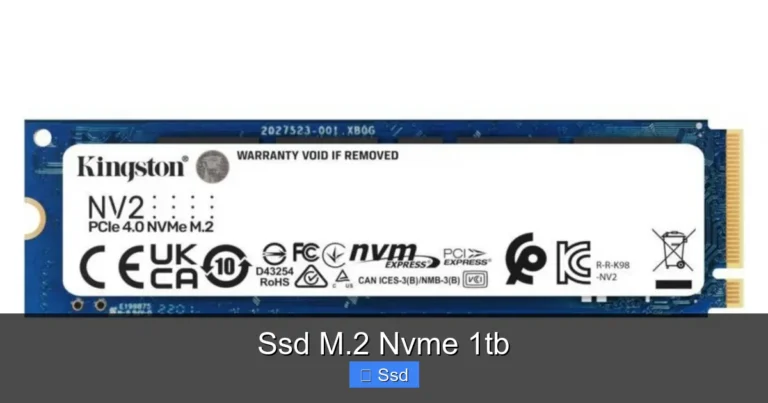
The M.2 part refers to the physical shape and size of the drive. It is a small rectangular stick, often called a “gum stick” because of its shape. It plugs directly into your motherboard. No cables needed. No extra power connectors. Just slide it in and you are good to go.
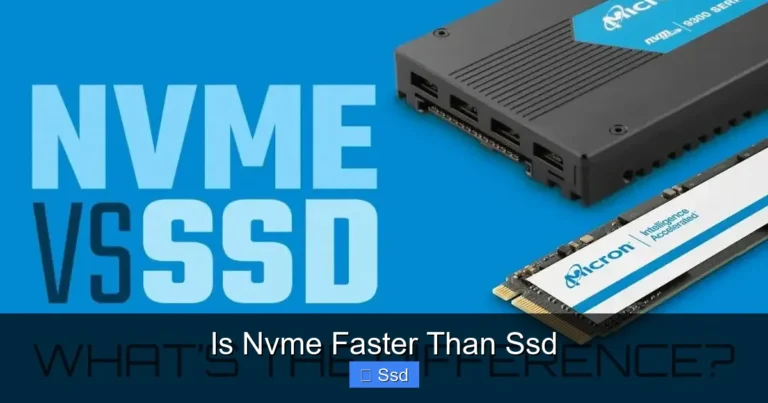
NVMe stands for Non-Volatile Memory Express. It is a protocol designed specifically for flash storage. Traditional SATA SSDs use an older protocol that was built for spinning hard drives. NVMe removes that bottleneck and allows the drive to communicate with your system at full speed.
PCIe 4.0 is the fourth generation of the Peripheral Component Interconnect Express interface. Each new generation roughly doubles the available bandwidth. PCIe 4.0 offers up to 16 gigatransfers per second per lane. With four lanes, that adds up to a massive 64 gigabytes per second of total bandwidth. This is what gives M.2 NVMe PCIe 4.0 drives their incredible speed.
How Does It Compare to PCIe 3.0?
The jump from PCIe 3.0 to PCIe 4.0 is significant. A typical PCIe 3.0 NVMe drive tops out around 3500 MB/s in read speeds. A PCIe 4.0 drive can push past 7000 MB/s. That is roughly double the speed. For real-world tasks like booting Windows, loading games, or transferring large video files, the difference is very noticeable.
If you want a deeper comparison of the older generation, check out our guide on Solid State Drive PCIe 3.0 TLC NVMe M.2 SSD to understand what PCIe 3.0 offers.
Why Choose a PCIe 4.0 NVMe M.2 SSD?
There are many reasons to choose a M 2 Nvme Pcie 4.0 Ssd for your system. Let us look at the biggest advantages.
- Blazing Fast Speeds: Read speeds of up to 7000 MB/s mean almost instant load times. Games open in seconds. Large files copy in a flash.
- Compact Form Factor: The M.2 stick design saves space inside your case. There are no bulky 2.5-inch drives or tangled SATA cables.
- Low Power Consumption: NVMe SSDs use less power than traditional hard drives. This can help improve laptop battery life and reduce heat output.
- No Moving Parts: Unlike HDDs, there are no spinning platters. This means better durability and silence during operation.
- Great for Content Creation: Video editors and photographers benefit hugely from the fast read and write speeds when working with large media files.
Real-World Performance Gains
So what does double the bandwidth actually feel like in daily use? Here are some practical examples:
- Game Loading: A game that takes 30 seconds to load on a PCIe 3.0 drive might load in 15 seconds or less on PCIe 4.0.
- System Boot: Windows boots up almost instantly. The time from pressing the power button to the desktop is dramatically shorter.
- File Transfers: Copying a 50GB folder from one drive to another takes seconds instead of minutes.
- Video Editing: Scrubbing through 4K timeline footage becomes smooth without lag or stutter.
If you are looking for a specific PCIe 4.0 model, our Crucial P310 1TB PCIe Gen4 NVMe 2280 M.2 SSD review covers a popular and affordable option worth considering.
Key Features to Look For
Not all M.2 NVMe PCIe 4.0 SSDs are created equal. When shopping for one, here are the features you should pay attention to.
Sequential Read and Write Speeds
The sequential read speed tells you how fast the drive can pull large files in a continuous stream. The sequential write speed tells you how fast it can save them. For PCIe 4.0 drives, look for read speeds of at least 6500 MB/s and write speeds of at least 5000 MB/s. These numbers represent the sweet spot for most users.
Capacity Options
M.2 NVMe PCIe 4.0 drives come in a range of capacities. You can find them in 500GB, 1TB, 2TB, and even 4TB sizes. For most gamers and everyday users, 1TB strikes the best balance between price and storage space. If you work with large files or have a massive game library, consider 2TB or more.
DRAM Cache
Some drives include a DRAM cache, which is a small amount of high-speed memory that helps the drive manage its data more efficiently. Drives with DRAM tend to perform better under heavy workloads. However, many modern DRAM-less drives still offer excellent performance for most use cases.
Endurance and Warranty
Look at the TBW rating, which stands for Terabytes Written. This tells you how much data you can write to the drive over its lifetime before it might start to fail. Most PCIe 4.0 NVMe SSDs come with a 5-year warranty, which gives you peace of mind.
M 2 Nvme Pcie 4.0 Ssd vs Other SSD Types
It is easy to get confused by all the different SSD types on the market. Let us compare the main options so you can see where M.2 NVMe PCIe 4.0 stands out.
| Feature | SATA SSD | NVMe PCIe 3.0 | NVMe PCIe 4.0 |
|---|---|---|---|
| Max Read Speed | ~550 MB/s | ~3500 MB/s | ~7000 MB/s |
| Form Factor | 2.5-inch or M.2 | M.2 | M.2 |
| Interface | SATA III | PCIe 3.0 | PCIe 4.0 |
| Protocol | AHCI | NVMe | NVMe |
| Price per GB | $0.05-$0.08 | $0.06-$0.10 | $0.07-$0.12 |
As you can see, NVMe PCIe 4.0 drives offer the fastest speeds by a wide margin. SATA SSDs are still perfectly fine for basic tasks, but if you want top-tier performance, PCIe 4.0 is the way to go.
For a closer look at the latest generation that follows PCIe 4.0, you might want to read about the Crucial T705 PCIe Gen5 NVMe M.2 SSD to see what comes next.
Common Uses for M 2 Nvme Pcie 4.0 Ssd Drives
These drives are versatile and fit into a wide range of setups. Here are some of the most popular use cases.
Gaming PCs
Gamers love M.2 NVMe PCIe 4.0 SSDs because they drastically reduce load times. Open-world games with massive textures and environments benefit the most. Titles like Cyberpunk 2077, Hogwarts Legacy, and Starfield load noticeably faster on PCIe 4.0 drives compared to SATA or PCIe 3.0 options.
Content Creation
Video editors, 3D artists, and photographers need fast storage to handle large project files. A PCIe 4.0 NVMe drive can read and write huge video files quickly, which means less time waiting and more time creating. It also helps when scrubbing through timelines in software like Adobe Premiere Pro or DaVinci Resolve.
Workstations and Servers
In professional environments, speed is everything. Databases, virtual machines, and compiled code all benefit from the high IOPS and bandwidth that M.2 NVMe PCIe 4.0 SSDs provide. These drives can handle multiple simultaneous read and write operations without breaking a sweat.
Everyday Computing
Even if you just browse the web, watch videos, and use office apps, a PCIe 4.0 NVMe SSD makes your system feel snappier. Everything from opening apps to booting up happens in the blink of an eye.
How to Install an M 2 Nvme Pcie 4.0 Ssd
Installing an M.2 NVMe PCIe 4.0 SSD is one of the easiest upgrades you can do. Most modern motherboards have at least one M.2 slot built right in. Here is a quick overview of the process.
- Locate the M.2 slot on your motherboard. It is usually labeled and near the CPU socket.
- Screw in the M.2 standoff if your board does not already have one.
- Insert the drive at a 30-degree angle into the slot.
- Press the drive down gently and secure it with a small screw.
- Boot into your BIOS or UEFI and make sure the drive is detected.
- Initialize and format the drive in Windows Disk Management.
That is it. No cables, no extra power connections, no fuss. The entire process takes about five minutes. If you want more detailed guidance on M.2 enclosures and external use, our M 2 Nvme Ssd Enclosure article covers additional setup options.
Common Mistakes to Avoid
When buying and installing a M 2 Nvme Pcie 4.0 Ssd, there are a few pitfalls to watch out for.
- Buying a PCIe 4.0 drive for a PCIe 3.0 motherboard: The drive will work, but it will run at PCIe 3.0 speeds. You will not get the full benefit of PCIe 4.0.
- Ignoring the M.2 key type: Make sure your motherboard supports B+M key or M key NVMe drives. Not all M.2 slots support NVMe.
- Skipping the heatsink: PCIe 4.0 drives can run hot under heavy load. Some motherboards include a built-in M.2 heatsink. If not, consider buying an aftermarket one.
- Not checking BIOS settings: Some motherboards need the M.2 slot enabled in BIOS before the drive will be recognized.
Expert Insights: The Future of M.2 NVMe Storage
The storage world is moving fast. PCIe 5.0 drives are already here, and they offer even higher speeds than PCIe 4.0. But for most users, PCIe 4.0 NVMe M.2 SSDs remain the best balance of speed, price, and availability.
As games and applications continue to grow in size and complexity, faster storage becomes more important every year. A PCIe 4.0 NVMe SSD gives you a solid foundation that will serve you well for years to come. Prices continue to drop, making these drives more accessible than ever before.
Whether you are building a new gaming rig, upgrading a workstations, or just looking to speed up an older PC, an M.2 NVMe PCIe 4.0 drive is one of the best upgrades you can make. The performance difference is real, the installation is simple, and the benefits are immediate.
For those interested in specific capacity options, check out our article on 2TB NVMe M.2 SSD for recommendations on higher-capacity drives that use the same technology.
Conclusion
The M 2 Nvme Pcie 4.0 Ssd is a game-changer for anyone who wants fast, reliable, and compact storage. Whether you are a gamer, a creator, or just someone who wants a snappier PC, these drives deliver real-world performance that is hard to match. With speeds up to 7000 MB/s, a tiny form factor, and prices that keep coming down, there has never been a better time to upgrade.
Pick a drive that fits your budget and capacity needs, make sure your motherboard supports PCIe 4.0, and enjoy the lightning-fast performance that NVMe technology brings to your system.
Frequently Asked Questions
Is PCIe 4.0 backward compatible with PCIe 3.0 motherboards?
Yes, PCIe 4.0 NVMe drives are backward compatible. They will work in a PCIe 3.0 slot, but the speed will be limited to PCIe 3.0 levels. You will not get the full 7000 MB/s read speeds on a PCIe 3.0 motherboard.
Do I need a special heatsink for my M.2 NVMe PCIe 4.0 SSD?
It is a good idea, especially if you do heavy workloads like video editing or running benchmarks for long periods. Many motherboards come with built-in M.2 heatsinks. If yours does not, an aftermarket one is a cheap and effective upgrade.
What is the difference between M.2 SATA and M.2 NVMe SSDs?
M.2 SATA SSDs use the SATA III interface and top out around 550 MB/s. M.2 NVMe SSDs use the PCIe interface and the NVMe protocol, which allows speeds up to 7000 MB/s or more on PCIe 4.0. The NVMe drives are significantly faster.
Can I use a PCIe 4.0 NVMe SSD as external storage?
Yes, you can use an M.2 NVMe SSD externally with an enclosure. Just make sure the enclosure supports PCIe 4.0 speeds, or you may be limited to slower transfer rates. Check our guide on M.2 NVMe enclosures for more details.
How long do M.2 NVMe PCIe 4.0 SSDs last?
Most quality PCIe 4.0 NVMe SSDs come with a 5-year warranty and have TBW ratings that range from 300 TBW to 1200 TBW depending on the capacity. For typical home and office use, these drives will last many years without issues.
Are PCIe 4.0 NVMe drives worth the extra cost over PCIe 3.0?
For most users, yes. The speed difference is noticeable in game load times, file transfers, and system responsiveness. As prices continue to drop, PCIe 4.0 drives offer excellent value and future-proofing for your system.