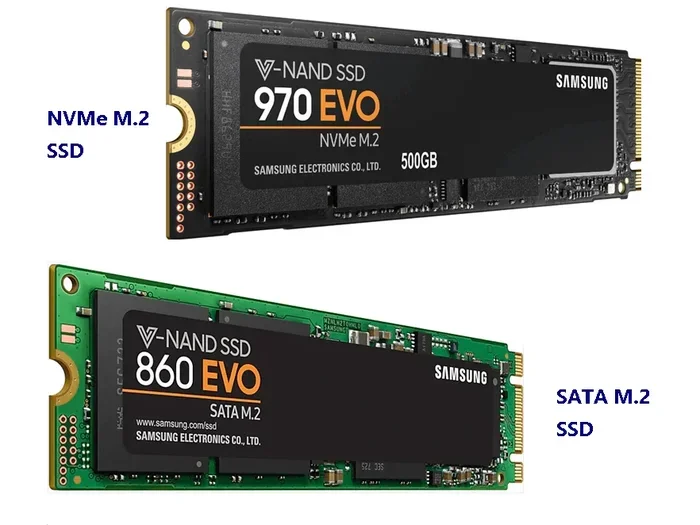
Nvme Ssd Not Showing Up
Is your NVMe SSD not showing up in Windows or BIOS? This frustrating issue has multiple causes, from simple physical connections to complex driver conflicts. We break down every possible reason, from a loose M.2 screw to outdated chipset drivers, and provide step-by-step solutions for each. Follow this guide systematically to diagnose and fix the problem, getting your high-speed storage recognized and operational again.
You just installed a slick new NVMe SSD, expecting blistering boot times and instant file loads. You power on your PC, go into your BIOS to set the boot order, and… it’s not there. Or maybe Windows boots from your old drive, but the new storage is missing from File Explorer and Disk Management. That sinking feeling is real. An NVMe SSD not showing up is one of the most common—and frustrating—issues for PC builders and upgraders. The good news? It’s almost always fixable. This guide will walk you through every single potential cause, from the dead-simple to the more complex, so you can get your drive recognized and running.
We’ll approach this systematically, starting with the most basic checks and moving toward advanced troubleshooting. Think of it as a detective story where the SSD is the missing person. We need to check the last place it was seen (the motherboard slot), verify its identity (drivers), and make sure it’s not hiding in plain sight (Disk Management). By the end, you’ll know exactly why your NVMe SSD is not showing up and how to make it appear. Let’s start the investigation.
Key Takeaways
- Check BIOS/UEFI First: The motherboard’s firmware is the first place to confirm if the system detects the SSD at a hardware level.
- Update Chipset Drivers: Outdated or missing motherboard chipset drivers are a leading cause of NVMe drives not appearing in the operating system.
- Secure Physical Installation: An improperly seated or unscrewed M.2 SSD can cause non-detection; re-seating the drive often works.
- Verify Drive Health: A physically failed or “bricked” NVMe SSD will not register anywhere; use manufacturer tools on another PC to check.
- Manage Drive Letters/Partitions: An unallocated drive or one without a drive letter in Disk Management will seem invisible in File Explorer.
- Consider M.2 Slot Conflicts: Some motherboards disable SATA ports or other M.2 slots when a specific slot is populated; check your manual.
- Power & Compatibility: Ensure your motherboard supports the SSD’s PCIe generation and that your power supply is adequate for the system.
📑 Table of Contents
- 1. The Foundation: BIOS/UEFI Detection
- 2. The Windows Gateway: Drivers and Disk Management
- 3. Physical Installation Deep Dive
- 4. Advanced Software & Firmware Troubleshooting
- 5. When All Else Fails: Hardware Failure & Replacement
- 6. Prevention and Best Practices
- Conclusion: Systematic Troubleshooting Wins
1. The Foundation: BIOS/UEFI Detection
Before you even boot into Windows, the motherboard’s firmware (BIOS or UEFI) must detect the SSD. If it’s missing here, the problem is at the hardware or firmware level, not Windows. This is your absolute first stop.
Entering and Navigating BIOS/UEFI
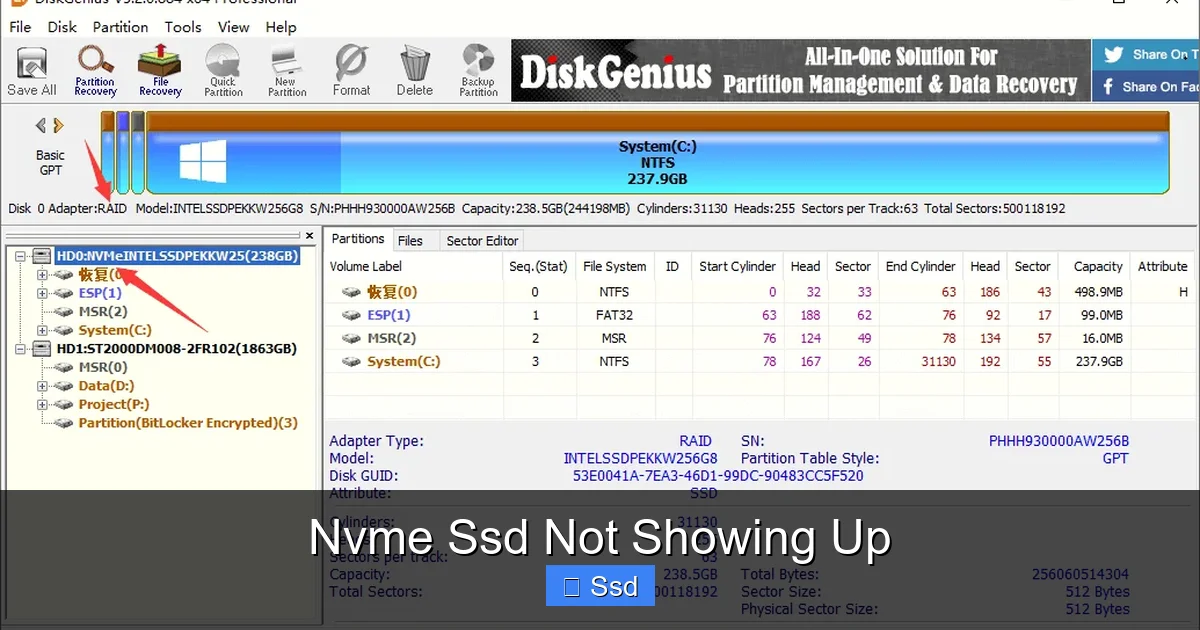
Restart your PC and repeatedly press the key to enter your BIOS/UEFI settings (common keys: Del, F2, F10, F12—your motherboard manual will specify). Once in, look for a tab called “Boot,” “Storage,” “Advanced,” or “NVMe Configuration.” The exact naming varies by manufacturer (ASUS, Gigabyte, MSI, ASRock). You are looking for a list of storage devices. Do you see your NVMe drive listed? Its model name should be visible.
- If YES, it’s in BIOS: The hardware connection is good. The issue is with Windows drivers, disk management, or a faulty OS installation. Skip to section 2.
- If NO, it’s NOT in BIOS: The problem is physical or motherboard-related. Continue with the checks below.
Common BIOS-Level Fixes for a Missing NVMe SSD
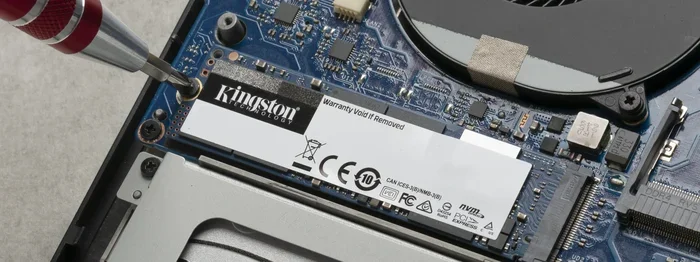
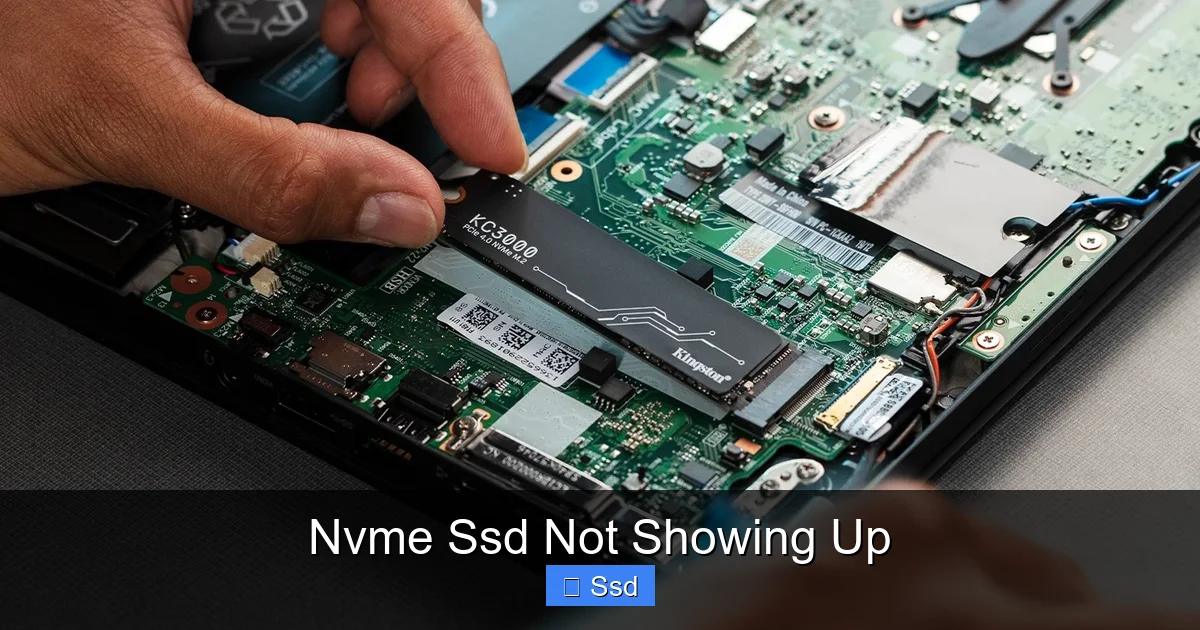
Reseat the SSD: Power down, unplug the PC, open the case, and gently remove the NVMe SSD from its M.2 slot. Blow out any dust from the slot and the SSD’s gold contacts. Firmly reinsert the SSD at a slight angle (about 30 degrees) until it clicks into place, then press it down and secure it with the mounting screw. A poor connection is the #1 cause of an NVME SSD not showing up in BIOS.
Update Your Motherboard BIOS: An outdated motherboard BIOS can have poor compatibility with newer NVMe SSDs, especially newer PCIe generations. Visit your motherboard manufacturer’s support page, download the latest BIOS file, and follow their instructions to flash it. Warning: A failed BIOS update can brick your motherboard. Ensure stable power and follow instructions precisely.
Check M.2 Slot Compatibility & Conflicts: Consult your motherboard manual. Some boards share bandwidth between M.2 slots and SATA ports. Populating a specific M.2 slot (often M2A or M2_1) might disable several SATA ports. Also, ensure you’re using a slot that supports your SSD’s PCIe generation (e.g., a PCIe 4.0 SSD in a PCIe 3.0 slot will work but at slower speeds, but a very old board might not support it at all).
2. The Windows Gateway: Drivers and Disk Management
Your SSD is visible in BIOS? Great! Now we hunt in Windows. The two main places to look are Device Manager and Disk Management.
Visual guide about Nvme Ssd Not Showing Up
Image source: remosoftware.com
Device Manager: The Driver Hub
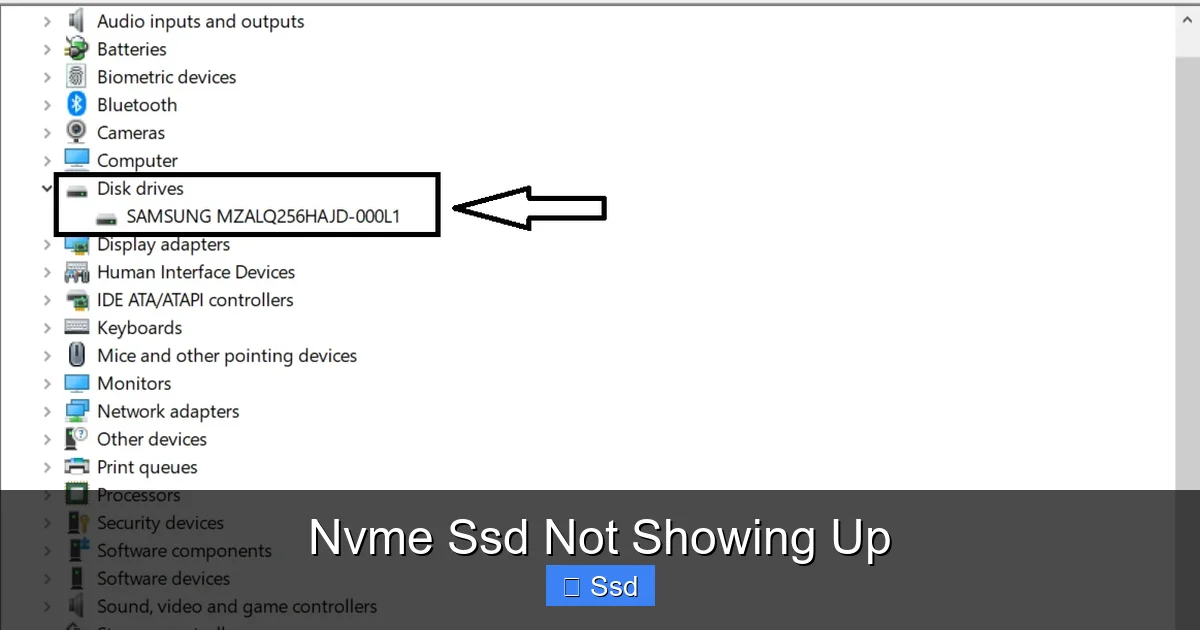
Right-click the Start button and select “Device Manager.” Expand the “Disk drives” section. Do you see your NVMe SSD listed? It might appear with a generic name or a yellow exclamation mark/red X if there’s a driver issue.
- If it’s listed cleanly: Drivers are likely fine. The issue is probably in Disk Management (see next section).
- If it’s listed with an error: Right-click it, select “Uninstall device,” check “Delete the driver software for this device,” and click OK. Then, in the Action menu at the top, click “Scan for hardware changes” to reinstall the driver. Alternatively, download the latest chipset drivers directly from your motherboard or PC manufacturer’s website (Intel Chipset Driver, AMD Chipset Driver) and install them. This solves most NVMe SSD not showing up in Device Manager errors.
- If it’s NOT listed at all: This is a deeper driver or hardware issue. Try the chipset driver update above. Also, check under “Storage controllers” for any devices with errors.
Disk Management: The Unallocated Space Trap
This is the #1 reason an SSD is “in” Windows but “not showing up” in File Explorer. Press Win + X and select “Disk Management.” You’ll see a graphical view of all your disks. Look for a disk labeled “Disk 1,” “Disk 2,” etc., that has a large area of “Unallocated” space. That’s your new, uninitialized SSD!
Right-click on the unallocated space and select “New Simple Volume.” Follow the wizard to assign a drive letter, format the drive (use NTFS for Windows, exFAT for cross-platform), and give it a name. Once done, it will appear in File Explorer. If the entire disk shows as “Not Initialized,” right-click the disk name (on the left) and select “Initialize Disk” first, then create the new volume.
3. Physical Installation Deep Dive
Let’s go back to basics. Even if it’s in BIOS, a marginal physical connection can cause instability or non-detection in Windows.
Visual guide about Nvme Ssd Not Showing Up
Image source: remosoftware.com
M.2 SSD Installation 101
An M.2 SSD installs into a slot on the motherboard. It’s secured by one small screw. Common mistakes:
- The Screw is Missing or Loose: The SSD can slightly flex or lose contact. Always use the correct-length screw that came with your motherboard or case. A too-long screw can damage the SSD’s circuitry.
- Improper Seating: The SSD must be inserted firmly and evenly into the slot’s notch. Don’t force it; it should slide in smoothly. Ensure it clicks into the retention mechanism on the slot before tightening the screw.
- Dust and Debris: A tiny fiber or piece of dust in the M.2 slot can prevent a full connection. Use compressed air to clean the slot thoroughly.
Thermal Throttling & Contact
Some high-performance NVMe SSDs come with a heatsink, or your motherboard has an M.2 heatsink. If you installed a heatsink, was the thermal pad applied correctly? Was the protective film removed from the pad? An incorrectly installed heatsink can apply uneven pressure, causing connection issues. Also, a failing SSD can overheat quickly and disconnect. If your SSD works for a few minutes then disappears, this could be the culprit. Ensure your case has good airflow over the M.2 area.
4. Advanced Software & Firmware Troubleshooting
When the basics fail, we need to go deeper into software and firmware layers.
Visual guide about Nvme Ssd Not Showing Up
Image source: sharkyextreme.com
SSD Firmware Updates
The SSD itself has internal firmware. A bug in this firmware can cause detection problems. Use the manufacturer’s diagnostic tool (Samsung Magician, Crucial Storage Executive, WD Dashboard, etc.). You often need to run this tool from a working system. If your NVMe SSD is not showing up at all, you may need to connect it to another working PC as a secondary drive to update its firmware. A firmware bug might be why your specific SSD model has compatibility issues with your specific motherboard/chipset.
Windows Fast Startup & Hibernation Conflicts
Windows Fast Startup (a hybrid hibernation) can sometimes lock the drive’s state. Try disabling it: Go to Control Panel > Power Options > Choose what the power buttons do > Change settings that are currently unavailable. Uncheck “Turn on fast startup.” Save changes and restart. This can resolve odd detection issues after a clean install or clone.
Registry Edits for PCIe Link State Power Management
For advanced users, a Windows power setting can sometimes power down an NVMe link. You can try disabling Link State Power Management in the registry. Warning: Editing the registry incorrectly can cause system instability. Back up the registry first. Navigate to `HKEY_LOCAL_MACHINE\SYSTEM\CurrentControlSet\Control\Power\PowerSettings\5012d823-a537-4763-96b5-756b1f0373b6`. Find the “Attributes” DWORD and change its value from 1 to 2. Then, in Windows Power Options (under “Advanced settings”), you’ll see “PCI Express > Link State Power Management.” Set it to “Off.” Reboot.
5. When All Else Fails: Hardware Failure & Replacement
Sometimes, the drive itself is the problem.
Diagnosing a Dead SSD
If the SSD is not detected in ANY computer’s BIOS, after trying different M.2 slots and reseating, the SSD is likely dead. NVMe SSDs can fail due to NAND wear, controller failure, or a power surge. The “brick” is permanent. Contact the manufacturer for an RMA if under warranty.
Testing on Another System
The ultimate test: install the suspect NVMe SSD into a known-good, different computer. Does it show up in that system’s BIOS? If yes, the problem is your original motherboard’s slot or its settings. If no, the problem is the SSD. This isolates the variable and tells you which component to replace or RMA.
Power Supply Considerations
While an NVMe SSD draws power from the M.2 slot (typically under 10W), a severely underpowered or failing PSU can cause instability across all components, including storage detection. If you have an old or cheap PSU and are experiencing other random crashes, consider testing with a higher-quality unit.
6. Prevention and Best Practices
Don’t wait for a problem. Follow these practices to avoid the NVMe SSD not showing up headache.
Pre-Installation Checklist
- Update Motherboard BIOS to the latest stable version BEFORE installing a new NVMe SSD, especially if it’s a newer PCIe gen.
- Download Chipset Drivers from your mobo’s website onto a USB drive before installing Windows.
- Read the Manual: Know which M.2 slots are available, their PCIe/SATA sharing rules, and which CPU PCIe lanes they use.
- Handle with Care: Touch the SSD only by the edges. Avoid touching the gold contacts. Static electricity can damage components; ground yourself.
During OS Installation
If you’re doing a clean Windows install and the installer doesn’t see the SSD, you’re likely missing a storage driver. The Windows installer includes generic NVMe drivers, but for some older Windows versions (like Win 7) or very new SSDs, you may need to load a driver from a USB drive during setup. For Windows 10/11, this is rarely an issue if the BIOS sees the drive.
Conclusion: Systematic Troubleshooting Wins
An NVMe SSD not showing up is almost never a mystery with no solution. It’s a puzzle with a logical order of pieces. Start at the foundation: the BIOS. If it’s not there, the fight is with the physical connection, the motherboard slot, or the SSD itself. If it is there, the battle moves to Windows: drivers, Disk Management, and power settings. By following this guide step-by-step, you methodically eliminate each possibility. You’ve now learned to be your own storage detective. The vast majority of the time, the culprit is a loose screw, an outdated chipset driver, or an unallocated partition. Arm yourself with this knowledge, stay calm, and you’ll have that blazing-fast drive up and running in no time. Remember, patience and a systematic approach are your best tools.
Frequently Asked Questions
Why is my new NVMe SSD not showing up in Windows but it is in BIOS?
This is the most common scenario and usually means Windows needs a driver or the drive is uninitialized. First, check Disk Management (Win+X > Disk Management) for an unallocated drive and initialize it. If it’s not there, update your motherboard’s chipset drivers from the manufacturer’s website.
Can a faulty motherboard M.2 slot cause an NVMe SSD not to show up?
Yes absolutely. If you’ve ruled out the SSD itself (by testing it in another PC), a defective M.2 slot is the likely cause. Try any other available M.2 slots on your board. Also, check your manual—some boards disable certain slots if others are populated.
My NVMe SSD shows up in Device Manager but not File Explorer. Why?
This almost always means the drive has no assigned drive letter or is unformatted. Go to Disk Management (Win+X > Disk Management). You’ll see the disk listed with a black bar (unallocated) or a drive letter missing. Right-click the volume and assign a drive letter and format it as NTFS.
Could my NVMe SSD be dead on arrival (DOA)?
It’s possible but rare (<1% of drives). A DOA SSD will not be detected in any computer's BIOS. First, ensure it's properly seated. Then, test it in a different, known-good PC. If it fails to appear in that system's BIOS, contact the seller or manufacturer for an RMA under warranty.
Does disabling Fast Startup help with an NVMe SSD not showing up?
Sometimes. Fast Startup can leave the drive in a hibernated state that causes conflicts. Disabling it (Control Panel > Power Options > Choose what power buttons do) forces a full shutdown, which can reset the drive’s state and make it detectable again after a reboot.
My SSD worked before, but now it’s not showing up after a Windows update. What gives?
Windows updates can sometimes conflict with storage drivers or change power settings. Boot into Safe Mode to see if the drive appears. If it does, a driver or software conflict is the issue. Uninstall recent updates, update your chipset drivers, and check for SSD firmware updates from the manufacturer.