What Is a Lan Ip Address

A Lan Ip Address is a unique number assigned to your laptop within a local network. It lets devices talk to each other without reaching the wider internet. Understanding your LAN IP address helps you fix connection issues and set up your home network with confidence.
Every device that connects to your home network has a special number. That number is called a Lan Ip Address. It works behind the scenes so your laptop, phone, and smart TV can all talk to each other. You might never see it, but it plays a big role in your daily internet use.
If you have ever wondered how your laptop finds the printer or why your Wi-Fi shows a list of connected devices, the answer starts with a LAN IP address. This guide breaks everything down in plain language. Whether you are a beginner or just need a quick refresher, you will find clear answers here.
We will cover what a Lan Ip Address actually is, how it differs from other types of IP addresses, and how to find yours on a laptop. You will also learn common problems and simple fixes. By the end, you will feel much more confident about your home network setup.
Key Takeaways
- What It Is: A Lan Ip Address is a private number that identifies your laptop on a local network.
- How It Works: Your router assigns this address using DHCP, and it stays within your home or office network.
- Why It Matters: Knowing your LAN IP address helps you troubleshoot network problems and share files between devices.
- Public vs. Private: Your LAN IP address is different from your public IP address, which the outside world sees.
- Easy to Find: You can check your LAN IP address on any laptop in just a few clicks.
- Security Tip: Keeping your LAN IP address stable helps prevent network conflicts and keeps your laptop safe.
📑 Table of Contents
- What Is a Lan Ip Address?
- Lan Ip Address vs Public Ip Address
- Why Does Your Laptop Need a Lan Ip Address?
- How to Find Your Lan Ip Address on a Laptop
- Common Lan Ip Address Problems and How to Fix Them
- How to Set a Static Lan Ip Address on Your Laptop
- Lan Ip Address and Network Security
- How Lan Ip Addresses Work With Other Laptop Hardware
- Quick Tips for Managing Your Lan Ip Address
- Expert Insights on Lan Ip Address Setup
- Conclusion
What Is a Lan Ip Address?
A Lan Ip Address is a private number that your router gives to each device on your local network. The word “LAN” stands for Local Area Network. This means it only works inside your home or office. It does not reach the outside world.
Think of it like a house address on your street. Your LAN IP address tells your router which device is which. When your laptop wants to print a document, it uses this address to find the printer. When your phone wants to share a file with your desktop, the same address helps route the data correctly.
These addresses usually look like 192.168.1.x or 10.0.0.x. The “x” part is a number that makes each device unique. Your router keeps track of every LAN IP address it hands out. This is how your local network stays organized and fast.
How Does a Lan Ip Address Get Assigned?
Most of the time, your router handles this automatically. It uses a process called DHCP, which stands for Dynamic Host Configuration Protocol. That sounds complicated, but it is really simple. When your laptop connects to Wi-Fi, the router picks a free number and gives it to your laptop. This is called a dynamic LAN IP address.
Sometimes you might want a fixed number instead. This is called a static LAN IP address. You set it yourself so the number never changes. This is useful for devices like printers or servers that other devices need to find reliably. Most home users are fine with dynamic addresses, though.
Lan Ip Address vs Public Ip Address
It is easy to mix up your Lan Ip Address with your public IP address. They serve very different purposes. Your public IP address is what the internet sees. It is assigned by your internet service provider, or ISP. Your LAN IP address stays hidden behind that public address.
Here is a simple way to think about it. Your public IP address is like your home’s street address. Anyone can look it up. Your LAN IP address is like your room number inside the house. Only people already inside the house know it. The router acts as the gatekeeper between the two worlds.
When you visit a website, the site sees your public IP address. It does not see your LAN IP address. This is actually a good thing for privacy. Your local network stays protected behind your router’s public-facing address. You can check your public IP anytime by searching “what is my IP” in a browser.
Why Does Your Laptop Need a Lan Ip Address?
Your laptop uses a Lan Ip Address for many everyday tasks. Without one, it cannot join your local network properly. Here are the most common reasons your laptop needs this address.
File Sharing: Want to send a photo from your laptop to your desktop? Your LAN IP address helps route that file directly between the two machines. It is much faster than using cloud storage for large files.
Printer Access: Most home printers connect to your local network. Your laptop uses the printer’s LAN IP address to send print jobs. Without it, your laptop would not know where to send the document.
Streaming to Smart Devices: When you cast a video from your laptop to a smart TV, the LAN IP address makes the connection. The TV and laptop find each other through these private addresses on your local network.
Remote Desktop Access: If you want to control your laptop from another room, you need its LAN IP address. This lets you connect directly without going through the internet.
Your laptop’s LAN IP address also matters for network speed. Local transfers between devices on the same network are much faster than internet transfers. A stable LAN IP address keeps everything running smoothly.
How to Find Your Lan Ip Address on a Laptop
Finding your Lan Ip Address is quick and easy. The steps are slightly different depending on your operating system. Here is how to do it on the most common systems.
On Windows
- Click the Wi-Fi icon in your taskbar.
- Click on the network you are connected to.
- Look for the “IPv4 Address” entry. That is your Lan Ip Address.
You can also go to Settings, then Network & Internet, then Properties. Your LAN IP address will be listed right there. This method works for both Wi-Fi and Ethernet connections.
On macOS
- Click the Apple menu in the top left corner.
- Select System Settings, then Network.
- Click on your active connection. Your Lan Ip Address appears under Status.
Mac users can also open the Terminal app and type “ifconfig.” This shows your LAN IP address along with other network details. It is a handy trick to know.
On Linux
Open your terminal and type “ip addr show.” Look for the inet entry under your active connection. That number is your Lan Ip Address. Linux makes it easy to see all network details in one place.
Common Lan Ip Address Problems and How to Fix Them
Sometimes things go wrong with your LAN IP address. The good news is most issues have simple fixes. Here are the most common problems you might face.
IP Address Conflict
An IP address conflict happens when two devices get the same LAN IP address. This can cause one or both devices to lose network access. You might see a warning message on your laptop saying another device is using the same address. The fix is usually simple. Restart your router, and it will reassign fresh addresses to all devices. This clears up most conflicts quickly.
Cannot Connect to the Network
If your laptop cannot connect, your LAN IP address might not be valid. Check that your Wi-Fi is turned on and you are connected to the right network. Sometimes restarting your laptop fixes the issue. You can also try releasing and renewing your LAN IP address through your network settings. On Windows, use the command prompt and type “ipconfig /release” followed by “ipconfig /renew.”
Slow Network Speeds
A changing LAN IP address can sometimes slow things down. If your router keeps assigning new addresses, devices may lose their connection briefly. Setting a static LAN IP address for your laptop can help. Just make sure you pick a number outside your router’s automatic range. Check your router’s manual for the right range to use.
How to Set a Static Lan Ip Address on Your Laptop
Setting a static LAN IP address gives your laptop a permanent number on your network. This is helpful for devices you always want to find at the same address. Here is how to do it on Windows.
- Go to Settings, then Network & Internet.
- Click on your active connection.
- Find the IP assignment section and click Edit.
- Switch from Automatic to Manual.
- Turn on IPv4 and enter your desired LAN IP address.
- Set the subnet mask (usually 255.255.255.0).
- Enter your router’s address as the default gateway.
- Save your changes.
Now your laptop will always use the same LAN IP address on that network. This is great for file sharing, printer access, and remote connections. Just make sure the number you choose does not overlap with other devices. A good rule is to stay within the range your router provides.
Lan Ip Address and Network Security
Your Lan Ip Address plays a role in keeping your network safe. While it is a private address, you should still protect it. Here are a few simple steps you can take.
First, keep your router’s firmware updated. This patches security holes that could let someone access your LAN IP address and network. Second, use a strong Wi-Fi password. This prevents strangers from connecting and potentially seeing your device addresses. Third, consider enabling network encryption through WPA3 if your router supports it.
You should also be careful when sharing your LAN IP address online. It is meant for local use only. If someone outside your network gets this information, they might try to exploit it. Keep your network settings private and only share them with trusted devices on your local network.
Another good practice is to check which devices are connected to your network regularly. Most routers have a dashboard where you can see all connected devices and their LAN IP addresses. If you see a device you do not recognize, change your Wi-Fi password right away. Staying alert keeps your LAN IP address and your whole network secure.
How Lan Ip Addresses Work With Other Laptop Hardware
Your Lan Ip Address works hand in hand with other laptop components. The network adapter is the physical chip that connects your laptop to Wi-Fi or Ethernet. It uses your LAN IP address to send and receive data. Without a working network adapter, your laptop cannot get a LAN IP address at all.
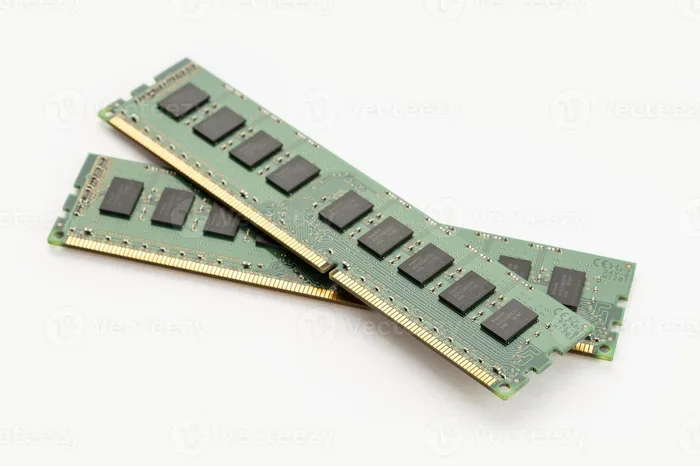
Your laptop’s RAM also plays a supporting role. When data flows through your network, your system uses memory to process it. Having enough RAM helps your laptop handle network tasks smoothly. If you are curious about what kind of RAM is best for your laptop, check out this guide on what is the RAM on a laptop to make sure your system is optimized.
Your router is another key piece of the puzzle. It assigns LAN IP addresses and manages traffic between devices. A good router makes a big difference in network performance. If you are setting up or upgrading your home network, make sure your router supports the latest Wi-Fi standards for the best speeds.
Even your laptop’s storage can affect network performance. When your system is low on disk space, it may struggle to cache network data efficiently. Keeping your laptop well-maintained helps your LAN IP address connection stay strong. For tips on keeping your laptop running smoothly, learning about how to know what RAM is compatible with your laptop can be a great starting point.
Quick Tips for Managing Your Lan Ip Address
- Restart your router regularly: This helps keep your LAN IP address assignments fresh and prevents conflicts.
- Write down your static IP: If you set a static LAN IP address, save it somewhere safe so you do not forget it.
- Check your router’s dashboard: Most routers let you see all devices and their LAN IP addresses in one place.
- Use the same network name and password: Consistency makes it easier for all your devices to connect and get a LAN IP address.
- Update your network drivers: Outdated drivers can cause your laptop to lose its LAN IP address or connect poorly.
- Contact your ISP if needed: If your LAN IP address keeps changing in strange ways, your internet provider may be able to help.
Expert Insights on Lan Ip Address Setup
Network professionals recommend taking a few extra steps when setting up your LAN IP address. First, always check your router’s DHCP range before assigning a static address. This prevents overlap and keeps your network running smoothly. Second, label your devices with their LAN IP addresses on a simple spreadsheet. This makes troubleshooting much faster later on.
For those who want to learn more about laptop hardware and how it affects network performance, understanding your system’s RAM is valuable. You can explore what makes good RAM for a laptop to ensure your system handles both everyday tasks and network demands with ease.
One final tip from network experts: do not ignore your router’s quality-of-service settings. These let you prioritize traffic for specific devices and their LAN IP addresses. If your laptop handles video calls or gaming, giving it priority can make a noticeable difference in performance.
Conclusion
A Lan Ip Address is one of those things you rely on every day without thinking about it. It is the invisible number that connects your laptop to your printer, your TV, and your other devices. Now that you understand what a LAN IP address is and how it works, you can troubleshoot problems faster and set up your network with more confidence.
Remember, your LAN IP address is private and stays within your local network. It is different from your public IP address, which the outside world sees. Keep your network secure, check your settings when needed, and do not be afraid to set a static address for devices that need one. With the knowledge you have gained, you are well on your way to becoming your own home network expert.
Take a few minutes today to find your LAN IP address and see what devices are connected to your network. Small steps like this go a long way in keeping your laptop and your whole home network running at their best.
Frequently Asked Questions
What is the difference between a Lan Ip Address and a Wi-Fi address?
Your Lan Ip Address is the number assigned to your device on a local network. A Wi-Fi address usually refers to your MAC address, which is a unique hardware identifier. Your LAN IP address can change, but your MAC address stays the same. Both help your laptop connect to the network in different ways.
Can two devices have the same Lan Ip Address?
No, two devices should not share the same LAN IP address. This causes an IP conflict, and one or both devices may lose network access. Your router is supposed to assign unique addresses. If a conflict happens, restarting your router usually fixes it by reassigning fresh addresses.
Is my Lan Ip Address the same on every network?
No, your LAN IP address changes depending on the network you join. When you connect to a different Wi-Fi network, your router assigns a new address. This is why your laptop might have one LAN IP address at home and a different one at the office.
How do I know if my Lan Ip Address is public or private?
A private LAN IP address usually starts with 192.168.x.x, 10.x.x.x, or 172.16.x.x to 172.31.x.x. If your address falls in one of these ranges, it is a private local address. Any address outside these ranges is likely a public IP assigned by your internet provider.
Does resetting my router change my Lan Ip Address?
Yes, resetting your router can change your LAN IP address. The router will restart its DHCP process and may assign a different number to your laptop. If you have a static address set, it will stay the same. Restarting your router is also a great first step for fixing most network issues.
Should I hide my Lan Ip Address from others?
Your LAN IP address is meant for local use and is not visible to the outside internet. Still, it is good practice to keep your network settings private. Do not share your LAN IP address on public forums or social media. Only share it with trusted devices on your own local network.