What Is an Application Error
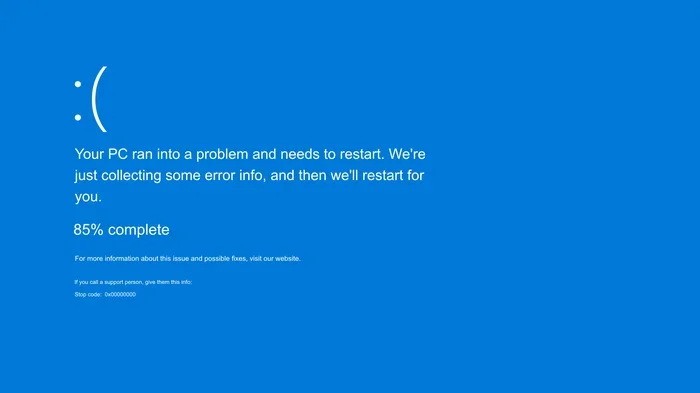
An application error is a problem that stops a software program from working the way it should. These errors can show up as pop-up messages, unexpected crashes, or frozen screens on your computer or phone. Understanding what causes application errors helps you troubleshoot faster and keep your apps running smoothly.
Have you ever been in the middle of doing something important on your computer or phone when suddenly a window pops up saying something went wrong? That frustrating moment is what we call an application error. It happens when a software program can’t do what it was designed to do. These errors are more common than you might think, and almost everyone who uses a computer or smartphone has run into one at some point.
The good news is that most application errors are easy to understand and fix once you know what to look for. Whether it’s a simple error message that goes away after a restart or a deeper software bug that keeps coming back, there’s almost always a solution. In this guide, we’ll walk you through everything you need to know about application errors, why they happen, what the different types are, and how to stop them from ruining your day.
Key Takeaways
- Application errors are common software problems that disrupt normal app function and can affect any device or platform.
- Common causes include bugs in code, memory issues, and compatibility conflicts between software and hardware.
- Error codes and messages give you clues about what went wrong and how to start fixing the problem.
- Simple fixes like restarting your device or updating software solve most application errors quickly.
- Prevention steps like regular updates and proper maintenance reduce the chance of future application errors.
- Knowing when to seek professional help saves time when basic troubleshooting doesn’t resolve the issue.
📑 Table of Contents
What Exactly Is an Application Error?
An application error is any problem that causes a software program to behave unexpectedly or stop working altogether. Think of it like a roadblock in the middle of a highway. The app knows where it wants to go, but something is blocking the path. This block could be a small glitch or a serious problem that forces the app to close completely.
When an application error occurs, your device usually responds in one of a few ways. You might see a pop-up window with an error code. The app might freeze and stop responding. Or in worse cases, the entire program crashes and shuts down. Each of these situations points to a different kind of problem, but they all fall under the same umbrella term: an application error.
It’s important to understand that application errors are not the same as hardware problems. A hardware issue means something physical is broken or failing. An application error is a software problem. The computer itself might be perfectly fine, but the program running on it has hit a wall. This distinction matters because it tells you where to focus your troubleshooting efforts.
How Application Errors Show Up
Application errors can appear in many different forms. Some are tiny warnings that you can dismiss and keep working. Others are full-screen alerts that demand your attention. Here are the most common ways an application error might show up on your device:
- Error code pop-ups that display a number or alphanumeric code you can look up.
- App crashes where the program suddenly closes without warning.
- Freezing or hanging where the app stops responding to your clicks and taps.
- Unexpected shutdowns where the app closes and you lose unsaved work.
- Slow performance where the app takes forever to load or respond.
- Missing features where certain buttons or tools within the app stop working.
Why Do Application Errors Happen?
Understanding the root cause of an application error is the first step toward fixing it. Developers write millions of lines of code, and even the smallest mistake can create a problem that users see as an application error. But user-side issues also play a big role. Let’s break down the most common reasons why application errors occur.
Bugs in the Software Code
The most common reason for an application error is a bug in the software itself. A bug is simply a mistake or flaw in the code that the developers wrote. Sometimes these bugs slip through testing and make it into the final version of the app. When the app tries to do something the code wasn’t built to handle, you get an application error.
Bugs can be tiny and barely noticeable, or they can be so serious that the app crashes every time you open it. Software developers work hard to find and fix bugs through updates and patches. That’s why keeping your apps updated is one of the best ways to prevent application errors caused by known bugs.
Memory and Resource Problems
Every app you run uses your device’s memory and processing power. If your computer or phone doesn’t have enough free memory, an app might throw an application error when it tries to access more resources than are available. This is especially common on older devices or when you have many apps open at the same time.
Think of it like a kitchen. If too many cooks are trying to use the same stove and counter space, things start to break down. The same thing happens with your device’s memory allocation. When an app can’t get the resources it needs, it generates an error message and sometimes shuts down completely.
Compatibility Issues
Not all software plays nicely with all systems. An application error can happen when an app isn’t fully compatible with your operating system or with other software you have installed. This is especially true when you try to run older apps on newer systems or vice versa.
Compatibility conflicts are also common when you install a new app that interferes with how another app works. Sometimes a software update changes something in the background that breaks how a different app functions. These kinds of application errors can be tricky to track down because the problem isn’t always obvious.
Corrupted Files and Bad Data
Apps rely on files to store settings, save your progress, and communicate with servers. If one of these files gets corrupted, the app might not know how to work properly anymore. A corrupted file can trigger an application error every time you try to open the app or perform a specific action.
Corruption can happen for many reasons. A sudden power loss while the app is saving data is a common cause. Disk errors, virus infections, or even a faulty hard drive can also corrupt app files. When this happens, the error resolution process often involves deleting the bad files and letting the app rebuild them fresh.
Common Types of Application Errors
Not all application errors are the same. Different types of errors point to different problems and require different fixes. Here are the most common types you’ll run into when using apps on any device.
Runtime Errors
A runtime error is one of the most frequent types of application errors. It happens while the app is running, not when you first open it. You might be clicking through the app, everything seems fine, and then suddenly a runtime error pops up and the app closes. These errors often happen when the app tries to do something it isn’t allowed to do or when it runs into a problem it wasn’t programmed to handle.
Logic Errors
A logic error is a bit sneakier. The app doesn’t crash or show an error message. Instead, it does the wrong thing. For example, a calculator app might give you the wrong answer, or a game might let you skip a level you shouldn’t be able to access. Logic errors are bugs in the app’s decision-making code, and they can be hard to spot because the app still looks like it’s working normally.
Syntax Errors
Syntax errors happen when the code itself has a grammatical mistake. In programming, every language has rules about how code should be written. If a developer makes a typo or forgets a symbol, the app can’t run at all. These kinds of application errors usually show up during development before the app even reaches users, but sometimes they slip through.
Connection Errors
Many modern apps need an internet connection to work properly. A connection error happens when the app can’t reach the server it needs to talk to. This can look like a spinning loading wheel that never stops, a message saying “check your connection,” or a timeout error. Network-related application errors are very common with apps that rely on cloud services or online data.
How to Troubleshoot Application Errors
Dealing with an application error can feel stressful, but most problems have simple solutions. You don’t need to be a tech expert to fix the majority of application errors you’ll encounter. Here’s a step-by-step approach to troubleshooting these frustrating problems.
Step 1: Read the Error Message Carefully
The first thing you should do when an application error appears is read the message carefully. The error message often contains clues about what went wrong. Look for any error codes, file names, or specific words that describe the problem. You can often search for the exact error message online and find a solution that someone else has already discovered.
Step 2: Restart the Application
Sometimes the simplest fix is the best one. Closing the app completely and reopening it can clear temporary memory issues that caused the application error. On most devices, you can use the task manager or app switcher to force close the app and then relaunch it. This quick step resolves a surprising number of application errors.
Step 3: Restart Your Device
If restarting the app doesn’t work, try restarting your entire device. A full restart clears out temporary files, refreshes your system memory, and gives everything a clean start. This is one of the most effective troubleshooting steps for any kind of computer error or program error. It takes just a minute and solves more problems than people realize.
Step 4: Update the Software
Outdated software is a major cause of application errors. Developers release updates regularly to fix known bugs and improve compatibility with newer systems. Check your app store or the app’s settings menu for any available updates. Installing the latest version often fixes application errors that were caused by bugs that have already been patched.
Step 5: Clear Cache and Data
Apps store temporary files called cache to help them load faster. But sometimes these cached files become corrupted or outdated, leading to application errors. Clearing the app’s cache and data can reset things back to normal. Just be aware that this may log you out of the app or delete some temporary files like saved offline content.
Step 6: Reinstall the Application
If none of the above steps work, try uninstalling the app and then installing it again from scratch. This gives you a completely fresh copy of the software with no corrupted files or conflicting settings. Reinstalling is one of the most reliable ways to fix stubborn application errors that keep coming back.
How to Prevent Application Errors
While you can’t prevent every application error, there are several things you can do to reduce how often they happen. Prevention is always better than fixing, and a few simple habits can keep your apps running much more smoothly.
- Keep your operating system updated. System updates often include fixes that improve how apps run and reduce compatibility issues.
- Update your apps regularly. App updates patch bugs and improve error handling so fewer problems reach you.
- Don’t overload your device. Running too many apps at once can drain memory and trigger application errors. Close apps you aren’t using.
- Install a good antivirus program. Malware can corrupt app files and cause all kinds of software errors. Protect your device from threats.
- Restart your device weekly. A regular restart clears out temporary files and refreshes system resources, helping prevent app crashes.
- Check your storage space. Apps need free space to work properly. A nearly full hard drive can cause all sorts of application errors.
Taking care of your device and software is a lot like taking care of a car. Regular maintenance keeps everything running smoothly and helps you avoid unexpected breakdowns. If you treat your apps and system well, they’ll treat you well in return.
When to Seek Professional Help
Most application errors can be fixed with the steps we’ve covered above. But sometimes an error is too complex for basic troubleshooting. If you’ve tried restarting, updating, and reinstalling the app and the application error keeps coming back, it might be time to get help.
You should also seek professional help if the application error is affecting multiple apps at once. This could point to a deeper system problem rather than a single app issue. If you notice that your device is running unusually slow, showing strange error messages across different programs, or if you suspect a virus or malware, a professional technician can diagnose the root cause.
Another good time to get help is when you’re losing important work because of repeated app crashes. Data loss from application errors can be serious, and a professional can often recover lost files or identify the underlying problem before it gets worse.
It’s also worth noting that some application errors are caused by the developer, not by anything you did wrong. In these cases, reporting the error to the app’s support team helps them fix it for everyone. Check the app’s settings or website for a “Report a Problem” or “Contact Support” option. Your feedback can make the app better for all users.
Application Errors Across Different Devices
Application errors don’t just happen on desktop computers. They can occur on smartphones, tablets, smart TVs, and even gaming consoles. The basic causes are the same across all devices, but the way you fix them can vary slightly depending on what you’re using.
On smartphones, application errors are very common because mobile apps often have limited resources compared to desktop software. A memory issue on a phone can trigger an app crash much faster than on a computer with more RAM. Keeping your phone updated and closing background apps are great ways to reduce application errors on mobile devices.
On desktop computers, application errors can sometimes be linked to other software conflicts. If you’ve installed a new program and suddenly other apps start showing errors, there might be a compatibility conflict at play. Checking your software environment and making sure everything plays well together is key to a smooth experience.
If you use cloud-based apps or work in a SaaS environment, application errors can also be tied to server-side issues. In these cases, the problem might not be on your device at all. The app’s servers might be experiencing downtime or technical difficulties. Checking the service’s status page can quickly tell you if the application error is something you can fix on your end or if it’s a problem the developer needs to address.
For users who run apps through emulation on their PCs, application errors can be especially frustrating because they often involve layering one system on top of another. Emulators add complexity that can lead to unique application errors not seen on native apps. Keeping your emulator software up to date and using the right settings for the app you’re running can help minimize these issues.
Final Thoughts
Application errors are a normal part of using technology. They happen to everyone, from casual phone users to professional developers. The key is not to let them frustrate you but to understand what they are and how to handle them. With the right knowledge, you can troubleshoot most application errors in just a few minutes and get back to what matters most.
Remember that error codes are your friends, not your enemies. They give you specific information that leads you to the right fix. Keep your software updated, maintain your device properly, and don’t be afraid to reach out for help when you need it. By following the tips in this guide, you’ll be well equipped to handle any application error that comes your way and keep your apps running at their best.
Frequently Asked Questions
What is an application error on a phone?
An application error on a phone is a problem that causes an app to crash, freeze, or stop working properly. It can show up as a pop-up message, a sudden shutdown, or an unresponsive screen. Most phone application errors are caused by low memory, outdated software, or bugs in the app itself.
How do I fix an application error?
Start by reading the error message and restarting the app. If that doesn’t work, restart your device, update the app, clear its cache, or try reinstalling it. These simple steps fix the majority of application errors without needing advanced technical skills.
Are application errors the same as system errors?
No, they are different. An application error affects a specific software program, while a system error affects the overall operating system. However, a severe application error can sometimes cause broader system issues if not addressed quickly.
Can a virus cause an application error?
Yes, malware and viruses can corrupt app files and cause application errors. They can also consume system resources, leading to crashes and slow performance. Using a reliable antivirus program helps prevent these kinds of software errors.
Why do application errors keep coming back?
Recurring application errors often point to a deeper issue like corrupted files, ongoing compatibility conflicts, or a bug in the app that hasn’t been fixed yet. Reinstalling the app or waiting for a developer update usually resolves persistent problems.
Is it safe to ignore an application error?
Some minor application errors go away on their own and don’t cause any lasting harm. But if an error keeps appearing or causes you to lose work, it’s best to address it. Ignoring repeated application errors can lead to data loss or bigger problems over time.
=== INTERNAL LINKS ===
Taking care of your device goes a long way in preventing application errors. If you’re wondering what kind of investment really pays off for keeping your PC healthy over the years, check out our guide on what is the best investment for lifespan of PC. Staying informed about your system helps you catch problems early.
Sometimes application errors happen when running apps in environments they weren’t originally built for. If you’re using an emulator to run mobile apps on your computer, you might run into unique issues. Learn more about what is the best emulator for PC in 2026 and how to avoid common setup problems.
For users working in cloud-based platforms, application errors can sometimes be tied to the environment itself. Understanding your what is a SaaS environment setup can help you figure out whether the error is on your end or with the service provider.