What Is the Difference Between Master Slave Hard Drives
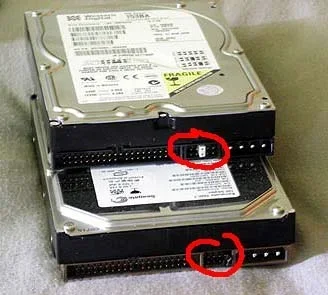
Master slave hard drives refer to an older configuration where two drives share a single data cable, with one drive acting as the master and the other as the slave. This setup was common in the era of IDE and PATA drives but has largely been replaced by SATA technology, which gives each drive its own dedicated connection. Understanding this difference helps you make better decisions about your storage setup and avoid compatibility issues with older systems.
If you have ever opened up an older computer and seen two hard drives connected to the same cable, you have witnessed the master slave hard drives configuration in action. This setup was the go-to method for connecting multiple storage devices in computers for many years. But what exactly does it mean, and why does it matter today?
The master slave hard drives concept can seem confusing at first, especially if you are used to modern systems where every drive gets its own connection. In simple terms, one drive takes the lead (the master) and the other follows (the slave). They share a single data cable, and the master handles all the communication with the computer’s motherboard. Understanding this setup helps you work with older systems, troubleshoot legacy hardware, and appreciate how far storage technology has come.
In this article, we will break down everything you need to know about master slave hard drives. We will cover how the system works, how to set it up, why it became outdated, and what you should do if you still encounter this configuration today. Let us dive in.
Key Takeaways
- Master slave configuration was the standard way to connect two hard drives on a single IDE cable in older computers.
- The master drive controls communication with the motherboard, while the slave drive follows its instructions.
- Jumper settings on the drive itself determine which role each drive plays in the setup.
- SATA technology made the master slave configuration obsolete by giving each drive its own dedicated data cable.
- You may still encounter master slave setups in older computers, legacy systems, or specialized hardware environments.
- Modern dual drive setups are simpler, faster, and more reliable than the old master slave method.
📑 Table of Contents
- What Are Master Slave Hard Drives?
- How Master Slave Hard Drives Were Set Up
- Key Differences Between Master and Slave Drives
- Why Master Slave Setup Is Obsolete
- Can You Still Use Master Slave Hard Drives Today?
- Best Practices for Dual Hard Drive Configuration
- Common Mistakes to Avoid with Master Slave Setups
- Expert Insights on Storage Evolution
- Conclusion
What Are Master Slave Hard Drives?
The term master slave hard drives describes a setup where two drives are connected to the same IDE (Integrated Drive Electronics) cable. One drive is designated as the master, and the other is the slave. The master drive takes control of the data flow, while the slave drive waits for instructions from the master.
This configuration was born out of necessity. In the early days of computing, computers had limited ports for connecting storage devices. Manufacturers needed a way to connect two drives using a single cable and port. The master slave setup solved this problem elegantly, even if it added a layer of complexity.
A Brief History of Master Slave Configuration
The master slave hard drives setup became popular in the 1980s and 1990s. During this time, the IDE or PATA (Parallel ATA) interface was the standard for connecting storage devices. Most motherboards had only one or two IDE channels, and each channel could support two drives.
By the early 2000s, computers typically had four IDE channels, allowing up to eight drives to be connected. This was a big deal back then, when storage space was expensive and every gigabyte counted. The master slave hard drives arrangement made it possible to maximize the number of drives without buying expensive additional controller cards.
How the Master Slave System Works
In a master slave hard drives setup, the drives communicate through a shared ribbon cable. The cable has three connectors: one plugs into the motherboard, and the other two connect to the drives. The drive at the end of the cable is typically set as the master, and the drive in the middle is the slave.
Each drive has a set of jumper pins on its back. These jumpers tell the drive whether it should act as the master, the slave, or use cable select mode. Cable select lets the drive automatically determine its role based on its position on the cable. This was a handy feature that simplified the setup process for many users.
How Master Slave Hard Drives Were Set Up
Setting up master slave hard drives required a bit of technical knowledge. You had to physically adjust jumpers on each drive and make sure the cables were connected correctly. One wrong setting could cause the system to fail to detect one or both drives.
Jumper Settings Explained
Every IDE hard drive came with a label on its circuit board showing the correct jumper positions. The most common settings were:
- Master (or Single): Used when the drive is the only drive on the cable, or when it is the primary drive in a two-drive setup.
- Slave: Used when the drive is the secondary drive on the cable, controlled by the master.
- Cable Select: The drive automatically detects its role based on which connector on the cable it is plugged into.
Getting the jumper settings wrong was one of the most common issues people faced with master slave hard drives. If both drives were set to master, neither would work properly. If both were set to slave, the system might only detect one drive or none at all.
Cable Select vs Manual Configuration
Cable select was a welcome improvement over manual jumper settings. It reduced user error and made setup faster. However, it only worked if both the cable and the drives supported it. Not all IDE cables had the three-connector design needed for cable select, and not all drives had the cable select jumper option.
For most home users, cable select was the easiest path. But for those who wanted full control, manually setting the jumpers gave them the flexibility to choose which drive acted as the master and which acted as the slave. This mattered because the master drive always had priority access to the data bus.
Key Differences Between Master and Slave Drives
The master slave hard drives setup created a clear hierarchy between two drives on the same cable. Understanding this hierarchy helps explain why certain performance and compatibility issues arose.
Role and Function
The master drive was the leader in the pair. It initiated all data transactions and controlled the flow of information between the drives and the motherboard. The slave drive could only respond to requests from the master. It could not initiate its own data transfers.
This meant that the master drive had a slight performance advantage. It got first access to the data bus, which reduced wait times for read and write operations. The slave drive had to wait for the master to finish its transactions before it could send or receive data.
Performance Considerations
In practice, the performance difference between the master and slave drives was usually small. Most users would not notice a significant slowdown on the slave drive during everyday tasks. However, during heavy disk activity, such as copying large files or running multiple applications, the slave drive could experience bottlenecks.
The shared cable also meant that both drives had to share the available bandwidth. If the master drive was reading data, the slave drive had to wait. This was a fundamental limitation of the master slave hard drives design that became more noticeable as drive speeds increased over time.
Why Master Slave Setup Is Obsolete
Today, the master slave hard drives configuration is essentially a thing of the past. Modern computers use a different technology that eliminated the need for this setup entirely. Understanding why it became obsolete helps you appreciate the simplicity of modern storage systems.
The Rise of SATA and Individual Drive Channels
The transition from IDE to SATA (Serial ATA) in the mid-2000s changed everything. SATA gave each drive its own dedicated data cable and connection to the motherboard. There was no need to share a cable, and therefore no need for a master or slave designation.
With SATA drives, every drive communicates directly with the motherboard through its own dedicated port. This eliminates the bottlenecks and conflicts that came with the master slave hard drives setup. Each drive gets the full bandwidth of its connection, which translates to better performance and fewer compatibility issues.
If you are curious about how modern drive interfaces compare, check out the difference between SSD and NVMe to understand the latest advancements in storage technology.
Modern Alternatives to Master Slave
Today, setting up multiple drives is straightforward. You simply plug each drive into its own SATA port on the motherboard and connect it to a dedicated power supply cable. The system automatically detects each drive as a separate device. There are no jumpers to set, no master to designate, and no slave to configure.
For users who want even faster storage, NVMe SSDs offer incredible speeds compared to traditional hard drives. If you are interested in the largest storage options available, you might want to look into what is the biggest NVMe SSD currently available on the market.
The shift away from master slave hard drives was a major improvement in user experience. It made building and upgrading computers simpler and more accessible to people of all skill levels.
Can You Still Use Master Slave Hard Drives Today?
While the master slave hard drives configuration is outdated, you may still encounter it in certain situations. Understanding how to work with this setup can save you time and frustration if you ever need to deal with older hardware.
Compatibility Issues
Older computers that were built before the SATA era rely on IDE controllers that support the master slave hard drives configuration. If you are working with a vintage computer or a legacy system, you may need to set up drives using the master slave method.
Some older motherboards only have IDE ports and no SATA ports. In these cases, the master slave setup is your only option for connecting multiple drives. You will need to carefully set the jumpers on each drive and use the correct IDE cable to ensure both drives are detected properly.
When You Might Still Encounter This Setup
There are a few scenarios where you might still come across master slave hard drives today:
- Vintage or retro computing: People who restore old computers often encounter IDE drives that require master slave configuration.
- Legacy industrial equipment: Some older machines and devices still use IDE-based storage with master slave setups.
- Secondary storage in older systems: If you are adding a second hard drive to an older computer as extra storage, you may need to use the master slave method if SATA ports are not available.
- Learning and education: Students studying computer hardware may work with master slave hard drives to understand how storage interfaces evolved over time.
For reliable storage options in modern systems, you can refer to the most reliable hard drives guide to find the best options for your needs.
Best Practices for Dual Hard Drive Configuration
Even though master slave hard drives are no longer the standard, the principles of setting up multiple drives still apply. Whether you are working with an older system or a modern one, following best practices ensures a smooth and reliable experience.
Modern Drive Setup Tips
When setting up two or more drives in a modern computer, keep these tips in mind:
- Use SATA cables: Always connect each drive to its own SATA port on the motherboard for the best performance.
- Check your power connections: Make sure each drive has a dedicated power connection from the power supply.
- Initialize drives in BIOS: After connecting the drives, enter your BIOS or UEFI settings to make sure both drives are detected.
- Format drives properly: Use the disk management tool in your operating system to format new drives before using them.
- Keep drives cool: Ensure there is adequate airflow around the drives to prevent overheating, which can reduce lifespan.
Choosing the Right Drives for Your System
When selecting drives for a new setup, consider your needs carefully. If you need speed for gaming or video editing, an SSD is the way to go. If you need large amounts of storage for files and backups, a traditional hard drive or a combination of SSD and hard drive works well.
The era of master slave hard drives taught us a lot about how storage systems work. The lessons learned from that era directly influenced the simpler and more efficient designs we use today. By understanding both the old and new methods, you become a more knowledgeable and capable computer user.
Common Mistakes to Avoid with Master Slave Setups
If you are working with master slave hard drives, there are a few common pitfalls to watch out for:
- Setting both drives to master: This causes a conflict that prevents the system from detecting one or both drives.
- Using a non-cable-select IDE cable: Some older cables only have two connectors, which does not support cable select mode.
- Forgetting to set the jumpers: If you do not set the jumpers at all, the drives may default to an incorrect configuration.
- Mixing IDE and SATA drives on the same system: This can cause confusion and compatibility issues if not handled carefully.
- Ignoring BIOS detection: Always check your BIOS after setting up drives to confirm both are recognized by the system.
Avoiding these mistakes saves you hours of troubleshooting and ensures that your master slave hard drives setup works as intended from the start.
Expert Insights on Storage Evolution
The evolution from master slave hard drives to modern SATA and NVMe drives represents a remarkable journey in computer hardware. Each generation of technology brought greater simplicity, speed, and reliability. The master slave era was a necessary stepping stone that paved the way for the plug-and-play simplicity we enjoy today.
Storage technology continues to evolve at a rapid pace. What seems cutting-edge today may be considered legacy in just a few years. By understanding the history and principles behind configurations like master slave hard drives, you build a strong foundation for keeping up with future changes in the tech world.
Conclusion
The master slave hard drives configuration played a vital role in the history of computer storage. It allowed users to connect multiple drives using a single cable and port, solving a real problem in an era of limited hardware options. While this setup is now obsolete, understanding how it worked gives you valuable insight into how computer systems have evolved.
Today, modern SATA and NVMe interfaces make drive setup simple and efficient. Every drive gets its own dedicated connection, eliminating the need for master and slave designations. If you ever work with older hardware, knowing how to configure master slave hard drives will serve you well. And if you are building a modern system, you can appreciate how far storage technology has come since the days of jumper pins and ribbon cables.
Take what you have learned here and apply it to your own setup. Whether you are troubleshooting an old computer or building a new one, understanding the basics of drive configuration always gives you an edge.
Frequently Asked Questions
What does master and slave mean on a hard drive?
On a hard drive, the master is the primary drive that controls communication with the motherboard, while the slave is the secondary drive that follows the master’s instructions. This setup was used when two drives shared a single IDE cable. The master drive had priority access to the data bus, while the slave drive waited for its turn.
How do you set a hard drive as master or slave?
You set a hard drive as master or slave using jumper pins on the back of the drive. The drive’s label shows the correct jumper positions for master, slave, and cable select modes. You simply place the jumper cap over the correct pair of pins to designate the drive’s role in the setup.
Is the master slave hard drive configuration still used today?
The master slave hard drives configuration is largely obsolete today. Modern computers use SATA connections, where each drive has its own dedicated cable and port. However, you may still encounter this setup in older computers, vintage systems, or legacy industrial equipment that uses IDE interfaces.
What replaced the master slave hard drive setup?
SATA (Serial ATA) replaced the master slave setup by giving each drive its own dedicated connection to the motherboard. This eliminated the need for jumpers, master and slave designations, and shared cables. SATA offered better performance, simpler setup, and fewer compatibility issues.
Can two hard drives be connected on the same SATA cable?
No, SATA cables connect one drive to one port on the motherboard. Unlike IDE cables that supported two drives, each SATA cable is dedicated to a single drive. This is one of the key improvements that made the master slave hard drives configuration unnecessary.
What happens if both drives are set to master on the same cable?
If both drives are set to master on the same IDE cable, the system will likely fail to detect one or both drives. This is because two masters cannot coexist on the same cable. The system becomes confused about which drive should take priority, resulting in a configuration conflict that prevents proper operation.