Old Laptop with Strange Problems How to Diagnose and Fix Them
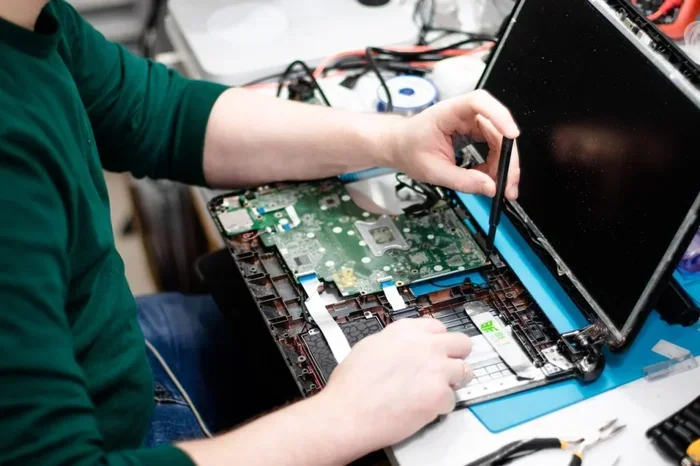
Dealing with an old laptop that throws strange errors can be frustrating. This guide walks you through diagnosing common old laptop issues step by step. You will learn how to identify the root cause and apply simple fixes at home.
Your old laptop starts making weird noises. The screen flickers. Programs crash for no reason. You wonder if it is time to toss it out. Before you do, take a breath. Many strange laptop problems have simple fixes. In this guide, we will show you how to diagnose what is wrong and fix it yourself.
Old laptops can develop all kinds of odd behaviors. Sometimes the cause is software. Other times, it is a worn-out part. Either way, most problems are easier to solve than you think. We will cover the most common issues and give you clear steps to follow. Let us get your laptop back to normal.
Key Takeaways
- Start with basic diagnostics: Check for overheating, unusual sounds, and software errors first.
- Run built-in and free tools: Use Windows diagnostics and manufacturer apps to find hidden problems.
- Hardware upgrades help: Adding RAM or switching to an SSD can revive an old laptop dramatically.
- Know when to seek help: Some issues need professional repair, and that is okay.
- Prevent future problems: Regular maintenance keeps your old laptop running longer.
📑 Table of Contents
Why Old Laptops Develop Strange Problems
Every laptop ages. Over time, parts wear down. Dust builds up inside. Software becomes outdated. These factors combine to create strange symptoms. Understanding why these issues happen helps you fix them faster.
Here are the main reasons old laptops act up:
- Dust buildup clogs fans and vents, causing overheating.
- Worn-out hard drives slow everything down or fail completely.
- Outdated drivers create conflicts and crashes.
- Degraded battery causes sudden shutdowns.
- Insufficient RAM leads to freezing and slow performance.
Once you know the root cause, you can target the right fix. Let us move on to diagnosing your specific problem.
Step 1: Diagnose the Problem
Before jumping to fixes, you need to figure out what is actually wrong. Diagnosing old laptop problems is like being a detective. You observe, test, and narrow things down.
Listen for Unusual Sounds
Your laptop should not make loud clicking or grinding noises. A clicking sound often means the hard drive is failing. A grinding noise might point to a fan hitting something inside. If you hear beeping sounds at startup, write down the pattern. Those beeps are error codes that tell you exactly what is wrong.
Watch for Visual Glitches
Is your screen flickering or showing random lines? This could be a display cable issue or a failing screen. Does the laptop freeze and show a blue screen? That is a Windows crash error that gives you a code to look up. These visual clues help you pinpoint the problem fast.
Check Performance Patterns
Notice when the problem happens. Does the laptop slow down when you open many programs? That suggests a RAM shortage. Does it shut off when you move it? The hard drive or battery might be failing. Tracking when issues occur makes diagnosis much easier.
Use the Task Manager in Windows to check which programs use the most resources. Press Ctrl + Shift + Esc and look at the CPU and memory tabs. This simple step reveals a lot about what is going on inside your laptop.
Step 2: Fix Overheating Issues
Overheating is one of the most common old laptop problems. When a laptop gets too hot, it slows down, shuts off, or freezes. The good news is that fixing overheating is usually straightforward.
Clean the Vents and Fans
Dust blocks airflow inside your laptop. Use a can of compressed air to blow dust out of the vents. Hold the fan still while you do this so you do not damage it. Do this every few months to keep things running cool.
Use a Cooling Pad
A laptop cooling pad helps move air around the bottom of your laptop. This is especially helpful if you use your laptop on a bed or couch. Elevating the laptop slightly also improves airflow.
Check the Thermal Paste
Over time, the thermal paste between the CPU and the heatsink dries out. This reduces heat transfer. Replacing the thermal paste can lower temperatures significantly. If you are not comfortable doing this yourself, a repair shop can handle it for a small fee.
If overheating persists after cleaning, the fan itself might be broken. Replacing a fan is a common and affordable repair.
Step 3: Speed Up a Slow Old Laptop
Does your old laptop take forever to start up? Do programs take ages to open? Slowness is the number one complaint about aging laptops. The good news is that you can often fix it without spending much money.
Switch to an SSD
If your laptop still has a traditional hard drive, swapping it for an SSD is the single biggest upgrade you can make. An SSD loads everything faster. It makes an old laptop feel almost new. Check out our guide on how to install an M.2 NVMe SSD in a laptop if you want to try this yourself.
Add More RAM
Old laptops often come with too little memory. If you have 4GB of RAM, upgrading to 8GB or 16GB makes a huge difference. You can check what type of RAM your laptop needs in our article on how to know what RAM is compatible with your laptop. Make sure to match the type and speed before buying.
Free Up Disk Space
A full hard drive slows everything down. Delete programs you no longer use. Clear your browser cache. Use the built-in Disk Cleanup tool in Windows. These small steps free up space and improve speed.
Disable Startup Programs
Many programs start automatically when you turn on your laptop. They eat up memory and CPU before you even open anything. Open Task Manager, go to the Startup tab, and disable programs you do not need right away. This alone can speed up boot time significantly.
Step 4: Fix Software and Driver Issues
Not all strange problems come from hardware. Sometimes the issue is software-related. Old laptops often struggle with newer operating systems and updated programs.
Update Your Drivers
Outdated drivers cause all kinds of weird behavior. Your mouse might stop working. The sound might cut out. The screen might look blurry. Go to your laptop manufacturer’s website and download the latest drivers for your specific model. This is much safer than using third-party driver update tools.
Run System Diagnostics
Windows has built-in tools that check for problems. Type “troubleshoot” in the Start menu and run the relevant ones. You can also use the built-in “Event Viewer” to look at system logs and find errors that keep repeating.
Scan for Malware
Strange pop-ups, slow performance, and browser redirects often point to malware. Run a full scan with Windows Defender or a trusted free antivirus. Malware loves old laptops because they often have outdated security software.
Reinstall Windows as a Last Resort
If nothing else works, a fresh Windows install can fix deep software issues. Back up your files first. Then use the built-in reset option in Windows. This gives your laptop a clean slate and often solves mysterious problems.
Step 5: Know When to Replace vs. Repair
Not every old laptop is worth fixing. Here are some signs that repair makes sense and signs that it is time for a new laptop.
| Fix It If… | Replace It If… |
|---|---|
| The problem is one part (like a fan or hard drive) | Multiple major parts are failing |
| The repair costs less than half the price of a new laptop | Repair costs more than a budget new laptop |
| The laptop still handles your daily tasks well | The laptop cannot run basic programs anymore |
| You can upgrade RAM or storage easily | The laptop has soldered parts with no upgrade path |
Sometimes the smartest choice is to invest in a laptop with an SSD and 16GB of RAM that fits your budget. A newer machine saves you time and frustration in the long run.
Step 6: Prevent Future Problems
Once you fix your old laptop, keep it healthy with regular maintenance. Prevention is always easier than repair.
- Clean the vents monthly to prevent dust buildup.
- Keep your operating system updated for security and performance.
- Use a surge protector to shield your laptop from power spikes.
- Do not eat or drink near your laptop to avoid spills and crumbs.
- Store it in a cool, dry place when not in use.
- Unplug the charger once the battery reaches 100% to extend battery life.
These simple habits add years to your laptop’s life. You will spend less time fixing problems and more time using your computer.
Final Thoughts
An old laptop with strange problems does not have to be a headache. Most issues are diagnosable and fixable with a little patience. Start with the basics: check for overheating, clean up your software, and run diagnostics. If those steps do not help, consider a hardware upgrade like an SSD or more RAM.
Remember, every problem leaves clues. Listen to your laptop, watch for patterns, and follow the steps in this guide. You will save money and learn valuable skills along the way. Your old laptop might just surprise you with how much life it still has left.
Frequently Asked Questions
What causes an old laptop to make strange noises?
Strange noises usually come from the fan or hard drive. Dust can cause the fan to grind. A failing hard drive makes clicking sounds. Both issues are common in old laptops and are usually fixable.
Is it worth fixing an old laptop that keeps freezing?
It depends on the cause. If freezing comes from low RAM or a slow hard drive, upgrading those parts can help a lot. If the motherboard is failing, the cost of repair may not be worth it.
How do I know if my old laptop has malware?
Look for signs like slow performance, pop-ups, unfamiliar programs, or browser redirects. Run a full antivirus scan to confirm. Old laptops are especially vulnerable because they often lack updated security.
Can I upgrade the RAM in an old laptop?
Most older laptops allow RAM upgrades. Check what type and how much RAM your laptop supports. Our guide on how to upgrade the RAM of a laptop walks you through the process step by step.
Why does my old laptop shut off randomly?
Random shutdowns often point to overheating or a dying battery. Clean the vents first and check the battery health. If neither is the issue, the power circuit on the motherboard might be failing.
How long should an old laptop last with proper care?
With regular maintenance like cleaning vents, updating software, and replacing the battery, a laptop can last 5 to 7 years or more. Some laptops even go longer with major upgrades like an SSD.