Why Is Usb to Hdmi Not Working
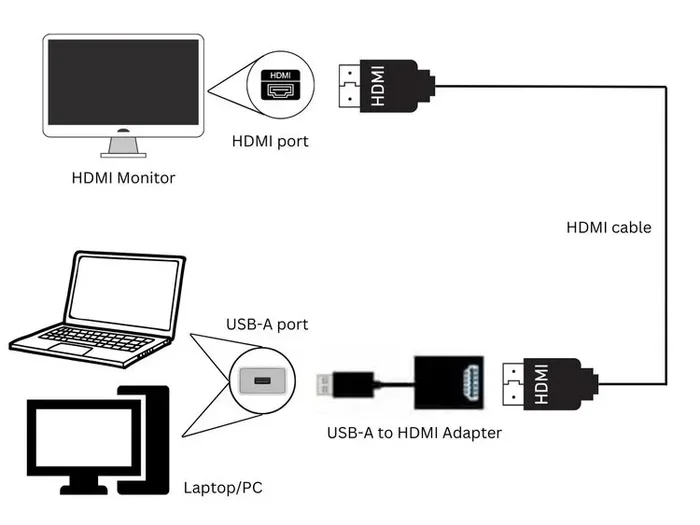
When your USB to HDMI adapter is not working, it can be frustrating, but the causes are usually simple to fix. Common reasons include driver issues, incompatible cables, damaged ports, or incorrect display settings. This guide walks you through every troubleshooting step to get your HDMI output running again quickly and confidently.
This is a comprehensive guide about Why Is Usb To Hdmi Not Working.
Key Takeaways
- Check your cable and adapter first: A faulty cable or incompatible adapter is the most common reason for USB to HDMI failures.
- Update or reinstall drivers: Outdated or missing drivers are a top cause of display detection problems.
- Try a different USB port: Damaged or malfunctioning USB ports can prevent your adapter from being recognized.
- Verify display settings: Your laptop may need manual configuration to extend or mirror to an HDMI display.
- Match your adapter to your USB type: USB-C, USB 3.0, and USB-A adapters all have different requirements and compatibility needs.
[FEATURED_IMAGE_PLACEHOLDER]
Why Is USB to HDMI Not Working?
You plug in your USB to HDMI adapter, wait a moment, and nothing happens. No picture. No signal. Just a blank screen and a sinking feeling. You are not alone. This is one of the most common tech frustrations people face when trying to connect a laptop or desktop to an external monitor, TV, or projector.
The good news is that most USB to HDMI problems have straightforward solutions. Whether you are trying to extend your display, mirror your screen for a presentation, or hook up a gaming monitor, a failed connection can ruin your momentum. Understanding why the connection fails is the first step toward fixing it.
This article covers every major reason your USB to HDMI adapter might not be working. We also walk you through practical fixes you can try right now. From driver updates to cable swaps, you will have a clear path to getting your HDMI display back online.
Common Reasons Why USB to HDMI Is Not Working
Incompatible or Faulty Hardware
The simplest explanation is often the right one. Your adapter, cable, or HDMI port may not be compatible with your device. Not all USB to HDMI adapters are created equal. Some only work with specific USB versions, while others require extra power that your laptop cannot supply through a standard port.
For example, a USB-A to HDMI adapter works differently from a USB-C to HDMI adapter. Plugging the wrong type into the wrong port will not work, no matter how many times you try. Similarly, a damaged HDMI cable or a bent HDMI connector on your monitor will block the signal entirely.
Here are the most common hardware mismatches that cause problems:
- Using a USB 2.0 adapter when your device needs USB 3.0 for video output
- Plugging a USB-C adapter into a USB-A port without an additional adapter
- Using an HDMI cable that is too old to support your display resolution
- Connecting to a monitor or TV with a damaged HDMI input port
Driver and Software Issues
Even with perfect hardware, your computer needs the right software to recognize a USB to HDMI adapter. This is where drivers come in. A driver is a small program that tells your operating system how to communicate with the adapter. Without the correct driver, your laptop simply will not see the HDMI output.
Outdated drivers are one of the leading causes of adapter not detected errors. Windows and macOS both handle display drivers differently, and sometimes a system update can break compatibility with your adapter. If your USB to HDMI adapter stopped working suddenly after an update, a driver issue is very likely the culprit.
Another software issue is that your operating system may not automatically configure the new display. You might need to go into your display settings and manually tell your computer to extend or mirror the screen. This is especially common on Windows laptops where the default setting is to show only on the built-in screen.
How to Fix Your USB to HDMI Connection
Step 1: Check Your Cables and Adapter
Before you dig into software settings, start with the basics. Unplug everything and inspect your cables and adapter for visible damage. Look for bent pins, frayed wires, or loose connections. A USB to HDMI adapter not working is often caused by a simple physical issue.
Try these quick checks:
- Swap the HDMI cable with one you know works
- Plug the adapter into a different USB port on your laptop
- Test the adapter on another computer if possible
- Make sure the HDMI cable is firmly seated in both the adapter and the display
If you have a USB mouse or other USB device that is also acting up on the same laptop, the problem might be with the USB port itself rather than the adapter. In that case, checking resources on why your USB mouse is not working on your laptop can help you determine if the USB port is the root cause.
Step 2: Update or Reinstall Display Drivers
Drivers are the bridge between your hardware and your operating system. When they are outdated, corrupted, or missing, your USB to HDMI adapter will not function. Updating drivers is one of the most effective fixes for display connection problems.
Here is how to update your display drivers on Windows:
- Right-click the Start button and select Device Manager
- Expand the Display adapters section
- Right-click your adapter and select Update driver
- Choose Search automatically for drivers
- Restart your computer after the update completes
If updating does not help, try uninstalling the driver completely and then restarting your computer. Windows will automatically reinstall a fresh copy of the driver during boot. On macOS, you can check for system updates, which often include the latest display drivers.
Step 3: Verify Your Display Settings
Sometimes the adapter works perfectly, but your computer is simply not sending a signal to the HDMI display. This happens when the display settings are set to show only on the built-in screen. Checking your display settings takes just a few clicks and can save you a lot of troubleshooting time.
On Windows, press the Windows key plus P to open the Project menu. You will see options like PC screen only, Duplicate, Extend, and Second screen only. Choose Extend or Duplicate depending on what you need. On macOS, go to System Settings, then Displays, and make sure your external display is detected and configured.
If your laptop does not detect the external display at all, the issue is likely with the adapter or the connection itself, not the settings. But it is always worth checking settings first since it is the quickest fix.
Step 4: Try a Different USB Port
Not all USB ports are the same. Some ports on your laptop may not supply enough power for a USB to HDMI adapter to work properly. USB 2.0 ports, for example, often lack the bandwidth needed for video output. USB 3.0 ports are generally required for reliable HDMI signal transmission.
If you are using a USB hub or docking station, try connecting the adapter directly to your laptop instead. Hubs can sometimes cause power delivery issues that prevent the adapter from being recognized. If you have experience with USB connectivity problems on your laptop, checking guidance on why your mouse is not connecting to your laptop can offer additional insights into USB port troubleshooting.
Step 5: Check for Adapter Compatibility
Not every USB to HDMI adapter works with every laptop. Compatibility depends on your laptop’s USB version, its graphics capabilities, and the adapter’s chipset. Some adapters are designed specifically for Windows, while others work best with macOS. Using an adapter with the wrong operating system support can lead to a USB to HDMI adapter not working situation.
Before purchasing a new adapter, check these compatibility factors:
- Does your laptop have USB-C, USB-A, or both?
- Does the adapter support your laptop’s operating system version?
- Does the adapter support your desired resolution (1080p, 4K, etc.)?
- Does the adapter require external power or does it draw power from the USB port?
If you are dealing with broader USB device recognition issues on your laptop, resources like laptop USB mouse not working can provide additional troubleshooting context for USB connectivity problems.
When to Replace Your USB to HDMI Adapter
Sometimes, no amount of troubleshooting will fix the problem. If you have tried every step above and your adapter still does not work, it may be time to replace it. Hardware failures happen, especially with adapters that are frequently plugged and unplugged or exposed to heat and dust.
Here are signs that your adapter needs to be replaced:
- The adapter gets unusually hot during use
- You see intermittent flickering or random disconnections
- The adapter is not recognized by any computer you try it on
- Physical damage is visible on the adapter’s connectors
- The adapter is more than two years old and has heavy usage
When buying a replacement, look for adapters from reputable brands that support your specific USB type and offer the resolution you need. USB-C adapters with HDMI 2.0 or higher support are the best choice for most users today. They offer faster data transfer and better video quality than older standards.
Expert Tips for a Reliable USB to HDMI Setup
Getting the most out of your USB to HDMI connection is about more than just fixing problems. A few best practices can prevent issues before they start and ensure a smooth experience every time you connect an external display.
First, always use high-quality cables. Cheap HDMI cables may not support the bandwidth needed for higher resolutions, leading to signal drops or no signal at all. Second, keep your drivers updated. Setting a quarterly reminder to check for driver updates can prevent many display issues before they occur. Third, avoid using USB hubs for your adapter when possible. Direct connection to your laptop’s USB port provides the most stable power and data transfer.
If you have experience with USB device problems on your laptop, you might also find it helpful to explore resources on USB mouse not working on laptop for broader USB troubleshooting techniques that apply to adapters as well.
Finally, if your laptop has both USB-C and USB-A ports, always try the USB-C port first for HDMI adapters. USB-C ports are more modern, offer better power delivery, and are more likely to support video output natively. This simple choice can save you from many compatibility headaches.
Conclusion
A USB to HDMI adapter not working is a frustrating problem, but it is almost always solvable. The most common causes are simple: a faulty cable, outdated drivers, wrong display settings, or an incompatible adapter. By working through the troubleshooting steps in this guide, you can identify the root cause and get your external display running again.
Start with the basics, check your cables and ports, update your drivers, and verify your display settings. If none of those steps work, it may be time to invest in a new adapter that is compatible with your setup. With the right adapter and a bit of patience, you will be back to enjoying a bigger, better display in no time.
Remember that USB connectivity issues can sometimes be broader than just one device. If you are also experiencing problems with other USB devices on your laptop, exploring why your laptop mouse is not working can provide additional troubleshooting insights that apply across all USB-connected peripherals.
FAQs
Why does my USB to HDMI adapter keep disconnecting?
Frequent disconnections are usually caused by a loose cable connection, a faulty USB port, or outdated drivers. Try using a different USB port, securing the HDMI cable firmly at both ends, and updating your display drivers. If the problem persists, the adapter itself may be failing and need replacement.
Can I use a USB to HDMI adapter with a USB 2.0 port?
Some USB to HDMI adapters work with USB 2.0 ports, but performance is often poor. USB 2.0 lacks the bandwidth for smooth video output, especially at higher resolutions. For the best experience, use a USB 3.0 port or a USB-C port that supports video output.
Do I need to install software for my USB to HDMI adapter?
Most modern USB to HDMI adapters work plug-and-play on Windows and macOS without additional software. However, some adapters require specific drivers or software for full functionality. Check the manufacturer’s website for the latest driver downloads if your adapter is not being recognized.
Why is my laptop not detecting the HDMI display?
Your laptop may not detect the HDMI display if the adapter is not recognized, the cable is faulty, or the display settings are configured incorrectly. Start by checking the cable and adapter, then go to your display settings and try pressing Windows plus P to cycle through display modes.
Is a USB-C to HDMI adapter better than a USB-A to HDMI adapter?
Yes, USB-C to HDMI adapters are generally better. They offer faster data transfer, better power delivery, and are more widely compatible with modern laptops. Most new laptops come with USB-C ports, making USB-C to HDMI adapters the preferred choice for connecting external displays.
Can I connect multiple monitors using USB to HDMI adapters?
Yes, you can connect multiple monitors using separate USB to HDMI adapters, but your laptop’s USB ports must support the bandwidth required for each display. Using USB 3.0 or USB-C ports for each adapter ensures the best performance. Avoid connecting multiple adapters to the same USB hub, as this can cause bandwidth issues.
Frequently Asked Questions
What is Why Is Usb To Hdmi Not Working?
Why Is Usb To Hdmi Not Working is an important topic with many practical applications.