How Much Ram Do I Need on a Laptop
Choosing the right amount of RAM for your laptop is crucial for smooth performance and multitasking. Whether you’re browsing the web, editing photos, or running demanding software, understanding your needs helps you avoid slowdowns and wasted money. This guide breaks down exactly how much RAM you need based on your specific use case.
Key Takeaways
- 4GB RAM is the bare minimum for basic tasks like web browsing and document editing, but it often leads to sluggish performance.
- 8GB RAM is the sweet spot for most users, handling everyday multitasking, streaming, and light photo editing with ease.
- 16GB RAM is ideal for power users who engage in video editing, 3D modeling, or serious gaming without bottlenecks.
- 32GB or more is for professionals working with massive datasets, virtual machines, or high-end creative software.
- Your operating system and background apps consume RAM, so always account for overhead beyond your primary tasks.
- Upgrading RAM is often possible on many laptops, but some ultrabooks have soldered memory that cannot be changed.
- Future-proofing matters — software demands grow over time, so investing in more RAM now saves headaches later.
📑 Table of Contents
- Introduction: Why RAM Matters for Your Laptop
- What Exactly Is RAM and How Does It Work?
- How Much RAM Do You Need? A Breakdown by Use Case
- Factors That Affect How Much RAM You Need
- Can You Upgrade RAM on Your Laptop?
- RAM Recommendations for Specific User Types
- Common Myths About RAM Debunked
- Future-Proofing: Should You Buy More RAM Than You Need?
- Conclusion: Finding Your Perfect RAM Match
Introduction: Why RAM Matters for Your Laptop
So you’re shopping for a new laptop, or maybe your current one is starting to feel like it’s running through molasses. Either way, you’ve probably stumbled across the term “RAM” and wondered — how much RAM do I actually need on a laptop? It’s one of the most common questions people ask, and honestly, it’s one of the most important ones too.
RAM, or Random Access Memory, is your laptop’s short-term memory. It’s where your computer stores the data it’s actively using right now — your open browser tabs, that spreadsheet you’re working on, the music playing in the background. The more RAM you have, the more tasks your laptop can juggle simultaneously without slowing to a crawl. Think of it like a desk: a bigger desk means more papers you can spread out and work on at the same time.
But here’s the thing — more RAM isn’t always better if you don’t need it. Paying for 32GB when you only browse the web and check email is like renting a warehouse to store a single box of books. In this guide, we’ll walk you through exactly how much RAM you need based on what you actually do with your laptop. No jargon, no confusion — just straight answers.
What Exactly Is RAM and How Does It Work?
The Basics of RAM
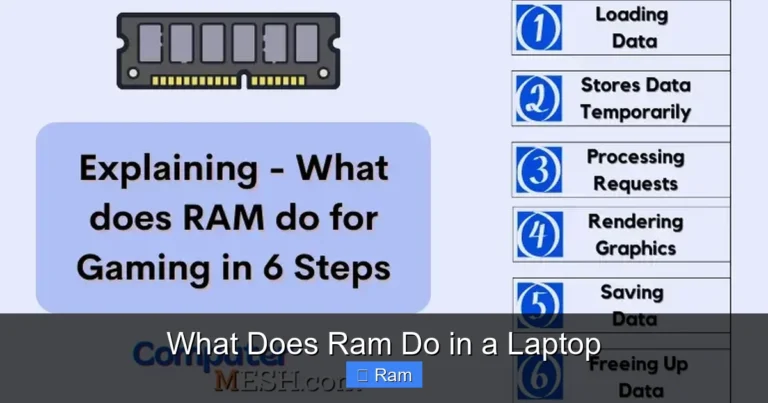
Before we dive into numbers, let’s make sure we’re on the same page about what RAM actually does. When you open a program or file, your laptop pulls that data from your hard drive or SSD (which is long-term storage) and loads it into RAM. Why? Because RAM is dramatically faster than even the best SSD. Your processor can access data stored in RAM almost instantly, which is what makes everything feel snappy and responsive.

Visual guide about How Much Ram Do I Need on a Laptop
Image source: upload.wikimedia.org
Here’s a simple analogy. Imagine you’re cooking dinner. Your pantry is your hard drive — it holds everything, but you have to walk over to get each ingredient. Your kitchen counter is your RAM — it’s where you place the ingredients you’re actively using so you can grab them quickly. A bigger counter means more ingredients within arm’s reach, which means faster cooking.
RAM vs. Storage: Don’t Confuse the Two
One of the most common mix-ups people make is confusing RAM with storage. When a laptop says it has 512GB of storage, that’s your hard drive or SSD — the space where your files, photos, apps, and operating system live permanently. RAM is temporary. The moment you shut down your laptop, everything in RAM gets wiped clean. So when someone asks “how much RAM do I need on a laptop,” they’re asking about active working memory, not file storage space.
This distinction matters because you can have a laptop with a massive 1TB SSD and still struggle with performance if it only has 4GB of RAM. The storage holds your stuff, but RAM determines how smoothly you can use that stuff.
How Much RAM Do You Need? A Breakdown by Use Case
4GB RAM: The Absolute Minimum
Let’s be real — 4GB of RAM in today’s world is like trying to run a marathon in flip-flops. It’ll technically work, but it’s not pretty. With 4GB, you can handle basic tasks like opening a web browser with a few tabs, writing documents in Word or Google Docs, and checking email. That’s about it.

Visual guide about How Much Ram Do I Need on a Laptop
Image source: doctor-fun-life.com
The problem is that modern operating systems are hungry. Windows 11 alone can eat up 2-3GB of RAM just sitting idle. Add a browser with a few tabs, and you’re already maxed out. Your laptop will start using your hard drive as “virtual memory,” which is painfully slow. You’ll notice lag, freezing, and that spinning wheel of frustration.
Who is 4GB for? Honestly, only people on an extremely tight budget who do the absolute bare minimum on their laptop. If you can afford to go higher, you should.
8GB RAM: The Sweet Spot for Most People
If you’re wondering how much RAM you need on a laptop for everyday use, 8GB is where most people should land. It’s the Goldilocks zone — not too little, not too much, just right for the average user.
With 8GB, you can comfortably browse the web with 10-15 tabs open, stream Netflix or YouTube, work on documents, edit photos in basic software like Photoshop Elements, and even do some light multitasking between all of these. Your laptop will feel responsive and smooth for the vast majority of daily tasks.
Most mid-range laptops come with 8GB these days, and for good reason. It handles Windows 11 or macOS without breaking a sweat, leaves plenty of room for your apps, and won’t break the bank. If you’re a student, a casual user, or someone who mainly uses their laptop for productivity and entertainment, 8GB is your answer.
For a deeper dive into whether 8GB is sufficient for your specific situation, check out our guide on how much RAM is good for a laptop.
16GB RAM: For Power Users and Gamers
Now we’re getting into serious territory. 16GB of RAM is what you need if you’re a power user, a gamer, or someone who works with creative software regularly. This amount gives you plenty of headroom for demanding applications and heavy multitasking.
With 16GB, you can run Adobe Premiere Pro or DaVinci Resolve for video editing, work with large Photoshop files, play modern games at decent settings, run multiple virtual machines, and keep dozens of browser tabs open — all at the same time. Your laptop won’t break a sweat.
Gamers especially benefit from 16GB. Many modern games recommend at least 16GB for optimal performance, and having that extra RAM means your system won’t stutter when the game needs to load new textures or handle complex scenes. If you’re into content creation, programming, or data analysis, 16GB should be your starting point.
32GB RAM and Beyond: Professional-Grade Performance
32GB of RAM (or more) is overkill for most people, but for certain professionals, it’s essential. If you’re working with 4K or 8K video editing, 3D rendering in Blender or Maya, running multiple virtual machines simultaneously, or handling massive datasets in scientific computing, 32GB ensures you never hit a memory wall.
Software developers who run Docker containers, local servers, and multiple IDEs will also appreciate the breathing room. Architects using CAD software, music producers running dozens of plugin tracks, and data scientists working with large machine learning models all fall into this category.
The key question to ask yourself is: do my applications actually use this much memory? If you’re not sure, you can check your current RAM usage in Task Manager (Windows) or Activity Monitor (Mac). If you’re consistently using more than 70-80% of your current RAM, it’s time to upgrade.
Factors That Affect How Much RAM You Need
Your Operating System
Not all operating systems are created equal when it comes to RAM consumption. Windows 11 typically uses more RAM than Windows 10, and both use significantly more than lightweight Linux distributions. macOS is generally efficient but still requires a solid baseline — Apple’s M-series chips use “unified memory,” which is shared between the CPU and GPU, making 8GB on a Mac feel closer to 16GB on a Windows machine in some scenarios.

Visual guide about How Much Ram Do I Need on a Laptop
Image source: img-mdpr.freetls.fastly.net
If you’re running Windows, factor in at least 2-3GB for the operating system alone before you even open a single app. This is why 4GB laptops running Windows 11 often feel so sluggish — there’s barely anything left for your actual programs.
Web Browsing Habits
Here’s a surprise for many people: your web browser is probably the biggest RAM hog on your laptop. A single Chrome tab can use anywhere from 50MB to 500MB depending on the website. Open 20 tabs, and you could easily burn through 4-6GB of RAM just on browsing alone.
If you’re the type who keeps dozens of tabs open (no judgment — we all do it), you’ll benefit significantly from 16GB of RAM. Consider using extensions like OneTab or suspending unused tabs to reduce memory usage if upgrading isn’t an option.
Background Applications and Startup Programs
It’s not just the apps you see running that consume RAM. Background processes — antivirus software, cloud sync services like Dropbox or OneDrive, messaging apps, system utilities — all eat into your available memory. Many programs set themselves to launch at startup, silently consuming RAM before you even begin your workday.
Take a moment to review your startup programs and disable anything you don’t need running constantly. This simple step can free up hundreds of megabytes of RAM and make a noticeable difference, especially on systems with 8GB or less.
Can You Upgrade RAM on Your Laptop?
Checking If Your Laptop’s RAM Is Upgradeable
One of the most important things to know before buying a laptop is whether you can upgrade the RAM later. Many traditional laptops have accessible RAM slots that let you add or replace memory modules. However, an increasing number of ultrabooks and thin-and-light laptops — especially Apple MacBooks and devices like the Dell XPS 13 — have RAM soldered directly to the motherboard. That means what you buy is what you’re stuck with forever.
Before purchasing, check the manufacturer’s specifications or look up your specific model to see if the RAM is user-upgradeable. If it is, upgrading is usually straightforward and much cheaper than buying a whole new machine. Our guide on how to upgrade RAM on a laptop walks you through the entire process step by step.
How to Check Your Current RAM
Not sure how much RAM your laptop currently has? It’s easy to find out. On Windows, right-click the Start button, select “System,” and look under “Installed RAM.” On Mac, click the Apple menu, select “About This Mac,” and you’ll see your memory listed. You can also check your RAM usage in real time through Task Manager (Ctrl+Shift+Esc on Windows) or Activity Monitor on Mac.
If you’re consistently seeing your RAM usage above 80-90%, that’s a clear sign you need more. Your laptop is probably using virtual memory (your hard drive) to compensate, which causes that frustrating slowdown you’ve been experiencing.
How Much RAM Can Your Laptop Support?
Every laptop has a maximum RAM limit determined by its motherboard and processor. Most modern laptops support up to 16GB or 32GB, while some high-end models can handle 64GB or more. Check your laptop’s manual or the manufacturer’s website to find the maximum supported RAM before purchasing upgrades.
It’s also important to match the RAM type — DDR4 or DDR5 — and speed to what your laptop supports. Mixing incompatible RAM can cause instability or prevent your laptop from booting altogether. When in doubt, use tools like CPU-Z to identify exactly what type of memory your system uses.
RAM Recommendations for Specific User Types
Students and Casual Users
If you’re a student writing papers, attending online classes, browsing the web, and streaming content, 8GB of RAM is perfect. It handles everything you need without overspending. Many budget-friendly laptops in the $400-$600 range come with 8GB, making them excellent value for students.

Visual guide about How Much Ram Do I Need on a Laptop
Image source: images.fineartamerica.com
Business Professionals
Business users who work with spreadsheets, presentations, email, video conferencing, and multiple browser tabs should aim for at least 8GB, with 16GB being ideal if you regularly work with large Excel files, run virtual desktops, or use resource-intensive business applications.
Content Creators and Designers
Video editors, graphic designers, and music producers should start at 16GB and consider 32GB if working with 4K footage, complex After Effects compositions, or large multi-track audio projects. Creative software like Adobe Creative Suite, Final Cut Pro, and Ableton Live are memory-hungry, and having enough RAM can be the difference between a smooth workflow and constant rendering waits.
Gamers
Modern gaming laptops should have at least 16GB of RAM. While some games still run fine on 8GB, many newer titles list 16GB as the recommended spec. Plus, gamers often have Discord, a web browser, and streaming software running alongside their games, which adds to the memory load. If you’re building or buying a gaming laptop, 16GB is the baseline you should target.
Programmers and Developers
Software developers running IDEs like Visual Studio, IntelliJ, or VS Code, along with Docker containers, local databases, and multiple browser windows for testing, will benefit from 16GB at minimum. If you’re working with virtual machines or large codebases, 32GB provides the headroom needed for a smooth development experience.
Common Myths About RAM Debunked
“More RAM Always Means Faster Performance”
This is only true up to a point. If you’re only using 6GB of RAM for your daily tasks, upgrading from 8GB to 32GB won’t make your laptop feel any faster. RAM only improves performance when you’re actually running out of it. Once you have enough memory to handle your workload, adding more provides zero benefit. It’s like adding more lanes to a highway that already has no traffic — it doesn’t make cars go faster.
“You Need Tons of RAM for Basic Tasks”
On the flip side, some people think they need 16GB or 32GB just to browse the web and watch YouTube. Unless you’re doing something unusual, 8GB handles these tasks perfectly fine. Don’t let marketing or tech enthusiasts convince you that you need more than you actually do. Save that money for a better SSD or a nicer display instead.
“Closing Frees Up RAM Automatically”
While closing apps does free up some RAM, modern operating systems are designed to use available memory efficiently. Windows and macOS will cache frequently used data in unused RAM to speed things up. Seeing high RAM usage in Task Manager isn’t necessarily a problem — it means your system is using its resources effectively. The issue only arises when you don’t have enough RAM for what you’re trying to do.
Future-Proofing: Should You Buy More RAM Than You Need?
Here’s a question that doesn’t have a simple answer. Software requirements tend to increase over time. The apps you use today might need more RAM a year or two from now. Operating system updates also tend to be more resource-intensive. So there’s an argument for buying a bit more RAM than you currently need.
However, if your laptop has upgradeable RAM, you can always add more later — often at a lower cost than buying it pre-installed. If your laptop has soldered RAM (non-upgradeable), then future-proofing becomes much more important. In that case, spending extra for 16GB instead of 8GB is a smart investment that extends the useful life of your machine.
The general rule of thumb: if the price difference between configurations is small (say, $50-$100), go for more RAM. If it’s a significant jump and you’re on a tight budget, buy what you need now and plan to upgrade later if possible.
Conclusion: Finding Your Perfect RAM Match
So, how much RAM do you need on a laptop? The answer depends entirely on what you do with it. For most people, 8GB is the perfect balance of performance and value. Power users and gamers should look at 16GB, while creative professionals and heavy multitaskers will appreciate 32GB or more.

Visual guide about How Much Ram Do I Need on a Laptop
Image source: wallpaperaccess.com
The key takeaway is this: don’t overspend on RAM you won’t use, but don’t skimp so much that your laptop struggles with basic tasks. Assess your actual usage, check what your favorite applications recommend, and make an informed decision. And remember — if your laptop supports upgrades, you can always add more RAM down the road.
Your laptop’s RAM is one of the most impactful upgrades you can make for overall system responsiveness. Choose wisely, and you’ll enjoy a smooth, frustration-free computing experience for years to come.
Frequently Asked Questions
Is 4GB of RAM enough for a laptop in 2024?
4GB of RAM is generally not enough for a smooth experience in 2024. While it can handle very basic tasks like simple web browsing and document editing, modern operating systems and applications quickly consume that amount, leading to sluggish performance and frequent slowdowns.
Is 8GB of RAM enough for everyday laptop use?
Yes, 8GB of RAM is sufficient for most everyday laptop tasks including web browsing, streaming, office work, and light photo editing. It’s the recommended starting point for the majority of users and provides a smooth, responsive experience for typical multitasking.
Should I get 16GB of RAM for gaming?
16GB of RAM is the recommended amount for modern gaming. Many current games list 16GB as the recommended specification, and having this extra memory ensures smooth gameplay while running background apps like Discord, browsers, or streaming software simultaneously.
Can I upgrade the RAM on my laptop later?
It depends on your laptop model. Many traditional laptops have accessible RAM slots that allow upgrades, but ultrabooks and devices like MacBooks often have soldered memory that cannot be changed. Check your laptop’s specifications before assuming an upgrade is possible.
How do I check how much RAM my laptop currently has?
On Windows, right-click the Start button and select “System” to see your installed RAM. On Mac, click the Apple menu and choose “About This Mac.” You can also monitor real-time RAM usage through Task Manager on Windows or Activity Monitor on Mac.
Is it better to have more RAM or a faster SSD?
Both are important, but they serve different purposes. If your laptop doesn’t have enough RAM, adding more will have a dramatic impact on multitasking and overall responsiveness. If you already have sufficient RAM, upgrading to a faster SSD will improve boot times, file loading, and general system snappiness. Ideally, aim for at least 8GB of RAM and an SSD for the best experience.