Replacing Ram in a Laptop
Replacing RAM in a laptop is one of the easiest and most affordable ways to speed up your computer. This guide walks you through every step, from checking your current memory to installing new modules safely. You will learn how to find compatible RAM, open your laptop, and complete the upgrade in under 30 minutes.
Is your laptop running slow? Are apps taking forever to open or your browser keeps freezing with too many tabs? The problem might be your replacing ram in a laptop situation. Adding or swapping out memory is one of the fastest and cheapest ways to breathe new life into an older machine.
Many people think they need to buy a whole new laptop when their computer starts lagging. But that is rarely true. In most cases, a simple RAM upgrade does the trick. Whether you are a student, a remote worker, or a casual user, understanding how memory works and how to upgrade it can save you hundreds of dollars.
This guide covers everything you need to know about replacing ram in a laptop. We will walk you through checking your current memory, buying the right modules, and installing them step by step. By the end, you will feel confident doing it yourself.
Key Takeaways
- Replacing RAM in a laptop is simple, affordable, and delivers instant performance gains.
- Always check your laptop model and RAM type before buying new memory.
- You only need basic tools like a screwdriver and an anti-static wrist strap.
- Most laptops have one or two RAM slots that are easy to access.
- Installing the wrong RAM can cause compatibility issues, so match the specs carefully.
- Upgrading your RAM can improve multitasking, speed up apps, and extend your laptop’s lifespan.
📑 Table of Contents
- Why Replacing RAM in a Laptop Makes a Big Difference
- Understanding RAM Types and Compatibility
- Tools and Preparation for Replacing RAM
- Step-by-Step Guide to Replacing RAM in a Laptop
- Common Mistakes to Avoid When Replacing RAM
- When to Consider Professional Help
- Maximizing the Benefits of Your New RAM
Why Replacing RAM in a Laptop Makes a Big Difference
Your laptop’s RAM, or system memory, acts as short-term storage for active tasks. When you open a browser, a game, or a video editor, that program loads into RAM. The more RAM you have, the more apps you can run at the same time without slowdowns.
Over time, software becomes heavier and demands more memory. What felt fast two years ago might feel sluggish today. That is where upgrading comes in. Swapping out old memory for newer, larger modules can make your laptop feel like a brand-new machine.
Signs Your Laptop Needs More RAM
Not sure if your laptop needs a memory boost? Look for these common signs:
- Your laptop takes a long time to wake from sleep mode.
- Apps crash or freeze frequently, especially when multitasking.
- Your browser slows down with more than a few tabs open.
- You see messages about low memory or virtual memory usage.
- Games or video editing software stutter or lag during use.
If you notice any of these issues, it is worth checking your current memory and considering an upgrade. You can learn how to check your laptop RAM using built-in tools in Windows or macOS.
Understanding RAM Types and Compatibility
Before you buy new memory, you need to know what kind your laptop uses. Not all RAM is the same, and putting the wrong type into your computer will not work.
DDR3 vs DDR4 vs DDR5
RAM comes in different generations, and each generation is not backward compatible. Here is a quick look at the most common types:
- DDR3: An older standard found in laptops from 2010 to 2017. It runs slower but is still common in budget machines.
- DDR4: The current mainstream standard. Most laptops made after 2017 use DDR4 memory for better speed and efficiency.
- DDR5: The newest generation. It offers even faster speeds and is starting to appear in newer premium laptops.
You must match the RAM generation to your laptop’s motherboard. Check your laptop manual or look up your model number online to find the correct type.
Form Factor: SODIMM Modules
Laptops use smaller memory modules called SODIMMs, which are different from the larger DIMMs used in desktop computers. Always make sure you buy laptop-specific SODIMM modules when you are replacing ram in a laptop.
Speed and Capacity
RAM speed is measured in megahertz (MHz). Higher numbers generally mean faster performance, but the real-world difference is often small for everyday tasks. Capacity, measured in gigabytes (GB), matters more for most users. Here is a quick comparison:
- 4GB: Basic use only. Suitable for web browsing and word processing.
- 8GB: The sweet spot for most users. Handles multitasking and light creative work well.
- 16GB: Great for heavy multitasking, gaming, and video editing.
- 32GB or more: Best for professional workloads like 3D rendering or running virtual machines.
If you are unsure what capacity you need, our guide on how much RAM you need can help you decide based on your usage.
Tools and Preparation for Replacing RAM
One of the best things about upgrading laptop memory is that you need very few tools. Here is what you should gather before you start:
- A small Phillips-head screwdriver (usually size #1 or #0).
- An anti-static wrist strap (optional but recommended).
- A clean, flat workspace with good lighting.
- The new RAM modules you have purchased.
- Your laptop’s user manual or a service guide for your specific model.
Before touching any internal components, power off your laptop completely and unplug it from the wall. Remove the battery if it is removable. This prevents electrical damage and keeps you safe during the process.
Working on a hard, non-carpeted surface helps reduce static buildup. If you have an anti-static wrist strap, clip it to a metal part of the laptop chassis. These small precautions protect your new memory modules from electrostatic discharge.
Step-by-Step Guide to Replacing RAM in a Laptop
Now comes the fun part. Follow these steps carefully, and you will have your new memory installed in no time.
Step 1: Find the RAM Access Panel
Flip your laptop over and look at the bottom. Many laptops have a small rectangular panel marked with a memory icon or the word “RAM.” This panel gives you direct access to the memory slots without needing to disassemble the entire laptop.
If your laptop does not have a dedicated RAM panel, you may need to remove the entire bottom cover. Check your model’s service guide for specific instructions.
Step 2: Open the Panel and Locate the RAM Slots
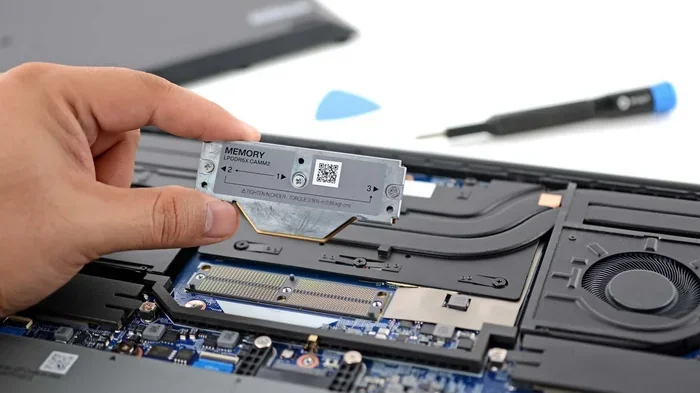
Use your screwdriver to remove the screws holding the panel in place. Set them somewhere safe. Gently lift the panel off. Inside, you will see one or two memory slots with RAM sticks already inserted.
Take a moment to observe how the existing RAM is seated. Notice the small metal clips on either side of each module. These clips hold the RAM in place and will need to be released during removal.
Step 3: Remove the Old RAM
To remove the old memory, gently push the metal clips outward. The RAM stick will pop up at an angle. Then, carefully pull it straight out of the slot.
Repeat this process for any additional RAM sticks you want to replace. Handle the modules by the edges only. Avoid touching the gold contacts on the bottom, as oils from your fingers can cause connection issues.
Step 4: Insert the New RAM
Take your new SODIMM module and align it with the slot. The notch on the gold connector should match the ridge inside the slot. This ensures correct orientation.
Insert the module at a 30- to 45-degree angle. Press it down firmly and evenly until the metal clips snap into place on both sides. You should hear a click, which confirms the module is securely seated.
Step 5: Close the Panel and Power On
Replace the access panel and screw it back in. Reconnect the battery if you removed it. Power on your laptop and check if the system recognizes the new memory.
On Windows, you can right-click the Start button and select Task Manager. Go to the Performance tab and click Memory. You should see your new total RAM listed there. On macOS, click the Apple menu and choose About This Mac to see your memory details.
If the new RAM is not recognized, try reseating the modules. Sometimes they need a little extra pressure to click fully into place.
Common Mistakes to Avoid When Replacing RAM
Even though replacing ram in a laptop is straightforward, mistakes can happen. Here are the most common ones to watch out for:
- Buying incompatible RAM: Always double-check your laptop model and required RAM type before purchasing. Mixing DDR3 and DDR4, for example, will not work.
- Forgetting to discharge static: Skipping the anti-static precautions can damage sensitive components. Always ground yourself before handling RAM.
- Forcing the module: If the RAM does not slide in easily, check the alignment. Forcing it can bend the pins and ruin the module.
- Not seating the module fully: A partially inserted RAM stick will not be recognized by the system. Make sure the clips snap completely.
- Mixing different speeds or brands: While it often works, mixing RAM can sometimes cause instability. Using matched pairs is always the safest approach.
When to Consider Professional Help
Most people can replace RAM in a laptop without any issues. But there are situations where getting professional help makes sense. If your laptop has a sealed battery or a design that is difficult to open, a technician can handle it safely. Similarly, if you are uncomfortable working with internal components, there is no shame in asking for help.
Many local repair shops offer RAM installation services for a reasonable fee. You can also check if your laptop manufacturer offers upgrade services. Investing a little extra for peace of mind is always worth it.
After your upgrade, you may notice a big difference in how your laptop handles daily tasks. If you want to learn more about what RAM does and how it impacts performance, read our article on what RAM is good for in a laptop.
Maximizing the Benefits of Your New RAM
Once you have successfully installed your new memory, there are a few things you can do to get the most out of it:
- Keep your system updated: Software updates often include performance improvements that complement your new hardware.
- Close unused apps: Even with more RAM, running too many programs at once can slow things down.
- Check for malware: Malicious software can eat up memory resources. Run a trusted antivirus scan regularly.
- Consider a full upgrade path: If your laptop supports it, adding more RAM later can further boost performance. Check out our guide on how to expand RAM in a laptop for future upgrade ideas.
Replacing RAM in a laptop is a skill that pays off every time you use your computer. It is fast, affordable, and one of the most effective upgrades you can make. Whether you are fixing a slow machine or preparing for heavier workloads, a memory upgrade delivers real results.
Take your time, follow the steps carefully, and enjoy the boost. Your laptop will thank you.
Frequently Asked Questions
Can I replace RAM in any laptop?
Most laptops allow RAM upgrades, but some thin or budget models have soldered memory that cannot be replaced. Check your laptop model specifications before purchasing new RAM. Look for removable SODIMM slots to confirm upgradeability.
How do I know which RAM is compatible with my laptop?
Check your laptop’s user manual or look up your model number online. Pay attention to the RAM type (DDR3, DDR4, or DDR5), speed, and maximum supported capacity. Matching these specs ensures proper compatibility and performance.
Is it safe to replace RAM by myself?
Yes, replacing RAM is one of the safest laptop upgrades you can do. Just make sure to power off the laptop, discharge static, and handle the modules carefully by the edges. Follow each step, and the process is straightforward.
How much does it cost to replace RAM in a laptop?
A single 8GB DDR4 SODIMM module typically costs between $20 and $40. Prices vary based on speed and brand. Compared to buying a new laptop, upgrading RAM is a very affordable way to improve performance.
Will adding more RAM make my laptop faster?
Adding RAM improves multitasking and reduces slowdowns when running multiple apps. However, if your processor or storage is the bottleneck, RAM alone may not solve all performance issues. It works best as part of a balanced system.
How long does it take to replace RAM in a laptop?
Most people complete the entire process in 15 to 30 minutes. Once you have the right RAM and a few basic tools, the actual installation takes only a few minutes. The research and purchasing step usually takes the most time.