Are All Printer Usb the Same
Not all printer USB cables are the same. USB Type-B, USB 2.0, USB 3.0, and USB-C all offer different speeds, connector shapes, and compatibility levels. Choosing the right cable matters for print speed, reliability, and long-term performance.
This is a comprehensive guide about Are All Printer Usb The Same.
Key Takeaways
- USB connectors vary by type: USB Type-B, Mini-B, Micro-B, and USB-C all serve different printer models and eras.
- USB version affects speed: USB 2.0 and USB 3.0 deliver very different data transfer rates that directly impact large print jobs.
- Cable length matters: Longer USB cables can cause signal loss and slower printing.
- Not all printers use the same port: Older printers use USB-B while newer models may support USB-C.
- Adapters can help bridge gaps: USB adapters let you connect modern cables to older printers and vice versa.
- Cheap cables cause problems: Low-quality USB cables lead to dropped connections and frustrating print failures.
[FEATURED_IMAGE_PLACEHOLDER]
Are All Printer USB Cables the Same?
If you have ever grabbed a random USB cable from a drawer and plugged it into your printer, you already know the frustration that follows. Sometimes it works. Sometimes it does not. Sometimes your computer recognizes the printer but the print job crawls along at a painfully slow pace.
The truth is that not all printer USB cables are the same. They come in different shapes, sizes, speeds, and configurations. The cable you choose directly affects how well your printer performs. A mismatched cable can cause connection drops, slow print speeds, and even prevent your printer from working at all.
In this guide, we break down everything you need to know about printer USB connections. You will learn about the different USB types, how cable speed matters, which connectors your printer likely uses, and how to pick the right cable every time. Let us get into it.
Understanding USB Types Used in Printers
Printers have used several USB connector types over the years. Each type looks different and serves a specific purpose. Knowing which one your printer needs saves you time and money.
USB Type-B (The Standard Printer Connector)
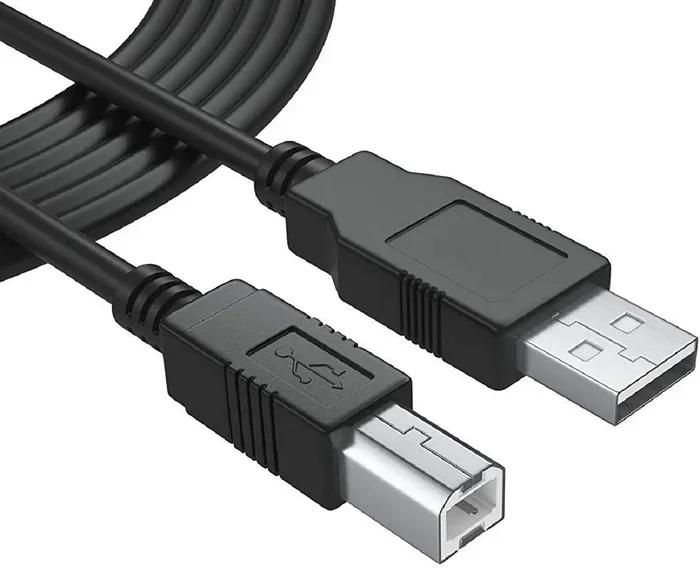
USB Type-B is the most common connector found on printers. It is the square-ish plug that you see on the back of most laser printers and inkjet printers. This connector has been the standard for decades. If your printer was made before 2015, there is a very good chance it uses a USB Type-B port.
You will need a USB-A to USB-B cable to connect this type of printer to your computer. These cables are widely available and inexpensive. Most printers still ship with this cable in the box.
Mini-USB and Micro-USB Connectors
Some smaller printers, especially portable photo printers, use Mini-USB or Micro-USB connectors. These look similar to the charging ports on older phones. They are less common in modern printers but you will still find them on compact and mobile printing devices.
If you own a portable printer, check which connector it uses before buying a replacement cable. Mixing up Mini-USB and Micro-USB is an easy mistake to make.
USB-C on Modern Printers
Newer printers are starting to adopt USB-C connectors. USB-C is reversible, meaning you can plug it in either way. It also supports faster data transfer and can carry more power. Some modern all-in-one printers and photo printers now include USB-C ports alongside or instead of USB Type-B.
If you have a newer printer model, check the specifications to see if it supports USB-C. This is especially relevant if you are using a laptop that only has USB-C ports, like many modern thin laptops.
USB Versions and Their Speeds: Does It Matter for Printing?
USB technology has evolved over the years. Each version brings faster data transfer speeds. For printing, the version of USB you use can make a real difference, especially with large files.
USB 2.0 vs USB 3.0
USB 2.0 is the older standard. It transfers data at up to 480 Mbps. For most everyday printing tasks, USB 2.0 works fine. You can print documents, photos, and basic graphics without noticeable delays.
USB 3.0, on the other hand, transfers data at up to 5 Gbps. That is more than ten times faster than USB 2.0. If you frequently print high-resolution photos or large graphic files, USB 3.0 can significantly reduce wait times.
Here is a quick comparison:
- USB 2.0: Up to 480 Mbps. Sufficient for documents and basic prints.
- USB 3.0: Up to 5 Gbps. Ideal for large photo prints and graphic files.
- USB 3.1: Up to 10 Gbps. Found on newer devices and adapters.
The good news is that USB 3.0 cables are backward compatible with USB 2.0 ports. Your printer will still work, just at the slower speed. Similarly, a USB 2.0 cable works in a USB 3.0 port. But you will only get the speed of the slower device.
When you are shopping for cables, you may come across universal adapters. For example, if you are working with storage devices that use USB connectivity, you might encounter solutions like M.2 NVMe SSD USB enclosures that show how versatile USB connectivity has become across devices. The same universal USB standard applies to printers as well.
Does USB Speed Affect Print Quality?
USB speed does not affect print quality. Your printer produces the same image or text regardless of the USB version. However, speed does affect how quickly your computer sends the print data to the printer. For large files, a faster USB connection means less waiting.
How to Choose the Right USB Cable for Your Printer
Choosing the right USB cable is simpler than you might think. You just need to match the connector type and consider the cable length and speed.
Step 1: Check Your Printer Port
Look at the USB port on your printer. Is it a square Type-B port? A small Micro-USB port? A reversible USB-C port? Identify the shape first. This tells you exactly which cable you need.
Step 2: Match the Connector on Your Computer
Most desktop computers have USB-A ports. Most modern laptops are switching to USB-C. Make sure your cable has the right connector on both ends. A USB-A to USB-B cable works for most traditional printers. A USB-C to USB-B cable works for newer printers with USB-C computers.
If you need to bridge different connector types, adapters are your friend. The same principle applies across USB devices. For instance, when connecting storage drives through USB, many people use NVMe SSD to USB adapters to make older connections work with newer hardware. The same adapter logic applies when your printer and computer use different USB generations or connector types.
Step 3: Consider Cable Length
USB cables come in various lengths, typically from 1 foot to 16 feet. Shorter cables generally provide a more stable connection. Longer cables can work, but signal quality may degrade past 6 to 10 feet.
For best results, use the shortest cable that reaches from your printer to your computer. If you need a longer run, consider a USB hub or an active repeater cable that boosts the signal.
Step 4: Buy Quality Cables
Not all USB cables are created equal. Cheap, unbranded cables may not deliver consistent data transfer. They can cause intermittent connection drops, slow printing, or fail to work at all.
Look for cables from reputable brands. Check for USB-IF certification if possible. A well-made cable costs a few dollars more but saves you from countless headaches.
Common Printer USB Problems and How to Fix Them
Even with the right cable, printer USB issues can happen. Here are the most common problems and their solutions.
Computer Does Not Recognize the Printer
This is the most common issue. Try these steps:
- Unplug the USB cable from both the printer and the computer.
- Wait 10 seconds and plug it back in.
- Try a different USB port on your computer.
- Test with a different USB cable to rule out a faulty cable.
If the problem persists, you may need to update or reinstall the printer drivers. Most operating systems handle this automatically, but a manual update through Device Manager (Windows) or System Preferences (Mac) often helps.
Slow Print Speeds
If your prints take forever, the USB cable might be the culprit. A damaged or low-quality cable can throttle data transfer. Try replacing the cable first before assuming the printer is slow.
Also check which USB port you are using. A USB 3.0 port on a USB 2.0 cable will not give you USB 3.0 speeds. Upgrade to a USB 3.0 cable if your printer and computer both support it.
Intermittent Connection Drops
If your printer randomly disconnects during a print job, the cable may be loose or damaged. Wiggle the connectors gently while the printer is running. If the connection drops, the cable is likely the problem.
Another common cause is a USB hub that does not supply enough power. Connect the printer directly to the computer instead of through a hub and see if the problem goes away.
USB Adapters: When You Need a Bridge Between Old and New
Not every printer has a USB port that matches your computer. This is especially true as devices evolve. USB adapters solve this problem by bridging different connector types and USB generations.
For example, if your printer has a USB-B port but your new laptop only has USB-C, a simple USB-C to USB-B adapter solves the problem. These adapters are small, inexpensive, and widely available.
Similarly, if you are using a laptop from a top manufacturer, the USB port layout may vary. Checking the best laptop brands can help you understand which models offer the most versatile USB port options for connecting peripherals like printers.
When shopping for adapters, look for ones that support the USB version you need. A USB 3.0 adapter will give you faster speeds than a USB 2.0 adapter. Some adapters also include additional USB ports, letting you connect multiple devices through a single computer port.
Keep in mind that adapters add a small point of potential failure. A direct cable connection is always more reliable than a connection through an adapter. Use adapters when you must, but prefer direct connections whenever possible.
Do You Need a Special USB Cable for Wireless Printers?
Many modern printers support wireless connections through Wi-Fi or Bluetooth. You might wonder if you even need a USB cable at all. The answer depends on your setup.
For initial setup, most wireless printers still require a USB connection during the first installation. This lets the printer communicate with your computer to install drivers and configure network settings. After setup, you can disconnect the USB cable and print wirelessly.
However, a USB connection remains useful for several situations:
- Printing large files: USB provides a more stable connection for large print jobs than wireless.
- Troubleshooting: A USB connection helps diagnose whether a problem is with the printer or the network.
- Network-free printing: If your Wi-Fi goes down, USB keeps you printing.
You do not need a special USB cable for wireless printers. Any standard USB cable that matches your printer port will work for the initial setup and wired backup printing.
Expert Tips for Getting the Most Out of Your Printer USB Connection
Follow these practical tips to keep your printer USB connection running smoothly.
- Label your cables. If you have multiple USB cables, label them so you always grab the right one for your printer.
- Keep spare cables on hand. USB cables fail more often than you expect. Having a backup saves you from a printing emergency.
- Avoid running USB cables near power cords. Electrical interference from power cables can disrupt USB data transfer and cause connection issues.
- Clean your USB ports regularly. Dust and debris can build up in USB ports and cause poor connections. A quick blast of compressed air works wonders.
- Update your printer drivers. Outdated drivers can cause USB recognition problems even when the cable is perfectly fine.
Final Thoughts
So, are all printer USB cables the same? The answer is clearly no. Different connectors, different speeds, and different quality levels all play a role in how well your printer performs. The right USB cable ensures fast, reliable printing every time.
Take a moment to identify which connector type your printer uses. Check whether USB 2.0 or USB 3.0 suits your needs. Buy quality cables from reputable brands. And keep a spare cable handy for when the original one fails.
These small steps make a big difference. Your printer will print faster, connect more reliably, and give you fewer headaches. A simple USB cable might seem like a minor detail, but it is one of the most important parts of your printing setup.
Frequently Asked Questions
Can I use any USB cable to connect my printer?
No, you need a cable that matches your printer’s port type. Most printers use USB Type-B ports, which require a USB-A to USB-B cable. Using the wrong connector will not work even if the cable looks similar.
Does a longer USB cable slow down printing?
Longer cables can cause slight signal degradation, especially beyond 10 feet. For best results, use the shortest cable that reaches your printer. If you need a longer cable, consider an active USB repeater cable that boosts the signal.
Is USB 3.0 backward compatible with USB 2.0 printers?
Yes, USB 3.0 cables work with USB 2.0 ports and vice versa. However, you will only get the speed of the slower connection. A USB 3.0 cable plugged into a USB 2.0 port will operate at USB 2.0 speeds.
Can I use a USB hub to connect multiple printers?
Yes, but USB hubs share bandwidth across all connected devices. If you connect multiple printers to one hub, each printer gets a portion of the total speed. For best performance, connect each printer directly to your computer.
Why does my printer keep disconnecting via USB?
Frequent disconnections are usually caused by a damaged cable, a loose connection, or a faulty USB port. Try a different cable first, then test a different port on your computer. If the problem continues, the printer’s USB port may need professional inspection.
Do USB-C printers need special cables?
USB-C printers use standard USB-C cables, which are widely available. Make sure the cable supports data transfer, not just charging. Some USB-C cables only carry power and will not transmit print data to your printer.