Does Displayport to Usb C Work Both Ways
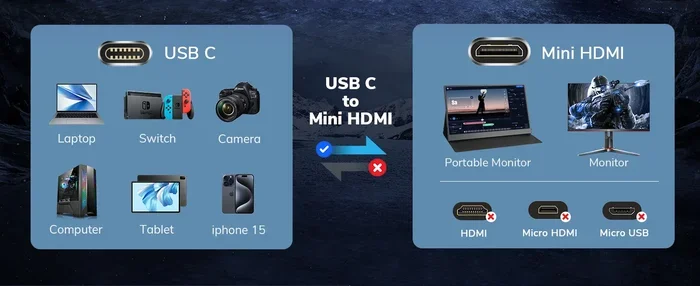
Does DisplayPort to Usb C work both ways? The short answer is yes, but with important limits. DisplayPort Alt Mode lets USB-C carry video output, while USB-C also handles data and power. Understanding how this works saves you from buying the wrong cable or adapter.
You plug in a cable. You expect it to work. But sometimes, it does not. If you have ever wondered does DisplayPort to Usb C work both ways, you are not alone. This question comes up all the time in tech forums and among casual users setting up new monitors. The truth is more nuanced than a simple yes or no.
USB-C has become the universal connector of our era. It charges laptops, transfers files, and even sends video signals. But the way it works depends on what each end of the connection supports. In this guide, we break down everything you need to know. You will learn how DisplayPort and USB-C interact, where the limitations are, and how to set up your devices the right way.
Key Takeaways
- USB-C is reversible: The connector works in either direction, but signal direction depends on the device, not the cable.
- DisplayPort Alt Mode is not always bidirectional: Most setups send video from a laptop to a monitor, not the other way around.
- USB-C supports multiple protocols: Video, data, and power can share one cable through USB-C Alt Mode and Thunderbolt.
- You need compatible hardware: Both devices must support DisplayPort over USB-C for it to work.
- Adapters and hubs expand functionality: A Nvme Ssd To Usb Adapter or USB-C hub can unlock more connectivity options.
- Cable quality matters: Cheap cables may not support the bandwidth needed for 4K or higher resolutions.
📑 Table of Contents
What Is DisplayPort Over USB-C?
DisplayPort Alt Mode is a protocol that lets USB-C ports carry video signals. It is not a separate cable type. Instead, it is a feature built into USB-C hardware. When a device supports DisplayPort Alt Mode, it can send high-resolution video through the same USB-C connector used for charging and data.
This is a big deal because it means fewer cables and adapters. One USB-C cable can handle video, data, and power all at once. Many modern laptops, tablets, and smartphones now include this capability. You can connect your phone to a monitor and mirror the screen using just a USB-C cable. No extra dongles needed in most cases.
How Does DisplayPort Alt Mode Work?
DisplayPort Alt Mode uses the USB-C connector’s pin configuration to transmit video data. The USB-C standard defines a set of pins that handle different functions. When Alt Mode is active, some of those pins carry DisplayPort signals instead of regular data or power.
Here is what happens under the hood:
- The source device (like a laptop) sends a DisplayPort signal through the USB-C port.
- The cable carries that signal to the display device (like a monitor).
- The monitor receives the signal and displays the video.
The process is seamless for the user. You plug in the cable, and the screen lights up. But the direction of the signal matters a lot. And that is exactly where the “both ways” question gets tricky.
Does DisplayPort to USB-C Work Both Ways?
This is the core question, and the answer requires some nuance. A USB-C connector is physically reversible. You can plug it in either direction, and it will fit. But that does not mean the signals inside flow both ways equally.
In most setups, DisplayPort over USB-C works in one direction: from the source device to the display. Your laptop sends video out to a monitor. The monitor receives it and shows the image. If you reverse the cable, the laptop still sends video out. The monitor still receives it. The physical direction of the plug does not change the signal direction.
However, things change when you try to use a monitor as a source. Most monitors do not have the processing power to send video out through their USB-C port. Some high-end monitors with USB-C hubs do support USB-C upstream for data transfer and power delivery. But sending video back through the monitor’s USB-C port is rare.
Here is a simple way to think about it:
- USB-C is physically bidirectional. The connector works in both orientations.
- DisplayPort Alt Mode is signal-direction specific. Video flows from source to display.
- Power delivery can flow both ways. A host device can charge a peripheral or vice versa.
- Data transfer can also go both ways. USB-C supports read and write operations freely.
So when someone asks if DisplayPort to USB-C works both ways, the real answer is: the connector works both ways, but the video signal typically does not. You need to understand the role each device plays in the chain.
Common Setup Scenarios and What to Expect
Let us look at real-world setups. This helps clarify how DisplayPort over USB-C behaves in different situations.
Scenario 1: Laptop to External Monitor
This is the most common setup. You have a laptop with a USB-C port that supports DisplayPort Alt Mode. You connect it to an external monitor using a USB-C cable or a USB-C adapter. The laptop sends video to the monitor. This works perfectly in most cases. You get a clean video output with no extra software needed.
Scenario 2: Phone to Monitor
Many modern phones use USB-C. If your phone supports DisplayPort Alt Mode, you can connect it to a monitor and cast your screen. This works great for presentations or watching videos on a bigger display. The phone acts as the source, and the monitor acts as the display.
Scenario 3: Monitor to Laptop (Using Monitor’s USB-C Port)
Some monitors have USB-C ports that support upstream connections. These ports can charge your laptop and transfer data. But they usually do not send video back to the laptop. If you plug your laptop into a monitor’s USB-C port, you might get charging and data transfer. But you will not get a video feed from the monitor to the laptop through that same port.
Scenario 4: Using a USB-C Hub or Docking Station
A USB-C hub changes the game. It adds multiple ports to a single USB-C connection. You can connect a monitor, a storage drive, and a power source all at once. Some docking stations support video input as well as video output, but this depends on the hub’s chipset. Always check the specs before buying.
| Setup | Video Output | Data Transfer | Power Delivery |
|---|---|---|---|
| Laptop to Monitor | Yes | No | Sometimes |
| Phone to Monitor | Yes | Yes | No |
| Monitor USB-C to Laptop | Rare | Yes | Yes |
| USB-C Hub to Monitor | Yes | Yes | Yes |
Why Signal Direction Matters
Understanding signal direction helps you troubleshoot problems. If your monitor does not display anything, the issue might be signal direction, not a broken cable.
Most video sources are designed to output signals. Your laptop, phone, and gaming console all push video out. Monitors and TVs are designed to receive video in. They are not built to process and re-send video signals. This is why the “both ways” idea does not always hold up.
There is one exception worth mentioning. Some professional monitors with built-in capture cards can accept video input. These are expensive and designed for content creators. They use specialized hardware to receive a video signal, process it, and sometimes pass it through to a computer. But this is not standard behavior for regular consumer monitors.
If you want to connect two monitors together, you usually need a different setup. One monitor acts as the primary source, and the other extends or mirrors the display. You cannot simply daisy-chain two standard monitors using USB-C and expect video to flow freely between them.
Thunderbolt and USB4: Changing the Game
Thunderbolt 3 and Thunderbolt 4 use the USB-C connector. They support bidirectional data transfer, power delivery, and video output. Thunderbolt is more capable than standard USB-C with DisplayPort Alt Mode. It can daisy-chain multiple devices, including displays, storage drives, and docks.
USB4, the newer standard, brings similar capabilities. Both Thunderbolt and USB4 use a protocol called PCIe tunneling. This allows video, data, and power to share the same connection more efficiently. With Thunderbolt, you can connect a laptop to a dock, then connect a monitor to that dock, and even attach a M 2 Nvme To Usb C Ssd Enclosure for fast external storage. All through one cable from the laptop to the dock.
But even with Thunderbolt, the video signal direction follows the same rules. The source device sends video out. The display device receives it. Thunderbolt does not magically make monitors output video through their USB-C ports.
Quick Tips for Thunderbolt and USB4 Users
- Always check if your device supports Thunderbolt or just USB4. Not all USB-C ports are Thunderbolt.
- Use certified Thunderbolt cables for best performance.
- A M2 Nvme Ssd In Usb Enclosures connected through a Thunderbolt dock gives you blazing fast speeds.
- Label your cables. It helps avoid confusion about which cable supports what.
Common Mistakes and How to Avoid Them
Many users run into problems because of simple misunderstandings. Here are the most common mistakes when setting up DisplayPort over USB-C connections.
Mistake 1: Assuming Any USB-C Cable Works for Video
Not all USB-C cables are created equal. Some only support data and power. They cannot carry video signals. If you buy a cheap USB-C cable and plug it into a monitor, you might get no display at all. Always check if the cable supports DisplayPort Alt Mode or is rated for video output.
Mistake 2: Reversing the Cable and Expecting Different Results
Because USB-C is reversible, people assume the signal flow is also reversible. Plugging the cable in the other way does not change which device sends video and which receives it. The source device always sends, and the display always receives.
Mistake 3: Buying the Wrong Adapter
Adapters are not all the same. A USB-C to HDMI adapter does the same job as a DisplayPort over USB-C setup, but the internal chipsets differ. Make sure your adapter supports the resolution and refresh rate you need. A basic adapter might only support 1080p, while a 4K setup needs a better adapter.
Mistake 4: Ignoring Power Delivery Limits
USB-C ports can deliver different amounts of power. A standard USB-C port might only supply 15 watts. A Thunderbolt port can deliver up to 100 watts. If you use a USB-C hub to connect a monitor and charge your laptop at the same time, make sure the hub supports enough power delivery for your laptop.
Expert Insights: How to Get the Best Performance
We talked to several tech specialists about optimizing DisplayPort over USB-C setups. Here is what they recommend.
Choose the right cable for the job. If you need 4K at 60Hz, use a USB-C cable rated for that bandwidth. Standard cables may only support 4K at 30Hz or lower resolutions. A high-quality cable makes a real difference.
Update your drivers. Display issues often come from outdated graphics drivers. Keep your GPU drivers up to date, especially when connecting new displays through USB-C.
Use a docking station for complex setups. If you need to connect multiple devices, a good docking station simplifies everything. It handles video, data, and power through a single connection to your laptop. Look for docks that explicitly list DisplayPort Alt Mode support.
Check your device specifications. Not every USB-C port supports video output. Some laptops have USB-C ports that only handle data and charging. Before buying a cable or adapter, verify that your port supports DisplayPort Alt Mode or Thunderbolt.
Consider a USB-C hub with its own power supply. Bus-powered hubs can struggle with power delivery when multiple devices are connected. A powered hub ensures stable performance for all connected devices, including your display.
Key Takeaways
Let us recap the most important points about does DisplayPort to Usb C work both ways:
- USB-C connectors are physically reversible. You can plug them in either way without worry.
- DisplayPort Alt Mode sends video from source to display. The signal direction is fixed, even though the connector is reversible.
- Power and data can flow both ways. USB-C supports bidirectional power delivery and data transfer.
- Not all USB-C cables support video. Always check the cable specifications before relying on it for display output.
- Thunderbolt and USB4 offer more flexibility. They support daisy-chaining and higher bandwidth, but still follow source-to-display video rules.
- The right adapter or hub solves most problems. If your setup is not working, a quality adapter might be the fix.
- Check your device specs first. Verify that both your source device and display support the protocols you need.
Understanding how DisplayPort and USB-C work together saves you time, money, and frustration. The next time you set up a new display or connect a device, you will know exactly what to expect.
Conclusion
So, does DisplayPort to Usb C work both ways? The connector works both ways. The signal direction does not. Video flows from your source device to your display, regardless of which way you plug in the cable. Power and data, however, can flow in both directions, making USB-C an incredibly versatile connector.
The key takeaway is to know your devices. Check what your laptop, phone, or monitor supports before buying cables or adapters. A M 2 Nvme Ssd To Usb 3 1 Adapter or quality USB-C hub can expand your connectivity options significantly. With the right setup, you get a clean, reliable connection that handles video, data, and power through a single cable.
Take the time to understand your hardware. It makes all the difference. A simple cable choice can mean the gap between a crisp 4K display and a frustrating no-signal error. Now you have the knowledge to make the right call every time.
Frequently Asked Questions
Can I use a USB-C cable to connect two monitors together?
It depends on the monitors. Most monitors cannot send video out through their USB-C ports. If both monitors support DisplayPort daisy-chaining, you can connect them in a chain. But standard USB-C video output goes from source to display only. Check your monitor’s manual for daisy-chain support.
Do I need a special cable for DisplayPort over USB-C?
You need a USB-C cable that supports video output. Not all USB-C cables carry video signals. Look for cables that mention DisplayPort Alt Mode or are rated for the bandwidth you need. A basic charging cable will not work for video.
Can I connect my USB-C laptop to a DisplayPort monitor directly?
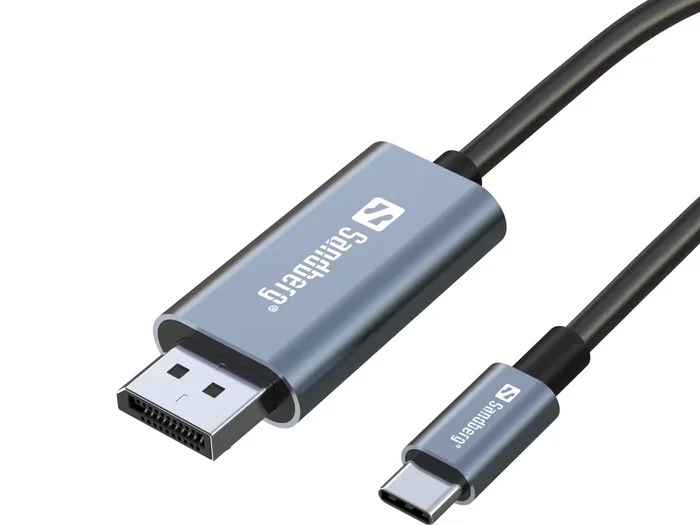
Yes, if your laptop supports DisplayPort Alt Mode. You can use a USB-C to DisplayPort cable or adapter. This is one of the most common and reliable setups. Just make sure your laptop’s USB-C port supports video output.
Does reversing the USB-C cable change the signal direction?
No. The USB-C connector is reversible, but the signal direction is determined by the devices, not the cable orientation. Your laptop always sends video out, and your monitor always receives it. Plugging the cable in the other way does not change this.
Can I charge my laptop through a monitor’s USB-C port while using it as a display?
Some monitors with USB-C upstream ports can charge your laptop and act as a display. But the video signal still flows from the laptop to the monitor, not the other way. You get charging and display output through one cable, which is very convenient.
Is Thunderbolt the same as DisplayPort over USB-C?
Thunderbolt uses the USB-C connector and supports DisplayPort Alt Mode, but it is more than that. Thunderbolt combines video, data, and power into one protocol with higher bandwidth. It supports daisy-chaining and is backward compatible with USB-C devices. However, the video signal direction rules still apply the same way.