Do I Need to Format a Usb for Mac
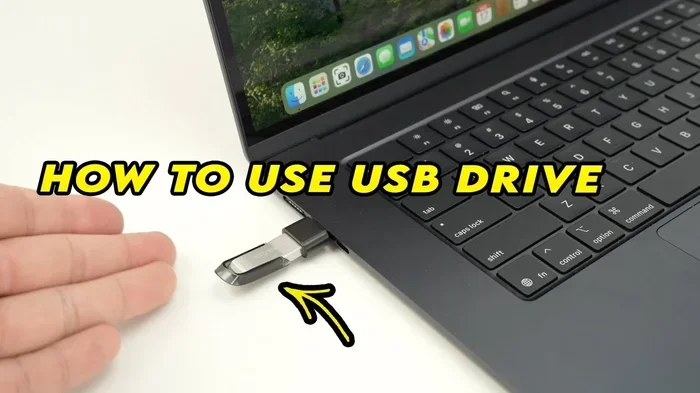
Yes, you may need to format a USB for Mac depending on what file system it currently uses and what you plan to do with it. Macs work best with APFS or exFAT formats, while FAT32 offers broad compatibility. This guide walks you through everything you need to know about formatting a USB for Mac, including which format to pick, how to do it safely, and common mistakes to avoid.
You plug in your USB drive to your Mac, and nothing happens. Or maybe your Mac says the drive is not readable. It is a frustrating moment, and the first thing that probably crosses your mind is, “Do I need to format a USB for Mac?” The short answer is: maybe. It depends on the current format of your USB, what kind of files you want to store, and whether you plan to use the drive with other devices too.
Formatting a USB drive for Mac is not as scary as it sounds. In fact, it is a quick process that can save you a lot of headaches down the road. This guide covers everything you need to know, from choosing the right file system to step-by-step instructions using Mac’s built-in tools. By the end, you will feel confident formatting your USB drive like a pro.
Let us start with the basics. A USB drive needs a file system to organize data. Think of it like the filing system in an office. Without the right one, your Mac simply cannot find or read the files properly. The three main file systems you will encounter are FAT32, exFAT, and APFS. Each has its own strengths, and choosing the right one is the most important decision you will make.
Key Takeaways
- Not all USB drives work plug-and-play on Mac: The file system matters, and some formats are not Mac compatible out of the box.
- exFAT is the best all-around choice: It works on both Mac and Windows, making it ideal for cross-platform use.
- APFS is great for Mac-only drives: It offers better performance and features if you only use the USB with Mac devices.
- Always back up your data first: Formatting erases everything on the USB drive, so save your files before you start.
- Disk Utility makes formatting easy: The built-in Mac tool lets you format a USB in just a few clicks.
- FAT32 has size limits: It cannot handle individual files larger than 4 GB, which can be a problem for large media files.
📑 Table of Contents
- Why Does File System Format Matter for Mac?
- Do I Need to Format a USB for Mac? Here Is How to Tell
- Which Format Should You Choose for Your USB Drive?
- How to Format a USB for Mac Using Disk Utility
- Common Mistakes People Make When Formatting USB for Mac
- Can You Use a USB Drive on Both Mac and PC After Formatting?
- How Often Should You Reformat Your USB Drive?
- Final Thoughts on Formatting USB for Mac
Why Does File System Format Matter for Mac?
When you buy a new USB drive, it usually comes pre-formatted for Windows. This means it uses the NTFS or FAT32 file system. Macs can read NTFS drives but cannot write to them without extra software. That is a big limitation if you want to move files back and forth. So, formatting a USB for Mac removes this barrier and lets your Mac fully access the drive.
The file system also affects performance. A properly formatted drive reads and writes files faster. It is also more reliable over time. If you use your USB drive regularly to transfer photos, documents, or videos, choosing the right format makes a noticeable difference.
FAT32: The Old Reliable
FAT32 is one of the oldest file systems still in wide use. It works on almost every device, including Mac, Windows, Linux, gaming consoles, and car stereos. That broad compatibility is its biggest advantage. However, FAT32 has a major drawback: it cannot handle individual files larger than 4 GB. If you try to copy a 5 GB video file onto a FAT32 drive, it will fail. For simple documents and small files, FAT32 works fine. But for anything larger, you will need a different format.
exFAT: The Best of Both Worlds
exFAT was designed specifically for flash drives and external storage. It works seamlessly on both Mac and Windows. There is no 4 GB file size limit, which makes it perfect for large media files. If you use your USB drive to transfer files between a Mac and a PC, exFAT is hands-down the best choice. It is lightweight, fast, and widely supported.
APFS: Mac’s Native Format
APFS (Apple File System) is the default format for Mac internal drives. It offers advanced features like strong encryption, fast performance, and efficient space management. If you only ever use your USB drive with Mac computers, APFS is an excellent option. Just keep in mind that Windows cannot read APFS drives natively, so this format is not ideal for cross-platform use.
Do I Need to Format a USB for Mac? Here Is How to Tell
Not every USB drive needs formatting when you plug it into a Mac. If your Mac can read and write files without any issues, you are good to go. But if you run into problems, formatting might be the solution. Here are the signs that your USB drive needs to be reformatted for Mac.
First, if your Mac says the drive is “read-only” or “not readable,” the file system is likely incompatible. Second, if you cannot copy files to the drive, it might be formatted in a way that Mac does not support for writing. Third, if the drive was used on a Windows PC and you want full read and write access on your Mac, formatting is the way to go.
Before you format anything, make sure you back up any important files. Formatting erases all data on the drive. You can copy your files to your Mac’s hard drive or an external backup. Once your files are safe, you are ready to proceed.
Which Format Should You Choose for Your USB Drive?
Choosing the right format depends on how you plan to use the USB drive. Here is a simple breakdown to help you decide.
| Format | Mac Compatible | Windows Compatible | Max File Size | Best For |
|---|---|---|---|---|
| FAT32 | Yes | Yes | 4 GB | Small files, cross-device use |
| exFAT | Yes | Yes | No limit | Large files, cross-platform use |
| APFS | Yes | No | No limit | Mac-only drives |
For most people, exFAT is the sweet spot. It gives you full compatibility with Mac and Windows, and it handles large files without any issues. If you only use your USB with Mac devices, go with APFS for the best performance. If you need a drive that works with older devices like TVs or car audio systems, FAT32 is your safest bet.
If you are also wondering about your laptop’s overall performance and storage, you might want to check out how much RAM your system needs. A well-configured laptop handles external storage more efficiently. You can learn more about how much RAM you need for your laptop to make sure your whole setup is optimized.
How to Format a USB for Mac Using Disk Utility
Mac comes with a built-in tool called Disk Utility that makes formatting a USB drive simple. You do not need to download any third-party software. Here is exactly how to do it.
- Plug in your USB drive to your Mac using an available USB port.
- Open Disk Utility. You can do this by pressing Command + Space, typing “Disk Utility,” and hitting Enter.
- Find your USB drive in the left sidebar. It will usually be listed under “External” or by its brand name.
- Click on the drive name (not the volume underneath it) to select the entire drive.
- Click the “Erase” button at the top of the Disk Utility window.
- Choose a name for your drive in the Name field.
- Select the format. Choose exFAT, APFS, or MS-DOS (FAT) from the Format dropdown menu.
- Click “Erase” again to confirm. The process usually takes less than a minute.
Once the erase is complete, your USB drive is formatted and ready to use on your Mac. You can now drag and drop files onto it without any issues.
Tips for a Smooth Formatting Process
- Make sure your Mac is updated to the latest macOS version for the best compatibility.
- Use a reliable USB cable or a high-quality USB adapter if you are using a USB-C to USB-A connection.
- Do not unplug the drive while formatting is in progress. This can damage the drive.
- Close all other apps before formatting to avoid any conflicts.
Common Mistakes People Make When Formatting USB for Mac
Formatting a USB drive is straightforward, but people still make avoidable mistakes. Here are the most common ones and how to prevent them.
Forgetting to Back Up Files
This is the number one mistake. Formatting wipes the drive completely. If you have photos, documents, or any important files, save them somewhere else first. A simple copy to your Mac desktop takes a few seconds and saves you from heartbreak.
Choosing the Wrong Format
Selecting APFS when you need cross-platform compatibility, or FAT32 when you need to store large files, will cause problems later. Always think about how you will use the drive before you choose a format. If you are unsure, exFAT is a safe default for most users.
Formatting the Wrong Drive
Disk Utility shows all connected drives. It is easy to accidentally select your internal Mac drive instead of the USB. Always double-check the drive name and size in the sidebar before you click Erase.
Skipping the Erase Step for “Just in Case”
Some people skip formatting because the drive seems to work fine. But an improperly formatted drive can cause slow transfer speeds, file corruption, and unexpected errors over time. If you are experiencing any issues, formatting is often the fix.
It is also worth noting that if you are dealing with other peripherals or accessories, proper setup matters just as much. For example, connecting a wireless mouse to your laptop should also be done correctly to avoid connectivity issues. You can learn more about how to connect a wireless mouse to your laptop for a seamless experience with all your accessories.
Can You Use a USB Drive on Both Mac and PC After Formatting?
Yes, but only if you choose the right format. As mentioned earlier, exFAT and FAT32 work on both Mac and Windows. If you format your USB in exFAT, you can plug it into a Windows PC, a Mac, and even a Linux machine, and it will work without any extra software. This makes exFAT the go-to format for anyone who moves between different operating systems.
If you format your drive in APFS, it will only work on Mac. Windows PCs will not recognize the drive at all. So if cross-platform use is important to you, always go with exFAT or FAT32.
For those who also use laptops for studying or work, having a properly formatted USB that works across devices is incredibly useful. You can easily transfer files between school computers, home PCs, and your Mac without worrying about compatibility. If you want tips on using laptops effectively for different tasks, check out these reasons why you need a laptop for study to see how external storage fits into a productive setup.
How Often Should You Reformat Your USB Drive?
You do not need to format your USB drive regularly. Most people format a drive once and use it for years without issues. However, there are a few situations where reformatting makes sense.
- You are switching between Mac and PC frequently: Reformatting to exFAT ensures smooth operation on both systems.
- The drive is running slowly: Over time, USB drives can become fragmented. A fresh format can speed things up.
- You are selling or giving away the drive: Formatting ensures all your personal data is completely removed.
- The drive has errors or corrupted files: Formatting can fix many common file system errors.
As a general rule, only reformat when you have a specific reason to do so. Every format cycle slightly reduces the lifespan of the drive, so there is no need to do it unnecessarily.
When thinking about your overall tech setup, it helps to understand how different components work together. For instance, if you are using a desktop and a laptop together, knowing whether you need both can save you money and desk space. You might want to read about whether you need a laptop for college if you already have a desktop to make smarter decisions about your devices.
Final Thoughts on Formatting USB for Mac
So, do you need to format a USB for Mac? It really comes down to your situation. If your Mac reads and writes to the drive without any problems, you can keep using it as-is. But if you are experiencing errors, slow speeds, or compatibility issues, formatting is the simplest and most effective solution.
The key is choosing the right file system. For most users, exFAT is the best choice. It is compatible, reliable, and handles large files with ease. If you only use your USB with Mac devices, APFS gives you the best performance. And if you need maximum compatibility with older devices, FAT32 still gets the job done for smaller files.
Always remember to back up your data before formatting. Use Mac’s built-in Disk Utility for a quick and easy formatting experience. And avoid the common mistakes outlined above, and your USB drive will serve you well for years to come.
Formatting a USB for Mac is one of those simple tasks that can make a huge difference in your daily workflow. Once you do it right, you will never have to think about it again. Your files will transfer smoothly, your drive will perform well, and you will have peace of mind knowing your setup is optimized.
Whether you are using your USB for work, school, or personal projects, taking a few minutes to format it properly for your Mac is time well spent. It is a small step that pays off in reliability, speed, and convenience every single time you plug in that drive.
Frequently Asked Questions
Can I format a USB drive for Mac without losing my files?
No, formatting always erases all data on the drive. You must back up your files to your Mac or another storage device before formatting. There is no way around this with standard formatting tools.
What is the best USB format for Mac and Windows?
exFAT is the best format for drives used on both Mac and Windows. It supports large files, works natively on both operating systems, and does not require any additional software.
Is it safe to format a USB drive on Mac?
Yes, it is completely safe as long as you use the built-in Disk Utility tool and select the correct drive. Just make sure you have backed up any important files first.
Can I use a USB drive formatted for Windows on my Mac?
Macs can read FAT32 and exFAT drives without issues. However, NTFS-formatted drives (the default for Windows) can be read on Mac but not written to without third-party software.
How long does it take to format a USB drive on Mac?
The formatting process usually takes less than one minute for most USB drives. Larger drives or drives with errors may take a bit longer, but it is generally a very quick process.
Do I need any special software to format a USB for Mac?
No, you do not need any special software. Mac’s built-in Disk Utility handles all standard formatting tasks. It is free, easy to use, and already installed on your computer.
=== CONCLUSION ===
Formatting a USB for Mac does not have to be complicated. With the right file system and a few simple steps, you can have your drive working perfectly in minutes. Choose exFAT for cross-platform flexibility, APFS for Mac-only performance, or FAT32 for maximum compatibility with older devices. Always back up your data first, use Disk Utility, and avoid the common pitfalls. Once your USB is formatted correctly, you will enjoy faster transfers, fewer errors, and a much smoother experience every time you use it.