Why Isnt My Usb Adapter Working
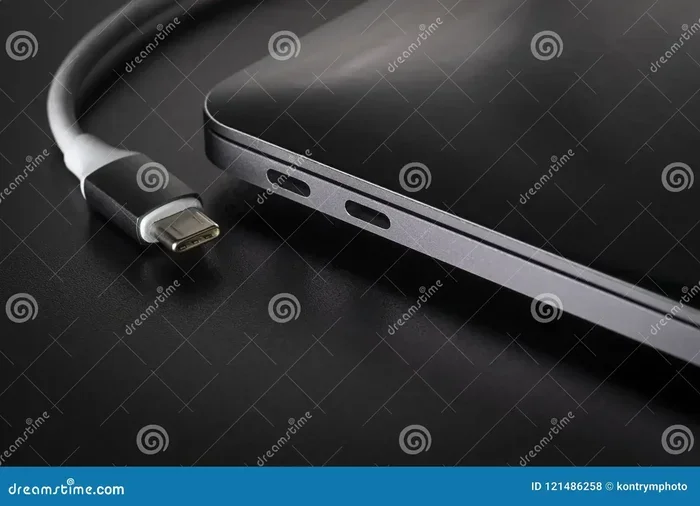
A USB adapter not working is a frustrating but common problem that most users can fix at home. Whether your USB adapter isn’t detected, keeps disconnecting, or won’t charge anything, the causes are usually simple to identify. This guide walks you through every major reason your USB adapter isn’t working and gives you clear, step-by-step solutions to get things running again.
You plug in your USB adapter and… nothing happens. No blinking light. No connection. Your device just sits there like it doesn’t exist. It’s one of the most annoying moments in modern computing, and almost everyone has experienced it at least once.
The good news? Most USB adapter problems have simple solutions. You don’t need to be a tech expert to figure out why your USB adapter isn’t working. In most cases, the fix takes just a few minutes and costs nothing at all.
In this guide, we’ll cover every major reason your USB adapter might be failing and give you practical steps to fix each one. From loose cables to driver issues, we’ve got you covered. Let’s get started.
Key Takeaways
- Loose connections and dirty ports are the most common reasons a USB adapter stops working.
- Outdated or corrupted drivers can prevent your computer from recognizing a USB adapter.
- Power delivery issues and incompatible adapters cause many USB connectivity problems.
- Simple troubleshooting steps like restarting your device or trying a different port often solve the issue.
- Hardware damage to the adapter or port may require replacement rather than repair.
- Operating system settings like power management can interfere with USB adapter performance.
- Knowing when to seek professional help saves time and money when basic fixes don’t work.
📑 Table of Contents
Why Your USB Adapter Isn’t Working
Before you panic, take a breath. A USB adapter not working doesn’t always mean something is broken. Sometimes the fix is as simple as unplugging and plugging it back in. But other times, there’s a deeper issue that needs your attention. Let’s look at the most common reasons your USB adapter isn’t working and what you can do about each one.
Loose or Faulty Connections
This sounds too simple, but it’s the number one cause of USB adapter connectivity issues. If the adapter isn’t fully seated in the port, it won’t make proper contact. The same goes for the cable on the other end of the adapter.
Here’s what to check:
- Remove the adapter and plug it back in firmly.
- Try a different USB port on your computer.
- Inspect the cable for visible damage or fraying.
- Test the adapter on another device to rule out a bad connection.
If you use a USB mouse through an adapter and it suddenly stops working, a loose connection is often the culprit. For example, if you’ve noticed Why Is My USB Mouse Not Working On My Laptop, a loose adapter connection could be the reason.mouse not showing up on laptop — sometimes the adapter just needs to be reseated properly.
Dirty or Damaged USB Ports
Dust, lint, and debris can build up inside USB ports over time. This prevents the adapter from making a clean electrical connection. A damaged port can cause the same problem.
Try these steps:
- Use a can of compressed air to blow out dust from the port.
- Gently clean the port with a toothpick or soft brush.
- Look for bent or broken pins inside the port.
- Avoid forcing the adapter into a port that feels tight.
A clean port makes a big difference. Many people don’t realize how much debris can collect in their laptop’s USB ports, especially if you carry your computer around in a bag.
Driver and Software Issues
Your computer needs the right drivers to communicate with a USB adapter. If a driver is missing, outdated, or corrupted, your adapter might not show up at all. This is one of the most common reasons a USB adapter not working issue persists even after checking physical connections.
Update Your USB Drivers
Windows and macOS both manage drivers automatically, but sometimes they fall behind. Here’s how to update them:
- Open Device Manager on Windows (right-click the Start menu).
- Expand the “Universal Serial Bus controllers” section.
- Right-click each USB entry and select “Update driver.”
- Choose “Search automatically for drivers.”
- Restart your computer after the update completes.
On macOS, you can update drivers through System Settings or by installing macOS updates. Keeping your operating system current solves many USB adapter not detected problems.
Uninstall and Reinstall Drivers
If updating doesn’t help, try removing the driver entirely and letting your system reinstall it fresh:
- Go to Device Manager and find the USB adapter entry.
- Right-click and select “Uninstall device.”
- Disconnect the adapter from your computer.
- Restart your computer.
- Reconnect the adapter and let Windows reinstall the driver.
This process clears out any corrupted driver files that might be causing your USB connectivity issues. Many users find that this simple step fixes problems that seemed impossible to solve.
Power Delivery Problems
Not all USB ports deliver the same amount of power. Some adapters need more power than a single port can provide, especially if you’re using a USB hub or connecting multiple devices through one adapter.
Check Power Requirements
Before assuming the worst, check whether your adapter needs more power than your port can supply:
- Look at the adapter’s label or packaging for power requirements.
- Compare that with what your USB port delivers (most laptops provide 5V at 0.5A or 0.9A).
- If the adapter needs more power, use a powered USB hub.
- Try plugging the adapter directly into a desktop computer’s rear USB port for maximum power output.
Some users experience USB adapter not charging devices because they’re plugging the adapter into a port that can’t deliver enough current. This is especially common with older laptops that have low-power USB 2.0 ports.
Use a Powered USB Hub
If your adapter needs more power than your laptop can provide, a powered USB hub is the solution. These hubs plug into your computer’s USB port and draw power from an external power supply. This gives your adapter the juice it needs to work properly.
A powered hub solves many USB device not recognized issues, especially when you’re connecting power-hungry devices like external hard drives or multiple peripherals through one adapter.
Compatibility Issues
Not every USB adapter works with every device or operating system. Compatibility problems are more common than you might think, and they can cause your adapter to fail without any obvious warning signs.
Check Operating System Compatibility
Before buying or troubleshooting a USB adapter, make sure it’s compatible with your system:
- Check the manufacturer’s website for supported operating systems.
- Verify that your OS version is up to date.
- Some adapters only work with specific versions of Windows, macOS, or Linux.
- Older adapters may not support newer operating systems without driver updates.
If you’ve recently upgraded your operating system and your USB adapter stopped working, compatibility is the likely cause. Check for updated drivers from the adapter manufacturer’s website.
USB Version Mismatch
USB adapters come in different versions — USB 2.0, USB 3.0, and USB 3.1, among others. Using an older adapter with a newer port (or vice versa) can cause issues. While most versions are backward compatible, some adapters don’t work well across different USB standards.
If you’re using a USB 3.0 adapter and experiencing problems, try it in a USB 3.0 port specifically. Mixing USB 2.0 and USB 3.0 devices can sometimes cause USB adapter not showing up issues.
Hardware Failure and Physical Damage
Sometimes the problem is not software or settings — it’s the hardware itself. USB adapters are small, portable devices that take a beating in daily use. Physical damage is a real and common cause of failure.
Signs of Hardware Damage
Watch for these warning signs that your adapter may be physically damaged:
- The adapter has visible cracks or broken casing.
- The USB connector is bent, loose, or wobbly.
- The adapter gets unusually hot during use.
- There is a burning smell or discoloration.
- The adapter worked fine yesterday but now produces nothing.
If you notice any of these signs, stop using the adapter immediately. A damaged adapter can potentially harm your computer or connected devices. In most cases, a broken adapter needs to be replaced rather than repaired.
When to Replace Your Adapter
Replacement is usually the best option when hardware fails. USB adapters are relatively inexpensive, and buying a new one is often faster and cheaper than trying to repair a damaged one. Look for adapters from reputable brands and check reviews before purchasing.
Remember that if your mouse stopped working on laptop through a USB adapter, the problem might not be with the mouse at all. The adapter itself could be the source of the failure. Testing the mouse directly on a different port can help you confirm this.
Quick Troubleshooting Checklist
When your USB adapter isn’t working, go through this checklist before trying anything complicated:
- Unplug and replug the adapter firmly into a different USB port.
- Check for dust or debris in both the adapter and the port.
- Restart your computer — this resets USB controllers and clears temporary glitches.
- Update your drivers through Device Manager or System Settings.
- Try the adapter on another device to determine if the problem is the adapter or your computer.
- Check power delivery and use a powered hub if needed.
- Inspect for physical damage to the adapter and cable.
Following this checklist solves the majority of USB adapter troubleshooting cases. Most users find the fix in the first three steps. The key is to work from simple to complex, ruling out easy fixes before diving into deeper troubleshooting.
Preventing Future USB Adapter Problems
Once you’ve fixed your USB adapter not working issue, you’ll want to prevent it from happening again. A few simple habits can keep your adapters and ports in great shape for years.
- Always unplug adapters gently — don’t yank the cable.
- Store adapters in a protective case when traveling.
- Keep USB ports clean and free of dust and debris.
- Use surge protectors or UPS devices to protect against power spikes.
- Avoid using adapters in extreme temperatures or humid environments.
- Update drivers and firmware whenever new versions are available.
- Don’t daisy-chain too many devices through a single adapter.
These small habits add up. They’ll extend the life of your adapters and reduce the chances of running into USB connectivity issues again.
When to Seek Professional Help
Most USB adapter problems are easy to fix at home. But there are times when professional help makes sense. If you’ve gone through all the troubleshooting steps and your adapter still doesn’t work, it’s time to consider expert assistance.
Also seek help if you notice any of the following:
- Your computer’s USB ports stopped working entirely.
- You smell burning or see sparks when plugging in the adapter.
- Your laptop shows signs of hardware failure beyond the adapter.
- You’re not comfortable opening up your computer or checking internal connections.
A professional technician can diagnose issues that aren’t visible to the naked eye. They can also check whether your laptop’s internal USB controller is functioning properly or if the problem lies deeper in your system’s hardware.
Sometimes the issue isn’t with the adapter itself but with your laptop’s internal components. For instance, if your USB mouse not working on laptop persists across multiple adapters and ports, the problem might be with the laptop’s USB controller rather than the adapter or mouse. In these cases, a professional diagnosis can save you a lot of guesswork and frustration.
Similarly, if you’ve experienced your mouse disappeared on laptop after plugging in a USB adapter, there could be a deeper system conflict that needs expert attention. Don’t hesitate to reach out to a qualified technician when basic troubleshooting doesn’t resolve the issue.
In summary, a USB adapter not working is almost always fixable. Start with the simple stuff — check connections, clean ports, update drivers — and work your way up to more advanced solutions. Most of the time, your adapter will be back in business within minutes.
Keep this guide bookmarked for the next time your USB adapter stops working. And remember, the best fix is often prevention — take care of your adapters and ports, and they’ll take care of you.
Frequently Asked Questions
Why won’t my USB adapter show up on my computer?
The most common reason is a loose connection or a missing driver. Try unplugging the adapter, cleaning the port, and plugging it back in. If that doesn’t work, check Device Manager to see if the adapter appears under “Other devices” or “Universal Serial Bus controllers.” Updating or reinstalling the driver usually fixes this issue.
Can a damaged USB port cause my adapter not to work?
Yes, absolutely. A bent pin, debris in the port, or physical damage to the port can prevent your adapter from making proper contact. Inspect the port carefully with a flashlight and use compressed air to clean it out. If the port is physically damaged, you may need professional repair.
Why does my USB adapter work on one device but not another?
This usually points to a compatibility or driver issue with the second device. The adapter might need a specific driver for that system, or the second device’s USB port might not supply enough power. Try the adapter on a third device to narrow down the problem.
How do I know if my USB adapter is physically damaged?
Look for visible cracks, a loose or bent connector, unusual heat, or a burning smell. If the adapter worked before but now produces no response at all, physical damage is likely. Stop using it immediately to avoid potential harm to your computer.
Why does my USB adapter keep disconnecting and reconnecting?
This is often caused by a loose connection, power delivery issues, or driver conflicts. Try a different USB port, use a powered hub, or update your USB drivers. If the problem persists, the adapter’s internal hardware may be failing and need replacement.
Do USB adapters wear out over time?
Yes, they do. Frequent plugging and unplugging, exposure to dust, and power surges can all degrade a USB adapter over time. Most adapters last several years with proper care, but heavy daily use can shorten their lifespan significantly.
=== CONCLUSION ===
A USB adapter not working doesn’t have to be a major headache. In most cases, the fix is quick and straightforward — a firm reseating, a driver update, or a simple cleaning session. By working through the steps in this guide, you can diagnose and solve the vast majority of USB adapter connectivity issues on your own.
Remember to start simple and work your way up. Check your connections first, then move to drivers, power delivery, compatibility, and finally hardware inspection. This approach saves you time and prevents unnecessary frustration.
Take care of your adapters and ports, keep your drivers updated, and don’t ignore warning signs like heat or unusual behavior. Your USB adapter will serve you well for years when you treat it right. And now that you know exactly what to do when things go wrong, you’re better equipped to handle any USB adapter problem that comes your way.