Is Mini Hdmi Same as Usb C
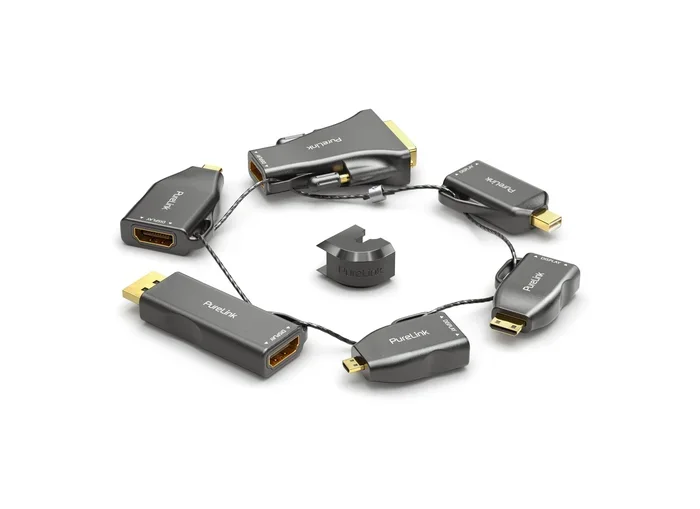
Mini HDMI and USB C are not the same connector, even though both can carry video signals. Mini HDMI is a smaller version of the standard HDMI port, while USB C is a versatile reversible connector used for data, power, and video. Knowing the difference helps you choose the right adapter and avoid compatibility headaches.
Key Takeaways
- Mini HDMI and USB C are different connectors with distinct shapes and purposes.
- USB C can carry video through Alternate Mode, but it is not the same as HDMI.
- Adapter compatibility is key when connecting devices with different port types.
- Mini HDMI is common on older cameras, tablets, and compact devices.
- USB C is the modern standard for most laptops, phones, and tablets today.
- Using the wrong cable can lead to no signal or poor video quality.
- Docking stations and hubs make it easy to connect either connector to a display.
📑 Table of Contents
Is Mini HDMI the Same as USB C?
Many people ask, is Mini HDMI the same as USB C? The answer is a clear no. These two connectors look different, work differently, and serve different purposes. Even though both can send video to a screen, they are not interchangeable without an adapter.
If you have ever stood in front of a monitor with two cables and no idea which one to use, you are not alone. The world of cable types can be confusing. Mini HDMI and USB C are two of the most common connectors you will find on laptops, cameras, and tablets today. Understanding the difference between them saves time, money, and frustration.
This guide covers everything you need to know. We will look at what each connector is, how they compare, and which one you should use for your setup. By the end, you will have a clear answer to the question of Mini HDMI vs USB C and feel confident choosing the right cable type for your devices.
What Is Mini HDMI?
Mini HDMI is a smaller version of the standard HDMI connector. It carries both audio and video signals through a single cable. You will often find it on compact devices like digital cameras, portable DVD players, and some older tablets.
The Mini HDMI port is much smaller than a full-size HDMI port. It was designed for devices where space is limited. Despite its size, it supports high-definition video output up to 1080p and even 4K on some devices. The connector has 19 pins, just like standard HDMI.
One thing to keep in mind is that Mini HDMI is not the same as Micro HDMI. Micro HDMI is even smaller and is found on some older smartphones and action cameras. Always check which port your device has before buying a cable or HDMI adapter.
What Is USB C?
USB C is a small, reversible connector that has become the modern standard for many devices. Unlike Mini HDMI, USB C is not just for video. It handles data transfer, power delivery, and video output all in one compact port.
The USB C connector is oval-shaped and can be plugged in either way. This reversible design is one of its biggest advantages. You no longer have to flip the cable three times to get it right. USB C supports fast data speeds through USB 3.0, USB 3.1, and USB 4 standards.
Many modern laptops, smartphones, and tablets now use USB C as their main port. This shift happened because USB C is versatile and future-proof. A single USB C cable can charge your device, transfer files, and connect to an external display. This makes it a popular choice for people who want fewer cables in their bag.
Key Differences Between Mini HDMI and USB C
Now that we know what each connector is, let us look at the key differences. These differences matter when you are trying to connect your device to a monitor or projector.
Shape and Size
The most obvious difference is the shape. Mini HDMI has a trapezoid shape with a flat top. It is small but not reversible. You have to align it correctly before plugging it in. USB C, on the other hand, is oval-shaped and reversible. You can flip it either way and it will work.
In terms of size, USB C is slightly smaller than Mini HDMI. Both are compact compared to full-size HDMI, but USB C takes up less space on a device. This is one reason why manufacturers prefer USB C for slim laptops and tablets.
Video and Audio Capabilities
Both connectors can carry high-definition video and audio. Mini HDMI supports up to 4K resolution on compatible devices. It uses a dedicated HDMI cable for this purpose. The signal is straightforward, with no need for extra software or drivers.
USB C can also carry video, but it depends on whether your device supports Alternate Mode. Alternate Mode allows USB C to carry display signals through protocols like HDMI, DisplayPort, or Thunderbolt. Not all USB C ports support video output, so you need to check your device specifications.
Data and Power Transfer
This is where USB C really shines. USB C can transfer data at speeds up to 40 Gbps with USB 4. It can also deliver up to 100 watts of power through USB Power Delivery. This means a single port can charge your device and connect to peripherals at the same time.
Mini HDMI does not carry data or power. It only handles audio and video signals. If you need to charge your device or transfer files while connected to a display, Mini HDMI alone will not do the job. You will need additional ports or a USB C docking station.
Compatibility
Compatibility is a big factor when choosing between these two cable types. Mini HDMI is found on a limited number of devices, mostly older or compact electronics. USB C is found on almost all modern devices, from budget phones to professional laptops.
If you are connecting to a display that only has HDMI inputs, you will need an adapter for USB C. You cannot plug a USB C cable directly into an HDMI port. Similarly, you cannot plug a Mini HDMI cable into a USB C port without an adapter. Adapter compatibility is essential in both cases.
Can You Use USB C for HDMI Output?
Yes, you can use USB C for HDMI output, but you need the right adapter or cable. This is where the alternate mode feature comes into play. USB C Alternate Mode allows the port to carry HDMI signals directly.
There are two main ways to get video from USB C to an HDMI display. The first is a USB C to HDMI adapter. This small device plugs into your USB C port and has an HDMI output on the other end. You then connect a standard HDMI cable from the adapter to your monitor or TV.
The second option is a USB C to HDMI cable. This is a single cable with a USB C connector on one end and an HDMI connector on the other. It is more convenient than a separate adapter and cable, but it can be harder to find in longer lengths.
Not all USB C ports support video output. Some ports are designed only for data and power. Before buying an adapter, check your device manual or look up its specifications online. If your device supports Thunderbolt 3 or Thunderbolt 4 through USB C, video output is almost always supported.
For example, if you use a USB C hub or docking station, you likely have access to HDMI output right out of the box. These hubs add multiple ports to your laptop, including HDMI, USB-A, and SD card readers. They are a great solution for people who need to connect to different types of displays regularly.
Using a USB C Hub for Display Connections
A USB C hub is one of the easiest ways to add HDMI output to a laptop or tablet. Most hubs include at least one HDMI port alongside USB-A ports, an SD card reader, and a power pass-through port. This means you can connect to a monitor, plug in a mouse, and charge your device all at once.
When choosing a hub, look for one that supports the resolution you need. If you want 4K output at 60Hz, make sure the hub advertises that capability. Cheaper hubs may only support 1080p or 4K at 30Hz, which can cause a noticeable drop in video quality.
Thunderbolt USB C and Video Output
Thunderbolt USB C ports are the gold standard for video output. Thunderbolt 3 and Thunderbolt 4 use the USB C connector but offer much faster speeds and better display support. A single Thunderbolt port can drive two 4K displays or one 8K display.
If your laptop has a Thunderbolt USB C port, you have excellent flexibility. You can use a Thunderbolt dock, a USB C to HDMI adapter, or even a direct Thunderbolt cable to connect to a compatible display. This level of device connectivity is not possible with Mini HDMI alone.
Which Connector Should You Choose?
Choosing between Mini HDMI and USB C depends on your devices and what you need to do. Here are some quick guidelines to help you decide.
Choose Mini HDMI If
- Your device has a Mini HDMI port and you want a simple, direct connection.
- You are connecting an older camera or tablet to a display.
- You do not need data transfer or power delivery through the same cable.
- You already have a collection of HDMI cables and adapters at home.
Choose USB C If
- Your device has a USB C port and you want a versatile single-cable solution.
- You need to charge your device, transfer data, and connect to a display simultaneously.
- You use a modern laptop, tablet, or smartphone that supports USB C multimedia output.
- You want a future-proof connection that works with the latest devices.
When You Need Both
In many cases, you might need both connectors. For example, you might have a camera with Mini HDMI output and a laptop with USB C. In this situation, you would use a Mini HDMI cable to connect the camera to a capture card or direct to a display. Then use a USB C cable to connect the laptop to the same or a different display.
Having the right adapters for both connectors gives you maximum flexibility. A good adapter collection includes a USB C to HDMI adapter, a Mini HDMI to HDMI adapter, and a few extra USB C cables of different lengths.
Common Devices That Use Each Connector
Knowing which devices use each connector helps you plan your setup. Here is a quick look at where you will find Mini HDMI and USB C in everyday tech.
Devices with Mini HDMI
- Digital cameras from brands like Canon and Sony
- Portable DVD and Blu-ray players
- Some older Android tablets
- Certain handheld gaming devices
- Compact media players
Devices with USB C
- Most modern laptops including MacBook and Dell XPS
- Android smartphones from Samsung, Google, and others
- Recent iPad Pro and iPad Air models
- Nintendo Switch (with an adapter for TV play)
- External SSDs and M 2 NVMe to USB C SSD enclosure devices
- Many modern monitors and TVs
As you can see, USB C is far more common today. Most new devices use USB C for charging and data, and many also support video output through the same port. Mini HDMI is becoming less common but still exists on specific devices where it makes sense.
Common Mistakes to Avoid
There are a few common mistakes people make when dealing with these connectors. Avoiding them will save you time and money.
Assuming all USB C ports support video. This is not true. Some USB C ports only support data and power. Always check if your port supports Alternate Mode or Thunderbolt before relying on it for display output.
Buying the wrong adapter. Not all adapters are the same. A USB C to HDMI adapter will not work if your port does not support video. Make sure you buy an adapter that matches your device capabilities.
Using a cheap cable. A low-quality USB C cable may not support the data speeds or power delivery you need. It might also fail to carry a stable video signal. Invest in cables from reputable brands that clearly state their specifications.
Forgetting about audio. Some people focus only on video and forget that audio also needs to travel through the connection. Most HDMI and USB C adapters handle audio automatically, but it is worth checking if you are setting up a home theater or presentation system.
Quick Tips for the Best Experience
Here are some practical tips to get the most out of your Mini HDMI and USB C connections:
- Check your device specs before buying any adapter or cable.
- Label your cables so you always know which one is which.
- Keep a USB C hub in your laptop bag for easy display connections on the go.
- Test your setup before an important meeting or presentation.
- Buy adapters from trusted brands to ensure reliable signal quality.
- Store your adapters properly to avoid damage to the connector pins.
Conclusion
The question of is Mini HDMI the same as USB C comes up a lot, and the answer is clear. These two connectors are different in shape, function, and capability. Mini HDMI is a dedicated audio and video connector found on older or compact devices. USB C is a modern, versatile connector that handles data, power, and video through one port.
Understanding the difference between them helps you make better choices for your tech setup. Whether you are connecting a camera to a TV or setting up a laptop with an external monitor, knowing which cable type to use makes everything smoother. Invest in the right adapters, keep your cables organized, and you will always be ready to connect.
With the right knowledge and a few quality adapters, you can bridge the gap between these two connectors effortlessly. The world of device connectivity is more flexible than ever, and USB C is leading the way into the future.
Frequently Asked Questions
Can I plug a Mini HDMI cable directly into a USB C port?
No, you cannot plug a Mini HDMI cable directly into a USB C port. The connectors are physically different and have different pin configurations. You will need a Mini HDMI to USB C adapter or a capture card that accepts Mini HDMI input and outputs through USB C.
Does USB C carry the same quality of video as HDMI?
Yes, USB C can carry the same high-quality video as HDMI when it supports Alternate Mode. Modern USB C connections can handle 4K and even 8K resolutions. The quality depends on your device and the adapter or cable you use, not the connector type itself.
Is USB C better than Mini HDMI for gaming?
USB C is generally better for gaming because it supports higher refresh rates and can carry both video and data through one connection. If your laptop has a Thunderbolt USB C port, you can connect to high-refresh-rate gaming monitors with excellent performance.
Do I need a special adapter to connect Mini HDMI to a modern TV?
Yes, modern TVs typically have full-size HDMI ports. You will need a Mini HDMI to HDMI adapter to connect a device with a Mini HDMI output to a modern TV. These adapters are small, affordable, and widely available online.
Can USB C charge my device and send video at the same time?
Yes, USB C can charge your device and send video simultaneously through the same port. This is one of the biggest advantages of USB C over Mini HDMI. You just need a USB C power delivery-compatible charger and an adapter or hub that supports video output.
Are USB C to HDMI adapters expensive?
Most USB C to HDMI adapters are very affordable. Basic adapters cost between $10 and $25. More advanced adapters with 4K support or built-in USB ports may cost a bit more. It is worth investing in a quality adapter to ensure stable video output and reliable signal transfer.