Are All Usb C Cords the Same
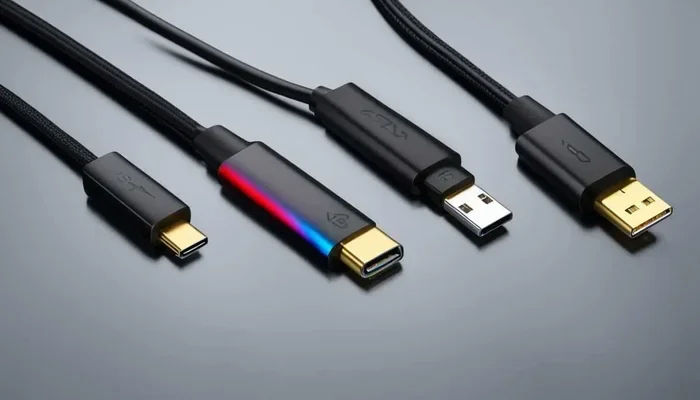
No, not all USB C cords are the same. USB C cables differ in speed, power delivery, and capabilities. Some support fast charging and data transfer, while others are basic. Knowing the differences saves time, money, and frustration. This guide breaks down everything you need to know about USB C cords and how to pick the right one.
You have probably grabbed a USB C cord from a drawer and plugged it in, only to wonder why your device is charging so slowly. Or maybe you tried to transfer a big file and it took forever. The truth is, not all USB C cords are the same. They come in different shapes, speeds, and power levels. Some are built for heavy data work, while others are just basic charging cables.
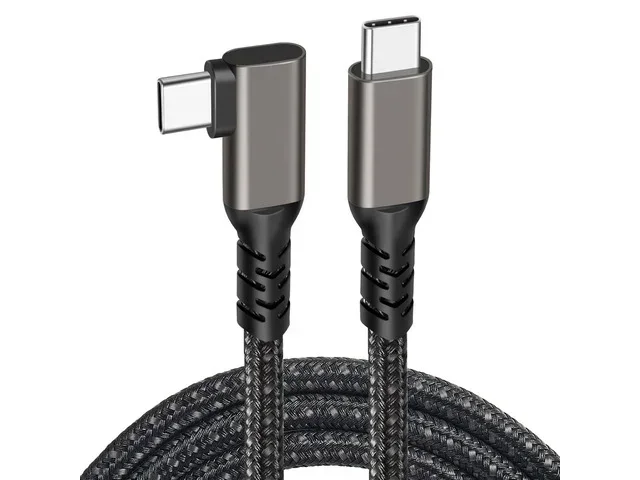
USB C has become the go-to connector for phones, laptops, tablets, and even cameras. But the connector shape does not tell the whole story. Two cables can look identical on the outside but behave very differently on the inside. Understanding these differences helps you avoid buying the wrong cable and protects your devices.
In this guide, we will break down everything you need to know. From data transfer speeds to power delivery, we cover it all. By the end, you will know exactly what to look for when picking a USB C cable. Let us get into it.
Key Takeaways
- USB C is not universal: Different cables support different speeds and power levels.
- Data transfer speed matters: USB 3.0, 3.1, 3.2, and USB4 offer very different performance.
- Power delivery varies widely: Some cables charge fast, others are slow.
- Cable quality affects everything: Cheap cables can damage devices or underperform.
- Thunderbolt cables stand out: They offer the fastest speeds and best versatility.
- Check your device needs first: Match the cable to what your device supports.
📑 Table of Contents
- What Makes USB C Cables Different?
- Understanding USB Standards and Speeds
- Power Delivery: Why Your Cable Matters for Charging
- Common Uses for USB C Cables
- How to Choose the Right USB C Cable
- Quick Tips for Getting the Most Out of Your USB C Cables
- Common Mistakes People Make with USB C Cables
- Final Thoughts
What Makes USB C Cables Different?
USB C refers to the shape of the connector. It is small, reversible, and fits both ways into your device. But the connector shape is only the outer shell. What really matters is what is inside the cable. Different cables support different data transfer speeds, power levels, and protocols.
Here are the main factors that make USB C cables different from each other:
- Data transfer speed: Some cables move data at 5 Gbps, while others hit 40 Gbps.
- Power delivery: Charging power can range from 60 watts to 240 watts depending on the cable.
- Protocol support: Thunderbolt, USB4, and USB 3.x all use the same connector but work differently.
- Cable quality and materials: Braided cables last longer and perform better than cheap plastic ones.
- Length: Longer cables can lose signal strength and charge more slowly.
When shopping for a USB C cord, always check what it supports. The packaging usually lists the speed and power rating. If it does not, that is a red flag.
Understanding USB Standards and Speeds
USB standards define how fast a cable can transfer data and how much power it can carry. The standards have evolved a lot over the years. Here is a simple breakdown of the main USB C standards you will encounter.
USB 3.0 and USB 3.1
These older standards are still common in many cables. USB 3.0 transfers data at 5 Gbps. USB 3.1 Gen 1 is the same speed but rebranded. USB 3.1 Gen 2 doubles that to 10 Gbps. These speeds are fine for everyday tasks like moving photos or backing up files. But they are not fast enough for large video files or external drives.
USB 3.2
USB 3.2 brought faster speeds. USB 3.2 Gen 2×2 can push 20 Gbps. This is a big step up for people who work with large media files or use external SSDs. Some M 2 NVMe to USB C SSD enclosure products rely on USB 3.2 speeds to deliver solid performance.
USB4 and Thunderbolt
USB4 and Thunderbolt 3 and 4 are the fastest options available. They support up to 40 Gbps data transfer. Thunderbolt cables also support daisy-chaining multiple devices and driving external displays. If you use an NVMe SSD to USB adapter, a Thunderbolt cable makes a huge difference in speed.
| Standard | Max Data Speed | Max Power |
|---|---|---|
| USB 3.0 | 5 Gbps | 10W |
| USB 3.1 Gen 2 | 10 Gbps | 10W |
| USB 3.2 Gen 2×2 | 20 Gbps | 100W |
| USB4 | 40 Gbps | 100W |
| Thunderbolt 3 | 40 Gbps | 100W |
| Thunderbolt 4 | 40 Gbps | 100W |
As you can see, the standard you choose matters a lot. A cheap USB 3.0 cable will not unlock the full potential of a modern laptop or external drive.
Power Delivery: Why Your Cable Matters for Charging
One of the biggest reasons people buy USB C cables is for charging. But not all USB C charging cables are created equal. The power delivery, or PD, depends on the cable’s internal wiring and the charger you use.
USB C cables can support different wattage levels. Basic cables usually handle around 60 watts. This is fine for phones and tablets. But laptops need more power. A 100-watt or even 240-watt cable can charge a laptop quickly and keep it running while you work.
What Affects Charging Speed?
Several factors affect how fast your device charges:
- Cable quality: Thicker wires carry more power. Thin cables overheat and charge slowly.
- Charger wattage: Even the best cable needs a powerful charger to deliver fast speeds.
- Device compatibility: Your phone or laptop must support USB PD for fast charging.
- Cable length: Longer cables lose more power during charging.
- Temperature: Hot cables charge slower and may degrade over time.
If you have ever noticed your phone charging slowly on a certain cable, the cable is probably the problem. Upgrading to a quality fast charging USB C cable can make a noticeable difference.
Common Uses for USB C Cables
USB C cables serve many purposes beyond just charging. Understanding what you need helps you pick the right one.
Data Transfer
If you regularly move large files between devices, you need a high-speed cable. USB 3.2 or USB4 cables are ideal for this. They cut transfer times significantly compared to older standards. For example, moving a 50 GB video file takes minutes on a 40 Gbps cable but could take over an hour on a 5 Gbps cable.
Connecting External Displays
Many people use USB C to connect their laptops to monitors. Thunderbolt and USB4 cables support video output, so you can run an external display with just one cable. This is great for home office setups and creative workstations.
Docking Stations and Adapters
USB C docking stations have become very popular. They let you connect multiple peripherals through a single cable. But not all cables work well with docks. A quality USB C cable with full power delivery ensures your dock works properly and your laptop charges at the same time.
External Storage
External SSDs and hard drives often use USB C connections. If you work with large files, a fast cable is essential. Some people use an M 2 NVMe SSD in USB enclosure for portable storage. Pairing it with the right cable makes all the difference in performance.
How to Choose the Right USB C Cable
With so many options out there, picking the right cable can feel overwhelming. Here are some practical tips to help you choose wisely.
Check What Your Device Supports
Before buying any cable, check your device specs. Does your laptop support Thunderbolt? Does your phone support USB PD fast charging? Match the cable to the highest capability your device offers. Buying a Thunderbolt cable for a phone that only supports USB 3.0 is a waste of money.
Look for Certified Cables
USB-IF certification is a good sign. It means the cable has been tested and meets official standards. Certified cables are more reliable and safer. They are less likely to damage your devices or overheat during use.
Consider Your Needs
Think about what you will use the cable for most often:
- Basic charging: Any decent USB C cable will work.
- Fast charging: Look for a cable rated for 60W or higher.
- Large file transfers: Choose USB 3.2 or USB4 for the best speeds.
- Video output: Thunderbolt or USB4 cables handle display connections well.
- All-in-one use: A Thunderbolt 4 cable covers everything.
Avoid Cheap Knockoffs
We have all seen those super cheap USB C cables online. They might work at first, but they often fail quickly. Poor wiring can cause slow charging, data errors, or even damage to your device. Spending a little more on a reputable brand saves you from headaches later.
Pay Attention to Length
Cable length matters more than most people think. Short cables (under 3 feet) perform best for charging and data transfer. Longer cables (6 feet or more) are convenient but can lose signal strength. If you need a long cable, look for one that is specifically designed for high-speed performance.
Quick Tips for Getting the Most Out of Your USB C Cables
Here are some simple tips that help you get the best performance from your USB C cables:
- Unplug gently. Pull from the connector, not the cable. Yanking wears out the internal wires.
- Store them properly. Coil cables loosely and avoid tight bends.
- Check for damage regularly. Frayed or bent cables should be replaced immediately.
- Use the right cable for the right job. Do not use a basic charging cable for large file transfers.
- Keep cables cool. Avoid running them under heavy objects or near heat sources.
- Buy from trusted brands. Anker, Belkin, and Cable Matters are reliable choices.
Common Mistakes People Make with USB C Cables
Even tech-savvy people make mistakes with their cables. Here are some common ones to avoid:
Assuming all USB C cables are the same. This is the biggest mistake. The connector shape does not guarantee performance. Two cables can look identical but offer completely different speeds and power levels.
Ignoring cable ratings. Many people buy cables without checking the specs. Always look for the speed and power ratings on the packaging or product description.
Using any cable for fast charging. Not every cable supports fast charging. Using a low-quality cable with a fast charger can result in slow charging or no charging at all.
Overlooking adapter quality. If you use adapters or dongles, their quality matters too. A cheap adapter can bottleneck your USB C connection and slow everything down.
Final Thoughts
The answer to the question “Are all USB C cords the same?” is a clear no. USB C cables vary widely in speed, power delivery, and capabilities. The right cable can make your devices charge faster, transfer data quicker, and connect to displays seamlessly. The wrong cable can cause frustration, slow performance, and even safety issues.
Take the time to understand what your devices need. Check the standards, look for certifications, and invest in quality cables. Whether you need a simple charging cable or a high-speed Thunderbolt connection, the right choice makes all the difference. Your devices will thank you for it.
Next time you reach for a USB C cord, remember that not all cables are created equal. Make the smart choice and pick the one that fits your needs.
Frequently Asked Questions
Can I use any USB C cable for charging?
You can use any USB C cable for basic charging, but it may not charge fast. For fast charging, you need a cable that supports USB Power Delivery and has the right wattage rating. Check your device’s charging requirements before buying.
How do I know if my USB C cable supports fast data transfer?
Look for the USB standard printed on the cable or its packaging. USB 3.0, 3.1, 3.2, USB4, or Thunderbolt labels indicate faster data speeds. If the cable has no label, it is likely a basic cable with slower speeds.
Is Thunderbolt the same as USB4?
Thunderbolt and USB4 are closely related but not the same. Thunderbolt 3 and 4 use the USB4 protocol but offer additional features like daisy-chaining and guaranteed bandwidth. USB4 is the open standard, while Thunderbolt is Intel’s certified version.
Can a bad USB C cable damage my device?
Yes, a poor-quality cable can damage your device. Cheap cables may overheat, deliver inconsistent power, or cause data errors. Always buy certified cables from reputable brands to keep your devices safe.
Does cable length affect charging speed?
Yes, longer cables can charge more slowly because of resistance and power loss. Short cables perform best for charging. If you need a longer cable, choose one rated for higher wattage to minimize speed loss.
What is the best all-around USB C cable?
A Thunderbolt 4 cable is the best all-around option. It supports fast data transfer, high power delivery, and video output. It works with almost any USB C device and future-proofs your setup for years to come.