Does Apple Superdrive Work with Usb C
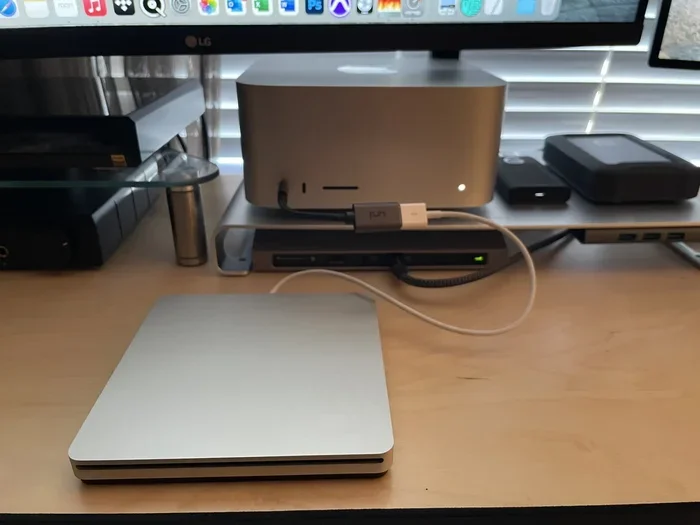
The Apple SuperDrive does work with USB-C Macs, but you need a USB-C to USB adapter to connect it. The SuperDrive uses a standard USB-A connector and cannot plug directly into USB-C ports. With the right adapter, the drive works seamlessly on all modern Macs for reading and writing CDs and DVDs.
Many Mac users ask one simple question: does Apple Superdrive work with Usb C. The Apple SuperDrive has been a reliable optical drive for years, but with newer Macs dropping USB-A ports in favor of USB-C, things get tricky. If you own a SuperDrive and just bought a MacBook Pro or MacBook Air with USB-C ports, you are probably wondering if your drive will still work. The good news is that it can work, but you need the right setup and sometimes a little help from an adapter. In this guide, we walk through everything you need to know about SuperDrive and USB-C compatibility, including setup steps, common issues, and practical solutions.
Whether you want to burn CDs, watch DVDs, or install software from an optical disc, the SuperDrive still has its uses. However, Apple discontinued the SuperDrive years ago, and newer Macs are moving away from optical media altogether. This makes the USB-C connection question even more important for users who still rely on their SuperDrive. We will cover compatibility, setup steps, common problems, and the best adapters to get your SuperDrive working with a USB-C Mac.
By the end of this article, you will know exactly how to connect your Apple SuperDrive to a USB-C Mac, what adapters you need, and how to troubleshoot common problems. Let us dive right in and explore everything about the SuperDrive and USB-C connectivity.
Key Takeaways
- The SuperDrive is not natively compatible with USB-C: You need a USB-C to USB adapter or hub to connect it to modern Macs.
- Apple sells its own USB-C to USB adapter: This is the most reliable and hassle-free option for connecting your SuperDrive.
- The SuperDrive works automatically on macOS: No additional drivers or software are required for most Mac operating systems.
- Common issues are usually adapter-related: Faulty adapters, damaged cables, or insufficient power are the top reasons the SuperDrive fails to work.
- USB 3.0 adapters provide better stability: While USB 2.0 works, USB 3.0 adapters offer a more reliable connection for disc reading.
- The SuperDrive is still useful in 2024: If you regularly use optical discs, the SuperDrive remains a practical Apple accessory for USB-C Macs.
📑 Table of Contents
What Is the Apple SuperDrive?
The Apple SuperDrive is a USB optical drive that Apple designed for Mac users. It reads and writes CDs and DVDs, making it useful for installing software, backing up files, or watching movies. The drive is compact, lightweight, and draws power directly from the Mac through its USB connection. You do not need a separate power adapter, which makes it very portable and convenient for travel.
Apple released the SuperDrive as an accessory for MacBooks and iMacs. It works with most Mac operating systems, including macOS and older versions of OS X. The drive uses a standard USB-A connector, which is where the USB-C compatibility question comes in. Newer Macs have moved entirely to USB-C and Thunderbolt ports, leaving SuperDrive users searching for a solution. The Apple optical drive remains a popular choice for users who still need to access optical media regularly.
SuperDrive and USB-C Compatibility
So, does Apple Superdrive work with Usb C directly? The short answer is no. The SuperDrive uses a USB-A connector, and USB-C Macs do not have USB-A ports. You cannot plug the SuperDrive directly into a USB-C port and expect it to work. However, this does not mean your SuperDrive is useless with a modern Mac. You just need the right adapter or cable to bridge the gap.
The SuperDrive relies on USB connectivity to function. As long as you can establish a USB connection between the drive and your Mac, it will work. This means a USB-C to USB adapter or a USB-C hub with a USB-A port is all you need. The drive does not require any special drivers or software on modern macOS versions. Once connected, macOS recognizes the SuperDrive automatically in most cases. The SuperDrive compatibility with USB-C Macs is straightforward as long as you have the right adapter.
Which Macs Support the SuperDrive?
The SuperDrive works with any Mac that has a USB port or can establish a USB connection through an adapter. This includes:
- MacBook Air (any model with USB-C ports)
- MacBook Pro with USB-C or Thunderbolt ports
- iMacs with USB-C or Thunderbolt ports
- Mac Mini and Mac Studio with USB-C connectivity
- Older Macs with USB-A ports (direct connection)
The key requirement is simply a USB connection, whether native or through an adapter. The SuperDrive does not need a specific Mac model to function. It is a universal USB optical drive that works across the Apple ecosystem and even with Windows PCs when connected properly. If you own a Macbook Pro SuperDrive setup, the same rules apply regardless of your specific model.
How to Connect the SuperDrive to a USB-C Mac
Connecting your SuperDrive to a USB-C Mac is straightforward once you have the right adapter. Here is a step-by-step guide to get you up and running with your optical drive Mac setup.
Step 1: Get a USB-C to USB Adapter
You need a USB-C to USB adapter or a USB-C hub that includes a USB-A port. Apple sells its own USB-C to USB adapter, which is a reliable and compact option. Third-party adapters also work well, but make sure you choose one from a reputable brand to avoid connectivity issues. When choosing an adapter, look for one that supports USB 3.0 or higher for the best performance. The SuperDrive does not need high-speed data transfer since optical discs have limited read/write speeds. A basic USB 2.0 adapter will work, but a USB 3.0 adapter gives you a more stable connection.
Step 2: Connect the Adapter and SuperDrive
Plug the USB-C adapter into your Mac first. Then connect the SuperDrive to the adapter using the USB-A cable that came with the drive. Your Mac should recognize the drive within a few seconds. You will see the SuperDrive icon appear on your desktop or in Finder. If you do not see the icon, do not worry. We will cover troubleshooting steps in the next section.
Step 3: Test the Drive
Insert a CD or DVD into the SuperDrive to test it. If the disc spins and your Mac reads the content, everything is working correctly. You can now burn discs, play movies, or install software from optical media just like you would on any Mac. This simple setup makes the SuperDrive a practical Mac external drive option for users who still rely on optical media.
Quick Tips
- Always use the original USB cable that came with the SuperDrive for best results.
- Avoid using USB-C hubs with too many connected devices, as this can cause power issues.
- Keep your macOS updated to ensure the best compatibility with the SuperDrive.
- If the drive does not appear, try restarting your Mac with the SuperDrive already connected.
Common Problems When Using SuperDrive with USB-C
Even with the right adapter, some users run into issues when connecting their SuperDrive to a USB-C Mac. Here are the most common problems and how to fix them.
SuperDrive Not Recognized by Mac
If your Mac does not recognize the SuperDrive, the first thing to check is your adapter. A faulty or low-quality adapter is the most common cause of this issue. Try a different USB-C to USB adapter or a different USB-C port on your Mac. Sometimes the port itself may not supply enough power, especially if you are using a USB-C hub without its own power source. Another common cause is a damaged USB cable. Inspect the cable for fraying or bent connectors. If the cable looks worn out, replace it with a new one. Apple SuperDrive cables are standard USB-A cables, so any compatible replacement will work.
SuperDrive Works Intermittently
If the SuperDrive works sometimes but not others, you may have a loose connection. Make sure the USB-C adapter is firmly seated in the port. Dust or debris in the USB-C port can also cause intermittent issues. Use a compressed air can to clean the port gently before reconnecting the drive. Also, check if your USB-C hub is powered. Unpowered hubs may not supply enough current to keep the SuperDrive running steadily.
Disc Reading Errors
Some users report that the SuperDrive struggles to read certain discs when connected through a USB-C adapter. This is usually caused by a USB 2.0 adapter that does not provide enough bandwidth for smooth disc reading. Upgrading to a USB 3.0 adapter or a USB-C hub with dedicated USB-A ports often solves this problem. Scratched or damaged discs can also cause reading errors, so always check the disc condition first.
Common Mistakes to Avoid
- Using a cheap, uncertified USB-C adapter that causes connection drops.
- Plugging the SuperDrive into a USB-C hub that is not powered.
- Ignoring macOS updates that may improve drive recognition.
- Using a damaged or frayed USB cable without replacing it.
- Assuming the SuperDrive is broken when the issue is actually the adapter.
Best Adapters and Alternatives for USB-C Connectivity
If you are looking for the best way to connect your SuperDrive to a USB-C Mac, there are several options available. Here is a closer look at the top choices for USB-C connectivity with your optical drive.
Apple USB-C to USB Adapter
Apple sells its own official USB-C to USB adapter for around $19. It is a simple, reliable, and compact solution. The adapter has a single USB-A port, which is all you need for the SuperDrive. Since it is made by Apple, it is fully compatible with macOS and works seamlessly with the SuperDrive. The downside is that it is a bit pricey for what it is. However, if you want a plug-and-play solution with guaranteed compatibility, the Apple adapter is the safest choice.
USB-C Hubs with Multiple Ports
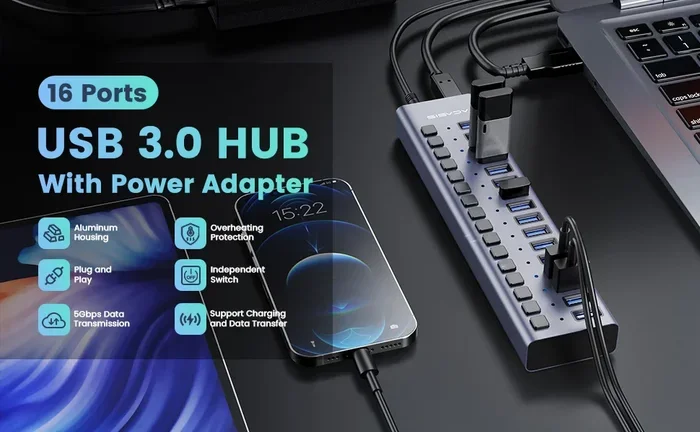
If you need more than just a USB-A port, a USB-C hub is a great option. A quality USB-C hub gives you USB-A ports, HDMI output, SD card readers, and more in one compact device. This is especially useful if you carry your SuperDrive around and want to consolidate your accessories. When shopping for a USB-C hub, look for one that supports USB 3.0 or higher and has its own power supply if you plan to connect multiple devices. A powered hub ensures your SuperDrive gets enough power and stays connected reliably.
USB-C Enclosures for External Storage
While the SuperDrive itself does not come in a USB-C version, many users also use USB-C enclosures for their external storage needs. If you have an M.2 NVMe SSD and want to connect it to your Mac via USB-C, an M 2 Nvme To Usb C Ssd Enclosure is an excellent option. These enclosures plug directly into USB-C ports and offer fast data transfer speeds for solid-state drives. They are a great alternative to optical media for storing and transferring large files.
USB Adapters for Legacy Drives
For users who work with multiple types of external drives, having a reliable adapter is essential. A M 2 Nvme Ssd To Usb 3 1 Adapter is a great example of how USB adapters bridge the gap between older drives and modern USB-C ports. These adapters solve connectivity problems across different devices and port types. Similarly, if you have other external drives that need a USB connection, a Nvme Ssd To Usb Adapter can serve as a versatile solution for connecting various storage devices to your USB-C Mac.
Expert Insights
According to Apple support guidelines, the SuperDrive is designed to work with any Mac that provides a USB connection. The drive draws power from the USB port, so using a powered USB-C hub or a direct adapter connection is always recommended. Avoid daisy-chaining multiple USB devices through unpowered hubs, as this can cause the SuperDrive to disconnect or fail to mount. For the best optical disc drive USB experience, always use a high-quality adapter and keep your macOS up to date.
Final Thoughts on the Apple SuperDrive
The Apple SuperDrive remains a useful tool for Mac users who still need to read or write optical discs. While it does not connect directly to USB-C ports, a simple adapter solves the problem completely. The SuperDrive is compatible with all USB-C Macs as long as you have the right connection method. Does Apple Superdrive work with Usb C? Yes, with the proper adapter, it works flawlessly.
If you are deciding whether to buy a SuperDrive in 2024 and beyond, consider whether you really need an optical drive. Many software downloads and media streaming have replaced the need for CDs and DVDs. However, if you still use optical media regularly, the SuperDrive is a worthwhile accessory that works perfectly with modern Macs through a USB-C adapter.
Invest in a quality adapter, keep your cables in good condition, and your SuperDrive will continue to serve you well alongside your USB-C Mac. The key is having the right connection, and with the tips in this guide, you will be set up for success. Whether you use it for disc burning, software installation, or media playback, the Apple SuperDrive remains a practical and reliable Apple accessory for users who need optical drive functionality on their modern Macs.
Frequently Asked Questions
Can I plug the Apple SuperDrive directly into a USB-C port?
No, the SuperDrive uses a USB-A connector and cannot plug directly into a USB-C port. You need a USB-C to USB adapter or a USB-C hub with a USB-A port to connect it to modern Macs.
Do I need to install any drivers for the SuperDrive on a USB-C Mac?
No, macOS recognizes the Apple SuperDrive automatically without requiring any additional drivers or software. Simply connect it through an adapter and your Mac should detect it within seconds.
Why is my SuperDrive not showing up on my USB-C Mac?
The most common reason is a faulty or incompatible adapter. Try a different USB-C to USB adapter, a different USB-C port, or restart your Mac with the drive already connected. Also check that your USB cable is not damaged.
Can I use a USB-C hub to connect the SuperDrive?
Yes, a USB-C hub with a USB-A port works perfectly for connecting the SuperDrive. Make sure the hub supports USB 3.0 or higher for the best stability, and use a powered hub if you are connecting multiple devices.
Is the Apple SuperDrive worth buying if I have a USB-C Mac?
If you regularly need to read or write CDs and DVDs, the SuperDrive is still worth it. You just need a USB-C to USB adapter to connect it. However, if you rarely use optical media, you may be better off with digital alternatives like downloads or streaming.
What is the best adapter for connecting the SuperDrive to a USB-C Mac?
The Apple USB-C to USB adapter is the most reliable option, but third-party USB-C to USB adapters from reputable brands also work well. Look for one that supports USB 3.0 for a more stable and consistent connection with your SuperDrive.