Dell Laptop Has No Power Causes and Troubleshooting
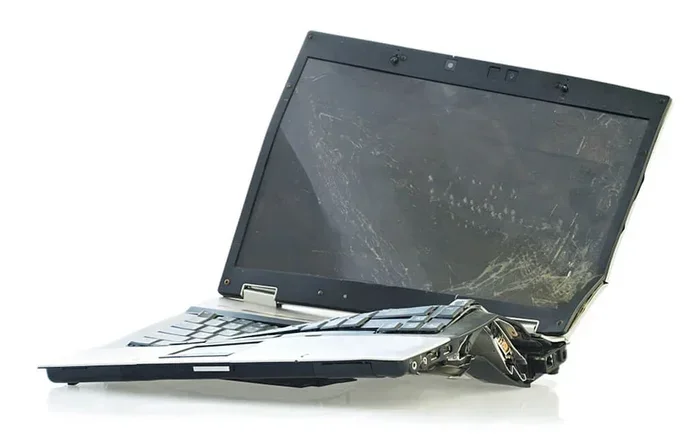
A Dell laptop with no power can stem from simple issues like a faulty charger or complex problems like a failing motherboard. This guide walks you through every possible cause and fix, from basic checks to advanced resets. Whether your Dell won’t turn on at all or dies instantly, you’ll find the solution here.
You press the power button on your Dell laptop and nothing happens. No light. No fan noise. No sign of life. It’s a frustrating moment, especially when you need your laptop right now. A Dell laptop has no power for a number of reasons, and most of them are fixable at home.
This guide covers every possible cause and walks you through each fix step by step. Whether your Dell is brand new or several years old, you’ll find practical solutions here. Let’s get your laptop back to life.
Key Takeaways
- Check the power adapter and cable first: A damaged charger is the most common reason a Dell laptop has no power.
- Reset the laptop: A simple power drain reset can fix many no-power issues without any tools.
- Inspect the battery and charging port: Debris or a worn DC jack can stop power from reaching your Dell.
- Look for indicator lights: The charging LED gives you quick clues about where the problem lies.
- Seek professional help when needed: Motherboard or internal hardware failures require expert diagnosis.
📑 Table of Contents
Why Your Dell Laptop Has No Power
Before you start troubleshooting, it helps to understand what could be going wrong. A laptop needs three things to turn on: power from the outlet, a working charger, and healthy internal hardware. When any one of these fails, your Dell stays dark.
The good news is that most no-power problems come from simple, fixable causes. Let’s break them down.
Faulty Power Adapter
The power adapter, also called the charger, is the lifeline of your Dell laptop. If the adapter is damaged or not working, your laptop gets zero power. You might not even realize the adapter is bad until you test it.
Look for visible signs of wear like frayed cables, bent prongs, or a cracked adapter brick. If the indicator light on the charger doesn’t turn on when you plug it in, that’s a strong sign the adapter has failed. Using a non-Dell or generic charger can also cause power delivery problems because Dell laptops need specific voltage and wattage.
Dead or Damaged Battery
Over time, laptop batteries wear out. A battery that can no longer hold a charge might still allow the laptop to run on AC power, but it won’t power the Dell on its own. In some cases, a severely degraded battery can prevent the laptop from turning on at all.
If your Dell has been sitting unused for months, the battery may have drained completely and entered a protected state. This is a common reason people think their laptop is dead when it’s really just the battery that needs attention.
Problem with the Charging Port
The DC charging jack on your Dell can become loose, damaged, or filled with dust. When the connection between the charger and the laptop is weak or broken, power can’t flow into the system. You might notice your Dell only charges when you wiggle the plug a certain way.
This is a hardware issue that usually requires professional repair. Trying to fix a damaged DC jack yourself can cause further harm to the motherboard.
Motherboard Failure
The motherboard is the brain of your Dell laptop. If it fails, nothing works. A power surge, liquid spill, or age-related wear can all damage the motherboard. Signs of a motherboard issue include a burning smell, visible scorch marks, or the laptop suddenly dying with no warning.
Motherboard problems are serious but not always terminal. A qualified technician can often repair or replace the board and bring your Dell back to life.
Power Button or Internal Switch Issue
Sometimes the problem isn’t the power supply at all. The power button itself can stick or fail. Inside the laptop, small ribbon cables connect the power button to the motherboard, and these can come loose over time.
This is a less common cause, but it’s worth checking if everything else seems fine. A stuck power button means the signal never reaches the laptop’s internal systems, so it stays completely dark.
Step-by-Step Troubleshooting Fixes
Now that you know the possible causes, let’s work through the fixes in order from simplest to most advanced. Start at the top and work your way down.
Step 1: Check the Wall Outlet and Power Strip
It sounds too simple, but a dead wall outlet is one of the top reasons a Dell laptop has no power. Before you blame the laptop, test the outlet with another device like a lamp or phone charger.
If you use a power strip or surge protector, make sure it’s switched on and working. Try plugging the Dell charger directly into the wall outlet to rule out the power strip as the problem. Also check that the circuit breaker hasn’t tripped in your home.
Step 2: Inspect the Power Adapter and Cable
Unplug the charger from both the wall and the laptop. Examine the entire length of the cable for cuts, kinks, or exposed wires. Check the brick for cracks or burn marks.
Plug the charger back in and look for the small LED light on the adapter brick. If the light doesn’t come on, the adapter is likely dead. If you have a spare Dell charger, try it to confirm the problem. Using the correct Dell charger matters because using the wrong one can fail to deliver proper power.
Step 3: Remove the Battery and Try AC Power Only
This is one of the most effective quick fixes. Turn the Dell upside down and remove the battery. Then plug in the charger and press the power button.
If the laptop turns on without the battery, the battery is the problem. You can use your Dell on AC power while you order a replacement battery. If it still won’t turn on even without the battery, the issue lies deeper inside the laptop.
Step 4: Perform a Power Drain Reset
A power drain reset clears residual electricity that can sometimes lock your Dell in a no-power state. Here’s how to do it:
- Unplug the charger from the Dell.
- Remove the battery if it’s removable.
- Press and hold the power button for 15 to 20 seconds.
- Reconnect the battery and plug the charger back in.
- Press the power button normally.
This simple reset works surprisingly often. It’s the first thing I recommend when someone calls me about a Dell laptop won’t turn on issue.
Step 5: Check the Charging Port for Debris
Look closely at the charging port on your Dell. Dust, lint, and small debris can build up inside and block the connection. Use a wooden toothpick or compressed air to gently clean it out.
Do not use metal objects like paper clips. These can damage the delicate pins inside the port. If the port looks bent or physically damaged, you’ll need a professional to repair it.
Step 6: Try an External Monitor
Sometimes the laptop is actually powered on, but the screen is black. Connect your Dell to an external monitor using HDMI or USB-C. If the external display shows an image, the problem is with the laptop screen or its cable, not the power supply.
This is an important distinction because it changes what you troubleshoot. A screen issue is very different from a no-power issue, even though the symptoms look similar.
Step 7: Reset the CMOS Battery
The CMOS battery is a small coin-cell battery on the motherboard. It keeps your BIOS settings alive when the laptop is off. If the CMOS battery dies or malfunctions, it can prevent the Dell from powering on.
To reset it, you need to open the laptop base panel and remove the CMOS battery for about 60 seconds. Then reinsert it and try powering on again. This step is more advanced, so proceed carefully or consult a technician if you’re not comfortable opening your Dell.
When to Seek Professional Help
Not every problem can be solved at your kitchen table. If you’ve gone through all the steps above and your Dell still has no power, it’s time to call in the experts. Here are clear signs you need professional repair:
- The laptop smells like burning plastic or electronics.
- You see scorch marks or swelling on the motherboard.
- The DC charging port is visibly damaged or loose.
- The laptop was dropped or exposed to liquid before the power failure.
- You’ve tried a known-good charger and the problem persists.
Dell has official support channels and authorized service centers that can diagnose hardware failures properly. You can also visit a trusted local repair shop. Avoid unauthorized shops that might use low-quality replacement parts.
How to Contact Dell Support
Dell offers phone and chat support for customers with warranty or Dell Premium Support plans. You can also use the Dell Diagnostics tool built into your laptop. To access it, restart your Dell and press F12 when the logo appears. Select “Diagnostics” from the boot menu and let the tool run its checks.
Even if your laptop won’t turn on, you can run diagnostics from another computer by visiting Dell’s support website and entering your service tag number. This gives you specific error codes and repair guidance for your exact model.
Preventing Future No-Power Issues
Once you’ve got your Dell working again, you’ll want to keep it that way. A few simple habits can prevent future power problems:
- Use the original Dell charger: Third-party chargers may not deliver the correct power and can damage your laptop over time.
- Keep the charging port clean: Regularly check for dust and debris buildup in the DC jack.
- Avoid extreme temperatures: Heat and cold degrade battery health and can cause power delivery issues.
- Don’t let the battery drain completely: Try to keep your battery between 20% and 80% for long-term health.
- Use a surge protector: Power surges can fry your laptop’s internal components instantly.
Taking care of your charger and battery goes a long way toward keeping your Dell laptop powered up and ready to go every day.
Final Thoughts
A Dell laptop has no power can be scary, but most of the time the fix is simpler than you think. Start with the basics: check the outlet, inspect the charger, and try a power drain reset. These steps solve the majority of no-power problems.
If the issue is deeper, like a dead battery or motherboard failure, don’t panic. Dell support and qualified repair shops can help you get back up and running. The key is to stay calm, work through the steps in order, and avoid forcing anything that doesn’t feel right.
With the right approach, you’ll have your Dell laptop powered on and working again in no time. Don’t let a no-power situation keep you from getting things done.
For more help with Dell laptop issues, check out our guide on how much power a laptop uses when plugged in to better understand your Dell’s energy consumption. You can also learn about upgrading your Dell’s RAM memory to improve overall performance once your laptop is powered on again. If you’re considering a new Dell setup, explore our article on Dell Core i7 16GB RAM laptops for great options that pair strong performance with reliable power delivery.
Frequently Asked Questions
Why won’t my Dell laptop turn on even when plugged in?
This usually means the power adapter, battery, or charging port is the problem. Start by testing the outlet with another device, then try removing the battery and running on AC power only. If it still won’t turn on, the adapter or motherboard may need replacement.
How do I know if my Dell laptop charger is bad?
Look for a non-working indicator light on the charger brick, frayed or exposed cables, and a burning smell. Try the charger on another Dell laptop if possible. A multimeter can also test whether the adapter outputs the correct voltage.
Can a dead battery prevent a Dell laptop from turning on?
Yes, in some cases a completely dead battery can stop the laptop from powering on even when plugged in. Removing the battery and running on AC power alone is a quick way to test this theory.
What should I do if my Dell laptop smells like burning?
Unplug the laptop immediately and do not try to turn it on again. A burning smell usually indicates a serious hardware failure like a damaged motherboard or power component. Contact Dell support or a professional repair service right away.
How do I run Dell diagnostics when the laptop won’t turn on?
If your Dell won’t boot, you can still run diagnostics by visiting Dell’s support website and entering your service tag number. This provides model-specific troubleshooting steps and error codes that help pinpoint the problem.
Is it worth repairing an old Dell laptop with no power?
It depends on the repair cost and the laptop’s age. If the fix is simple like a new charger or battery, it’s usually worth it. But if the motherboard is damaged and repair costs exceed half the price of a new laptop, replacement might be the smarter choice.