Best Laptop for Powerpoint
Finding the best laptop for Powerpoint means balancing screen size, processor speed, battery life, and portability. Whether you are a business professional, student, or educator, the right laptop makes your slides look stunning and run without lag. This guide covers the top models, key specs to watch, and practical tips to help you decide fast.
Let us be honest. When you are standing in front of a room full of people, the last thing you want is for your laptop for PowerPoint to freeze, lag, or refuse to connect to the projector. It is a stressful moment nobody needs. That is exactly why picking the right machine matters more than most people think.
A laptop for PowerPoint presentations is not just about looking good on paper. It is about real-world performance. You need a machine that opens large files fast, plays embedded videos without stuttering, and runs for hours on a single charge. Whether you are a student pitching a class project or a manager leading a board meeting, the right laptop makes all the difference.
This guide breaks down everything you need to know. We cover the best options, the specs that actually matter, and simple tips to avoid common mistakes. By the end, you will know exactly what to look for and where to find it.
Key Takeaways
- Processor power matters: A strong CPU ensures your Powerpoint files run smoothly with animations and media.
- Screen size and resolution are key: A 14 to 15.6-inch display with Full HD or higher keeps your slides looking crisp.
- Battery life saves the day: Long-lasting battery means you can present anywhere without hunting for an outlet.
- Portability counts: A lightweight design makes it easy to carry your laptop to meetings, classrooms, and conferences.
- RAM and storage affect performance: At least 8GB RAM and an SSD keep your laptop fast and responsive.
- Budget options exist: You do not need to spend a fortune to get a great laptop for PowerPoint work.
📑 Table of Contents
Why Your Laptop Choice Matters for PowerPoint
You might wonder why we need a whole article just for PowerPoint. Can not any laptop run it? Well, yes and no. Basic slides with text and images work on almost anything. But the moment you add animations, embedded videos, high-resolution images, or transition effects, the demands jump up fast.
Here is what happens when your laptop struggles with a PowerPoint presentation:
- Slides take forever to load or advance.
- Videos stutter or refuse to play.
- Animations lag and ruin your timing.
- The screen looks blurry or washed out during projection.
- The battery dies mid-presentation.
None of these are fun experiences. A well-chosen laptop for office work eliminates all of these problems. It lets you focus on your message instead of worrying about the technology behind it.
What Makes a Laptop Great for Slideshows
Not every laptop is built the same way. Some excel at raw speed. Others prioritize portability. When it comes to laptop for presentations, a few specific features stand out as must-haves.
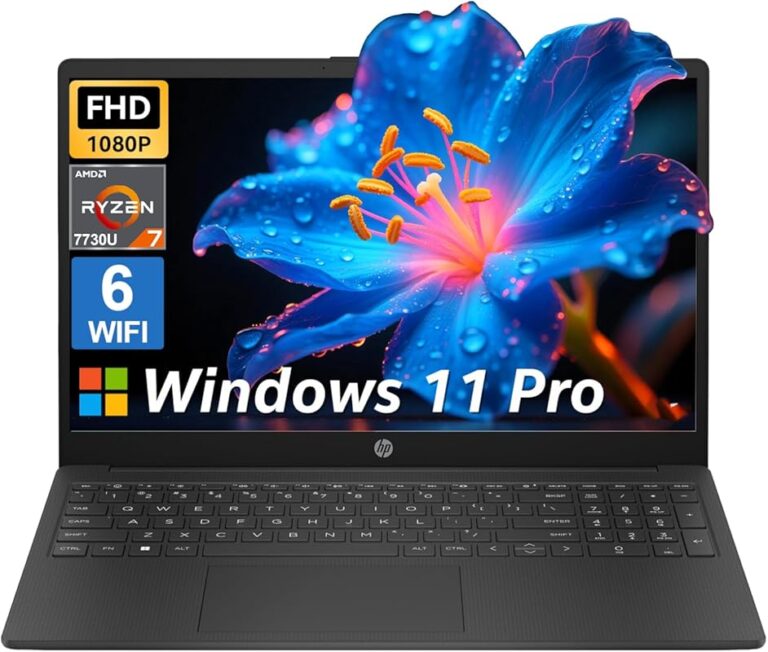
Display Quality: Your slides look best on a sharp, bright screen. Look for a display with at least Full HD resolution (1920 x 1080). A 14-inch or 15.6-inch screen hits the sweet spot between visibility and portability. Colors matter too, especially if your slides rely on charts, graphics, or brand colors.
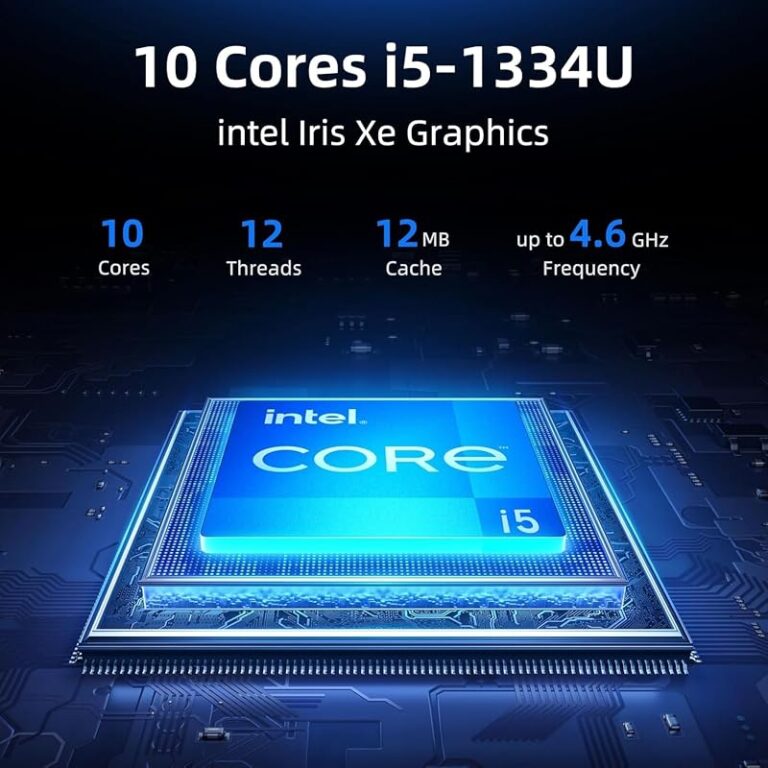
Processor Speed: The processor is the brain of your machine. For smooth PowerPoint performance, an Intel Core i5 or AMD Ryzen 5 is the minimum sweet spot. If you work with heavy media or complex animations, stepping up to an i7 or Ryzen 7 gives you headroom. This is one of the most important laptop specifications to get right.
RAM and Storage: Modern PowerPoint files can be surprisingly large, especially with embedded videos and images. At least 8GB of RAM keeps everything running smoothly. An SSD (solid-state drive) makes your laptop boot fast and open files in seconds. This is a huge upgrade over older hard drives.
Battery Life: Nothing kills a presentation faster than a dead battery. Aim for a laptop that offers at least 8 hours of real-world use. Some models push well beyond 10 hours, which is perfect for full-day events or back-to-back classes.
Portability: If you carry your laptop to meetings or classrooms regularly, weight matters. A lightweight laptop under 4 pounds feels effortless to transport. Look for slim designs that fit easily into a bag without adding bulk.
Top Laptops for PowerPoint in 2024
Now let us talk about the machines themselves. Below are some of the best options for anyone who lives in PowerPoint. These picks cover different budgets and needs, so you can find one that fits your situation.
Dell XPS 13 — The Premium Pick
The Dell XPS 13 has long been a favorite among professionals. It delivers a stunning 13.4-inch display with vibrant colors and sharp text. The build quality is excellent, and it weighs just around 2.6 pounds. Inside, you get fast Intel processors and up to 16GB of RAM. This makes it a top choice for anyone who needs a laptop for business owners who present often.
The battery life is impressive, easily lasting a full workday. The keyboard feels great for typing notes, and the trackpad is one of the best in the class. The only downside? The price tag is on the higher side. But if you want the best experience, it delivers.
Lenovo ThinkPad X1 Carbon — The Business Workhorse
ThinkPads are built for one thing: reliability under pressure. The ThinkPad X1 Carbon weighs around 2.48 pounds and features a durable carbon-fiber chassis. The 14-inch display is bright and clear, which is essential when presenting in bright conference rooms.
It comes with strong Intel processors and solid build quality that lasts for years. Many business professionals swear by this machine. If you want a dependable laptop for work and home, this is a strong contender. It also offers excellent keyboard comfort, which helps when you are editing slides for hours.
Acer Aspire 5 — The Budget-Friendly Star
Not everyone needs to spend big money. The Acer Aspire 5 proves that you can get excellent value without breaking the bank. It features a 15.6-inch Full HD display, AMD Ryzen or Intel Core processors, and 8GB of RAM. For everyday PowerPoint use, it performs wonderfully.
The battery lasts around 7 to 8 hours, which is solid for a budget laptop. The design is simple but functional. If you are a student or someone who just needs a reliable machine for slideshows, this is a great place to start. Check out our guide for more budget-friendly options if you want to explore further.
Apple MacBook Air M2 — The Mac Alternative
Mac users are not left out of the conversation. The MacBook Air with the M2 chip is incredibly fast and silent. It has no fan, so it makes zero noise during your presentation. The 13.6-inch Liquid Retina display is gorgeous, and the battery life is outstanding — often pushing past 15 hours of real use.
PowerPoint works great on macOS, and the overall experience is smooth and polished. The lightweight design at just 2.7 pounds makes it easy to carry everywhere. If you are already in the Apple ecosystem, this is one of the strongest laptop for presentations choices available.
Key Specs to Compare When Choosing
With so many options out there, it helps to know exactly what to compare. Use this table as a quick reference when shopping for your next laptop for PowerPoint.
| Feature | Minimum | Recommended |
|---|---|---|
| Processor | Intel Core i5 / AMD Ryzen 5 | Intel Core i7 / AMD Ryzen 7 |
| RAM | 8GB | 16GB |
| Storage | 256GB SSD | 512GB SSD |
| Display Size | 13 inches | 14–15.6 inches |
| Display Resolution | Full HD (1920×1080) | 2K or higher |
| Battery Life | 7 hours | 10+ hours |
| Weight | Under 4 lbs | Under 3 lbs |
Use this table to narrow down your choices quickly. You do not need every spec to hit the recommended level. But the closer you get, the smoother your PowerPoint experience will be.
Common Mistakes People Make When Buying
Avoiding mistakes saves you time, money, and frustration. Here are the most common pitfalls to watch out for.
Skipping the RAM check: Many budget laptops still ship with only 4GB of RAM. That is not enough for modern PowerPoint files with media. Always aim for 8GB minimum.
Ignoring battery life: A laptop that looks great on paper but dies after three hours is useless during a long conference. Always check real-world battery reviews, not just manufacturer claims.
Choosing style over substance: A thin, attractive laptop is nice, but it means nothing if it overheats or lags during a presentation. Performance should always come first.
Forgetting about ports: Do you need HDMI for a projector? USB ports for a mouse or flash drive? Check the ports before you buy. Some ultra-thin laptops sacrifice connectivity for slimness.
Not testing the keyboard: You will spend hours typing and editing slides. An uncomfortable keyboard makes that miserable. Try before you buy whenever possible.
Tips to Make Your PowerPoint Presentations Run Better
Even with the best laptop, a few smart habits make a big difference. Here are quick tips to keep your laptop for PowerPoint running at its best.
- Optimize your images: Compress large images before adding them to slides. This keeps file sizes manageable and speeds up loading.
- Use embedded videos wisely: Only embed videos you truly need. Too many media files slow things down. Consider linking to external videos instead.
- Keep your software updated: Regular updates fix bugs and improve performance. Make sure your version of PowerPoint is current.
- Close unnecessary apps: Before presenting, close background apps to free up memory and processing power.
- Bring a backup: Save your file on a USB drive and in the cloud. If anything goes wrong, you will have a plan B ready.
These small steps add up to a much smoother experience. They take just a few minutes but can save you from embarrassing tech failures in front of an audience.
Who Needs the Best Laptop for PowerPoint the Most?
Different people have different needs. Here is how various groups benefit from a great laptop for PowerPoint.
Business Professionals: You present to clients, teams, and stakeholders regularly. A reliable machine with a bright screen and long battery is non-negotiable. A model like the ThinkPad X1 Carbon or Dell XPS 13 fits perfectly into a professional workflow.
Students: You need something affordable, portable, and durable. A budget laptop like the Acer Aspire 5 handles class presentations with ease. It also survives the daily grind of backpacks and coffee shop sessions.
Educators and Trainers: You move between classrooms and conference rooms. Portability and battery life are your best friends. A lightweight machine that lasts all day keeps you moving without interruption.
Freelancers and Consultants: Your laptop is your office on the go. You need performance, portability, and a professional look. A laptop for graphic work or a versatile 2-in-1 can serve double duty for both presentations and creative projects.
Final Thoughts
Choosing the best laptop for Powerpoint does not have to be overwhelming. Focus on the basics: a strong processor, enough RAM, a sharp display, and solid battery life. Pick a machine that fits your budget and your workflow, and you will enjoy smooth, professional presentations every time.
Remember, the best laptop is the one that meets your specific needs. A student does not need the same machine as a corporate executive. A freelancer might prioritize versatility over raw power. Define what matters most to you, compare your options, and make a confident choice.
With the right laptop for Microsoft Office and a little preparation, your next presentation will be your best one yet. You have got this.
Frequently Asked Questions
What is the best laptop for PowerPoint presentations?
The Dell XPS 13 and Lenovo ThinkPad X1 Carbon are top picks for PowerPoint. They offer fast processors, sharp displays, and long battery life. For budget-conscious buyers, the Acer Aspire 5 delivers excellent value.
How much RAM do I need for PowerPoint?
8GB of RAM is the minimum for smooth PowerPoint use. If you work with heavy media, animations, or large files, 16GB provides a much better experience. This applies to any laptop for office work or productivity tasks.
Can I use a MacBook for PowerPoint?
Absolutely. PowerPoint works great on macOS, and the MacBook Air M2 is a fantastic choice. It offers excellent battery life, a beautiful display, and silent operation during presentations.
Do I need a powerful laptop just for PowerPoint?
Not necessarily. PowerPoint is not as demanding as video editing or gaming software. A mid-range laptop with an i5 processor, 8GB RAM, and an SSD handles PowerPoint with ease. You do not need to overspend.
What screen size is best for PowerPoint?
A 14 to 15.6-inch display is ideal for most users. It offers enough screen space to work comfortably with slides while remaining portable. For maximum visibility during presentations, a Full HD resolution is important.
How long should a laptop battery last for presentations?
Aim for at least 8 hours of real-world battery life. This gives you plenty of buffer for full-day conferences, back-to-back classes, or travel days without access to a power outlet.
=== CONCLUSION ===
Selecting the best laptop for Powerpoint comes down to understanding your needs and matching them to the right specs. A great display, solid processor, enough RAM, and reliable battery life form the foundation of a smooth presentation experience. Whether you are a professional, student, or educator, the right laptop keeps your ideas flowing without technical interruptions.
Take the time to compare options, read reviews, and test machines when you can. The effort pays off every time you step up to present. Your slides deserve a machine that keeps up, and now you know exactly how to find it.