Connect Two Bluetooth Headphones to Laptop
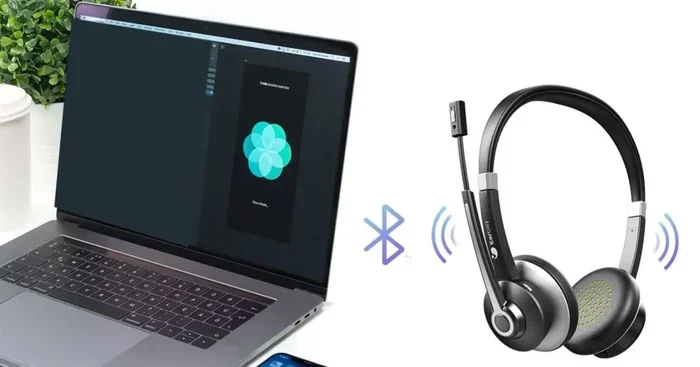
Connecting two Bluetooth headphones to your laptop lets you share audio with a friend or enjoy stereo sound from both sides. Whether you use Windows 10, Windows 11, or a Mac, the process is simpler than you think. This guide walks you through every method, from built-in settings to third-party tools, so you can start sharing sound right away.
Key Takeaways
- Multiple methods exist: You can use Windows Audio settings, third-party apps, or a Bluetooth splitter to connect two headphones.
- Built-in Windows features work well: Windows 10 and 11 have a “Listen to this device” feature that makes dual pairing easy.
- Mac users need a workaround: macOS does not natively support two Bluetooth headphones, so you will need a third-party app or an audio splitter.
- Troubleshooting is straightforward: Most connection issues come from Bluetooth settings, driver updates, or distance between devices.
- A Bluetooth splitter is the simplest hardware solution: It splits the audio signal without needing any software installation.
- Latency can be an issue: Wireless headphones may have slight audio delays, especially with cheaper Bluetooth adapters.
📑 Table of Contents
- How to Connect Two Bluetooth Headphones to Laptop
- Why Would You Want Two Bluetooth Headphones?
- Method 1: Use Windows Audio Settings (Built-In)
- Method 2: Use a Third-Party App
- Method 3: Use a Bluetooth Audio Splitter (Hardware)
- How to Connect Two Bluetooth Headphones on a Mac
- Troubleshooting Common Issues
- Quick Tips for the Best Experience
- Final Thoughts
How to Connect Two Bluetooth Headphones to Laptop
Have you ever wanted to watch a movie or listen to music with a friend, but only one pair of wireless headphones? You are not alone. Many people want to connect two Bluetooth headphones to laptop at the same time. The good news is that it is totally doable. You just need to know the right steps.
Whether you are using a Windows laptop or a Mac, there are a few different ways to get this working. Some methods use built-in settings, while others need a small piece of software or hardware. This guide covers everything you need to know. By the end, you will be sharing audio with ease.
The process for connecting Bluetooth headphones to a laptop is not much different from pairing a single device. The trick is telling your laptop to send audio to two devices at once. Let us dive into each method so you can pick the one that works best for you.
Why Would You Want Two Bluetooth Headphones?
Before we get into the how, let us talk about the why. There are several great reasons to set up dual headphones on your laptop.
- Sharing with a friend: Watch movies, play games, or listen to music together without splitting one earbud.
- Stereo separation: Some people use one headphone for the left channel and one for the right, creating a wider soundstage.
- Accessibility: Help someone with hearing difficulties enjoy audio at their preferred volume.
- Presentations: Share audio with a colleague during a quiet work session.
- Gaming: Team up with a friend and hear game audio through both sets of headphones.
No matter your reason, knowing how to connect two Bluetooth headphones to laptop opens up a lot of possibilities. It is a simple setup that makes your laptop far more versatile.
Method 1: Use Windows Audio Settings (Built-In)
If you are on Windows 10 or Windows 11, you already have a built-in way to share audio with two Bluetooth headphones. This method uses a feature called “Stereo Mix” or the “Listen to this device” option. It does not require any extra software.
Step-by-Step Guide for Windows
- Pair both headphones first: Go to Settings > Bluetooth & Devices and connect each headphone one at a time. Make sure both show as connected.
- Open Sound Settings: Right-click the speaker icon in your taskbar and select Sound Settings.
- Go to Sound Control Panel: Scroll down and click “More sound settings” or “Advanced sound options.”
- Open the Recording tab: Find “Stereo Mix” or “Bluetooth Audio” in the list. If you do not see it, right-click the empty space and check “Show Disabled Devices.”
- Set Stereo Mix as the default: Right-click Stereo Mix and choose Set as Default Device.
- Open the Properties window: Go to the Listen tab and check “Listen to this device.”
- Choose your second headphone: In the dropdown menu, select your second Bluetooth headphone.
- Click Apply and OK: Your audio should now play through both headphones.
This method works well for most users. However, you may notice a slight delay on one of the headphones. This is normal and happens because Bluetooth has a small latency. If the delay bothers you, try the next method.
For more help with Bluetooth connections, check out our guide on connecting a Bluetooth device to your laptop for general pairing tips.
Method 2: Use a Third-Party App
If the built-in Windows method does not work for you, do not worry. Several free apps let you route audio to multiple Bluetooth devices. These apps act as virtual audio splitters.
Best Apps for Dual Bluetooth Audio
- Voicemeeter Banana: A free, powerful audio mixer that lets you assign output devices. It works great for splitting audio to two Bluetooth headphones.
- Virtual Audio Cable: This app creates virtual audio channels. You can route each channel to a different Bluetooth device.
- Boom3D: Primarily an audio enhancer, but it also supports multiple output devices.
- Audio Repeater: A simple tool that captures system audio and sends it to another device.
How to Set Up Voicemeeter Banana
- Download and install Voicemeeter Banana from the official website.
- Open the app and go to the Hardware Input section. Select your laptop’s audio input.
- Go to the Hardware Output section. Assign one headphone to Output 1 and the second headphone to Output 2.
- Set your system default audio output to Voicemeeter.
- Play audio and adjust the volume sliders for each headphone independently.
Voicemeeter is the most popular choice because it is free and reliable. It gives you full control over volume levels for each headphone. You can also adjust the balance and add effects if you want.
Keep in mind that third-party apps may need administrator permissions. Also, always download software from the official source to avoid malware. If you run into connection issues with Bluetooth devices, you might want to learn how to troubleshoot Bluetooth connection problems for general fixes.
Method 3: Use a Bluetooth Audio Splitter (Hardware)
If you do not want to deal with software, a Bluetooth audio splitter is the easiest solution. This small device plugs into your laptop’s audio jack and broadcasts the same audio to two Bluetooth headphones at the same time.
How a Bluetooth Splitter Works
A Bluetooth splitter takes the audio signal from your laptop and duplicates it. It then sends the duplicate signal to two paired headphones. Both headphones receive the exact same audio at the same time. There is no delay or software setup needed.
Steps to Use a Bluetooth Splitter
- Plug the splitter into your laptop’s 3.5mm audio jack (or USB port, depending on the model).
- Power on the splitter. Most splitters need a USB cable for power.
- Pair your first headphone with the splitter. Follow the headphone’s normal pairing process.
- Pair your second headphone with the splitter. Some splitters allow you to pair both at once.
- Play audio on your laptop. The sound will now come out of both headphones.
Bluetooth splitters cost between $15 and $40 online. They are a great option if you share headphones often. The hardware method also avoids any software conflicts or driver issues. It works with any laptop, whether Windows or Mac.
Pros and Cons of a Bluetooth Splitter
| Pros | Cons |
|---|---|
| No software installation needed | Requires buying extra hardware |
| Works on any laptop | May have slight audio quality loss |
| Easy to set up | Limited range (usually 30 feet) |
| No latency issues | Splitter needs charging or USB power |
| Supports two devices at once | Not all splitters support all headphone models |
How to Connect Two Bluetooth Headphones on a Mac
Mac laptops do not have a built-in option for dual Bluetooth audio output. Apple has not added this feature yet. But you can still make it work with a simple workaround.
Option A: Use an Audio Splitter Cable
The simplest way for Mac users is a physical audio splitter cable. This cable plugs into your Mac’s headphone jack or USB-C port and splits the audio into two 3.5mm jacks. You then connect two wired headphones, or use a Bluetooth receiver on each end.
Option B: Use a Third-Party App
Apps like Bose Connect or SoundSeeder let you stream audio to multiple Bluetooth speakers and headphones. These apps create a local network and send audio to all connected devices. They work on macOS and are easy to set up.
Option C: Use AirPlay (For AirPods Only)
If both headphones are AirPods, you can use AirPlay to share audio. Open Control Center, click the AirPlay icon, and select both AirPods from the device list. This only works with Apple devices and AirPods, but it is very convenient.
For general Bluetooth pairing help on any device, see our article on how to connect a Bluetooth device to your laptop for step-by-step instructions.
Troubleshooting Common Issues
Sometimes things do not go as planned. Here are the most common problems when you try to connect two Bluetooth headphones to laptop and how to fix them.
One Headphone Keeps Disconnecting
This usually happens because the Bluetooth signal is weak. Move both headphones closer to your laptop. Also, make sure nothing is blocking the signal. Walls, furniture, and even your body can weaken Bluetooth signals. If the problem continues, try unpairing and re-pairing the headphone.
Audio Sounds Out of Sync
When one headphone plays sound slightly after the other, it is called latency. This is a common Bluetooth issue. To reduce latency, make sure both headphones are fully charged. Low battery can increase delay. You can also try moving closer to the laptop. If you use a third-party app, check its settings for latency compensation options.
Laptop Does Not Detect the Second Headphone
First, make sure the second headphone is in pairing mode. Then go to your Bluetooth settings and click “Add Device.” If it still does not show up, restart your laptop’s Bluetooth by toggling it off and on. You can also try removing all paired devices and starting fresh. For more help, check our guide on connecting a Bluetooth device to your laptop for general Bluetooth troubleshooting.
Poor Audio Quality
Bluetooth audio quality depends on the codec your devices support. The most common codecs are SBC, AAC, and aptX. If your laptop and headphones both support aptX, you will get better sound. You can check your sound settings to see which codec is active. Using a Bluetooth 5.0 adapter also improves audio quality significantly.
Quick Tips for the Best Experience
- Keep both headphones charged: Low battery on one headphone can cause sync issues.
- Stay within 30 feet of your laptop: Bluetooth range is limited, and walls reduce it further.
- Update your Bluetooth drivers: Go to Device Manager and check for driver updates regularly.
- Use matching headphones: Two headphones from the same brand tend to sync better.
- Close other Bluetooth devices: Too many connected devices can cause interference and audio drops.
- Restart Bluetooth when in doubt: A simple restart fixes most minor connection issues.
These small tips make a big difference. They help you get the most out of your dual headphone setup. Once you set everything up, you will barely think about it again.
Final Thoughts
Connecting two Bluetooth headphones to your laptop is easier than most people think. You have several great options to choose from. You can use Windows built-in settings, a free app like Voicemeeter, or a simple Bluetooth splitter. Each method has its strengths, so pick the one that fits your needs best.
Windows users have the easiest time with the built-in audio settings. Mac users will need a splitter or third-party app. Either way, the end result is the same: you and a friend can enjoy audio together from your laptop.
Do not let connection problems stop you. Most issues have simple fixes. Update your drivers, keep your devices charged, and stay close to your laptop. With a little patience, you will be sharing your favorite music and movies in no time.
Now that you know how to connect two Bluetooth headphones to laptop, go ahead and try it. Grab a friend, pick your favorite show, and enjoy the experience together. It is a small setup change that makes a huge difference.
Frequently Asked Questions
Can I connect more than two Bluetooth headphones to a laptop?
Yes, but it depends on your method. Third-party apps like Voicemeeter can support multiple output devices. However, most built-in Windows settings only support two devices at a time. A Bluetooth splitter typically supports exactly two headphones.
Do I need any special equipment to connect two Bluetooth headphones?
No, you do not need any special equipment if you use Windows built-in settings or a free app. However, a Bluetooth audio splitter makes the process even easier and works on any laptop without software setup.
Will connecting two headphones reduce audio quality?
In most cases, the audio quality stays the same. You may notice a slight delay on one headphone due to Bluetooth latency. Using a Bluetooth 5.0 adapter or keeping both headphones close to the laptop helps reduce this issue.
Can I connect two different brand Bluetooth headphones to the same laptop?
Yes, you can. Both headphones do not need to be the same brand. As long as both support Bluetooth and can be paired to your laptop, they will work together. Matching brands sometimes sync better, but it is not required.
Why does only one headphone play audio on my laptop?
This usually means the second headphone is not set as an output device. Check your sound settings and make sure both headphones are listed as playback devices. You may also need to enable the “Listen to this device” option in the Sound Control Panel.
Is it possible to adjust the volume of each headphone separately?
Yes, if you use a third-party app like Voicemeeter Banana. It lets you control the volume for each output device independently. The built-in Windows method does not offer separate volume control for each headphone.