What Is Hp Audio Switch
The HP Audio Switch is a built-in tool that lets you quickly change your audio output device on an HP laptop. It makes it easy to switch between your laptop speakers, headphones, and external audio devices without digging through Windows settings. Understanding how to use the HP audio switch can save you time and improve your daily listening experience.
If you own an HP laptop, you may have noticed a small icon or setting that lets you change your sound output in a flash. This is the HP Audio Switch, a handy little tool that many users overlook. It sits quietly in your system tray and does one job really well: it helps you jump between different audio devices without a headache.
Whether you are plugging in headphones for a late-night movie or connecting external speakers for a presentation, the HP audio switch makes the process smooth. In this guide, we will walk you through everything you need to know. From setup to troubleshooting, you will find practical tips that make your audio experience much better.
Sound management matters more than most people think. A good audio output setup can improve your calls, your music listening, and even your gaming sessions. Let us dive into what the HP Audio Switch is all about and how you can get the most out of it.
Key Takeaways
- Easy Audio Switching: The HP Audio Switch lets you move between speakers, headphones, and external devices in seconds.
- Built-In Convenience: It comes pre-installed on most HP laptops, so you don’t need extra software.
- Simple Troubleshooting: Knowing how the switch works helps you fix common audio problems fast.
- Better Sound Management: You can set your preferred default output and control volume more effectively.
- Supports Multiple Devices: The switch works with USB audio devices, Bluetooth speakers, and wired headphones.
- Improves Productivity: Quick switching is especially useful for work calls, gaming, and media playback.
📑 Table of Contents
What Exactly Is the HP Audio Switch?
The HP Audio Switch is a small utility found on HP laptops. It gives you a quick way to choose which device plays your sound. Instead of going deep into Windows sound settings every time, you get a simple menu right on your taskbar.
Think of it like a remote control for your laptop’s sound. You have a few options at your fingertips. You can pick your built-in speakers, a plugged-in headset, or even a Bluetooth device. The switch detects all available audio outputs and lists them for you.
Most HP laptops come with this tool already installed. It works hand in hand with your audio driver and Windows sound settings. If you have ever wondered why your sound suddenly plays through the wrong device, the HP Audio Switch can help you fix that in just a click.
How Does It Work?
When you click the HP Audio Switch icon, a small menu pops up. This menu shows all the audio devices your laptop currently recognizes. You simply click on the one you want to use, and the sound shifts right away.
The tool uses your laptop’s sound card to route audio to the selected device. It does not change any hardware. It just tells your system where to send the audio signal. This makes it fast, safe, and easy to use every single day.
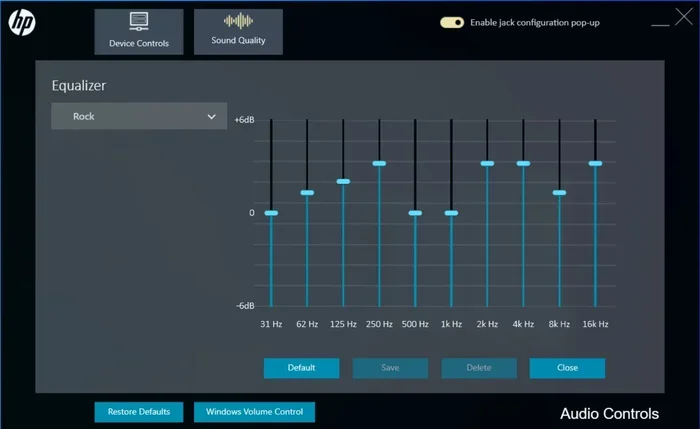
Some HP models also include audio enhancement features alongside the switch. These can boost bass, sharpen treble, and improve overall clarity. The combination of the switch and built-in enhancements gives you a lot of control over your sound.
Why Should You Use the HP Audio Switch?
You might wonder why you need a dedicated audio switch when Windows already has sound settings. That is a fair question. The answer comes down to speed and convenience.
Windows sound settings require several clicks to change devices. You have to right-click the speaker icon, open sound settings, and then pick a new output. The HP Audio Switch cuts that process down to one or two clicks. That may not sound like much, but it adds up fast during a busy workday.
Here are some real situations where the switch shines:
- Work calls: You need to switch from speakers to a headset in a hurry before a meeting.
- Gaming: You want to plug in your gaming headset without restarting anything.
- Media watching: You connect external speakers for better sound quality while watching a movie.
- Presentations: You switch to a projector or external display audio output in a boardroom.
- Music production: You test different output devices to compare sound quality.
In each of these cases, the HP audio switch saves you time and keeps you in your flow. It is one of those small features that makes a big difference once you start using it regularly.
How to Set Up and Use the HP Audio Switch
Setting up the HP Audio Switch is straightforward. Most HP laptops have it ready to go right after you turn on the device. But it helps to know exactly where to find it and how to configure it for your needs.
Step-by-Step Setup Guide
- Locate the icon: Look at the bottom-right corner of your screen, in the system tray. You should see a small speaker icon. Right-click it to see audio options.
- Open the HP Audio Switch: If your laptop has the tool, you will see it listed among the audio output options. Click on it to open the full menu.
- Select your device: A list of available audio outputs will appear. Click on the one you want to use.
- Set a default: You can also set a default output device so your laptop always uses your preferred speaker or headphone setup.
- Test the sound: Play a short audio clip or video to make sure the switch worked correctly.
Once you have gone through these steps a couple of times, the process becomes second nature. You will switch audio devices without even thinking about it.
Customizing Your Audio Preferences
The HP Audio Switch also lets you fine-tune your preferences. You can adjust the volume for each device separately. This is useful when you have multiple output devices connected at the same time.
You can also explore your audio preferences in Windows settings. Go to Settings, then System, and then Sound. From there, you can set the default output, adjust app-specific volumes, and manage your speaker configuration. The HP Audio Switch works alongside these settings to give you a complete audio management experience.
If you care about sound quality, pay attention to your frequency response settings. Good frequency response for speakers ensures that your audio sounds balanced and clear. The HP Audio Switch helps you route sound to devices that can deliver the best frequency response for your needs.
Common Issues and How to Fix Them
Like any software tool, the HP Audio Switch can sometimes act up. Most problems are easy to fix with a few simple steps. Here is what you might run into and how to solve it.
Audio Not Switching Devices
If you click the switch but the sound does not move to the new device, the first thing to check is your audio driver. Outdated or corrupted drivers are the most common cause of this issue. Go to Device Manager, find your sound card, and update the driver. Restarting your laptop after the update often fixes the problem right away.
Another cause could be a loose connection. If you are using a wired headphone or external speaker, unplug it and plug it back in. Sometimes the port needs a fresh connection for the laptop to recognize the device.
No Sound at All
No sound is frustrating, but it is usually an easy fix. First, check that your volume is not muted. Then, make sure the correct output device is selected in the HP Audio Switch. If you recently updated Windows, the default audio device may have changed without you noticing.
You can also run the Windows audio troubleshooter. Go to Settings, then System, then Sound, and click on the troubleshoot button. Windows will scan for common issues and try to resolve them automatically.
Bluetooth Audio Keeps Disconnecting
Bluetooth devices can be finicky. If your wireless headphones or speaker keep disconnecting, move closer to your laptop. Bluetooth signals weaken with distance and walls. Also, make sure your Bluetooth audio driver is up to date through Device Manager.
Sometimes the issue is with the Bluetooth device itself. Try unpairing and re-pairing it with your laptop. This refreshes the connection and often solves the problem.
HP Audio Switch vs. Windows Default Sound Settings
You might be wondering how the HP Audio Switch compares to the built-in Windows sound settings. Both tools let you change your audio output, but they work differently.
| Feature | HP Audio Switch | Windows Sound Settings |
|---|---|---|
| Speed of switching | Very fast, one or two clicks | Requires several clicks through menus |
| Location | System tray, always accessible | Settings app, deeper in menus |
| Device detection | Auto-detects all connected devices | Shows devices but may need manual refresh |
| Audio enhancements | Often includes HP-specific enhancements | Basic volume and balance controls |
| Ease of use | Very simple and intuitive | Functional but less user-friendly |
The HP Audio Switch is clearly the faster and more convenient option for everyday use. Windows sound settings are still useful for deeper configuration, but for quick switching, the HP tool wins. Many users keep both tools in their routine. They use the switch for fast changes and Windows settings for more detailed adjustments.
If you want to learn more about how speaker output and audio devices work together, understanding ohm ratings in speakers can help you choose the right external devices for your setup.
Tips to Get the Best Audio Experience on Your HP Laptop
The HP Audio Switch is just one part of the equation. To get the best sound from your laptop, you need to pay attention to a few other things as well.
Keep Your Drivers Updated
Your audio driver controls how sound flows from your laptop to your output device. Outdated drivers can cause crackling, static, or no sound at all. Check for driver updates regularly through HP Support or Device Manager. Enabling automatic updates is the easiest way to stay current.
Use Quality External Speakers
Your laptop’s built-in speakers are good for everyday use, but they have limits. If you listen to music often or watch a lot of videos, consider investing in a pair of quality external speakers. Look for speakers with a strong frequency response and good ohm rating to match your laptop’s output capabilities.
Adjust Equalizer Settings
Many HP laptops come with built-in equalizer software. You can use this to boost bass, enhance vocals, or sharpen high frequencies. The HP Audio Switch works well with these equalizer settings, letting you switch between presets quickly.
Clean Your Audio Ports
Dust and debris can build up in your headphone jack and speaker ports over time. This can cause muffled sound or connection issues. A quick clean with compressed air can make a surprising difference in audio quality.
Use the Switch for Every New Device
Whenever you plug in a new audio device, take a moment to select it in the HP Audio Switch. This ensures your laptop routes sound to the right place from the start. It is a small habit that prevents a lot of confusion later.
Final Thoughts
The HP Audio Switch is one of those features that quietly makes your life easier every day. It is fast, simple, and built right into your HP laptop. Whether you are switching between speakers and headphones for a work call or plugging in external devices for a better listening experience, this tool handles it all.
By understanding how the switch works and keeping your audio drivers updated, you can enjoy clear, reliable sound every time. Pair the switch with good external speakers and proper speaker configuration, and your audio experience will reach a whole new level.
Take a few minutes today to explore your HP Audio Switch settings. Once you see how easy it is to manage your sound output, you will wonder how you ever lived without it. Good audio makes everything better, from work calls to movie nights, and the HP Audio Switch is your gateway to that better experience.
Frequently Asked Questions
How do I access the HP Audio Switch on my laptop?
Look for the speaker icon in the bottom-right corner of your screen, in the system tray. Right-click it and look for the HP Audio Switch option in the menu that appears. If you do not see it, you may need to open the HP Audio settings through the Windows Sound menu.
Can I use the HP Audio Switch with Bluetooth devices?
Yes, the HP Audio Switch works with Bluetooth audio devices. Make sure your Bluetooth device is paired with your laptop first. Once paired, it will appear in the switch menu, and you can select it as your audio output with a single click.
Why is my HP Audio Switch not showing all available devices?
This usually happens when a device is not properly connected or its driver is outdated. Check your cable connections and update your audio driver through Device Manager. Restarting your laptop can also help the switch detect newly connected devices.
Does the HP Audio Switch affect sound quality?
The switch itself does not change sound quality. It simply routes audio to the selected device. However, the quality of the output depends on the device you choose. A high-quality external speaker or headset will always sound better than basic built-in laptop speakers.
Is the HP Audio Switch available on all HP laptops?
The HP Audio Switch is available on most modern HP laptops. Some older or budget models may not include it. If your laptop does not have the switch, you can still manage audio through Windows Sound settings, which offer similar functionality.
How do I set my default audio output device?
Open the HP Audio Switch and select your preferred device. You can also go to Windows Settings, then System, then Sound, and choose your default output from there. Setting a default saves you from having to switch devices every time you play audio.