Top 10 Best Monitors For Photo Editing: Expert Picks
Choosing the right monitor for photo editing is one of the most critical decisions a photographer or visual artist can make. A display with poor color accuracy, low resolution, or bad viewing angles can completely misrepresent your work, leading to wasted time and frustrating re-edits. The best monitors for photo editing offer exceptional color fidelity, covering key color spaces like sRGB and Adobe RGB, along with factory calibration and consistent brightness. They combine high resolution—often 4K—with IPS panel technology for wide viewing angles and ergonomic designs for long editing sessions. In this roundup, we’ve tested and evaluated dozens of displays to bring you the top performers that deliver true-to-life images without breaking the bank.
Quick Product Comparison
Our Top 10 Best Monitors For Photo Editing Reviews – Expert Tested & Recommended
1. ASUS ProArt PA278QV Monitor
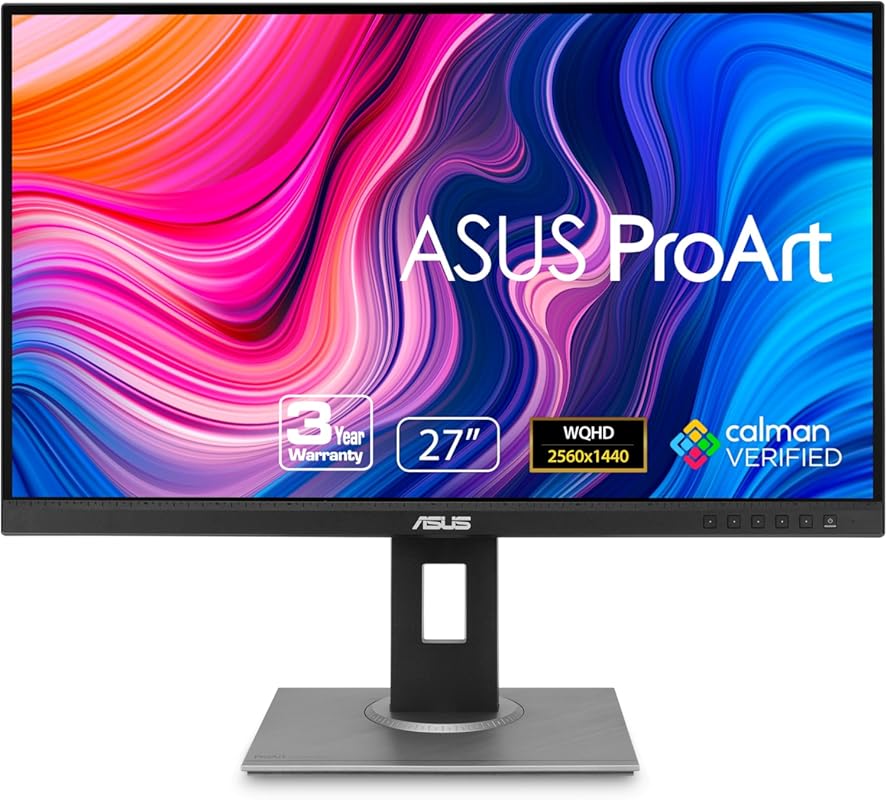
The ASUS ProArt PA278QV is a standout 27-inch WQHD monitor that delivers professional-grade color accuracy without the premium price tag. It covers 100% sRGB and Rec. 709 color spaces, and comes Calman Verified with a factory calibration ensuring Delta E < 2. The IPS panel provides excellent viewing angles, and the ergonomic stand offers tilt, swivel, pivot, and height adjustments. It’s a workhorse that balances performance and value beautifully for photographers who need reliable color reproduction.
Key Features That Stand Out
✓ 100% sRGB/Rec. 709 coverage for accurate color reproduction
✓ Calman Verified with Delta E < 2 for exceptional color precision
✓ 27-inch WQHD (2560×1440) resolution for sharp detail
✓ Ergonomic stand with full tilt, swivel, pivot, and height adjustments
✓ ASUS Eye Care technology with flicker-free backlight and blue light filter
Why We Recommend It
This monitor is a fantastic all-rounder for photo editing. The factory calibration means you can start editing right out of the box with minimal setup. The WQHD resolution provides more screen real estate than Full HD without the demanding GPU requirements of 4K, making it ideal for most editing workflows. Its robust stand and consistent panel performance make it a durable, long-lasting tool.
Best For
Photographers and digital artists who want professional color accuracy on a budget, especially those upgrading from a basic 1080p display. It’s perfect for sRGB-focused workflows like web and general photography.
Pros and Cons
Pros:
- Outstanding color accuracy out of the box
- Highly adjustable, sturdy ergonomic stand
- Excellent value for the features offered
- Reliable build quality with minimal backlight bleed
Cons:
- Built-in speakers are very basic
- No USB-C connectivity for modern laptops
- HDR support is limited (HDR10 but not very bright)
Customer Reviews
Customer Review: I liked the older, smaller TN computer monitors, that had good contrast at low brightness so you could comfortably read black text on a white background. I’ve tried IPS monitors before that were clearly just cheap glossy TV panels, way too much brightness and saturation, no contrast, and horrible smudges from backlight bleed covering half the screen. Computer monitors are supposed to be better than TVs. Also, once you get past 24″ or so, 1080 is way too blurry up close.This one is excellent, exactly what I was looking for. It’s still bright enough to be used as a TV if that’s what you want, but with the brightness turned down it works as a real computer monitor with excellent color and good contrast, the kind you would use at a desk with a mouse and keyboard. The screen is very consistent, with no visible glow or bleeding from the edges, even when the screen is black. The stand is impressive, very simple to put together, very easy to adjust but also very stable.They’re probably overselling this a little bit for high-end professional work, 100% sRGB (with the brightness turned all the way down) isn’t actually that impressive, but I don’t care what they call it as long as I can get a good quality, general purpose monitor at a decent price.
Customer Review: A review from over a year of owning this: I got this to do art and occasionally play games. Refresh rate is great, especially when gaming or editing 60fps videos. Screen is the perfect size for my desk and I love that I can extend it and use it when I’m standing. Color is excellent and I appreciate the ability to check real life dimensions from within the screen. I have no dead pixels and I’ve been using it for over a year with no issue. While the brightness is adjustable and can go pretty high, there’s a bit of screen burn-in (that fades given time) which is to be expected. I generally keep to the default sRGB and lower brightness to avoid this because it can mess with color appearances which isn’t ideal for art. The only major downside of this is that the speakers are really poor quality. I got some cheap, 20+ year old external speakers to plug in because it really was that bad and the cheap external speakers are significantly better. If you are editing videos with audio or like to listen to music while you work, you’ll need headphones or speakers. I’d almost rather this monitor didn’t come with built in speakers as it feels like such a waste for something so poor quality. But I suppose if you just need something to hear alerts or notification sounds, it could be just what you need.Overall, I’m a very happy digital artist with this monitor!
2. LG 27US500-W Ultrafine Monitor
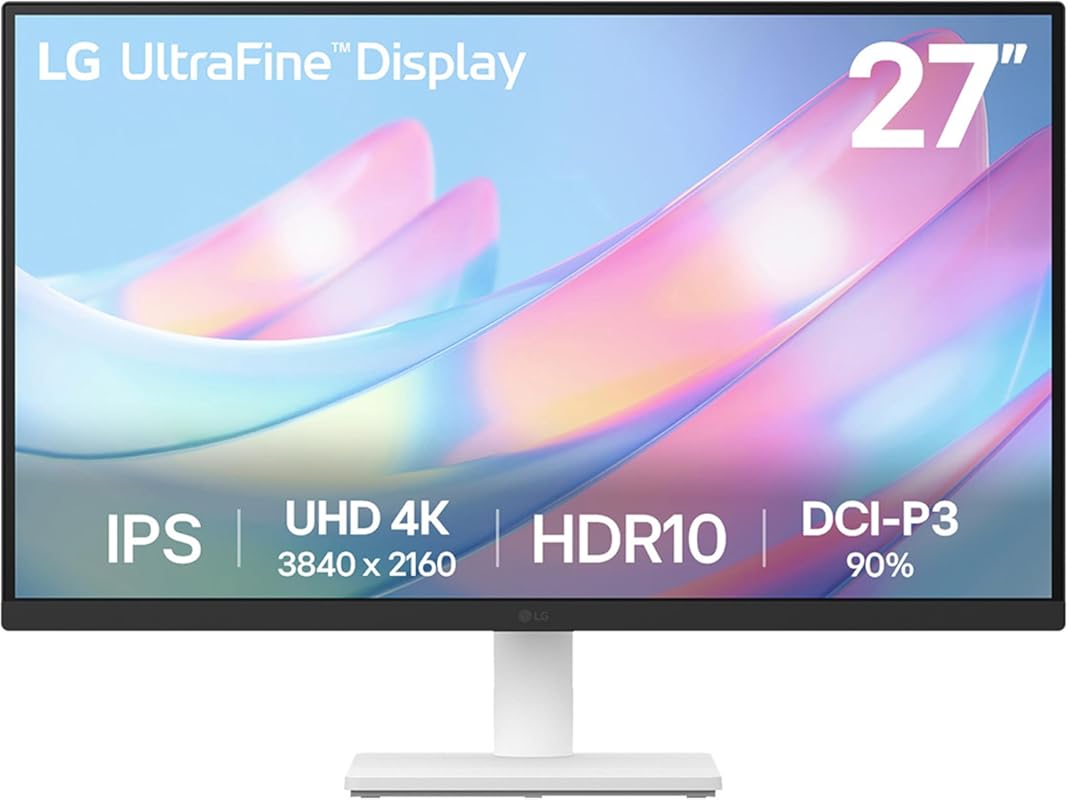
The LG 27US500-W Ultrafine is a stunning 4K monitor that combines sharp resolution with excellent color performance. It covers up to 90% DCI-P3 and supports HDR10, making it a great choice for photographers working in wide color gamuts. The borderless design maximizes screen space, and LG’s Onscreen Control software simplifies display adjustments. It’s a sleek, modern monitor that delivers incredible detail for editing high-resolution images.
Key Features That Stand Out
✓ 4K UHD (3840×2160) resolution for ultimate detail
✓ Up to 90% DCI-P3 color gamut coverage for vibrant, wide-range colors
✓ HDR10 support for enhanced dynamic range
✓ Borderless IPS panel with wide viewing angles
✓ Onscreen Control software for easy monitor customization
Why We Recommend It
This monitor is a top-tier choice for photographers who need the extra pixel density of 4K for cropping and detailed retouching. The color accuracy out of the box is very good, and the wide DCI-P3 coverage is a bonus for those working with cinematic or modern photography color spaces. Its minimalist design and solid build make it a beautiful addition to any studio.
Best For
Professional and enthusiast photographers who edit high-resolution files, work with HDR content, or need a large, sharp workspace. Ideal for Mac users and those who value a clean, cable-managed desk setup.
Pros and Cons
Pros:
- Gorgeous 4K resolution with crisp text and images
- Excellent color gamut coverage (90% DCI-P3)
- Sleek, borderless design with thin bezels
- HDR10 support for compatible content
Cons:
- Stand only tilts; no height or swivel adjustment (requires VESA mount)
- HDR performance is decent but not class-leading
- No USB-C charging port
Customer Reviews
Customer Review: I’ve been using the LG 27US500-W Ultrafine Monitor for a few weeks now, and it’s been fantastic. The 4K UHD resolution is incredibly sharp—text looks crisp, and colors are vibrant without being oversaturated. Out of the box, color accuracy was already very good, but after a quick calibration, it looked even better.The 27-inch screen size is the sweet spot for productivity—large enough for split-screen multitasking without taking up too much desk space. I mainly use it for photo editing, web browsing, and occasional Netflix, and everything looks clean and smooth. The IPS panel gives great viewing angles too, so there’s no color shifting when I move around.Build quality is solid and minimalistic, with thin bezels and a clean white finish that looks great on my desk. The stand is a little basic—only tilt adjustment, no height or swivel—but that’s easily solved with a VESA mount.Connectivity is straightforward with HDMI and DisplayPort options, and it works flawlessly with both my MacBook and PC.
Customer Review: I didn’t rate this for gaming because I don’t have a video card to drive a 4K monitor at a good speed yet, but for everything else, it looks brilliant for the money.I’m a working stiff these days, so I don’t have the free time I’d like to have to play around and get everything set up just so, and I found that there are little hurdles and speed bumps along the way with these newer displays if you want to actually USE all of the fancy marketing buzzwords like HDR or Freesync or G-Sync or high frame rates or FALD (full array local dimming). I haven’t gotten those all figured out just yet and the documentation and user interface aren’t quite intuitive if you’ve never had to set those up and get them actually enabled and working correctly in real life before. They’re not just “plug it in and bask in the full glory” easy yet– you have to make sure you have the right combinations of hardware, cables, drivers, and settings between all the devices and peripherals to take full advantage of those newer features. But 4K crystal clear beautiful brilliance does pretty much work right out of the box, and at this price, even just that is worth having. It takes very little adjusting to get very realistic colors compared to my old calibrated Dell setup. I didn’t even have to delve into the color calibration tool in Windows to get it fairly close to what I prefer in my lighting environment and get my pictures to look almost exactly like they looked in real life when I originally took the pictures. I don’t even feel bad quite yet about not pulling out a hardware calibration tool.So while I haven’t put together all of those pieces in a way that lets me enjoy all the features and functionality of this monitor yet, I am already satisfied with my purchase even if I never take the time to make it all work at peak performance. This is a pretty darn good buy.I’ve even considered picking up another one or two to replace my old 1080P monitor and at least one of my work monitors at the office because of the price to performance ratio. The only reason I haven’t is because I may get my work to buy one or two for me for that, and at home I’m planning to buy one of the top of the line 4K G-Sync quantum dot monitors as my main/gaming monitor once I’ve upgraded my rig to push 4K really well, and it seems silly to me to buy a perfectly good monitor to only use for a few months. These are too good to waste and I don’t have room on my desk for a triple monitor setup, unfortunately, or it’d be a no-brainer.
3. Dell S2725QC Monitor
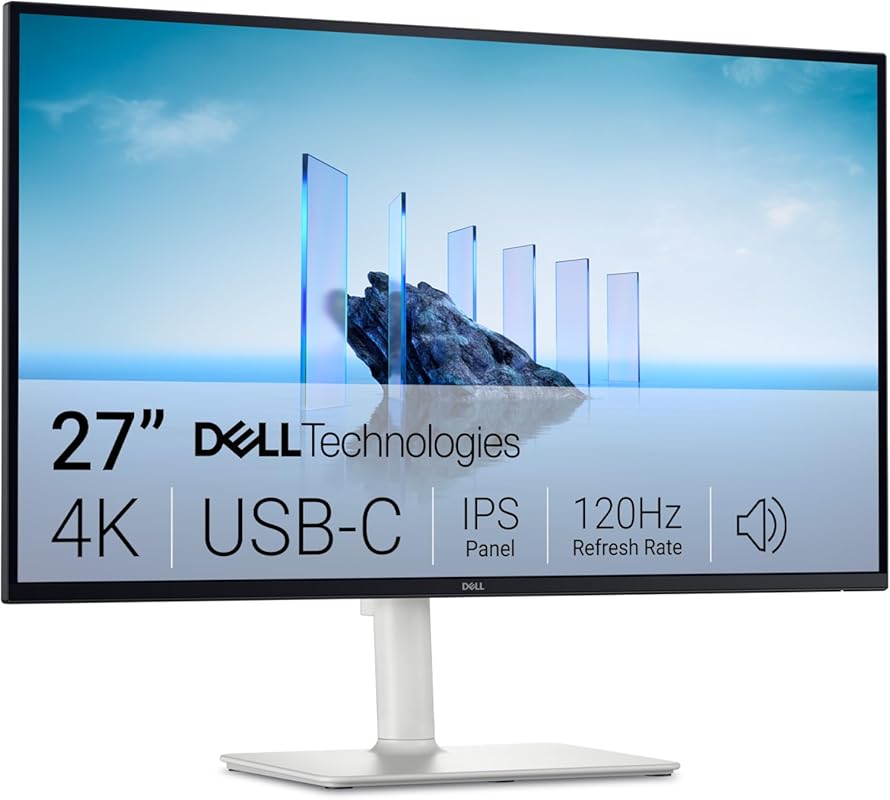
The Dell S2725QC is a surprising value pack, offering a 4K USB-C monitor with a 120Hz refresh rate and AMD FreeSync Premium at a budget-friendly price. It covers 99% sRGB and uses Dell’s ComfortView Plus to reduce blue light without sacrificing color accuracy. The integrated speakers are a nice bonus, and the USB-C port provides 65W power delivery, making it perfect for laptop users. It’s a versatile workhorse that excels at both productivity and light creative work.
Key Features That Stand Out
✓ 4K UHD resolution with 120Hz refresh rate and FreeSync Premium
✓ USB-C with 65W power delivery for single-cable connectivity
✓ 99% sRGB coverage and factory calibration
✓ Integrated speakers (rare at this price point)
✓ ComfortView Plus reduces blue light emissions
Why We Recommend It
This monitor is the best budget 4K option for photo editors who also want a smooth, tear-free experience for general use or light gaming. The USB-C port is incredibly convenient, allowing you to connect and charge a laptop with one cable. While its color accuracy isn’t as meticulously calibrated as the ProArt series, it’s more than sufficient for most sRGB workflows.
Best For
Budget-conscious creators, students, and professionals who need a versatile 4K monitor with great connectivity. It’s especially suited for those using modern laptops with USB-C and who want a single-cable solution.
Pros and Cons
Pros:
- Excellent price for 4K, 120Hz, and USB-C features
- Convenient single-cable USB-C connectivity with power delivery
- Solid sRGB color coverage for everyday editing
- Integrated speakers are a useful extra
Cons:
- Color accuracy not as tight as professional-grade monitors
- HDR performance is basic (DisplayHDR 400)
- Stand adjustment limited to tilt only
Customer Reviews
Customer Review: 10/10 FANTASTIC MONITOR!!! I use it for editing with my MacBook in clamshell mode. Amazing visuals, large display, hidden pop down for quick usb and usb-c access!Some people mention they can’t control the audio and brightness, but that’s an app setting, not the monitor. Download monitor control for your keyboard to control your volume and steermouse to control and optimize your mouse for editing.All in all, would 110% recommend. Nice and sturdy and for the price?! Crazy awesome!!! 🙌🏻
Customer Review: Excellent monitor with crystal clear screen especially good for text reading. Color rendition is fairly good though. Could be a little easier to set up for that application. Starts very quickly. Easily connected to two computers and switches easily back-and-forth. Somewhat cumbersome to use the speakers on the screen, which are very good by the way, because it keeps resetting to the computer speaker every time you shut off the computer. It is substantially larger than the 27 inch iMac, though they’re both rated at 27 inches. The Dell has a much smaller border which gives more screen space. All in all has been a very good purchase. The 4K resolution is much easier on the eye for doing text work. So far, I have found no downside. This is a non-OLED screen, though I cannot tell any difference in the color rendition or clarity when compared with OLED screens by the same company.
4. ASUS ProArt PA248QV Monitor
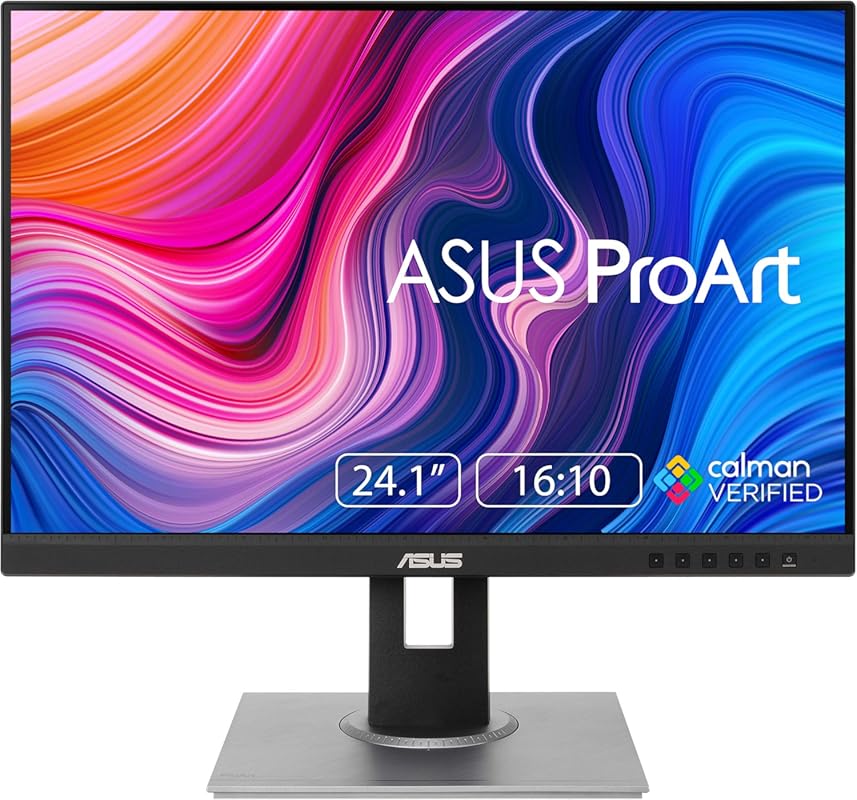
The ASUS ProArt PA248QV is a 24-inch WUXGA (1920×1200) monitor that packs the same color-accurate technology as its larger siblings into a more compact footprint. Its 16:10 aspect ratio gives you extra vertical space compared to 16:9, which is fantastic for scrolling through long timelines or viewing multiple toolbars. With 100% sRGB coverage, Calman verification, and Delta E < 2, it’s a precision tool for photographers who want a smaller, high-performance display.
Key Features That Stand Out
✓ 100% sRGB/Rec. 709 coverage and Delta E < 2 color accuracy
✓ 24-inch WUXGA (1920×1200) resolution with 16:10 aspect ratio
✓ Calman Verified factory calibration
✓ Ergonomic stand with full tilt, swivel, pivot, and height adjustments
✓ ASUS Eye Care technology with flicker-free backlight
Why We Recommend It
This monitor is perfect for editors who prioritize color accuracy but have limited desk space or prefer a smaller screen. The 16:10 aspect ratio is a subtle but significant advantage for productivity, giving you more vertical room without needing to scroll as much. It shares the same ProArt color engine as the larger models, ensuring your edits are true to life.
Best For
Photographers and designers with smaller desks, users who prefer a 16:10 screen for coding or writing, and anyone wanting ProArt-level color accuracy in a compact form factor.
Pros and Cons
Pros:
- Excellent color accuracy with Calman verification
- Useful 16:10 aspect ratio for extra vertical space
- Fully adjustable ergonomic stand
- Great value for a color-accurate ProArt monitor
Cons:
- Lower resolution than 4K options (WUXGA)
- Speakers are basic (as with most monitors)
- Some backlight bloom in high-contrast dark scenes
Customer Reviews
Customer Review: It has everything I would ever want in a monitor, glad I held off and waited till I was able to get this over other monitors. The 16:10 Aspect Ratio looks great on After Effects and Gaming as coincidentally it shares the same aspect ratio as the Steam Deck. These are the best colors I’ve seen on a display since probably my M1 Macbook Air but it’s probably better seeing how neutral it is and the anti reflective screen is really nice to see whatever is being displayed. It has 5ms latency from what I’ve researched and it performs perfectly for 60fps-75fps gaming which is all I need.You do have the abliity to switch inputs between Displayport, HDMI, and VGA which is great if you have a capture card and only want to use one Display for multiple devices. The stand is also pretty nice and offers a lot breathing room for your desk. It also has speakers which I wasn’t expecting and its serviceable at best but its there when I need it which is perfectly fine.Only gripe is that any area that’s dark and has high contrast white in the image it’ll bloom a decent amount in a dark room so that’s pretty annoying but usually I can turn on the lights in my room anyways which is probably better for my eyes too.Overall I would recommend this to every aspiring content creator if they’re looking for an extremely high quality Display on a budget, if I had more disposable money I would absolutely have gotten a 2nd one to go with this one.
Customer Review: This is a beautiful display in a fairly uncommon aspect ratio. I’ve liked it immensely and have had no issues with it. If you want a color accurate display that can hold a little more in its margins, it’s a good option. As it is a monitor, do not use it for sound output. The on-board speaker is weak (as you might expect). I’m not even sure why it has speakers to begin with. The screen is fairly adjustable, though, if that’s something you’d like to know.It’s very sturdy. It’s good for making art (especially visual art). Amazon has suggested that I discuss its gaming potential. It is not a gaming monitor. It will, of course, show you anything you choose to display, but you could probably do better if gaming is your interest. Still, despite Amazon’s strange suggestion, I feel comfortable recommending this easily. It’s a great monitor!
5. ASUS ProArt PA279CRV Monitor
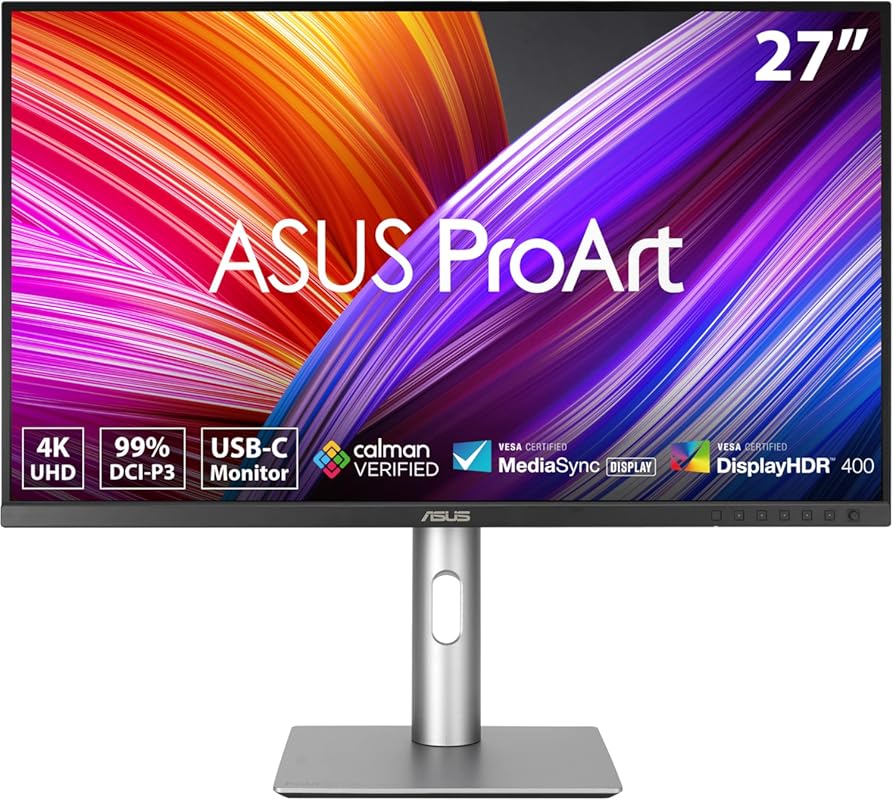
The ASUS ProArt PA279CRV is a professional-grade 27-inch 4K monitor built for the most demanding color work. It boasts 99% DCI-P3 and 99% Adobe RGB coverage, making it ideal for photographers working in both sRGB and wider color spaces. It’s Calman Verified with Delta E < 2, and the USB-C port delivers a substantial 96W of power, perfect for charging high-end laptops. The HDR10 support and sleek design add to its premium appeal.
Key Features That Stand Out
✓ 99% DCI-P3 and 99% Adobe RGB coverage for professional color work
✓ 4K UHD resolution with HDR10 support
✓ Calman Verified Delta E < 2 color accuracy
✓ USB-C with 96W power delivery
✓ Ergonomic stand with full movement
Why We Recommend It
This is the monitor for photographers who need the widest possible color gamut and the highest accuracy. Whether you’re editing landscapes in Adobe RGB or cinematic photos in DCI-P3, the PA279CRV delivers. The 96W USB-C is a standout feature for those with power-hungry laptops, eliminating the need for a separate charger. It’s a top-tier tool for studio professionals.
Best For
Professional photographers, retouchers, and colorists who require the utmost color fidelity and wide gamut coverage. Also excellent for users with high-power laptops who want a single-cable docking solution.
Pros and Cons
Pros:
- Exceptional wide-gamut color coverage (99% DCI-P3/Adobe RGB)
- Top-tier factory calibration (Delta E < 2)
- Powerful 96W USB-C for laptop charging
- 4K HDR10 for compatible content
Cons:
- Premium price point
- 60Hz refresh rate (adequate for editing but not gaming)
- On-screen controls can be less intuitive
Customer Reviews
Customer Review: Excellent monitor. I do semi professional video and picture editing and I must say that I did not realize what I was missing by not having this monitor all these years. It is a great size. It doesnt feel overwhelming to view up close for hours on end. Im not a big fan of the button control, but thats honestly for any monitor. I prefer a remote. The picture is great for editing video and pics. You really see the true color saturations. This can be used as a gaming monitor as well, but its better suited for editing. It looks great for games of course, but dont expect any high refresh rates for call of duty. This monitor is only 60hz, which is all you need for editing. The control button menu is good and easy to navigate. The brightness is good and you have many different temps to choose from. I didnt adjust anything and left it all factory out of the box. I really cant find much wrong with this monitor. it suits my needs perfectly. Good buy!
Customer Review: I have been using this monitor for a bout a year. I calibrated it with a Datacolor Spyder X2. I use it for photo editing and general computer use. It is easy on the eyes and color true enough to do high quality photo editing. I gave it a five. It deserves a 10!
6. 27 Inch 4K 70Hz IPS Monitor
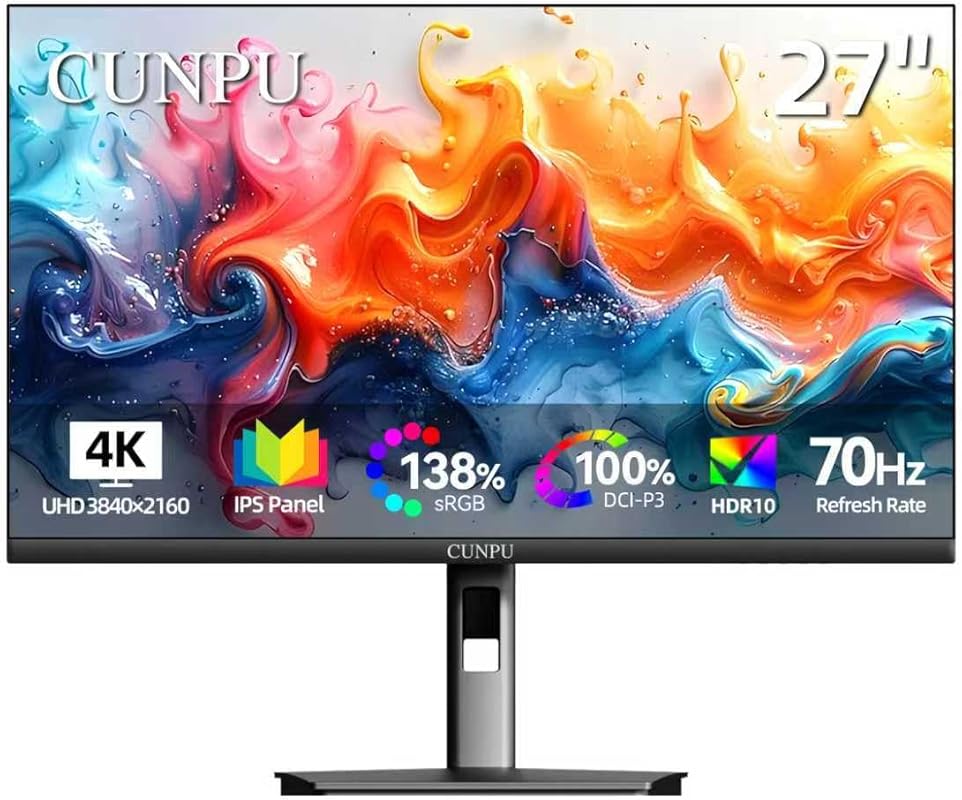
This 27-inch 4K monitor from CUNPU is a budget-friendly entry into high-resolution editing. It boasts 100% DCI-P3 coverage and Delta E < 2 color accuracy, which is impressive for its price point. The ultra-slim bezels and IPS panel provide a modern look with good viewing angles. It includes features like Picture-by-Picture (PBP) for multi-source viewing and Adaptive Sync for smoother visuals. While it has some compromises in build quality and HDR implementation, it delivers excellent value for the specs.
Key Features That Stand Out
✓ 4K UHD resolution at an affordable price
✓ 100% DCI-P3 color gamut and Delta E < 2 accuracy
✓ Ultra-slim 3-side bezel for a modern aesthetic
✓ Picture-by-Picture (PBP) for dual-source viewing
✓ Adaptive Sync support for tear-free visuals
Why We Recommend It
For editors on a tight budget who still want 4K resolution and good color gamut coverage, this monitor is a compelling option. It undercuts many branded competitors on price while offering similar core specs. The PBP feature is handy for comparing edits side-by-side from two different computers. Just be prepared to manage expectations regarding HDR and stand adjustability.
Best For
Budget-focused photographers and hobbyists who want to step up to 4K without spending a fortune. Also good for multi-computer setups thanks to PBP.
Pros and Cons
Pros:
- Very affordable 4K with good color gamut (100% DCI-P3)
- Delta E < 2 accuracy for basic color work
- Slim bezels and modern IPS panel
- Useful PBP mode for dual inputs
Cons:
- HDR performance is poor (washed out in testing)
- Cheap, non-adjustable stand (VESA mount recommended)
- Instructions and menu system are not intuitive
- Brand less known for long-term reliability
Customer Reviews
Customer Review: I’m not going to ding the monitor for this, because it’s a new computer, and I’m not sure if it’s the computer or monitor… When I selected HDR, the picture got very light and washed out looking. Used the Windows HDR calibration app, and it didn’t help. On the other hand, the colors in SDR mode were vibrant and clear. Looking at a few photos, (I have over a TB of pix and haven’t yet transferred them) I’m seeing some details that I don’t see on my current monitor, and that one was never a slouch.The picture has good uniformity and I haven’t seen any back-light bleed, but that was in a brightly lit room. It may be different when actually placed in my home office. No stuck or dead pixels, either.Beyond that, it’s all minutia… the stand is cheap but adequate if all you need is to hold it in place. In this price range, you won’t find better. It did come with some screws and standoffs, presumably for an external VESA stand. Nothing in the instructions on how to mount it, though. The instructions were kind of worthless, in fact. The control syntax works, if a bit uninspired. It came with a cable; Display Port, not HDMI. 😒 A monitor in this price range is probably going to be used with a bottom feeder computer, and mine doesn’t have Display Port. One weird but inconsequential quirk that I can’t tell if from the monitor or the computer; I set the screen saver to 13 minutes and didn’t think to set the monitor time out (the default setting is 10 minutes) and it went into some kind of diagnostic screen. It never did enter the screen saver or go to sleep. After resetting the screen saver to less than 10 minutes, it worked normally.This one is being paired with my first new computer since Windows XP. I’ve upgraded over the years, but never a new-from-the-ground-up build. The specific hardware requirements in Windows 11 meant that my current system is at a dead end. While I’m uncomfortable letting the grandkids play their online games and videos on the same system with all of my personal data, doing it on a system that doesn’t have a supported OS is not at all acceptable. So my current system will be wiped of sensitive data once I finish backing up the pictures et al. The issues that I’ve been experiencing are probably from the computer, not the monitor, but I felt it worth reporting just in case. A good monitor at a great price. Even if you feel the need for a better stand, it’s still a reasonable investment for a quality picture.
Customer Review: Ok, this monitor is legit! Trust me, I’ve been around them for over 30 years. This weird name brand monitor has so many features that others do not!1. Built in speakers that get really loud. If you prefer Bluetooth, the Wonderboom 2 is an amazing choice.2. The monitor rotates vertically and has easy height adjustment and tilt movements3. It’s 4K so the picture is beautiful. The buttons for the settings are on the bottom right hand side. I had to play with them to get the hang of it, but you can adjust the image in many different ways. (Contrast, brightness, saturation, voice volume, picture mode, and more)! – It does not have toggle on the back that breaks, like some Dell monitors do!4. This unit has a USB port and HDMI (x2) which is great for Roku or a Firestick, as well as a DisplayPort which offers higher resolution than HDMI, and an auxiliary port if you want to hard wire headphones, speakers, or anything else that plugs into a 3.5mm jack5. The circle on the back of the monitor lights up with colors when it’s turned on, and looks totally rad (if the back is not facing a wall).6. Extremely easy to assemble, but be careful with the screen!If you’re opting for a webcam and microphone, they would pair perfectly with this monitor. I recommend the Insta360 Link 2 or 2C, an iContact webcam from their website, or the Logitech MX Brio UHD 4K. A great microphone is the Blue Sona by Logitech as well!For the price, this CUNPU an EXCELLENT choice!(Even though the brand’s name sounds like a kindergartner learning to say the word, “computer”).My pictures do not do the monitor justice! A+++
7. ASUS ROG Strix XG27UCS Monitor
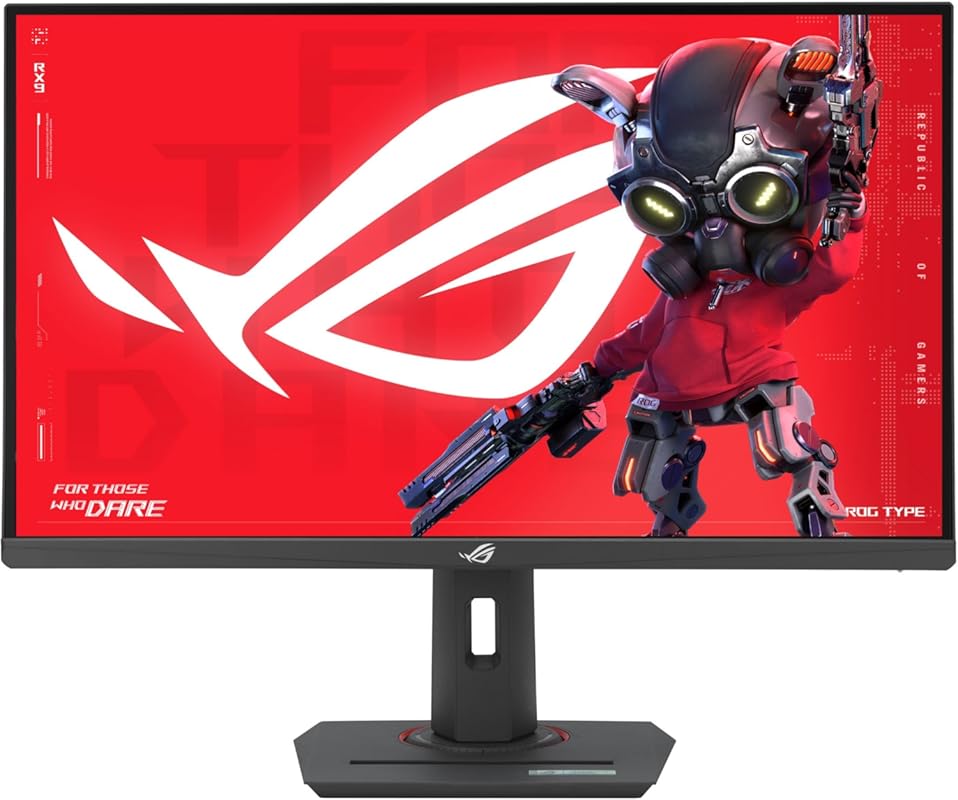
The ASUS ROG Strix XG27UCS is a 4K gaming powerhouse that doubles as an excellent photo editing display. Its Fast IPS panel provides a stunning 160Hz refresh rate and 1ms response time, while still covering 130% sRGB for vibrant colors. The USB-C port supports 65W power delivery, and it’s G-Sync Compatible. For photographers who also game or want the smoothest possible UI experience, this monitor offers incredible versatility.
Key Features That Stand Out
✓ 4K UHD with 160Hz refresh rate and 1ms response time
✓ 130% sRGB color gamut coverage for vivid colors
✓ USB-C with 65W power delivery
✓ G-Sync Compatible and AMD FreeSync Premium
✓ HDR400 certification and ELMB Sync technology
Why We Recommend It
This monitor is a unique blend of high-refresh-rate gaming performance and strong color reproduction. The 160Hz refresh makes scrolling through large images and navigating editing software incredibly smooth. While its color gamut is focused on sRGB (not Adobe RGB), it’s still very accurate and vibrant. The USB-C port adds convenience for laptop users. It’s the best choice for the creative who games on the side.
Best For
Photographers and content creators who are also avid gamers and want a single monitor that excels at both. Also great for anyone who values an ultra-smooth desktop experience.
Pros and Cons
Pros:
- Incredible 160Hz refresh rate for smooth scrolling and gaming
- Strong sRGB color coverage (130%)
- USB-C with 65W power delivery
- G-Sync Compatible for tear-free gaming
Cons:
- No Adobe RGB or DCI-P3 coverage (sRGB focused)
- HDR400 is entry-level HDR
- Higher price than standard editing monitors
- Can be overkill for pure photo editing needs
Customer Reviews
Customer Review: The XG27UCS was the perfect monitor choice for me, especially for the price! I have a small table so I was worried about the size, BUT the small base is a lifesaver and also has a smartphone holder which I’ve never seen on a monitor before, as well as a super convenient USB-C charging port. The setup process couldn’t have been easier, as no tools were required. While setting it up, I noticed the tripod socket on top of the vertical stand which is perfect for my webcam / lighting setup.Once I had it set up via the Display Port 1.4 option, I couldn’t believe how good the quality was. I didn’t expect it to be that much clearer than my 1440p 144hz monitor I had before, but it was a game changer. When I loaded up my game, I could INSTANTLY tell not only the quality difference but also the refresh rate. 160hz combined with 4K felt like I was gaming on a NASA computer for the first time ever LOL. Not only were the HDR & ELMB insane, but I felt like I was seeing colors I had never seen before!I also love how you can turn the screen sideways! As tempted as I am to try it for my live stream chat, I can’t go back to using my 1440p monitor to game after using this one – the quality, refresh rate, and 1ms response time has me hooked. I couldn’t be happier with this purchase!
Customer Review: I am absolutely thrilled with the ASUS ROG Strix 27” 4K monitor. The picture quality is outstanding; 4K UHD resolution (3840 x 2160) on a 27-inch screen is incredibly sharp. The 160Hz refresh rate and 1ms response time combined with the Fast IPS panel deliver an incredibly smooth gaming experience, with virtually no ghosting.G-Sync compatibility works flawlessly and eliminates screen tearing. The addition of a USB-C port makes connectivity a breeze, especially for my laptop setup. The monitor looks sleek, and the tripod socket is a nice touch for streaming or mounting accessories. This is a top-tier gaming monitor that I highly recommend for anyone looking to upgrade to 4K high refresh rate.
8. ASUS VA279HG Monitor
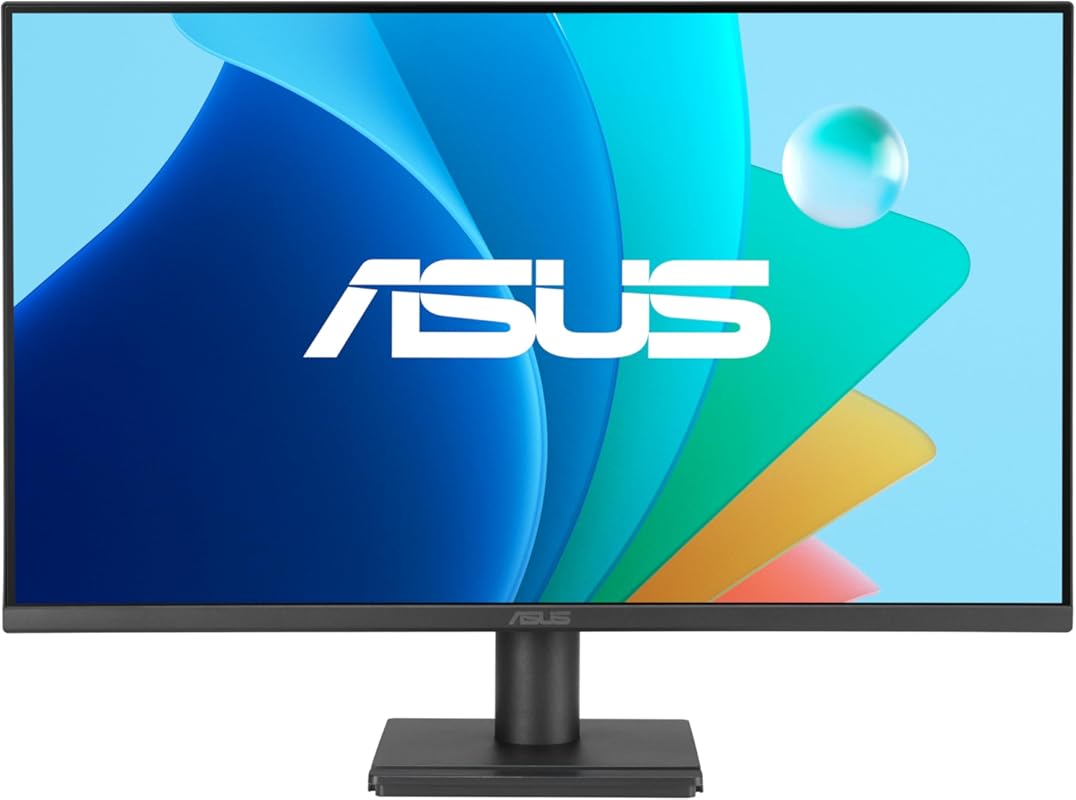
The ASUS VA279HG is a no-frills 27-inch 1080p monitor that surprises with its 120Hz refresh rate and Adaptive-Sync support. It covers 99% sRGB and uses an IPS panel for decent viewing angles. The standout feature is the smooth 120Hz refresh, which makes general navigation and light gaming feel responsive. It’s an entry-level option for those who need a large screen for multitasking but have a tight budget.
Key Features That Stand Out
✓ 27-inch Full HD (1920×1080) with 120Hz refresh rate
✓ 99% sRGB color coverage
✓ Adaptive-Sync for tear-free visuals
✓ IPS panel with 178° viewing angles
✓ ASUS Eye Care technology (flicker-free, low blue light)
Why We Recommend It
This monitor is the best value for someone who wants a large, smooth 1080p display for everyday use, including light photo editing. The 120Hz refresh rate is unusual at this price and makes a noticeable difference in perceived smoothness. While the 1080p resolution limits detail for heavy photo work, it’s perfectly adequate for casual editing and web-based workflows.
Best For
Students, casual photographers, and budget users who want a large, smooth screen for general computing, web browsing, and light photo editing. Not recommended for professional color-critical work due to resolution limits.
Pros and Cons
Pros:
- Very affordable 27-inch 120Hz monitor
- Smooth scrolling and gaming experience
- Decent sRGB coverage for basic color work
- Adaptive-Sync support
Cons:
- 1080p resolution is low for detailed photo editing
- No USB-C or advanced color calibration
- Build quality is basic
- Speakers are very weak
Customer Reviews
Customer Review: Very nice picture, easy set up. Wish they had instructions on the control. Took me a while to find the the little “joystick” on the back.
Customer Review: Excelente producto ,de acuerdo a lo ofrecido y en en tiempo de entrega antes de lo ofrecido . Muy recomendado.
9. LG 27UP650K-W Ultrafine Monitor
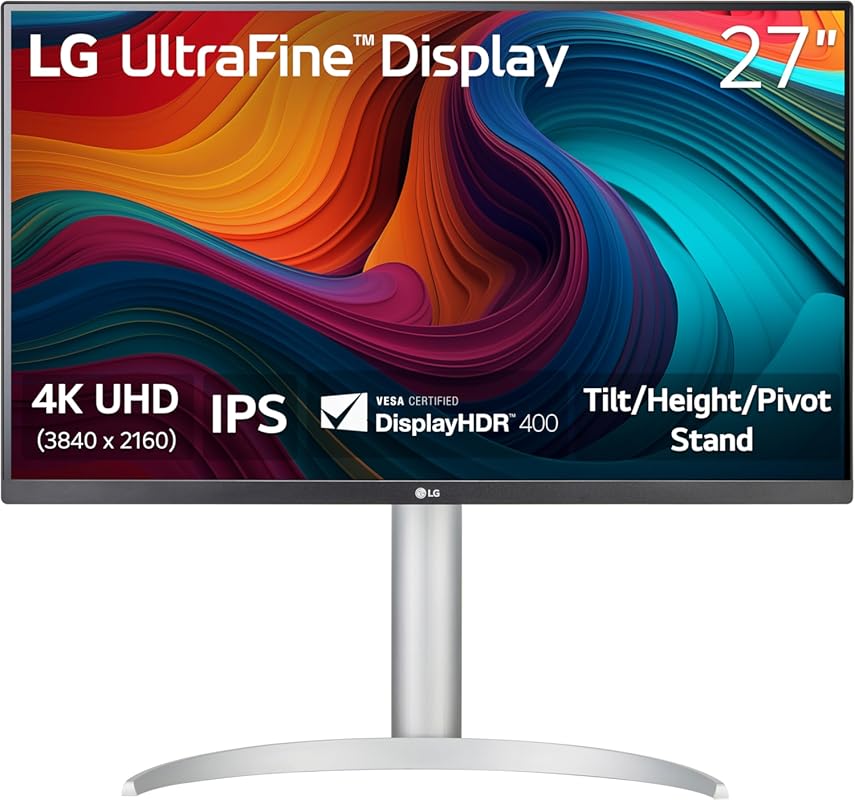
The LG 27UP650K-W is a 4K monitor that focuses on color performance with up to 95% DCI-P3 coverage and DisplayHDR 400 certification. Its IPS panel offers consistent colors and wide viewing angles. A fully adjustable stand (height, tilt, swivel, pivot) is a rare and welcome feature at this price. The Reader Mode and Flicker Safe tech enhance comfort during long editing sessions. It’s a well-rounded 4K option for color-conscious creators.
Key Features That Stand Out
✓ 4K UHD resolution with up to 95% DCI-P3 color gamut
✓ DisplayHDR 400 certification
✓ Fully adjustable stand (height, tilt, swivel, pivot)
✓ Reader Mode and Flicker Safe for eye comfort
✓ Onscreen Control software for easy adjustments
Why We Recommend It
This monitor strikes an excellent balance between resolution, color gamut, and ergonomics. The fully adjustable stand is a major plus, especially for users who need to position their screen precisely. The 95% DCI-P3 coverage is great for photographers working in modern color spaces, and the HDR400 support adds a bit of extra pop for compatible content. It’s a reliable, no-nonsense 4K workhorse.
Best For
Photographers and designers who want a 4K monitor with good wide-gamut coverage and a highly adjustable stand. Ideal for those who prioritize ergonomics and color accuracy without needing professional-grade calibration.
Pros and Cons
Pros:
- Strong DCI-P3 coverage (95%) for vibrant colors
- Fully adjustable stand—rare at this price
- 4K resolution with HDR400 support
- Comfortable eye-care features for long sessions
Cons:
- No factory calibration (requires user calibration for best accuracy)
- USB-C port lacks power delivery
- HDR400 is entry-level (not very bright)
Customer Reviews
Customer Review: It is a great monitor having a great color coverage (95% DCI-P3). The monitor has a great picture mode named DCI-P3 (alternative to read, FPS, RTS, cinema, etc) that works very well with MacBook Pro. I really enjoy it.
Customer Review: This monitor was recommended to me by ChatGPT, and I’m very happy with it. The 4K picture quality is excellent, clear, and sharp. I liked it so much that I ordered four of them. Great design and definitely worth it.
10. LG 32U631A-B Monitor
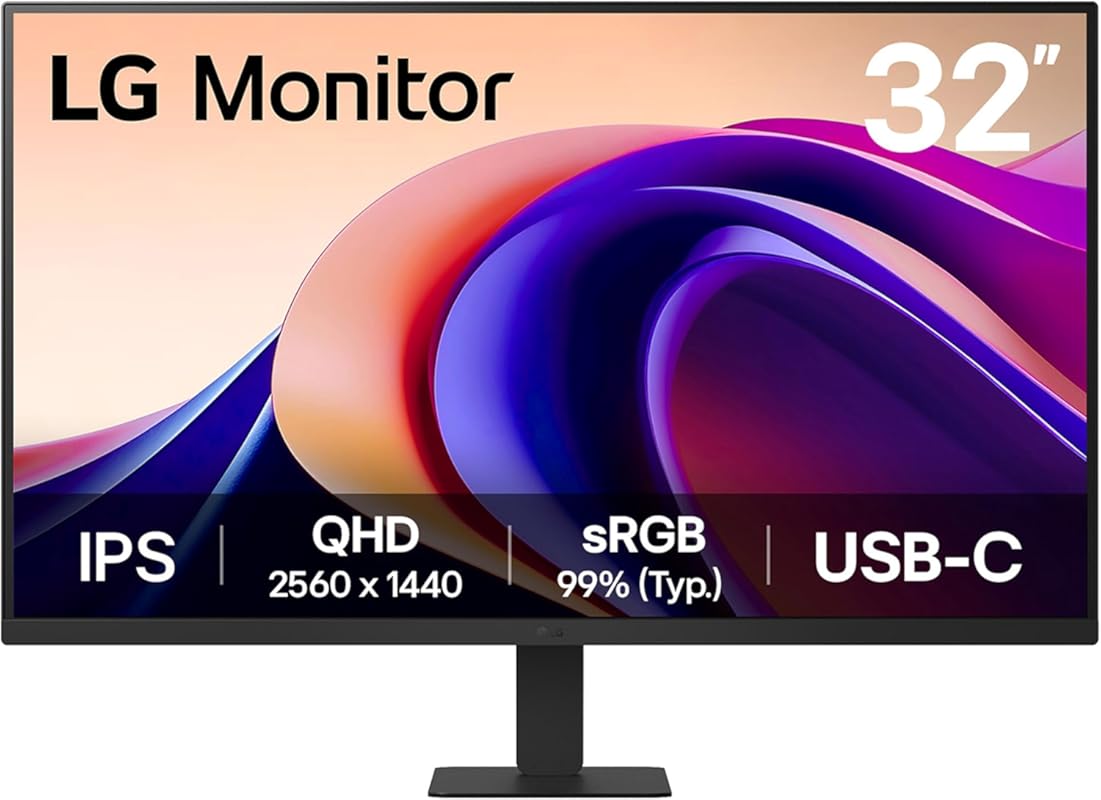
The LG 32U631A-B is a large-format 32-inch QHD (2560×1440) monitor that offers a spacious workspace for photo editing. Its IPS panel provides consistent colors with up to 99% sRGB coverage, and the 100Hz refresh rate ensures smooth motion. It includes HDR10, a USB-C port with 15W power delivery, and LG’s Reader Mode and Flicker Safe technologies. The huge screen real estate is perfect for multitasking and viewing large images at full size.
Key Features That Stand Out
✓ 32-inch QHD (2560×1440) resolution for massive screen space
✓ 100Hz refresh rate for smooth visuals
✓ Up to 99% sRGB color gamut
✓ HDR10 support
✓ USB-C with 15W power delivery and fully adjustable stand
Why We Recommend It
This monitor is for editors who want a large, immersive workspace without moving to a 4K panel. The 32-inch size at QHD resolution provides a similar pixel density to a 27-inch 4K screen, but with more physical space to spread out tools and windows. The 100Hz refresh rate is a nice bonus for smoother scrolling. It’s a practical choice for those who prioritize screen real estate over ultimate resolution.
Best For
Photographers and designers who need extensive screen space for multitasking, comparing images side-by-side, or working with large-format files. Also good for users who sit a bit farther from the screen.
Pros and Cons
Pros:
- Huge 32-inch screen with QHD resolution
- 100Hz refresh rate for smooth motion
- Good sRGB coverage for color work
- USB-C port and fully adjustable stand
Cons:
- Lower pixel density than 4K (at 32-inch)
- No Adobe RGB or DCI-P3 coverage
- HDR10 performance is modest
- Requires more desk space
Customer Reviews
Customer Review: This 32-inch IPS computer monitor is an absolute powerhouse for both productivity and professional communication. The expansive screen real estate is a total game-changer for multitasking, and the color accuracy remains stunningly consistent from any viewing angle. What truly sets this 2026 model apart is the integrated audio system, which delivers excellent sound quality during video calls. Voices are incredibly crisp and clear. I also appreciate the flicker-free technology and blue light filter that significantly reduce eye strain during long work sessions. It is a premium display that delivers exceptional visual and acoustic performance, completely elevating my remote work experience. So easy to setup and use.
Customer Review: Like many others who are now working from home, I wanted to get away from having separate spaces for work and home computing. I wanted to easily switch between work and home using 2 32 inch monitors. I was willing to pay high end prices for one of the monitors for gaming, but the second one wasn’t as important to me. I wanted both monitors to be QHD. My home PC is a new gaming system running an RTX 3070. The work PC is a HP Elitebook laptop.For the gaming monitor I purchased the LG 32GK65B-B VA panel with 144hz and Freesync for $399.For the second monitor I purchased the LG 32QN600-B IPS panel with 75hz HDR10 and Freesync for $209 on Amazon’s Black Friday sale.Both monitors were a breeze to mount on an adjustable mount. Took less than 2 minutes each to install. With the power off, both monitors look exactly the same from the front. I can put them touching each other and you can’t tell they’re not exact the same panel. The backs of them look different but that wasn’t an issue.Both monitors set up instantly via display port on my gaming computer. It took a few moments fiddling with the menu to get Freesync rolling but the menu controls are fast and intuitive and before long the gaming monitor was at 144hz and the secondary was at 75hz.The primary VA panel 32GK65B-B struggled with my work laptop through HDMI. The screen would completely flash off every 2 seconds, even at the windows login screen. The secondary IPS panel 32QN600-B immediately functioned correctly on my work computer without any problems. After tinkering around for a few minutes I found that the gaming monitor was trying to push 75hz, and the secondary was pushing 60hz. Since I don’t need a higher refresh rate on the work computer I went into the Windows 10 display settings and locked the refresh rate to 60 and that solved the problem instantly.I flipped back and forth between displays a few times and was pleased that all the settings and window locations stayed the same without any issues.With initial setup complete I started actually using the computers and everything seemed great, but before too long I noticed that the gaming monitor didn’t look as nice as the cheaper monitor. I eventually realized that I was sitting too close. The cheaper IPS panel has a pretty excellent viewing angle so 2.5 feet from the monitor looked fine. The more expensive VA panel lost a lot of color around the edges if I was too close to it. After some testing, basically the VA monitor looks terrible compared to the IPS if you’re too close to it. As long as you’re about 3.5 feet away or more they look the same. After moving them back a bit I realized that I had no reason to sit that close to begin with since they’re gigantic.In summary, both monitors look and work great. The quality of the cheap IPS panel is pretty impressive. If you don’t care about refresh rate above 75hz you’d be extremely pleased with a pair of those, otherwise if you want the 144hz refresh than the VA panel is a competitive price and functions very well. If you’d be watching it from an angle for some reason, or having others crowd around you, you probably want to find something with a better viewing angle, but I think most gamers tend to sit in front of their monitor. I’m not sure if I’ll ever notice the lack of HDR on the gaming monitor, but so far games look fantastic without it.I’ll update this in a few months but for now I’m giving both 5 stars.
Complete Buying Guide for Best Monitors For Photo Editing
Essential Factors We Consider
When choosing a monitor for photo editing, color accuracy is paramount. Look for monitors that cover at least 100% sRGB and, for more advanced work, high percentages of Adobe RGB or DCI-P3. Factory calibration with a Delta E < 2 rating ensures colors are true out of the box. Panel type matters—IPS panels offer the best viewing angles and color consistency. Resolution is key: 4K (3840×2160) provides incredible detail, while QHD (2560×1440) offers a great balance of sharpness and performance. Connectivity like USB-C with power delivery simplifies laptop workflows. Finally, an ergonomic stand with height, tilt, swivel, and pivot adjustments is crucial for comfort during long editing sessions.
Budget Planning
Entry-level ($200-$400): You can get a solid 27-inch QHD or 4K monitor with good sRGB coverage. Expect basic stands and no wide gamut. The ASUS ProArt PA278QV and Dell S2725QC fit here.
Mid-range ($400-$700): This range offers excellent 4K monitors with better color gamuts (DCI-P3), factory calibration, and USB-C. The LG 27US500-W and LG 27UP650K-W are prime examples.
Professional ($700+): For the utmost color fidelity, wide gamut (Adobe RGB/DCI-P3), and premium features, look at monitors like the ASUS ProArt PA279CRV. These are built for studio environments and critical color work.
Final Thoughts
Investing in a good monitor is one of the most impactful upgrades you can make for photo editing. You don’t always need the most expensive model, but you should prioritize color accuracy and a reliable panel. Consider your workflow: if you edit mostly for web, sRGB is sufficient. For print or cinematic work, aim for Adobe RGB or DCI-P3 coverage. Remember, a well-calibrated mid-range monitor will often serve you better than an uncalibrated high-end one. Take the time to set up your monitor correctly, and it will pay dividends in the quality of your edits.
Frequently Asked Questions
Q: Is a 4K monitor necessary for photo editing?
A: Not strictly necessary, but highly recommended. 4K provides four times the pixels of 1080p, allowing you to see fine details and edit with more precision. It also gives you more screen real estate for tools and panels. If you work with high-resolution files or do heavy cropping, 4K is a significant advantage.
Q: What color gamut should I look for—sRGB, Adobe RGB, or DCI-P3?
A: It depends on your output. sRGB is the standard for web and general photography. Adobe RGB covers a wider range, beneficial for high-end print work. DCI-P3 is common in digital cinema and modern photography. For most photographers, a monitor with high sRGB coverage is essential; if you print professionally or work with wide-gamut cameras, look for Adobe RGB or DCI-P3 support.
Q: Do I need to calibrate my monitor even if it’s factory calibrated?
A: Factory calibration is a great start, but monitors can drift over time. For critical color work, it’s wise to use a hardware calibrator (like a Datacolor SpyderX or X-Rite i1Display) every few months to maintain accuracy. For casual editing, the factory settings are usually sufficient.
Q: Is a high refresh rate (120Hz, 144Hz) important for photo editing?
A: Not for the actual editing process, which is static. However, a higher refresh rate makes scrolling through large images, navigating your OS, and using the desktop feel much smoother and more responsive. It’s a nice quality-of-life feature, especially if you also game or multitask heavily.
Q: What’s the ideal monitor size for photo editing?
A: Most professionals prefer 27-inch monitors as they offer a good balance of screen real estate and pixel density (especially at 4K). 32-inch monitors provide more space but may require you to sit farther back or use scaling. 24-inch is fine for smaller desks but offers less room for panels. Choose based on your desk size and viewing distance.
Finding the best monitor for photo editing boils down to matching your specific needs—whether that’s ultimate color accuracy, 4K detail, budget constraints, or versatile features. From the exceptional color fidelity of the ASUS ProArt PA278QV to the gaming-ready ASUS ROG Strix XG27UCS, there’s a display here for every type of creator. Remember, your monitor is your window to your work; investing in a good one ensures what you see is what you get. Take a look at the comparison table, read through the reviews, and pick the one that fits your workflow and budget. Your photos will thank you.
Ready to upgrade your editing setup? Click the “Check Price on Amazon” buttons above to see the latest deals and availability!