How to Find Ram Slots in Laptop
Finding your laptop’s RAM slots is the first step to upgrading your computer’s memory and boosting its performance. Whether you have a Windows laptop or a Mac, learning how to find RAM slots in your laptop helps you determine if you can add more memory or need to replace existing modules. In this guide, we walk you through every method — from using built-in system tools to physically opening your laptop — so you can confidently check your RAM slots and make the right upgrade decision.
Key Takeaways
- Check your manual or manufacturer website first to confirm slot details and RAM type.
- Use System Information or Task Manager to quickly see your current RAM configuration.
- Open the back panel carefully to physically inspect available RAM slots and their condition.
- Match new RAM to your laptop’s supported type, generation, and speed specifications.
- Most laptops have two slots, but some models are soldered and cannot be upgraded.
- Use free tools like Crucial Scanner to instantly find compatible RAM for your laptop.
- Upgrade RAM in pairs for optimal dual-channel performance and better overall speed.
📑 Table of Contents
- Why Knowing How to Find RAM Slots in Your Laptop Matters
- What Are RAM Slots and Why Do They Matter?
- How to Check if Your Laptop Has Available RAM Slots
- Step-by-Step Guide: Finding RAM Slots Through Physical Access
- Using Software Tools to Detect RAM Slots and Memory Details
- Common Types of RAM Slots and What You Need to Know
- Practical Tips for Upgrading Your Laptop RAM
- Expert Insights on Finding and Using RAM Slots
- Key Takeaways
- Conclusion
Why Knowing How to Find RAM Slots in Your Laptop Matters
Before you dive into how to find RAM slots in laptop, let me tell you why this matters so much. Maybe you want to boost your laptop’s speed. Perhaps your machine feels sluggish when you have multiple tabs open. Or you might be preparing to buy new RAM and need to know what fits. Whatever your reason, understanding your laptop’s memory slots is the very first step.
Many laptop owners never think about their RAM until something goes wrong. And honestly, that’s a missed opportunity. Your laptop’s RAM capacity directly affects how smoothly it runs. From browsing the web to editing videos, more memory means better laptop performance. Knowing where your slots are and how many are available puts you in control.
In this guide, I’ll walk you through every method to locate your RAM slots. Whether you prefer checking through software or opening your laptop’s physical RAM access panel, I’ve got you covered. Let’s get started.
What Are RAM Slots and Why Do They Matter?
Let’s keep this simple. RAM slots are the physical connectors on your laptop’s motherboard where memory modules sit. Think of them like parking spots for your computer’s short-term memory. When you open an app, your laptop loads it into these slots for quick access.
Understanding SO-DIMM and DIMM Slots
Most laptops use SO-DIMM slots. These are smaller versions of the DIMM slots found in desktop computers. SO-DIMM stands for Small Outline Dual In-line Memory Module. They’re compact by design because laptops need to save space.
Desktop computers typically use full-size DIMM slots. But since we’re talking about laptops here, SO-DIMM is what you’ll mostly encounter. Some ultra-thin laptops even use soldered RAM with no slots at all. That’s why checking your specific model matters so much.
How Many RAM Slots Do Laptops Typically Have?
Most laptops come with either one or two memory slots. Here’s a quick breakdown:
- Budget laptops: Often have one SO-DIMM slot. Some models even have RAM soldered directly to the motherboard with no slot available.
- Mid-range laptops: Usually feature two SO-DIMM slots. This allows for dual-channel memory setups that boost performance.
- Gaming or workstation laptops: May have two or even four slots. These machines support higher RAM expansion and faster memory speeds.
Knowing how many slots your laptop has helps you plan upgrades properly. If both slots are occupied, you’d need to remove existing modules before adding new ones. That’s valuable information before spending any money.
How to Check if Your Laptop Has Available RAM Slots
This is where things get interesting. You don’t always need to open your laptop to find out about its memory configuration. There are software methods that make RAM detection incredibly easy. Let me show you the simplest approaches.
Method 1: Use the Windows Task Manager
This is probably the easiest way to check your current RAM setup. Here’s how:
- Right-click on your taskbar at the bottom of your screen.
- Select Task Manager from the menu.
- Click on the Performance tab.
- Look for Memory on the left sidebar.
- Check the top right corner — it shows how many memory slots are used and how many are available.
It really is that simple. Windows will tell you exactly how many slots are filled and how many remain open. I love this method because it takes less than 30 seconds. If you want a deeper dive into checking your system, you can also learn how to check RAM in laptop using multiple methods.
Method 2: Use System Information
Windows also includes a built-in tool called System Information. It provides detailed specs about your machine. To access it:
- Press Windows + R to open the Run dialog.
- Type msinfo32 and press Enter.
- Look for information about your physical memory and slot details under “System Summary.”
This method gives you additional details like your current RAM speed and type. It’s a great supplementary tool when you’re researching upgrades.
Step-by-Step Guide: Finding RAM Slots Through Physical Access
Sometimes software tools don’t give you the full picture. In those cases, you need to physically locate the RAM compartment. This approach is especially helpful if you plan to laptop RAM upgrade soon. Let me walk you through it.
Locating the Memory Compartment on Your Laptop
First, you need to find the access panel. On most laptops, the physical RAM access panel is on the bottom of the device. It’s usually marked with a small icon that looks like a laptop with an arrow pointing inward. Some laptops label it simply with the word “MEMORY.”
Not all laptops are this straightforward, though. Some manufacturers hide the RAM compartment behind the keyboard or under the battery. If you can’t find it on the bottom, check your laptop’s manual or search your model number online. A quick search for how to find RAM slots specific to your laptop model will usually point you in the right direction.
Opening the RAM Panel Safely
Once you’ve found the panel, follow these steps carefully:
- Power off your laptop completely and unplug the charger.
- Remove the battery if possible. This prevents any electrical damage.
- Ground yourself by touching a metal surface. Static electricity can damage computer components.
- Use the correct screwdriver. Most laptops use small Phillips-head screws.
- Remove the screws and gently lift the panel off.
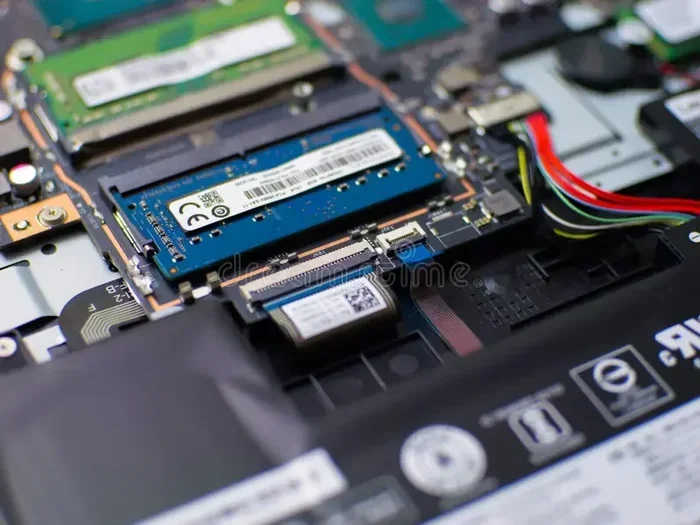
- Inspect the interior — you should see one or two RAM modules seated in their slots.
When you look inside, the RAM sticks are long, thin green or blue circuit boards. They click into place on both sides. If your laptop has empty slots, you’ll see the exposed connector on the motherboard with no module covering it. That’s your open slot, ready for an upgrade.
What to Do If You Can’t Find a RAM Panel
Some modern laptops don’t have a separate RAM compartment. Ultra-thin models like certain MacBooks or Dell XPS laptops sometimes have RAM soldered to the motherboard. In these cases, there simply aren’t any accessible slots. If that’s your situation, you might want to explore options like how to upgrade RAM in a laptop for models with limited expandability.
Using Software Tools to Detect RAM Slots and Memory Details
Not everyone feels comfortable opening their laptop. That’s completely fine. There are powerful software tools that can give you detailed information about your memory slots without touching a single screw. Let me share my favorites.
CPU-Z: A Free and Reliable Tool
CPU-Z is a lightweight, free tool that provides detailed hardware information. After downloading and installing it:
- Open the program and click the Memory tab.
- You’ll see your current RAM type, size, and speed.
- Click the SPD tab to see details about each memory slot.
- It shows which slots are populated and which are empty.
CPU-Z is my go-to tool because it’s accurate and doesn’t cost anything. It also shows RAM compatibility details that help when shopping for new modules.
Speccy by Piriform
Another great option is Speccy. It offers a clean interface and detailed reports. The RAM section shows slot count, module details, and even the maximum RAM support for your system. It’s especially useful for quickly checking laptop memory specs before making a purchase decision.
Built-in Windows Commands
If you prefer staying within Windows, try this:
- Open Command Prompt as Administrator.
- Type wmic memorychip get BankLabel, Capacity, Speed, Manufacturer and press Enter.
- Windows will list every installed memory module with details about each slot.
This command gives you a quick snapshot without installing anything extra. It’s perfect for a quick RAM detection session.
Common Types of RAM Slots and What You Need to Know
Not all RAM slots are created equal. Different laptops use different types of memory connectors. Understanding these differences helps you buy the right modules. Here’s what you need to know.
DDR3 vs DDR4 vs DDR5 Slots
The most common types you’ll encounter are DDR3, DDR4, and DDR5. Each generation offers faster speeds and better efficiency. But here’s the catch — they’re not interchangeable. A DDR4 module won’t fit into a DDR3 slot, and vice versa. This is a RAM compatibility issue you absolutely must check before buying anything.
| RAM Type | Speed Range | Common In | Power Usage |
|---|---|---|---|
| DDR3 | 800-2133 MHz | Older laptops | 1.5V |
| DDR4 | 1600-3200 MHz | Most modern laptops | 1.2V |
| DDR5 | 4800-5600 MHz | Latest-gen laptops | 1.1V |
Single-Channel vs Dual-Channel Memory
If your laptop has two memory slots, using both with matching modules creates a dual-channel memory configuration. This setup effectively doubles the data bandwidth and noticeably improves laptop performance. It’s like adding a second lane to a highway — more data flows at once.
For the best results, use identical RAM modules in both slots. Same brand, same size, same speed. This ensures maximum stability and optimal performance. Matching modules is always better than mixing different ones.
Soldered RAM: When There Are No Slots at All
As I mentioned earlier, some laptops have RAM soldered directly onto the motherboard. This means there are no slots to upgrade. Many thin-and-light laptops use this approach to save space. If your laptop falls into this category, unfortunately, you can’t add more memory. Your only option is to work with what you have or consider a new machine. You can learn more about checking your current setup through resources like how to check the RAM in laptop guides.
Practical Tips for Upgrading Your Laptop RAM
Once you’ve successfully figured out how to find RAM slots in laptop and confirmed you have open slots, it’s time to think about upgrading. Here are tips that save you time, money, and frustration.
Check Your Laptop’s Maximum RAM Support
Every laptop has a maximum RAM support limit. Adding more than your laptop can handle is pointless. Check your manufacturer’s website or user manual for this information. The limit varies by model — some support 8GB, others support 32GB or even 64GB.
Buy the Right Type of RAM
Match your existing RAM specifications exactly. Pay attention to:
- Type: DDR3, DDR4, or DDR5
- Speed: Measured in MHz (e.g., 2400MHz, 3200MHz)
- Form factor: SO-DIMM for laptops
- Voltage: Standard vs low-voltage modules
Install New RAM Correctly
If you’re new to this, don’t worry. Installing RAM is straightforward. Gently insert the new module into the empty slot at a 45-degree angle. Press it down until it clicks. Then flat the module and secure it with the retention clips. It should feel firm but never forceful. For a complete walkthrough, check our guide on how to install RAM in laptop for step-by-step instructions with pictures.
Quick Tips to Remember
- Always back up your data before opening your laptop.
- Work on a flat, clean surface with good lighting.
- Keep the screws in a small container so you don’t lose them.
- Test your laptop after installation to confirm the new RAM is recognized.
- If the system doesn’t recognize new RAM, reseat the modules and restart.
Common Mistakes to Avoid
- Mixing DDR generations: DDR3 and DDR4 are completely different. They won’t work in each other’s slots.
- Ignoring voltage: Using a high-voltage module in a slot that expects low-voltage can cause instability.
- Forgetting to ground yourself: Static shock can permanently damage your components. Always touch metal first.
- Over-tightening screws: This can crack the laptop’s bottom panel. Tighten just enough to secure the panel.
Expert Insights on Finding and Using RAM Slots
From my experience helping people with laptop upgrades, the biggest mistake I see is skipping research. People buy RAM without checking their slot count or compatibility. Then they end up with modules that don’t fit. A few minutes of research saves hours of frustration.
I always recommend starting with software tools before opening any panel. Tools like CPU-Z and Task Manager give you reliable information. Physical inspection should be your second step, not your first. And if you’re ever unsure about RAM compatibility, call your laptop manufacturer’s support line. They’re usually happy to help.
One thing that surprises many users: even adding a single stick of RAM to a single-slot laptop makes a noticeable difference. The laptop performance boost from going, say, 4GB to 8GB can feel dramatic. Pages load faster, apps switch smoother, and your system stops freezing during heavy tasks. RAM expansion is one of the most cost-effective upgrades you can make.
Key Takeaways
- Knowing how to find RAM slots in laptop is essential for any upgrade project.
- Use software tools like Task Manager, CPU-Z, or System Information for quick checks.
- Physical access through the bottom panel gives you the most accurate slot count.
- Always match RAM type, speed, and generation when upgrading.
- Dual-channel setups with matching modules deliver the best performance.
- Some modern laptops have soldered RAM with no available slots.
- Check your laptop’s maximum RAM support before purchasing new modules.
Conclusion
Figuring out how to find RAM slots in laptop doesn’t have to be complicated. Whether you use built-in Windows tools, third-party software, or physical inspection, the information is well within your reach. Now you know exactly what to look for and what to avoid during the process.
The next time your laptop feels slow, remember that a simple RAM upgrade might be all it needs. Armed with the right knowledge about your memory slots, you can confidently choose the perfect modules and install them yourself. It’s a rewarding experience that saves money and gives your machine a brand-new lease on life. So go ahead, check your slots, and make that upgrade happen. Your laptop will thank you.
Frequently Asked Questions
How do I check how many RAM slots my laptop has?
You can check your laptop’s RAM slots by opening the Task Manager on Windows and going to the Performance tab. Click on Memory, and it will show you how many slots are used and how many are available. You can also check your laptop’s manual or the manufacturer’s website for exact specifications.
How to find ram slots in laptop without opening the back panel?
You can use free tools like Crucial System Scanner or CPU-Z to detect your RAM slots without opening your laptop. These tools scan your system and tell you exactly how many slots you have, how much memory is installed, and what type of RAM is supported. It is the easiest way to get this information without touching any hardware.
Can I upgrade RAM if my laptop has only one slot?
Yes, you can still upgrade RAM if your laptop has only one slot, but you will need to replace the existing module with a larger one. Some laptops come with RAM soldered to the motherboard, which means there are no upgradeable slots at all. Check your laptop model online to confirm whether your RAM is removable or soldered.
What type of RAM does my laptop use?
The type of RAM your laptop uses depends on its age and model. Most modern laptops use DDR4 or DDR5 SODIMM modules, while older ones may still use DDR3. You can find this information in your laptop’s manual or by running a system scanning tool like Crucial Scanner.
How do I know if my laptop has free RAM slots available?
To find out if you have free RAM slots, open the Task Manager, go to the Performance tab, and look at the Memory section. It will display how many slots are in use and how many are empty. You can also use third-party tools like CPU-Z, which show detailed information about each slot and whether it is occupied.
Is it easy to upgrade RAM in a laptop?
Upgrading RAM in a laptop is usually straightforward if your model has accessible slots. Most laptops have a small access panel on the bottom that you can unscrew with a Phillips head screwdriver. Just make sure you ground yourself before touching any components to avoid static damage.