Nvme M 2 1tb Ssd

An NVMe M.2 1TB SSD is one of the fastest and most popular storage upgrades you can make to your computer. It combines the compact M.2 form factor with the blazing NVMe protocol to deliver speeds that leave traditional hard drives in the dust. In this guide, we cover everything you need to know about choosing, installing, and getting the most out of a 1TB NVMe M.2 solid state drive.
Key Takeaways
- Blazing Speeds: NVMe M.2 1TB SSDs deliver read speeds up to 7,000 MB/s, making them far faster than SATA drives.
- Compact Design: The M.2 form factor is tiny and fits directly onto your motherboard without cables.
- Wide Compatibility: Most modern motherboards support NVMe M.2 slots, but always check before buying.
- Great for Gaming and Work: A 1TB NVMe drive is ideal for game storage, video editing, and everyday boot drives.
- Price Has Dropped: 1TB NVMe M.2 SSDs are now affordable, making them a smart storage upgrade for any budget.
- Installation Is Simple: Installing an NVMe M.2 drive is one of the easiest hardware upgrades you can do.
- Watch for Heat: High-performance NVMe drives can generate heat, so proper airflow or a heatsink matters.
📑 Table of Contents
What Is an NVMe M.2 1TB SSD?
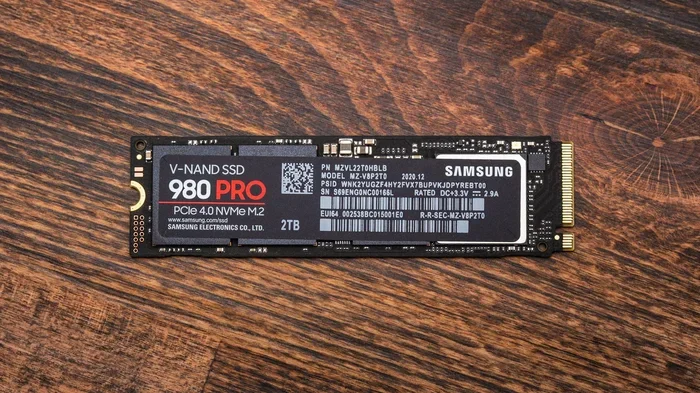
Let us break this down in plain English. An NVMe M.2 1TB SSD is a type of solid state drive that uses two key technologies to deliver speed and convenience. The first is the NVMe protocol, which stands for Non-Volatile Memory Express. This protocol communicates directly with your computer through the PCIe interface, bypassing the older SATA bottleneck entirely. The second is the M.2 form factor, which is a tiny, stick-shaped design that mounts straight onto your motherboard.
Together, these technologies create a storage device that is incredibly fast, compact, and easy to install. A 1TB solid state drive in this format gives you plenty of storage capacity for your operating system, games, apps, and files. If you have ever wondered why your computer takes forever to boot or load games, upgrading to an 1TB NVMe M.2 SSD is the answer. It is like swapping a bicycle for a sports car.
The difference between a traditional SATA SSD and an NVMe M.2 drive is massive. SATA drives top out around 550 MB/s for reads and writes. NVMe M.2 drives, on the other hand, can reach speeds of 3,500 MB/s or even 7,000 MB/s on the latest PCIe Gen 4 and Gen 5 generations. That is roughly 10 times faster than SATA. This matters when you are copying large video files, loading massive game worlds, or editing high-resolution photos.
Understanding the NVMe Protocol
The NVMe protocol was designed specifically for flash storage. Older protocols like AHCI were built for spinning hard drives and SATA SSDs. They carry unnecessary overhead that slows things down. NVMe strips away that baggage and talks directly to your NAND flash memory chips. The result is lower latency and higher data transfer rates. Your computer communicates with the drive almost instantly, which is why boot times and app launches feel so snappy.
Why the M.2 Form Factor Matters
The M.2 form factor is about size and simplicity. These drives are typically about the size of a stick of gum. There are no cables, no drive bays, and no messy installation. You simply slot the drive into a dedicated M.2 slot on your motherboard, secure it with a single screw, and you are done. This compact storage design is one of the biggest reasons NVMe drives have become so popular in both desktops and laptops.
Why Choose a 1TB NVMe M.2 SSD?
So why go with a 1TB NVMe M.2 solid state drive specifically? There are several strong reasons that make this capacity the sweet spot for most users.
Perfect Balance of Speed and Space
A 1TB drive gives you enough room for your operating system, your most-used applications, and a solid library of games or media files. You do not have to worry about running out of space quickly. At the same time, you get the sequential performance that NVMe offers without paying the premium that comes with 2TB or 4TB models. It is the storage upgrade that hits the bullseye for most people.
Ideal for Gaming
Modern games are massive. Some triple-A titles now exceed 100GB or more. A gaming storage drive with 1TB and NVMe speeds means faster load screens, smoother texture streaming, and a better overall experience. Many next-gen consoles use NVMe-like storage technology for exactly these reasons. If you game on PC, a 1TB NVMe M.2 SSD is one of the best upgrades you can make.
Great for Content Creators
If you edit video, work with large design files, or handle photography, speed matters. Loading large project files, exporting renders, and transferring footage all benefit enormously from the read speeds and write speeds that NVMe provides. A 1TB capacity gives you a solid workspace without needing a separate external drive for everyday tasks.
Boot Drive Excellence
Using an NVMe M.2 1TB drive as your boot drive transforms how your computer feels. Windows boots in seconds. Applications launch almost instantly. The entire system feels responsive and fluid. Even if you keep a larger traditional drive for mass storage, having your system drive be an NVMe M.2 makes everything else feel faster by comparison.
Key Features to Look For
Not all NVMe M.2 1TB drives are created equal. Before you buy, here are the most important features to consider.
PCIe Generation
The PCIe interface generation determines the maximum speed your drive can achieve. PCIe Gen 3 delivers up to about 3,500 MB/s. PCIe Gen 4 pushes that to roughly 7,000 MB/s. PCIe Gen 5, the newest standard, can reach even higher speeds, though these drives are still emerging. Make sure your motherboard supports the generation you are buying. Otherwise, the drive will work but at the lower generation speed.
Sequential Read and Write Speeds
Manufacturers love advertising sequential performance numbers. These are the speeds you get when copying a single large file. They are impressive but do not always reflect real-world use. Still, they are a good baseline. Look for drives with at least 5,000 MB/s reads and 4,000 MB/s writes for Gen 4 drives. These numbers indicate a strong, modern drive with excellent storage performance.
DRAM Cache
Some NVMe drives include a DRAM cache. This is a small amount of dedicated memory that helps the drive manage data more efficiently. Drives with DRAM cache generally deliver more consistent speeds, especially during sustained writes. If you do heavy, prolonged file transfers or video editing, prioritize drives with this feature.
Endurance Rating and TBW
The endurance rating, measured in TBW (terabytes written), tells you how much data the drive can handle over its lifetime. A 1TB NVMe SSD typically has a TBW rating between 600 and 1,500, depending on the model. For most users, this is more than enough. Even if you write 50GB of data per day, a 1,000 TBW drive would last over five years. Do not stress about this unless you are doing extremely heavy writes professionally.
Thermal Management
High-speed NVMe drives generate heat. Thermal throttling happens when a drive gets too hot and slows down to protect itself. This is a real issue, especially in laptops or compact PCs with limited airflow. Look for drives with built-in heat spreaders or consider adding an M.2 NVMe enclosure with a heatsink if your system does not have one. Maintaining good power consumption and temperature management keeps your drive running at full speed longer.
Compatibility with Your Motherboard
Always check that your motherboard has an M.2 slot that supports NVMe. Not all M.2 slots are NVMe-compatible. Some older M.2 slots only support SATA. Check your motherboard manual or manufacturer specifications. A quick search for compatible motherboards by model will confirm what your system supports. This is the most common mistake people make when buying an NVMe drive.
Top NVMe M.2 1TB SSDs Compared
Let us look at some popular options in the 1TB NVMe M.2 SSD market. These are well-regarded drives that offer great performance, reliability, and value.
| Drive | PCIe Gen | Read Speed | Write Speed | DRAM Cache | Best For |
|---|---|---|---|---|---|
| Samsung 970 Evo Plus | Gen 4 | 7,000 MB/s | 6,000 MB/s | Yes | Premium performance |
| WD Black SN770 | Gen 4 | 5,150 MB/s | 4,900 MB/s | No | Gaming |
| Crucial P3 Plus | Gen 4 | 5,000 MB/s | 4,800 MB/s | No | Budget-friendly |
| Kingston NV2 | Gen 4 | 3,500 MB/s | 3,200 MB/s | No | Value pick |
The Samsung 970 Evo Plus has long been a benchmark for consumer NVMe drives. It delivers top-tier speeds, includes a DRAM cache, and offers excellent endurance. It is a bit pricier but worth it if you want the best. For gamers on a budget, the WD Black SN770 is a fantastic choice with strong gaming performance and a compact design without a heatsink, which gives you flexibility in how you install it.
If you want the best value, the Crucial P3 Plus offers solid Gen 4 speeds at a lower price point. It is a great drive for general use and light content creation. The Kingston NV2 is another budget-friendly option. It may not hit the highest speeds, but it offers reliable performance for everyday tasks and is one of the most affordable NVMe M.2 1TB SSD options available.
When choosing, consider what you will use the drive for. If you want the absolute fastest speeds and do not mind paying a premium, go with a top-tier Gen 4 or Gen 5 drive. If you just want a big speed boost over SATA and a great price, a mid-range Gen 4 drive is more than enough. The NVMe M.2 1TB SSD market has options for every budget.
How to Install an NVMe M.2 1TB SSD
One of the best things about NVMe M.2 drives is how easy they are to install. You do not need cables, drive bays, or any special tools beyond a screwdriver. Here is a simple step-by-step process.
Step-by-Step Installation
- Power off your computer and unplug it from the wall. Ground yourself to prevent static damage.
- Open your case and locate the M.2 slot on your motherboard. It is usually near the CPU area and has a small slot with a screw hole nearby.
- Remove the M.2 screw from the motherboard. Keep it safe.
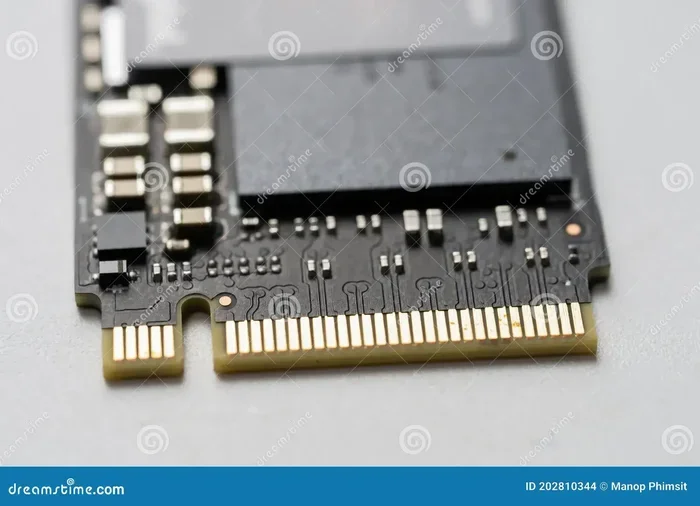
- Insert the NVMe drive at a roughly 30-degree angle into the slot. The gold connector should face down and align with the slot.
- Press the drive down gently until it sits flat against the motherboard.
- Secure the drive with the screw you removed. Do not overtighten.
- Close your case and power on your computer.
- Initialize the drive in your operating system if it is a new drive. On Windows, open Disk Management and follow the prompts.
That is it. The whole process takes about five minutes. If you are using a laptop, the process is similar but may involve removing a bottom panel. Some laptops have M.2 slots that are easily accessible without disassembling the entire machine.
BIOS and OS Setup
In most cases, your computer will automatically detect the new NVMe drive. If it does not, check your BIOS settings. Make sure the M.2 slot is enabled and set to NVMe mode rather than SATA mode. Some motherboards have settings that control how M.2 slots operate, so a quick BIOS check can solve detection issues. Once detected, your operating system will recognize the drive and you can format it or move your system to it.
Common Mistakes to Avoid
Even though installing an NVMe M.2 drive is straightforward, there are a few common pitfalls to watch out for.
Buying the Wrong Form Factor
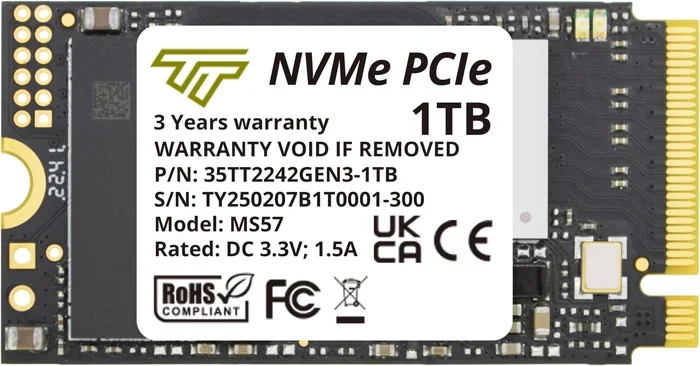
M.2 drives come in different lengths and key notches. The most common is the M key, which is for NVMe drives. The B key is typically for SATA or PCIe x2 devices. Always make sure you are buying an M-key NVMe drive that matches your slot. The 2280 size (22mm wide, 80mm long) is the most standard and works in most desktop and laptop M.2 slots.
Ignoring Heat Issues
As mentioned earlier, thermal throttling is a real concern. If your drive gets too hot, it will slow down. This is especially common in small form factor PCs and laptops. Consider using a heatsink, either built into the drive or added separately. Many motherboards come with their own M.2 heatsinks as well. Keeping your drive cool ensures consistent performance over time.
Forgetting to Check Motherboard Compatibility
This is the mistake that catches the most people. Not every M.2 slot supports NVMe. Some only support SATA. If you buy an NVMe drive and install it into a SATA-only M.2 slot, it simply will not work. Always verify compatibility before purchasing. A quick check of your motherboard specs or a search for your model will clarify this.
Overpaying for Speed You Do Not Need
There is no need to buy a Gen 5 drive if your system only supports Gen 4. Similarly, if you are using the drive for basic storage and casual gaming, a mid-range Gen 4 drive will serve you perfectly well. Spending extra on top-end speed is only worth it if you have professional workloads that truly demand it. Match your purchase to your actual needs and budget.
Expert Insights and Quick Tips
Here are some bonus tips from experienced users and tech professionals to help you get the most out of your NVMe M.2 1TB SSD.
- Use it as your boot drive. Putting your operating system on the NVMe drive gives the biggest perceived speed improvement. Everything boots and launches faster.
- Keep firmware updated. Manufacturers occasionally release firmware updates that improve performance and fix bugs. Check the manufacturer website periodically.
- Use a dedicated slot. If your motherboard has multiple M.2 slots, use one specifically for your NVMe drive and avoid sharing bandwidth with other devices.
- Monitor temperatures. Use software like CrystalDiskInfo or HWMonitor to keep an eye on drive temps. If your drive regularly exceeds 70 degrees Celsius, consider adding cooling.
- Back up your data. Even though NVMe SSDs are reliable, always maintain backups. No drive is immune to failure, and data loss is never fun.
The 1TB NVMe M.2 solid state drive has become the gold standard for PC storage. It combines speed, capacity, compactness, and affordability in a way that no other storage format can match. Whether you are building a new PC, upgrading an old one, or just looking for a better storage solution, this is the drive to get. The technology is mature, prices are competitive, and the performance gains are immediately noticeable from the moment you power on your system.
Conclusion
The NVMe M.2 1TB SSD is, without a doubt, one of the best storage upgrades available today. It offers lightning-fast read and write speeds, a compact design that fits any modern system, and a price point that makes it accessible to almost anyone. Whether you are a gamer, a content creator, or simply someone who wants a faster, more responsive computer, a 1TB NVMe drive delivers the goods. Follow the tips in this guide, avoid the common mistakes, and you will enjoy the full benefits of this incredible technology for years to come.
Frequently Asked Questions
How fast is a 1TB NVMe M.2 SSD compared to a regular SSD?
A typical NVMe M.2 1TB SSD delivers read speeds of 3,500 to 7,000 MB/s on PCIe Gen 4, which is roughly 5 to 12 times faster than a SATA SSD that tops out around 550 MB/s. The real-world difference is noticeable in boot times, game loading, and file transfers. You will feel the speed boost immediately.
Can I install a 1TB NVMe M.2 SSD in a laptop?
Yes, most modern laptops have at least one M.2 slot that supports NVMe drives. The installation process is similar to desktops, though laptops may require removing a bottom panel. Always check your laptop specifications to confirm compatibility and the correct M.2 key type before purchasing a 1TB NVMe M.2 solid state drive.
Do I need a heatsink for an NVMe M.2 drive?
Not always, but it depends on your system. Desktop PCs with good airflow usually do not need one. Laptops and small form factor PCs, however, can experience thermal throttling without one. Many motherboards include built-in M.2 heatsinks. If yours does not, you can buy an aftermarket one cheaply or choose a drive with a built-in heat spreader.
What is the difference between PCIe Gen 3, Gen 4, and Gen 5 NVMe drives?
PCIe Gen 3 NVMe drives max out at about 3,500 MB/s. Gen 4 drives reach roughly 7,000 MB/s. Gen 5 drives are the newest and can exceed 10,000 MB/s. The generation you need depends on your motherboard and budget. For most users, a Gen 4 NVMe M.2 1TB SSD offers the best balance of speed and value. Gen 5 is great if you want future-proofing and have the budget.
How long does a 1TB NVMe M.2 SSD last?
A well-made 1TB NVMe SSD typically lasts many years for regular use. The endurance rating (TBW) usually ranges from 600 to 1,500 terabytes written. If you write about 50GB per day, a 1,000 TBW drive would last over five years. Most users simply upgrade their system before the drive reaches the end of its useful life. Proper heat management also extends drive lifespan.
Is a 1TB NVMe M.2 SSD enough for gaming?
Absolutely. A 1TB NVMe M.2 SSD is more than enough for most gamers. It comfortably holds your operating system and a large library of modern games. Many popular titles range from 30GB to 100GB or more, so 1TB can hold roughly 10 to 30 games depending on size. If you have a massive collection, consider pairing it with a larger secondary drive for additional storage.