Do Usb Wifi Adapters Work on Pc
Do USB WiFi adapters work on PC? Yes, they absolutely do. A USB WiFi adapter is one of the easiest and most affordable ways to add wireless internet to any computer. These small plug-and-play devices connect to your PC through a USB port and pick up WiFi signals from your router, giving you instant internet access without opening your computer case.
Do USB WiFi adapters work on PC? The short answer is yes, and they work really well. These small devices plug right into your computer’s USB port and give you access to wireless internet in seconds. Whether you own a desktop that lacks built-in WiFi or need a reliable backup adapter, a USB WiFi adapter can get you online fast.
Many people assume they need expensive internal cards or professional help to add wireless internet to their computer. That is simply not true. A USB WiFi adapter offers a simple, affordable solution that works with almost any PC. You do not need to open your computer case or deal with complicated installation.
In this guide, we will walk through everything you need to know about using a USB WiFi adapter on your PC. You will learn how these devices work, what to look for when buying one, and how to set them up without any hassle. We will also cover common problems and quick fixes so you can stay connected. Let us dive in and explore how these handy little devices can transform your internet experience.
Key Takeaways
- USB WiFi adapters work on almost any PC: Desktops, laptops, and older computers can all use them with ease.
- Plug and play setup is simple: Most adapters require no technical knowledge and connect in minutes.
- They improve WiFi signal strength: External antennas on many adapters outperform built-in PC WiFi cards.
- Choose the right WiFi standard: WiFi 5 and WiFi 6 adapters offer the best speeds for streaming and gaming.
- Driver compatibility matters: Always check that your adapter supports your operating system before buying.
- Common issues have easy fixes: Most problems like slow speeds or disconnections can be solved with driver updates or repositioning.
📑 Table of Contents
- What Is a USB WiFi Adapter?
- How Do USB WiFi Adapters Work on PC?
- Benefits of Using a USB WiFi Adapter on Your PC
- Things to Consider Before Buying a USB WiFi Adapter
- How to Set Up a USB WiFi Adapter on Your PC
- Common Problems and How to Fix Them
- USB WiFi Adapter vs. Built-In WiFi vs. PCIe WiFi Card
- Final Thoughts
What Is a USB WiFi Adapter?
A USB WiFi adapter is a small external device that connects to your PC through a USB port. It acts as a wireless network receiver, allowing your computer to connect to WiFi signals from your router. Think of it as a tiny radio that picks up wireless signals and turns them into internet data your PC can use.
The adapter handles both sending and receiving data. When you browse a webpage, the adapter sends your request through the WiFi signal to your router. The router then fetches the data from the internet and sends it back to your adapter. This whole process happens in milliseconds, giving you a seamless internet connection.
How Does It Look?
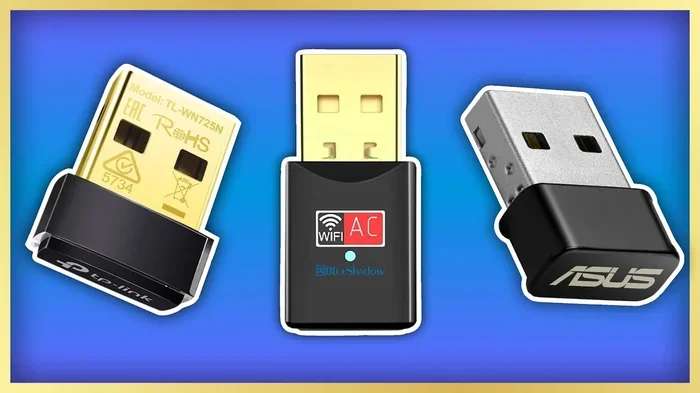
Most USB WiFi adapters are small enough to fit in your palm. Some are tiny thumb-sized sticks that stay plugged in permanently. Others come with a short cable and a USB extension so you can place them near a window for better signal reception. They are lightweight, portable, and easy to store when not in use.
You can find adapters in many shapes and sizes. Some look like regular USB flash drives. Others have visible external antennas for stronger signal pickup. The design you choose depends on your needs and how much WiFi performance you expect from your wireless adapter.
How Do USB WiFi Adapters Work on PC?
When you plug a USB WiFi adapter into your PC, the computer recognizes it as a new network device. The adapter then scans for available wireless networks in your area. Once you select your network and enter the password, the adapter establishes a connection with your wireless router. That is all there is to it.
The adapter uses radio waves to communicate with your router. These radio waves operate on specific frequencies, usually 2.4GHz or 5GHz. The adapter sends and receives data through these frequencies, creating a wireless broadband connection between your PC and the internet. This is very similar to how your smartphone connects to WiFi at home or at a coffee shop.
How Do Other Wireless Devices Handle Connectivity?
Different devices handle wireless connectivity in their own ways. For example, some trail cameras work without WiFi by storing photos locally and syncing later. However, a USB WiFi adapter needs an active wireless network to function. It does not store data offline like some devices do. The adapter relies entirely on a live WiFi signal from your router or hotspot to provide internet access.
Similarly, understanding how wireless devices operate helps you appreciate what your adapter does every day. Just like car cameras use internal components to capture and transmit video, your USB WiFi adapter uses radio technology to transmit and receive data packets. Both devices depend on specific technologies to function, but your adapter gives you the flexibility to connect to any available wireless network.
Can a USB WiFi Adapter Work Without Internet?
A USB WiFi adapter can detect wireless networks even without an active internet connection. However, it cannot provide you with internet access unless the network has a working broadband connection. Think of it this way: the adapter finds the WiFi signal, but the router needs to be connected to the internet for you to browse, stream, or game online. Some devices like certain trail cameras work without internet by storing data locally, but your adapter needs a live connection to give you web access.
Benefits of Using a USB WiFi Adapter on Your PC
Using a USB WiFi adapter has many advantages over other methods of connecting to the internet. Here are the key reasons people choose this option:
- Easy Plug and Play Setup: Most adapters work right out of the box. You plug them in, and your PC recognizes them immediately without any extra steps.
- No Internal Installation Needed: You do not need to open your PC case or install internal cards. Everything happens outside the computer, keeping it clean and warranty intact.
- Portable and Versatile: You can move the adapter between PCs or laptops easily. Take it to a friend’s house or use it in a different room without any hassle.
- Affordable Option: USB WiFi adapters cost much less than upgrading your motherboard or buying a new PC with built-in WiFi built in.
- Better Signal Than Built-In WiFi: Many adapters come with powerful external antennas that pick up stronger signals than your PC’s internal WiFi card ever could.
- Works With Desktops and Laptops: Whether you have an old desktop or a modern laptop, a USB WiFi adapter can add wireless capability to both machines easily.
Who Needs a USB WiFi Adapter?
USB WiFi adapters are perfect for several situations. If you own a desktop PC that does not have WiFi built in, an adapter is your easiest path to wireless internet. People living in areas with weak WiFi signals also benefit from adapters with better antennas. Travelers and students who move between locations appreciate the portability of these devices. Gamers who need a stable connection for online play also find adapters with high-speed WiFi standards very useful.
Things to Consider Before Buying a USB WiFi Adapter
Not all adapters are the same. Before you buy one, consider these important factors to make sure you get the right device for your needs.
WiFi Standard and Speed
Check what WiFi standard the adapter supports. WiFi 5 (802.11ac) and WiFi 6 (802.11ax) offer the fastest speeds and best performance. Older standards like WiFi 4 (802.11n) are slower but still work fine for basic browsing and email. If you stream videos, play online games, or download large files, pick an adapter that supports the latest WiFi standards for the best WiFi performance and WiFi speed.
Frequency Band Support
Most modern adapters support both 2.4GHz and 5GHz bands. The 2.4GHz band offers wider coverage but slower speeds. The 5GHz band provides faster speeds but has a shorter range. Dual-band adapters give you the flexibility to choose the best band for your situation. If you are far from your router, the 2.4GHz band may work better. If you are close, the 5GHz band will give you faster WiFi speed for streaming and gaming.
Antenna Type and Signal Strength
Some adapters have built-in antennas, while others have removable or external antennas. External antennas generally provide better signal strength and wider WiFi coverage. If you live far from your router or have thick walls blocking the signal, an adapter with a strong external antenna will make a noticeable difference in your wireless connectivity and overall browsing experience.
Driver Compatibility and Operating System Support
Make sure the adapter you choose is compatible with your operating system. Most adapters support Windows 10 and Windows 11, but some may not work with older versions or Linux. Check the manufacturer’s website for driver support before purchasing. Good driver support means fewer headaches and smoother network adapter performance on your PC.
How to Set Up a USB WiFi Adapter on Your PC
Setting up a USB WiFi adapter is straightforward. Follow these steps to get online quickly and easily:
- Plug in the adapter: Insert the USB WiFi adapter into an available USB port on your PC. Use a USB 3.0 port if possible for the best performance and fastest data transfer.
- Wait for detection: Your PC should recognize the adapter within seconds. You may see a notification that new hardware has been detected and is installing.
- Install drivers (if needed): Some adapters install drivers automatically. Others require you to download them from the manufacturer’s website. Always follow the included instructions carefully.
- Scan for networks: Click on the WiFi icon in your taskbar. A list of available wireless networks should appear on your screen.
- Connect to your network: Select your WiFi network name and enter the password. Click connect and wait for the connection to establish fully.
- Test your connection: Open a browser and visit a website to confirm everything is working properly and your internet connection is stable.
Tips for a Better Setup Experience
Place your adapter near a window or in an open area for the best possible signal. Avoid plugging it into USB hubs or extensions that may weaken the connection. If your adapter came with a USB extension cable, use it to position the adapter optimally for stronger signal reception. Keep your wireless network password handy before you start the setup process.
Some adapters also work as WiFi hotspots, letting you share your connection with other devices nearby. Check your adapter’s software or companion app to see if this feature is available. This can be very useful if you need to connect multiple devices without a separate router. It turns your adapter into a mini wireless hub for your home or office.
Common Problems and How to Fix Them
Even with a good adapter, you may run into issues from time to time. Here are the most common problems and their simple solutions.
Adapter Not Recognized by PC
If your PC does not detect the adapter, try plugging it into a different USB port. Avoid USB hubs and use a direct port on your computer. You may also need to update your USB drivers through Device Manager. Right-click the Start button, open Device Manager, and look for any devices with a yellow warning icon. Updating or reinstalling the driver usually fixes this issue quickly.
Slow WiFi Speeds
Slow speeds can be frustrating. First, make sure you are connected to the right frequency band. Switch to 5GHz if your router supports it and you are close to the router. Also check if other devices are using heavy bandwidth on the same network. Restarting your router and adapter can often resolve speed issues. You should also check for driver updates on the manufacturer’s website.
Adapter Keeps Disconnecting
If your adapter frequently loses connection, the WiFi driver may need updating. Visit the adapter manufacturer’s website and download the latest driver for your operating system. You should also check for interference from other electronic devices like microwaves or Bluetooth devices. Moving the adapter closer to the router can also help stabilize the connection and improve your WiFi coverage throughout your home.
Some users report that their adapter works fine for a while but stops after a Windows update. In these cases, reinstalling the adapter drivers usually fixes the problem. You can also try uninstalling and reinserting the adapter to force Windows to reinstall the drivers fresh. This simple trick solves the issue for many users.
USB WiFi Adapter vs. Built-In WiFi vs. PCIe WiFi Card
There are three main ways to connect a PC to WiFi. Each option has its own strengths and weaknesses. Here is how they compare side by side:
- USB WiFi Adapter: Easy plug-and-play setup, portable, affordable, and works with almost any PC. Best for desktops and older laptops that lack built-in WiFi.
- Built-In WiFi: Already installed in modern laptops and some desktops. No extra hardware needed, but you cannot upgrade it without replacing the motherboard.
- PCIe WiFi Card: Offers the best performance and fastest speeds. Requires opening your PC case and installing an internal card. Best for gaming PCs and workstations where top performance matters.
For most everyday users, a USB WiFi adapter strikes the best balance between ease of use and performance. It is the go-to choice for anyone who wants simple, reliable wireless connectivity without opening their computer case or spending a lot of money.
Final Thoughts
A USB WiFi adapter is one of the simplest and most affordable ways to add wireless internet to your PC. Whether you have a desktop that lacks WiFi or need a reliable backup adapter, these devices deliver excellent results. They are easy to set up, portable, and work with almost any computer that has a USB port.
Do not let a lack of built-in WiFi hold you back. A good USB WiFi adapter can get you online in just a few minutes. Pick an adapter that matches your needs, follow the setup steps above, and you will be browsing, streaming, and gaming in no time. Remember to keep your drivers updated and place your adapter in a good position for the strongest signal.
With the right adapter and a little patience, you will enjoy fast, stable wireless internet on your PC every single day. The technology is simple, the cost is low, and the benefits are huge. A USB WiFi adapter is truly one of the best small investments you can make for your computer.
Frequently Asked Questions
Do USB WiFi adapters work on Windows 10 and Windows 11?
Yes, most USB WiFi adapters work on both Windows 10 and Windows 11. Always check the manufacturer’s compatibility list before buying. Some adapters also support older versions of Windows and even Linux systems.
Can I use a USB WiFi adapter on a desktop PC?
Absolutely. USB WiFi adapters are perfect for desktop PCs that do not have built-in WiFi. They plug directly into any available USB port and provide instant wireless internet access without any internal installation.
Do I need to install drivers for a USB WiFi adapter?
Many modern adapters install drivers automatically when you plug them in. However, some adapters require you to download drivers from the manufacturer’s website. Always check the included instructions before setup to save time.
Will a USB WiFi adapter slow down my PC?
No, a USB WiFi adapter will not slow down your PC. It uses minimal system resources and actually improves your experience by giving you a stable wireless internet connection. Some adapters even use USB 3.0 ports for faster data transfer speeds.
How far can a USB WiFi adapter be from the router?
The range depends on the adapter’s antenna quality and the WiFi standard it supports. Most adapters work well within 100 feet indoors. Adapters with external antennas can reach farther and maintain a stronger signal through walls and obstacles.
Can I use a USB WiFi adapter with a USB hub?
You can, but it is not recommended. USB hubs may not provide enough power or stable data transfer for consistent WiFi performance. Plugging the adapter directly into a USB port on your PC gives the best results and fewer connection problems.