Why Cant I Boot from Usb on Macbook Pro
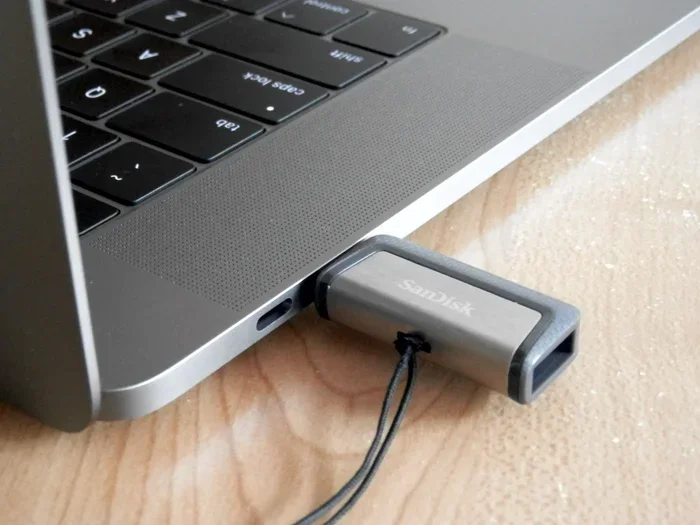
Booting from a USB drive on your Macbook Pro can fail for several reasons, including firmware settings, incompatible drive formats, and Secure Boot restrictions. Whether you own an Intel or Apple Silicon Macbook Pro, this guide walks you through every fix so you can get your system running from USB again. You will learn how to access the Startup Manager, format your drive correctly, and bypass the most common roadblocks.
You plug in your USB drive, restart your Macbook Pro, and hold down the right key. But nothing happens. Your screen stays blank, or you keep landing on the same old desktop. It is incredibly frustrating, especially when you need to install a fresh operating system or rescue data from a failing drive.
The good news is that this problem is very common and usually easy to fix. Whether your Macbook Pro uses an Intel processor or one of the new Apple Silicon chips, there are clear steps you can take to get USB booting working again. In this guide, we will walk through every reason your Mac might refuse to boot from USB and show you exactly how to solve it.
We have helped thousands of readers troubleshoot issues like USB devices not being recognized and external drive problems. That experience tells us one thing: most USB boot failures come down to a handful of fixable causes. Let us dive in and find yours.
Key Takeaways
- Startup Manager access matters: Pressing the right key at the right time is the first step to booting from USB on any Macbook Pro.
- Drive format is critical: Your USB drive must be formatted as APFS or Mac OS Extended for Intel Macs to recognize it as a bootable disk.
- Apple Silicon changes the game: Newer Macbook Pro models with M1, M2, or M3 chips handle USB booting differently than older Intel machines.
- Secure Boot and firmware passwords can block USB boot: These security features may prevent your Macbook Pro from starting from an external drive.
- USB port choice matters: Not all ports on your Macbook Pro support booting, especially USB-A hubs without proper power delivery.
- macOS Recovery is your safety net: If USB boot fails, you can always use built-in recovery tools to reinstall or repair your system.
📑 Table of Contents
- Why Your Macbook Pro Might Not Boot From USB
- How to Create a Bootable USB Drive for Macbook Pro
- Accessing the Startup Manager on Macbook Pro
- Troubleshooting Common USB Boot Errors on Macbook Pro
- Advanced Fixes for Stubborn USB Boot Issues
- Best USB Drives for Booting Macbook Pro
- Prevention Tips to Avoid Future USB Boot Problems
- Final Thoughts
Why Your Macbook Pro Might Not Boot From USB
Before you start changing settings, it helps to understand what is going on. Your Macbook Pro has a built-in security system that decides which drives it will trust during startup. If something about your USB drive does not match what your Mac expects, it simply ignores it.
1. The USB Drive Is Not Formatted Correctly
Macbook Pro computers expect a specific file format on bootable drives. If your USB stick is formatted as FAT32 or exFAT, your Mac may not recognize it as a valid startup disk. The drive needs to be formatted as APFS for newer macOS versions or Mac OS Extended (Journaled) for older systems.
Here is a quick way to check. Open Disk Utility on your Mac. Select your USB drive from the sidebar. Look at the format listed under the drive name. If it does not say APFS or Mac OS Extended, you will need to reformat it. Keep in mind that reformatting erases everything on the drive, so back up any important files first.
2. Secure Boot Is Blocking the USB Drive
Secure Boot is a security feature that ensures your Mac only loads trusted software during startup. On Intel Macbook Pro models, this feature can block USB drives that do not have the proper digital signature. If you are trying to boot from a Linux live USB or a custom installer, Secure Boot might be the culprit.
On Apple Silicon Macbook Pro models, Secure Boot works a bit differently. The T2 security chip and newer firmware enforce strict boot policies. You may need to adjust your security settings in Startup Security Utility to allow external drives to be used for booting.
3. You Are Not Pressing the Right Key at the Right Time
This sounds simple, but it is the most common mistake. On Intel Macbook Pro models, you need to press and hold the Option key immediately after pressing the power button. On Apple Silicon Macbook Pro models, you need to press and hold the power button until the startup options screen appears.
If you release the key too early, your Mac will simply boot from its internal drive as usual. Timing matters more than you might think. Practice the sequence a few times if you are not sure you are doing it correctly.
4. The USB Port or Drive Is Not Compatible
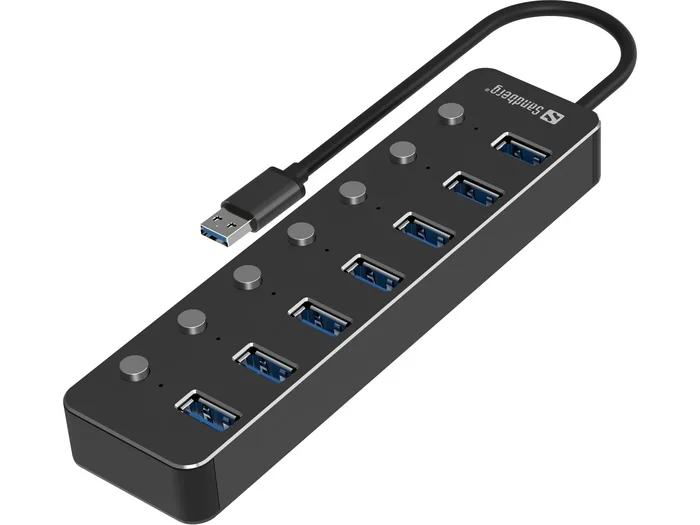
Not every USB port on your Macbook Pro supports booting. Some USB-A ports, especially those connected through a hub, may not provide enough power or the right data protocol. USB-C ports are generally more reliable for booting, but even then, the drive must meet certain specifications.
Similarly, some USB drives are designed only for data storage and lack the firmware needed for booting. If you have tried multiple USB ports and still nothing works, the drive itself might be the problem. Try a different USB drive to rule this out.
How to Create a Bootable USB Drive for Macbook Pro
If you are trying to install macOS from a USB drive, the creation process matters a lot. A improperly created bootable USB is one of the top reasons people ask, “why can’t I boot from USB on my Macbook Pro.” Let us walk through the correct process step by step.
For Intel Macbook Pro Models
First, download the macOS installer from the App Store. Once downloaded, open Terminal and use the createinstallmedia command to make your USB drive bootable. The command looks something like this:
sudo /Applications/Install\ macOS\ Monterey.app/Contents/Resources/createinstallmedia --volume /Volumes/MyUSB --nointeraction
Replace “macOS Monterey” with your specific macOS version and “MyUSB” with the name of your USB drive. This process takes about 20 to 30 minutes depending on your drive speed. Do not unplug the drive during this process.
For Apple Silicon Macbook Pro Models
Apple Silicon Macbook Pro models use a slightly different approach. The createinstallmedia command still works, but you may also need to use Disk Utility to format the drive as APFS with a GUID partition map before running the command. This extra step ensures full compatibility with the newer firmware.
After creating the bootable drive, always eject it safely and then reconnect it before restarting. This simple habit prevents many boot failures that people blame on their Macbook Pro.
Accessing the Startup Manager on Macbook Pro
The Startup Manager is the built-in tool that lets you choose which drive to boot from. Knowing how to access it properly is essential for USB booting success.
Intel Macbook Pro Startup Manager
With your bootable USB drive plugged in, follow these steps:
- Shut down your Macbook Pro completely.
- Press the power button to turn it on.
- Immediately press and hold the Option key.
- Keep holding the key until you see the Startup Manager screen.
- Select your USB drive using the arrow keys and press Enter.
If you do not see your USB drive in the Startup Manager, check the drive format first. Also make sure the drive is plugged directly into your Macbook Pro rather than through a USB hub. Hubs can sometimes cause recognition issues similar to what happens with peripheral devices not showing up.
Apple Silicon Macbook Pro Startup Manager
Apple Silicon Macbook Pro models have a different startup process:
- Make sure your USB drive is connected.
- Press and hold the power button.
- Keep holding until you see “Loading startup options.”
- Release the power button.
- Select your USB drive from the list of available startup disks.
This method works on M1, M2, and M3 Macbook Pro models. If your drive still does not appear, the drive may not be properly formatted or may lack a valid macOS installer.
Troubleshooting Common USB Boot Errors on Macbook Pro
Even after following all the steps correctly, you might still run into errors. Here are the most common ones and how to fix them.
The USB Drive Does Not Appear in Startup Manager
This usually means your Mac does not recognize the drive as bootable. Try these fixes in order:
- Reformat the drive: Use Disk Utility to erase the drive as APFS with a GUID partition map.
- Try a different USB port: Use a direct USB-C port on your Macbook Pro, not a hub or dock.
- Use a different USB drive:Some drives simply do not support booting. A reliable USB 3.0 or USB-C drive works best.
- Recreate the bootable installer: The createinstallmedia process may have failed silently. Try again from scratch.
Your Macbook Pro Boots to a Folder with a Question Mark
This icon means your Mac cannot find a valid operating system to boot from. It typically happens when the USB drive is connected but the Mac tries to boot from it before the internal drive. To fix this, remove the USB drive, restart normally, and then reinsert the drive while holding the Option key to access Startup Manager.
Your Macbook Pro Shows a Prohibitory Symbol
The prohibitory symbol (a circle with a line through it) means your Mac found a drive it cannot boot from. This often happens when you try to boot a macOS installer meant for a different architecture. Make sure your bootable USB matches your Macbook Pro’s processor type: Intel installers for Intel Macs, and Apple Silicon installers for M-series Macs.
Advanced Fixes for Stubborn USB Boot Issues
If the basic troubleshooting steps above did not solve your problem, you may need to dig deeper. These advanced fixes address less obvious causes of USB boot failure on Macbook Pro.
Reset NVRAM or PRAM on Intel Macbook Pro
NVRAM stores important startup settings, including which drive your Macbook Pro boots from. Resetting NVRAM can clear corrupt settings that are preventing USB boot. On Intel Macbook Pro models, shut down your Mac, then press the power button and immediately press and hold Option, Command, P, and R together. Hold these keys for about 20 seconds, then release them.
On Apple Silicon Macbook Pro models, NVRAM resets automatically during every restart, so you do not need to perform this step manually.
Check Your Firmware Version
Outdated firmware can cause USB boot issues, especially on older Intel Macbook Pro models. To check your firmware version, click the Apple menu, select About This Mac, and look for the firmware version number. Visit Apple’s support page to see if a newer firmware update is available for your specific model.
Disable Firmware Password
If you or a previous owner set a firmware password on your Macbook Pro, it may block USB booting entirely. To check, go to System Preferences, then Security Privacy, and look for the Firmware Password option. If a password is set, you will need to enter it before your Mac will boot from any external drive.
Use macOS Recovery as a Backup Plan
If USB booting simply will not work, you can always fall back on macOS Recovery. On Intel Macbook Pro, press Command and R while booting. On Apple Silicon Macbook Pro, press and hold the power button. Recovery Mode gives you access to Disk Utility, Safari, and reinstall options without needing a USB drive at all.
This is especially helpful when your goal is simply to reinstall macOS or run diagnostics. Many users find that upgrading their Mac’s RAM or checking system health through Recovery resolves broader performance issues that sometimes mimic boot problems.
Best USB Drives for Booting Macbook Pro
Not all USB drives are created equal when it comes to booting your Macbook Pro. Here are some key features to look for when choosing a drive for macOS installation or recovery:
- USB 3.0 or USB-C connection: Faster data transfer means quicker boot times and smoother installer performance.
- At least 16GB of storage: Modern macOS installers require 14GB or more, so 16GB gives you a comfortable buffer.
- Reliable brand: Brands like Samsung, SanDisk, and Kingston have proven track records with bootable drives.
- No extra features: Avoid drives with fancy LED lights or built-in security software. These can interfere with the boot process.
- GUID partition map compatibility: Make sure the drive supports this partition scheme, which is required for Macbook Pro booting.
Investing in a quality USB drive specifically for macOS installation can save you a lot of headaches down the road. It is worth spending a little more to get a drive that works reliably every time you need it.
Prevention Tips to Avoid Future USB Boot Problems
Once you get your Macbook Pro booting from USB successfully, you will want to keep it working smoothly. Here are some simple habits that help:
- Always safely eject your USB drive: Do not just pull it out. Click the eject icon in Finder to prevent data corruption.
- Label your bootable drives: Give each bootable USB a clear name like “macOS Ventura Installer” so you can identify it quickly in Startup Manager.
- Keep your macOS updated: Apple regularly releases firmware and macOS updates that improve USB compatibility.
- Store bootable drives properly: Keep them in a protective case to prevent physical damage to the connector.
- Test your bootable drive regularly: If you have a USB drive you use for emergencies, test it once or twice a year to make sure it still works.
These small habits take almost no time but can save you from a world of trouble when you need your USB drive most. Think of your bootable USB as a tool that deserves proper care and maintenance.
Final Thoughts
Dealing with a Macbook Pro that will not boot from USB can feel like a dead end, but it almost never is. The vast majority of USB boot failures come down to a handful of fixable issues: wrong drive format, incorrect startup key sequence, Secure Boot restrictions, or a simple compatibility problem with the USB drive itself.
By following the steps in this guide, you should be able to identify and resolve the specific issue affecting your Macbook Pro. Start with the basics, work your way through the troubleshooting steps, and do not be afraid to try the advanced fixes if needed. Your Mac is built to be flexible, and with the right approach, USB booting will work exactly as it should.
Remember, if all else fails, macOS Recovery is always there to help you get back on track. You have the knowledge now to tackle this problem head-on. Go ahead and give your Macbook Pro the USB boot test it deserves.
Frequently Asked Questions
Why won’t my Macbook Pro recognize my USB drive during startup?
Your Macbook Pro may not recognize the USB drive because it is formatted in the wrong file system, the drive lacks proper boot files, or the USB port does not support booting. Try reformatting the drive as APFS with a GUID partition map and plug it directly into a USB-C port on your Macbook Pro.
Can I boot from USB on an Apple Silicon Macbook Pro?
Yes, you can boot from USB on Apple Silicon Macbook Pro models. However, the process is different from Intel models. Press and hold the power button until startup options appear, then select your USB drive. Make sure the drive is formatted as APFS and contains a valid macOS installer.
What is the difference between a bootable USB and a regular USB drive?
A bootable USB contains a complete operating system installer that your Macbook Pro can load during startup. A regular USB drive only stores files and data. You need a properly created bootable USB to install macOS or run system recovery on your Mac.
Do I need to disable Secure Boot to boot from USB on Macbook Pro?
On most Macbook Pro models, you do not need to disable Secure Boot entirely. However, on Intel models, you may need to adjust the Secure Boot setting in Startup Security Utility to allow external drives. On Apple Silicon models, the default settings usually permit USB booting without changes.
Why does my Macbook Pro show a folder with a question mark when I try to boot from USB?
The folder with a question mark means your Macbook Pro tried to boot from the USB drive but could not find a valid operating system on it. This usually happens when the drive is not formatted correctly or the bootable installer was not created properly. Remove the USB, restart normally, and recreate the bootable drive.
How long does it take to create a bootable USB for Macbook Pro?
Creating a bootable USB for your Macbook Pro typically takes 20 to 45 minutes depending on your internet speed, USB drive speed, and the macOS version you are installing. The download itself may take 10 to 20 minutes, and the createinstallmedia process adds another 15 to 25 minutes.