Laptop Backlight Not Working
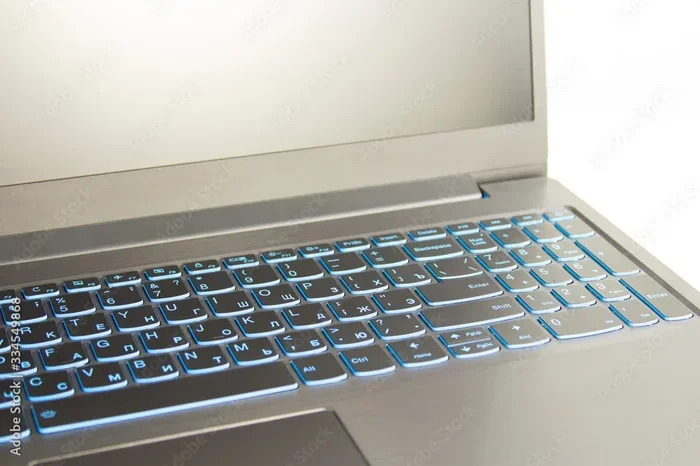
When your laptop backlight is not working, your screen goes dark and using the device becomes nearly impossible. This guide walks you through every common cause and fix, from simple settings to hardware failures. You will learn how to diagnose the problem quickly and apply the right solution to bring your display back to life.
There is nothing more frustrating than sitting down at your laptop only to find the screen is completely black. You know the computer is on because you can hear it running, but the display is completely dark. A laptop backlight not working issue can strike anyone at any time, and it always seems to happen at the worst possible moment.
The backlight is the layer behind your LCD panel that illuminates the screen. Without it, your laptop looks like a dead device even though everything inside is running fine. In most cases, the fix is simple and costs nothing. In other cases, you may need a bit more technical know-how or even professional help. This guide will take you through every possible cause and solution so you can get your screen glowing again.
Key Takeaways
- Brightness and power settings are the most common and easiest fix for a laptop backlight not working.
- Hardware problems like faulty inverters, damaged display cables, or failing LED strips need professional repair.
- Software and driver issues can often be resolved with simple updates, BIOS resets, or system restores.
- Keyboard backlight failures may share the same root cause as a screen backlight problem.
- Early diagnosis saves time and money by ruling out simple fixes before moving to deeper repairs.
📑 Table of Contents
What Causes a Laptop Backlight Not Working
Before you start troubleshooting, it helps to understand what could be causing the problem. The backlight system in a laptop involves several components, and any one of them can fail. Here are the most common reasons your screen might go dark.
Power and Brightness Settings
The simplest explanation is also the most common. Your brightness level may have been accidentally turned all the way down, or your power plan might be dimming the screen to save energy. Modern laptops have adaptive brightness features that adjust the screen based on lighting conditions. Sometimes these features malfunction and turn the screen completely off.
Another frequent culprit is the power management settings. When your laptop runs on battery, it often reduces screen brightness automatically. If the brightness slider is stuck or the settings are corrupted, the backlight may not turn on even when you plug in the charger.
Faulty Backlight Inverter
Older laptops use an inverter board to convert DC power from the motherboard into AC power for the backlight. When this inverter fails, the screen goes dark even though the image is still there. You might be able to see a very faint image if you shine a flashlight on the screen. This is a classic sign of an inverter problem.
Newer laptops use LED backlights that do not need an inverter. However, the LED strips themselves can burn out over time. If your laptop is several years old, the backlight LEDs may simply have reached the end of their lifespan.
Display Cable or Connection Issues
The cable that connects your screen to the motherboard runs through the laptop hinge. Over time, this cable can become damaged, loose, or pinched. A display cable problem often causes intermittent backlight failure. You might notice the screen flickers or only works when you adjust the hinge angle.
This type of damage is common in laptops that have been opened frequently or dropped. The repeated movement of the hinge puts stress on the cable, and eventually, the connection weakens or breaks entirely.
Software and Driver Problems
Sometimes the issue is not physical at all. A corrupted display driver, a failed Windows update, or incorrect BIOS settings can all cause the backlight to stop working. If your laptop screen works fine on an external monitor but stays dark on the built-in display, the problem is likely software-related.
Device manager errors, outdated graphics drivers, and conflicting display settings can also interfere with the backlight. These issues are often fixable without any hardware replacement, which makes them the most accessible problems to solve at home.
How to Fix a Laptop Backlight Not Working
Now that you know the possible causes, let us walk through the solutions step by step. Start with the simplest fixes and work your way down to the more complex ones.
Step 1: Check Brightness and Power Settings
Before anything else, try pressing the brightness keys on your keyboard. Most laptops use a function key combination, usually Fn plus F5 or F6, to adjust screen brightness. Press the increase brightness key several times and see if the screen responds.
Next, check your power plan settings. Go to Control Panel, then Power Options, and make sure the screen brightness is not set to minimum. Disable any adaptive brightness features temporarily to see if they are causing the problem. If you are on battery power, plug in your charger and see if the backlight turns on.
Step 2: Test with an External Monitor
Connecting your laptop to an external monitor is one of the best diagnostic steps you can take. If the external display works fine but your laptop screen stays dark, the problem is isolated to the backlight or the screen itself. If the external monitor also shows nothing, the issue might be with your graphics card or motherboard.
This test helps you narrow down the cause quickly. It also prevents you from replacing parts that are not actually broken. A simple HDMI or USB-C cable is all you need to perform this test.
Step 3: Update or Roll Back Display Drivers
Open Device Manager and expand the Display Adapters section. Right-click your graphics driver and select Update Driver. If you recently updated your driver and the backlight stopped working, try rolling back to the previous version.
You can also uninstall the driver and restart your laptop. Windows will automatically reinstall a fresh driver during boot. This simple step resolves many backlight issues caused by corrupted or incompatible drivers.
Step 4: Reset BIOS Settings
Your BIOS controls how the laptop initializes the display at startup. Incorrect BIOS settings can prevent the backlight from turning on. To reset your BIOS, restart your laptop and enter the BIOS setup by pressing F2, F10, or Del during boot, depending on your brand.
Look for a Load Default Settings or Restore Defaults option. Save the changes and exit. Your laptop should now boot with the correct display settings. If the backlight works after a BIOS reset, the problem was software-related and you are in luck.
Step 5: Inspect the Display Cable
If the basic fixes do not work, you may need to open your laptop and check the display cable. This step requires some technical comfort and the right tools. Make sure your laptop is powered off and unplugged before opening the back panel.
Locate the cable that connects the screen to the motherboard. Check for visible damage, loose connections, or pinched areas near the hinge. Reseating the cable connector can sometimes fix the problem. If the cable looks damaged, replacing it is usually inexpensive and straightforward.
Step 6: Replace the Backlight or LED Strip
If none of the software fixes work, the problem is likely hardware-related. A failing backlight inverter or burned-out LED strip will need to be replaced. For older laptops with CCFL backlights, replacing the inverter board is relatively simple and affordable.
For LED-backlit screens, the repair is more complex because the LEDs are often integrated into the panel. In many cases, replacing the entire display panel is the most practical solution. If you are not comfortable with hardware repairs, take your laptop to a professional technician.
Common Mistakes to Avoid When Fixing a Dark Laptop Screen
When your screen goes dark, it is easy to panic and make mistakes. Here are some common errors people make when dealing with a laptop backlight not working situation.
- Assuming the laptop is dead. Many people think their laptop is broken when the screen is black. Always check if the hard drive light is on and listen for fan noise. The laptop may be perfectly fine.
- Skipping the external monitor test. This simple test can save you hours of unnecessary troubleshooting. It immediately tells you whether the problem is with the screen or something deeper.
- Opening the laptop without proper tools. Using the wrong screwdriver or applying too much force can damage the hinge, cable, or frame. Always use the right tools and follow a proper disassembly guide for your specific model.
- Ignoring software fixes. Many people jump straight to hardware replacements when a simple driver update or BIOS reset would have solved the problem. Always try software solutions first.
- Not checking for related issues. Sometimes a laptop keyboard mouse not working problem occurs alongside a backlight failure, which could point to a motherboard or power delivery issue. If you notice multiple components failing at once, the root cause may be a deeper hardware problem.
When to Seek Professional Repair
Not every backlight problem is something you can fix at home. If you have gone through all the software troubleshooting steps and the screen remains dark, it is time to consider professional help. Here are some signs that you need a technician.
If the laptop works fine on an external monitor but the built-in screen stays completely black, the issue is likely with the panel, inverter, or internal cable. These components require careful disassembly and specialized tools to replace. Attempting to open a modern laptop without experience can void your warranty or cause additional damage.
Also, if your laptop is still under warranty, contact the manufacturer before attempting any repairs. Opening the device yourself may void the warranty, and you could end up paying for repairs that should be covered for free. Most manufacturers offer remote diagnostics and will arrange a repair or replacement if the issue is covered.
For older laptops that are out of warranty, weigh the cost of repair against the cost of a new device. Replacing a display panel can sometimes cost as much as buying a new laptop. In these cases, you might want to use the laptop with an external monitor or consider upgrading to a newer model.
Preventing Future Backlight Problems
Once you have fixed your laptop backlight, you will want to keep it working. Prevention is always better than cure, and a few simple habits can extend the life of your display.
- Avoid extreme brightness settings. Running your screen at maximum brightness all the time puts extra strain on the backlight LEDs. Use a comfortable level that is bright enough to see but not unnecessarily high.
- Keep your laptop cool. Overheating can damage display components over time. Use your laptop on hard, flat surfaces and consider a cooling pad for intensive tasks.
- Handle the hinge with care. Avoid opening and closing the screen too forcefully. Do not rest heavy objects on the closed laptop, as this puts pressure on the hinge and the cable running through it.
- Keep drivers updated. Regularly check for display driver updates from your laptop manufacturer. Updated drivers often include fixes for display-related bugs.
- Use a surge protector. Power surges can damage the motherboard and display components. A simple surge protector can save you from expensive repairs.
Similar to how why is my mouse on my laptop not working issues can often be traced back to simple settings or cable problems, backlight issues usually have a straightforward cause once you know where to look. The same methodical troubleshooting approach works for both problems: start simple, rule out software, and then move to hardware.
Final Thoughts
A laptop backlight not working problem can feel overwhelming, but most of the time it has a simple solution. Whether it is a brightness setting that got turned down, a driver that needs updating, or a cable that needs reseating, the fix is often within reach. The key is to stay calm, follow the steps in order, and not jump to conclusions.
Start with the easiest fixes and work your way up. Test with an external monitor to narrow down the cause. Update your drivers, reset your BIOS, and inspect your connections. If none of these work, it is time to consider professional help or a display replacement.
Remember that a dark screen does not mean your laptop is dead. The computer is likely running perfectly fine behind that black display. With the right approach, you can bring your screen back to life and get back to work without spending a fortune. Keep this guide handy for the next time your backlight decides to quit on you.
Frequently Asked Questions
Why is my laptop screen completely black but I can hear it running?
This is a classic sign of a backlight failure. The laptop is powered on and running, but the display backlight has stopped working. Try shining a flashlight on the screen at a slight angle. If you can see a faint image, the backlight is the problem. If you see nothing at all, the issue could be with the display cable or the LCD panel itself.
Can a dead laptop backlight be repaired?
Yes, in most cases a dead laptop backlight can be repaired. The fix depends on the cause. Simple issues like brightness settings or driver problems can be resolved for free. Hardware issues like a faulty inverter or damaged display cable can be repaired at a reasonable cost. In some cases, the entire display panel may need to be replaced, which can be more expensive.
How much does it cost to fix a laptop backlight?
The cost varies widely depending on the cause and your laptop model. Software fixes cost nothing. Replacing a display cable typically costs between 20 and 80 dollars. Inverter replacement ranges from 30 to 100 dollars. A full display panel replacement can cost anywhere from 100 to 400 dollars or more, depending on the screen size and quality.
Why does my laptop backlight work sometimes but not other times?
Intermittent backlight failure usually points to a loose or damaged display cable. The cable runs through the laptop hinge, and any movement or pressure can disrupt the connection. It can also indicate a failing inverter or LED strip that works sporadically. If the problem comes and goes, inspect the cable connection and avoid bending the hinge excessively.
Is a laptop backlight not working a sign of a serious hardware failure?
Not necessarily. Many backlight issues are caused by simple software or settings problems that are easy to fix. However, persistent backlight failure can indicate a deeper hardware issue like a damaged panel or motherboard problem. Start with basic troubleshooting and escalate to professional diagnosis if the simple fixes do not work.
Should I try to open my laptop to fix the backlight myself?
Only if you have experience with laptop disassembly and the right tools. Opening your laptop can void the warranty and risk causing additional damage. If your laptop is still under warranty, contact the manufacturer first. For older laptops, if you are comfortable with basic hardware work, opening the device to check the cable and inverter is a reasonable first step. Otherwise, seek professional help.