How to Increase Ram of a Laptop
Want a smoother, faster laptop? Increasing the RAM is one of the easiest upgrades you can make. This guide walks you through checking compatibility, buying the right sticks, and installing them safely—no tech degree required.
Key Takeaways
- Check compatibility first: Not all laptops accept every RAM type or size.
- Static safety matters: Use an anti‑static wrist strap or ground yourself before handling modules.
- Upgrade limits: Most consumer laptops top out at 32 GB, but some ultrabooks cap at 16 GB.
- BIOS/UEFI updates can help: A recent firmware may unlock higher‑capacity modules.
- Dual‑channel boosts speed: Installing matching pairs gives a noticeable performance jump.
- Test after install: Run MemTest86 or built‑in diagnostics to verify stability.
- Backup data: A quick backup protects you if a memory issue forces a reinstall.
📑 Table of Contents
Introduction: Why More RAM Makes a Difference
Imagine trying to juggle while someone keeps tossing more balls at you. That’s what a computer feels like when it runs out of RAM. Random‑Access Memory (RAM) is the short‑term workspace where your operating system, apps, and active files live. When the space fills up, the laptop starts swapping data to the much slower hard drive or SSD, and everything feels sluggish.
Adding more RAM is like giving your laptop a bigger desk. It can open more tabs, run heavier programs, and keep games from stuttering. The good news? Most laptops let you do it yourself, and the cost of a decent 8 GB or 16 GB stick is often less than a dinner for two.
1. Determine If Your Laptop Can Be Upgraded
1.1 Find the exact model
Start by locating the exact model number. It’s usually on a sticker under the bottom panel or inside the battery compartment. Look for something like “Dell Inspiron 5575” or “HP Pavilion 15‑eg0xx”. Write it down.
Visual guide about How to Increase Ram of a Laptop
Image source: alphr.com
1.2 Check the manufacturer’s specifications
Visit the brand’s support website and type in the model number. The specs page will list:
- Maximum supported RAM (e.g., 32 GB)
- Number of memory slots (1 or 2 are common)
- Supported RAM type (DDR3, DDR4, LPDDR4X, etc.)
- Speed limits (e.g., 2400 MHz, 2666 MHz)
If the site says “Not user‑upgradeable”, you can still double‑check with forums—sometimes manufacturers are overly cautious.
1.3 Use third‑party tools
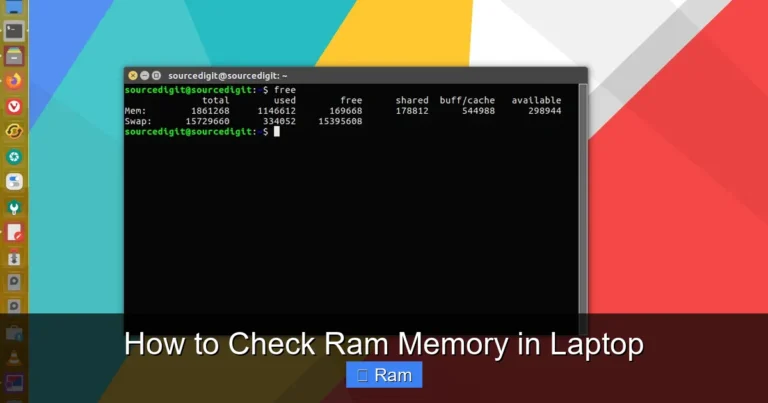
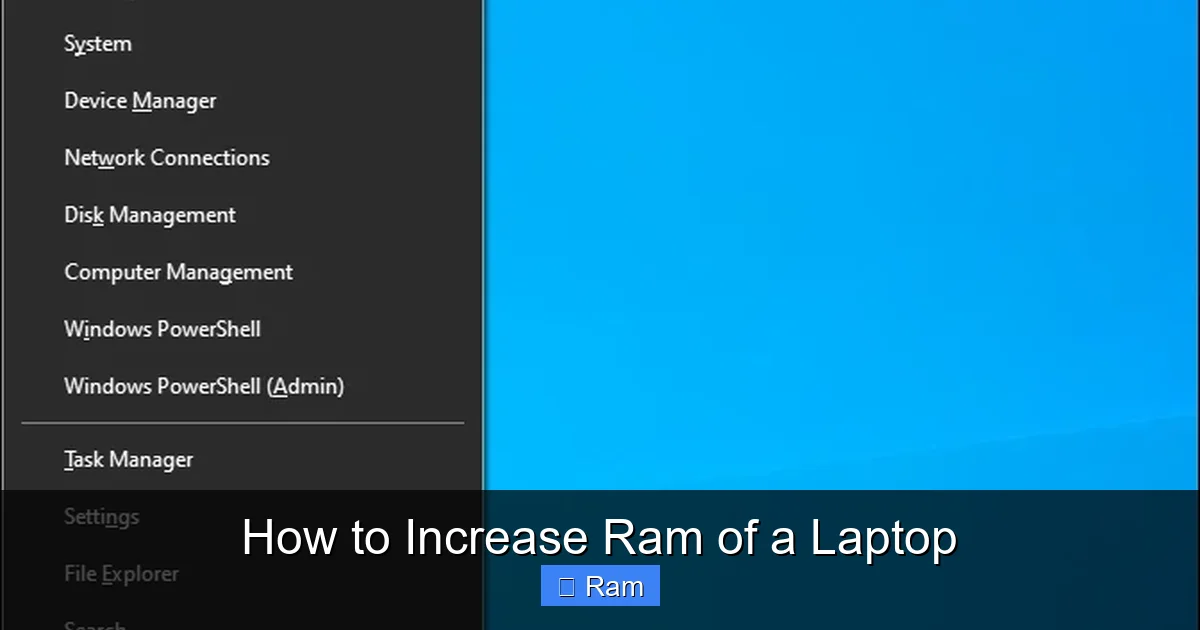
Free utilities like CPU-Z (Windows) or About This Mac → System Report → Memory (macOS) show the current RAM size, type, and how many slots are occupied. On Linux, run sudo dmidecode -t memory. These tools help you see if a free slot exists or if you need to replace existing modules.
2. Choosing the Right RAM Modules
2.1 Match the type and form factor
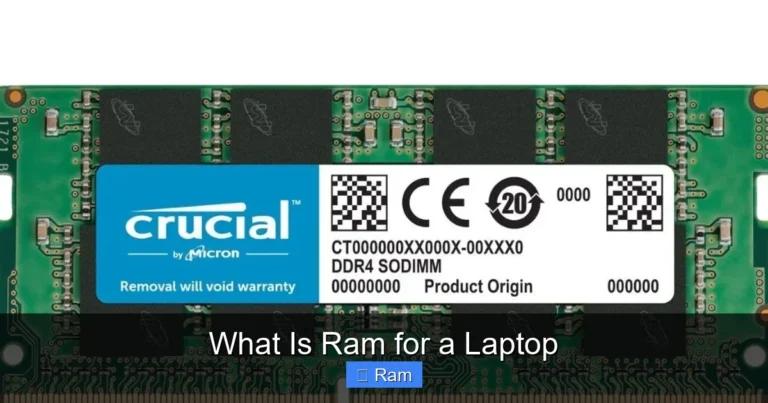
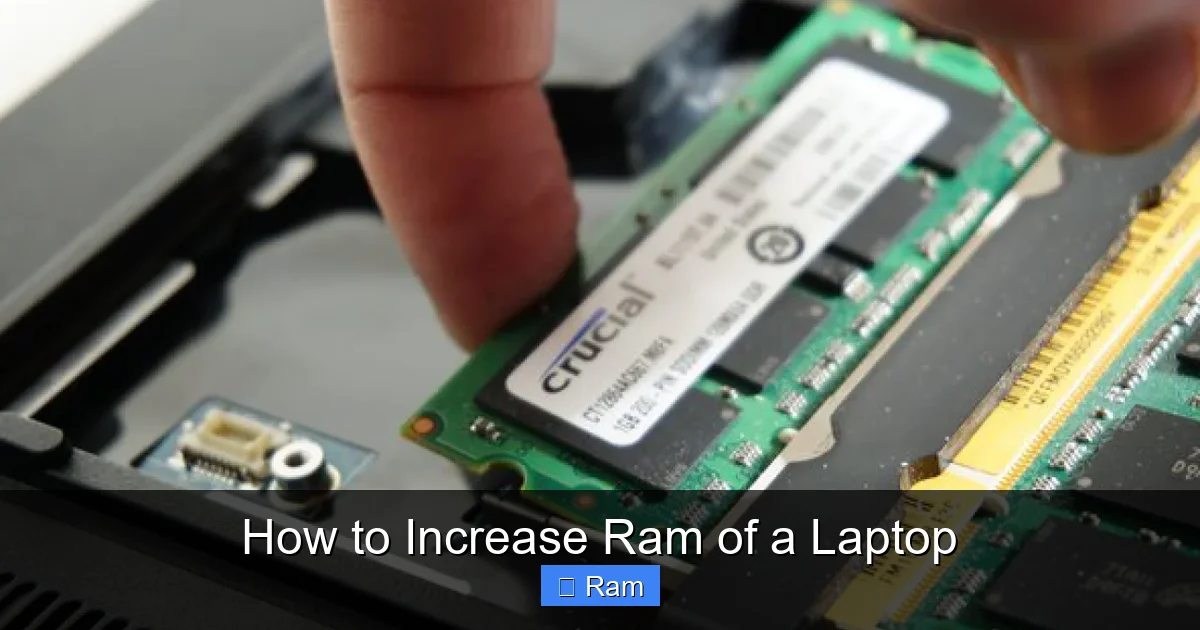
Desktop RAM uses a standard DIMM; laptops need the smaller SO-DIMM. Choose:
Visual guide about How to Increase Ram of a Laptop
Image source: i0.wp.com
- DDR4 SO‑DIMM for most laptops made after 2015.
- DDR3 SO‑DIMM for older models (2010‑2014).
- LPDDR4X for ultra‑thin ultrabooks, but these are often soldered and not replaceable.
2.2 Capacity and configuration
If you have two slots, a dual‑channel kit (e.g., 2 × 8 GB) is ideal. It lets the memory controller access both sticks simultaneously, roughly doubling bandwidth. If you only have one slot, a single high‑capacity stick (e.g., 16 GB) works.
2.3 Speed and latency
Higher MHz numbers (e.g., 3200 MHz) sound impressive, but the laptop will only run at the speed supported by the motherboard/CPU. Buying faster RAM than supported won’t hurt, but you won’t see a gain. Focus on low latency (CL‑16 vs. CL‑22) if speeds are equal.
2.4 Brand and warranty
Reputable brands—Crucial, Kingston, G.Skill, Corsair—offer limited‑lifetime warranties. Cheap no‑name sticks may cause instability, especially under heavy loads.
3. Preparing for the Upgrade
3.1 Gather tools
You’ll need:
Visual guide about How to Increase Ram of a Laptop
Image source: i0.wp.com
- Small Phillips #0 or #1 screwdriver
- Plastic pry tool (or an old credit card)
- Anti‑static wrist strap (optional but recommended)
- A clean, static‑free workspace
3.2 Power down and disconnect
Shut down the laptop completely—do not just “Sleep”. Unplug the power adapter, remove any external devices, and if possible, detach the battery. Many modern laptops have internal batteries; in that case, just keep the power cord unplugged.
3.3 Ground yourself
Static electricity can fry memory chips. Clip the wrist strap to a grounded metal object (the metal chassis of the laptop works). If you don’t have a strap, touch the laptop’s metal body frequently.
3.4 Locate the memory compartment
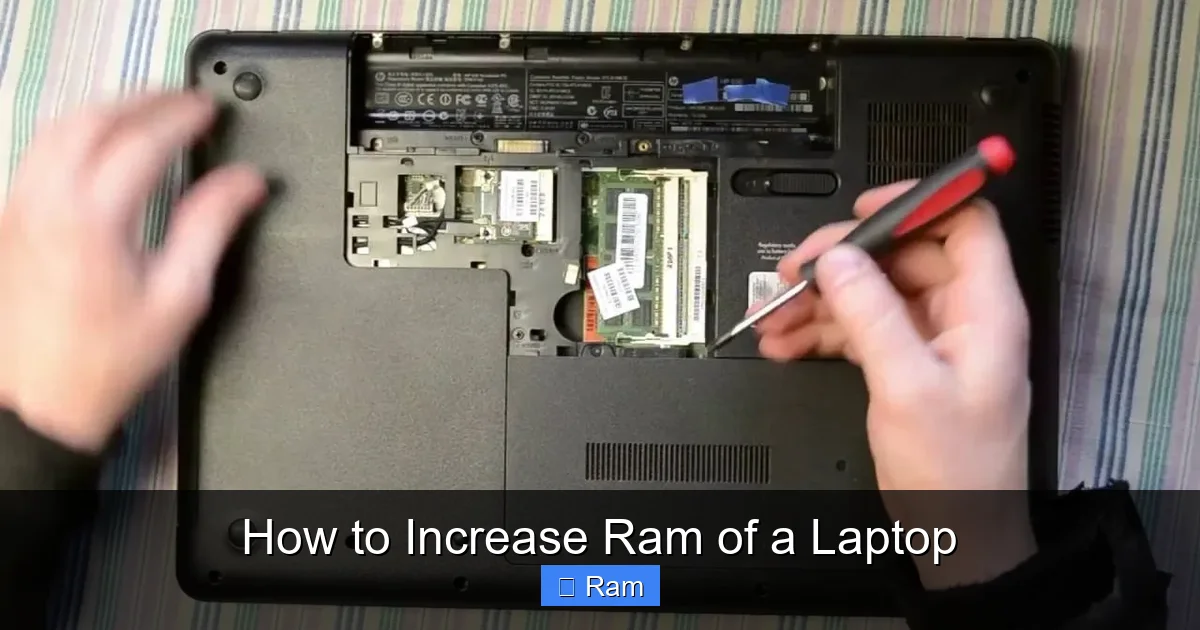
Most laptops have a dedicated panel on the underside held by 1‑4 screws. Some ultrabooks hide RAM under the entire bottom case, requiring you to remove the whole chassis. Refer to a service manual (often found on iFixit or the manufacturer site) for exact steps.
4. Installing the New RAM
4.1 Remove the old module (if needed)
Gently push the two retaining clips on either side of the module outward. The stick should pop up at an angle. Hold it by the edges and pull it straight out. Do not touch the gold contacts.
4.2 Align the new module
Notice the notch in the connector—it matches a key in the slot. Align the notch and insert the module at the same angle you removed the old one (usually about 30°). Press down firmly until the clips snap into place.
4.3 Double‑check seating
Give each end a slight wiggle. If it feels loose, reseat it. A properly seated stick sits flush with the surrounding metal and the clips should be fully engaged.
4.4 Reassemble
Replace the bottom panel, screw it back, re‑attach the battery (if removable), and plug the power cord back in.
5. Verifying the Upgrade
5.1 BIOS/UEFI check
Power on the laptop and immediately press the key to enter BIOS/UEFI (often F2, Del, or Esc). Look for a “Memory” or “System Information” screen. It should display the new total RAM amount.
5.2 Operating system confirmation
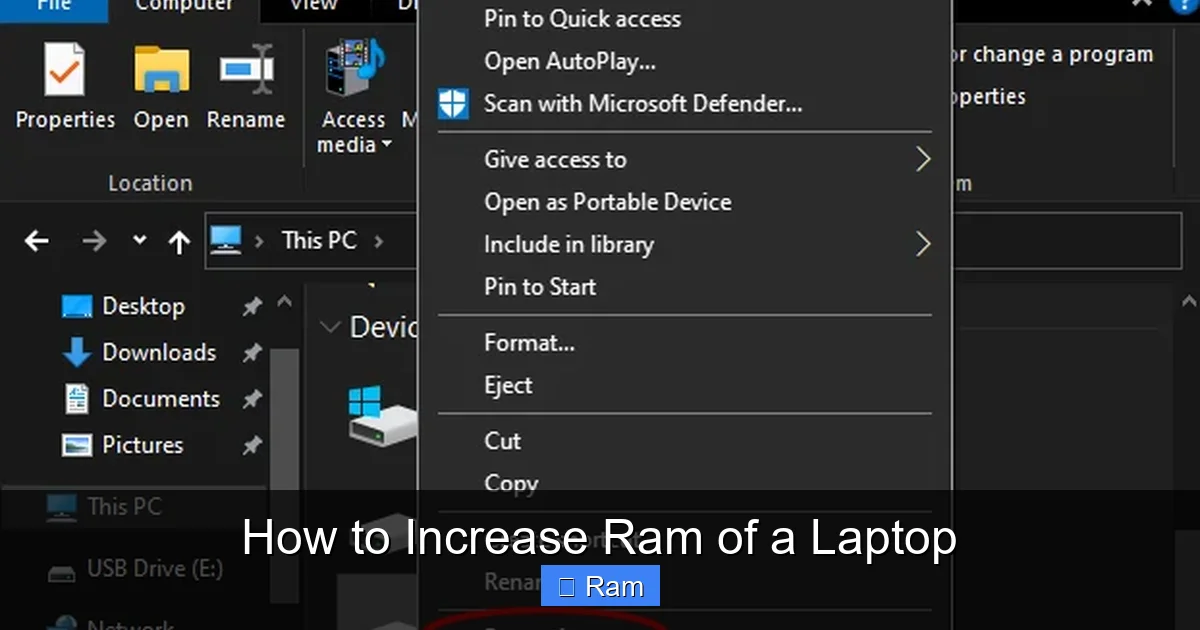
On Windows, right‑click “This PC” → “Properties”. On macOS, click Apple menu → “About This Mac”. On Linux, run free -h. All should show the upgraded size.
5.3 Run a memory test
Use MemTest86 (bootable USB) or the built‑in Windows Memory Diagnostic. Let it run at least one full pass; any errors mean the module is faulty or not seated properly.
5.4 Real‑world performance check
Open a few browser tabs, launch a game, or run a video editor. You should notice faster load times and smoother multitasking. If performance feels the same, double‑check that the OS is recognizing the full amount and that you’re running in dual‑channel mode (CPU‑Z can verify).
6. Troubleshooting Common Issues
6.1 Laptop won’t boot
Possible causes:
- Module not fully seated – reseat it.
- Incompatible speed – try a slower‑rated stick.
- BIOS needs an update – download the latest firmware from the manufacturer.
6.2 Only half the RAM is recognized
This often means one slot is faulty or the module is mismatched. Test each stick individually in each slot to isolate the problem.
6.3 Random crashes or blue screens
Run MemTest86 for an extended period. Errors point to a defective module. Replace it under warranty.
6.4 Laptop reports “Memory Type Not Supported”
Make sure you bought the exact type (DDR3 vs. DDR4). Some older laptops cannot run DDR4, and vice versa.
Conclusion: A Simple Upgrade, Big Gains
Increasing the RAM of a laptop is one of the most cost‑effective ways to extend its useful life. By following the steps above—checking compatibility, picking the right sticks, installing with care, and verifying the result—you can enjoy smoother multitasking, quicker app launches, and better gaming performance without breaking the bank. Remember to keep your system backed up, stay grounded, and enjoy the speed boost!
Frequently Asked Questions
Can I upgrade the RAM on any laptop?
Most laptops with removable memory modules can be upgraded, but ultrabooks and some thin‑and‑light models have soldered RAM that cannot be changed.
Do I need to match the brand of RAM with my existing stick?
No, you don’t have to match brands, but matching speed, type, and latency helps ensure stable dual‑channel performance.
Will adding more RAM make my laptop run faster for everything?
It speeds up tasks that rely on memory—multitasking, browsers, video editing, and games. It won’t make a slow CPU or old SSD magically fast.
Is it safe to upgrade RAM while the laptop is still under warranty?
Most manufacturers allow memory upgrades and won’t void the warranty, as long as you don’t damage other components. Check the warranty terms to be sure.
How much RAM do I really need for gaming?
Modern games run well with 16 GB of RAM. Some older or less demanding titles are fine with 8 GB, but 16 GB provides headroom for background apps.
What should I do if the laptop freezes after the upgrade?
First, reseat the modules. If the problem persists, run a memory diagnostic to check for errors, and verify that the BIOS is up to date.