Does Logitech Make a Mouse with Usb C
Yes, Logitech does make mice with USB-C connectivity. The company offers several models that use a USB-C port for charging, data transfer, or both. Whether you need a wireless Logitech mouse for work or a compact travel option, Logitech has a USB-C mouse that fits your needs.
If you have been shopping for a new Logitech mouse, you may have noticed that many newer models use USB-C instead of the older USB-A or micro-USB ports. This raises a simple question: does Logitech make a mouse with USB-C? The short answer is yes. Logitech has embraced USB-C across a wide range of its mouse lineup. From the premium MX Master series to compact travel-friendly options, USB-C connectivity is now a standard feature in many Logitech mice.
USB-C has become the go-to connector for modern laptops, tablets, and peripherals. It is smaller, reversible, and supports faster data transfer and charging. For anyone who uses a laptop without a built-in trackpad or needs a more precise pointing device, a Logitech USB-C mouse is a smart choice. In this guide, we will walk you through everything you need to know about Logitech mice with USB-C. We will cover the models available, how they work, and tips for choosing the right one.
Key Takeaways
- Logitech offers multiple mice with USB-C: Several models in their lineup use USB-C for charging and connectivity.
- USB-C mice offer faster charging: You can power up your mouse much quicker than with older micro-USB options.
- Both wireless and wired options exist: Logitech makes USB-C mice that connect via Bluetooth or a USB-C dongle.
- The Logitech MX Master series leads the way: These premium mice feature USB-C and advanced ergonomic design.
- Compatibility matters: Always check if your laptop or device supports USB-C before buying.
- Setup is simple: Connecting a Logitech USB-C mouse takes just a few minutes.
📑 Table of Contents
- Why USB-C Matters for Computer Mice
- Logitech Mice With USB-C: The Full Lineup
- How to Connect a Logitech USB-C Mouse
- Benefits of Choosing a Logitech USB-C Mouse
- How to Choose the Right Logitech USB-C Mouse
- Common Mistakes to Avoid
- Expert Tips for Getting the Most Out of Your Logitech USB-C Mouse
- Final Thoughts
Why USB-C Matters for Computer Mice
Before we dive into specific models, it helps to understand why USB-C has become so important in the world of computer accessories. The old USB-A and micro-USB connectors had limitations. They were bulky, easy to plug in the wrong way, and charged devices slowly. USB-C fixes all of these problems.
Faster Charging
A USB-C mouse can charge much faster than one using a micro-USB cable. Some Logitech models go from empty to full in under two hours. This means less downtime and more productivity. If you hate waiting for your rechargeable mouse to power up, USB-C is a game changer.
Universal Compatibility
Most modern laptops now come with USB-C ports. This includes MacBook, Dell XPS, HP Spectre, and many others. Having a mouse that uses the same connector as your laptop means you only need to carry one cable. It also cuts down on cable clutter on your desk. This is especially helpful if you use a laptop desk with mouse pad setup.
Reversible Connector
Everyone has flipped a USB plug a few times before getting it right. USB-C connectors are reversible, so there is no wrong way to plug them in. This small design detail makes a big difference in daily use.
Logitech Mice With USB-C: The Full Lineup
Logitech has several mice that feature USB-C connectivity. These range from productivity-focused models to gaming-oriented options. Here is a closer look at the most popular ones.
Logitech MX Master 3S
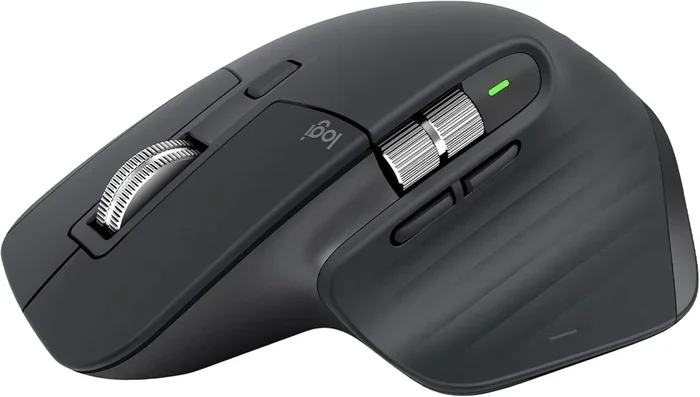
The MX Master 3S is one of Logitech’s most popular mice. It features a USB-C charging port and delivers up to 70 days of battery life on a single charge. The ergonomic design fits comfortably in your hand, and the scroll wheel is incredibly smooth. It connects via Bluetooth or through the Logitech Unifying Receiver.
This mouse is ideal for professionals who spend long hours working on a laptop or desktop. The Logitech Options software lets you customize buttons, scroll speeds, and gestures. If you want the best Logitech wireless mouse with USB-C, the MX Master 3S is a top pick.
Logitech MX Anywhere 3S
The MX Anywhere 3S is a more compact version of the MX Master 3S. It also uses USB-C charging and offers up to 70 days of battery life. This mouse works on almost any surface, including glass. It is a great choice for people who travel frequently or work from multiple locations.
The MX Anywhere 3S connects via Bluetooth or a USB receiver. It is small enough to fit in a laptop bag without taking up much space. For those who need a reliable mouse for a laptop computer, this model delivers excellent value.
Logitech Pebble Combo
The Logitech Pebble Combo is a budget-friendly option that includes a keyboard and mouse set. The mouse uses USB-C for charging and connects via Bluetooth. It has a slim, minimalist design that looks great on any desk. While it is not as feature-rich as the MX series, it is a solid choice for everyday use.
The Pebble Combo is perfect for students or anyone who wants a simple, affordable setup. If you are looking for a basic mouse for laptop that charges via USB-C, this is worth considering.
Logitech G Pro X Superlight
For gamers, Logitech offers the G Pro X Superlight, which uses USB-C for charging. This wireless gaming mouse is lightweight and delivers top-tier performance. It connects via Logitech’s LIGHTSPEED wireless technology, which offers ultra-low latency.
The G Pro X Superlight is not just for gaming. Many professionals also use it because of its precision and speed. If you need a mouse for laptop gaming or competitive play, this model stands out.
How to Connect a Logitech USB-C Mouse
Setting up a Logitech USB-C mouse is straightforward. Whether you are using a wireless or wired connection, the process is simple and fast.
Connecting via Bluetooth
Most Logitech USB-C mice support Bluetooth connectivity. Here is how to pair one with your laptop:
- Turn on the mouse and put it in pairing mode. Usually, you hold down the Bluetooth button for a few seconds.
- On your laptop, open the Bluetooth settings. On Windows, go to Settings > Bluetooth & Devices. On macOS, go to System Settings > Bluetooth.
- Select your Logitech mouse from the list of available devices.
- Wait for the connection to establish. You should see a confirmation message.
Once paired, your mouse will connect automatically whenever Bluetooth is turned on. For a detailed walkthrough of connecting wireless Logitech mice, check out our guide on How To Connect A Wireless Logitech Mouse To A Laptop.
Connecting via USB-C Dongle
Some Logitech mice come with a small USB receiver, also called a Unifying Receiver. Here is how to use it:
- Plug the USB receiver into a USB-C port on your laptop. You may need a USB-C to USB-A adapter if your laptop does not have a USB-C port.
- Turn on the mouse.
- The mouse should connect automatically within a few seconds.
If you need help with the setup process, our article on How To Connect A Logitech Mouse To A Laptop provides step-by-step instructions for all Logitech models.
Using a USB-C Cable Directly
You can also use your Logitech mouse in wired mode by connecting it directly to your laptop with a USB-C cable. This is useful when you want a stable connection without battery concerns. Simply plug one end of the cable into the mouse and the other end into your laptop. The mouse will work immediately.
Benefits of Choosing a Logitech USB-C Mouse
There are many reasons to choose a Logitech mouse with USB-C. Here are the biggest advantages:
- One cable for everything: You can use the same USB-C cable to charge your mouse, phone, and other devices. This reduces the number of cables you need to carry.
- Future-proof design: USB-C is the standard for modern devices. Buying a USB-C mouse means you will not need to replace it when older connectors become obsolete.
- Faster data transfer: USB-C supports faster data speeds, which means smoother cursor movement and less input lag.
- Sleeker design: The smaller USB-C port allows Logitech to make thinner, more portable mice. This is great for people who carry their mouse for laptop on the go.
- Longer battery life: USB-C fast charging means less time tethered to a charger and more time working or playing.
How to Choose the Right Logitech USB-C Mouse
With so many options available, picking the right Logitech USB-C mouse can feel overwhelming. Here are the key factors to consider.
Consider Your Use Case
Think about how you will use the mouse. If you work long hours at a desk, an ergonomic model like the MX Master 3S is ideal. If you travel often, a compact mouse like the MX Anywhere 3S works better. For gaming, the G Pro X Superlight offers the performance you need.
Check Your Laptop Ports
Make sure your laptop has a USB-C port. Most laptops made after 2018 support USB-C, but some older or budget models may not. If your laptop only has USB-A ports, you can still use a USB-C mouse with an adapter. Just keep in mind that you will need to carry the adapter with you.
Battery Life
Battery life varies across Logitech models. The MX Master 3S and MX Anywhere 3S both offer up to 70 days of use on a single charge. The Pebble Combo mouse lasts around 12 months on a single AAA battery, but the version with USB-C charging offers several weeks of use per charge. For heavy users, longer battery life means fewer charging interruptions.
Connectivity Options
Some Logitech USB-C mice connect only via Bluetooth, while others support both Bluetooth and a USB receiver. If you use multiple devices, a mouse that supports multi-device pairing is a great investment. You can switch between your laptop, tablet, and desktop with the press of a button.
Common Mistakes to Avoid
When buying or using a Logitech USB-C mouse, there are a few common mistakes to watch out for:
- Buying the wrong cable: Not all USB-C cables are the same. Make sure you use a high-quality cable that supports data transfer and charging. A cheap cable may only charge the mouse but not transfer data.
- Ignoring driver software: Logitech’s Logitech Options and Logitech G HUB software unlock advanced features. Skipping the installation means you miss out on customization options.
- Forgetting to charge: Even though USB-C charging is fast, you still need to keep your mouse charged. Make it a habit to plug it in overnight.
- Using the wrong port: Some laptops have USB-C ports that only support charging, not data. Always check your laptop specifications to ensure the port supports peripheral connections.
Expert Tips for Getting the Most Out of Your Logitech USB-C Mouse
Here are some pro tips to help you get the best experience from your Logitech USB-C mouse:
- Keep your firmware updated: Logitech regularly releases firmware updates that improve performance and fix bugs. Use the Logitech Options or G HUB software to check for updates.
- Use a quality mouse pad: A good mouse pad for laptop improves tracking accuracy and protects your desk surface. It also makes your USB-C mouse feel more responsive.
- Clean the USB-C port regularly: Dust and debris can build up in the USB-C port over time. Use a soft brush or compressed air to keep it clean.
- Pair with a USB-C hub: If your laptop has limited ports, a USB-C hub can expand your connectivity options. This lets you connect your mouse, external drive, and other peripherals all at once.
Final Thoughts
So, does Logitech make a mouse with USB-C? Absolutely. The company has a strong lineup of USB-C mice that cater to different needs and budgets. From the premium MX Master 3S to the compact MX Anywhere 3S and the gaming-focused G Pro X Superlight, there is a Logitech USB-C mouse for everyone. The shift to USB-C brings faster charging, better compatibility, and a cleaner, more modern design.
If you are in the market for a new mouse for your laptop, a Logitech USB-C model is a smart investment. These mice offer reliability, comfort, and long-lasting performance. They work seamlessly with modern laptops and integrate easily into any workspace setup. Whether you are working from home, studying at university, or gaming on the go, a Logitech USB-C mouse will serve you well.
Take your time to compare the models, check your laptop compatibility, and pick the one that fits your workflow best. With the right Logitech USB-C mouse, you will enjoy a smoother, more efficient computing experience every single day.
Frequently Asked Questions
Does Logitech still make mice with USB-A connectors?
Yes, Logitech still offers mice with USB-A connectors. However, the company is gradually shifting toward USB-C across its product lineup. If you need a USB-A mouse, Logitech has options available. But for future-proofing, a USB-C model is the better long-term choice.
Can I use any USB-C cable with my Logitech mouse?
Most standard USB-C cables will work for charging and data transfer. However, for the best results, use a high-quality cable that supports data transfer. Some cheap cables only support charging and may not work properly with your mouse.
How long does it take to charge a Logitech USB-C mouse?
Charging times vary by model. The MX Master 3S takes about 2 to 3 hours to fully charge from empty. Most Logitech USB-C mice charge much faster than older models with micro-USB. A quick 10-minute charge can also give you several hours of use.
Can I connect a Logitech USB-C mouse to a tablet or phone?
Yes, many Logitech USB-C mice support Bluetooth connectivity, which means they can pair with tablets and smartphones. Check the specific model’s compatibility before purchasing. This is especially useful if you use a tablet as your primary device.
Is a Logitech USB-C mouse better than a Bluetooth mouse?
A Logitech USB-C mouse is not necessarily better than a Bluetooth mouse. The USB-C port mainly affects charging and wired connectivity. Many Logitech USB-C mice also support Bluetooth. The choice depends on your preference for wired vs. wireless use and charging convenience.
What should I do if my Logitech USB-C mouse stops working?
First, try unplugging and replugging the USB-C cable or re-pairing the Bluetooth connection. Check if the mouse needs charging. You can also try resetting the mouse using the small reset button on the bottom. If the issue persists, visit the Logitech support page for troubleshooting steps or contact their customer service.